This document outlines how to elevate permissions on a Mac with Jamf Connect after an admin request has been granted.
Prerequisites
- The device and user must be authorized for Administrator Promotion by the Office of Information Technology.
- The device must have been built or enrolled by OIT after 08/20/2025. If your device was built or enrolled before this date, please contact the service desk about updating your device
- If you don't know if you have Jamf Connect, you can tell by your Mac login screen. If you see the UCCS sign in page, like the picture below, then the device has Jamf Connect.
- If you do not have Jamf Connect, you may be able to install it from the pre-installed Self-Service app. If neither Self-Service nor Jamf Connect are showing up, then the device will need to be brought to the Service Desk to reconnect it to our domain.
- The user must be logged in through or connected to Jamf Connect. This can be achieved by either:
- Signing-in through the Jamf Connect Login Window:

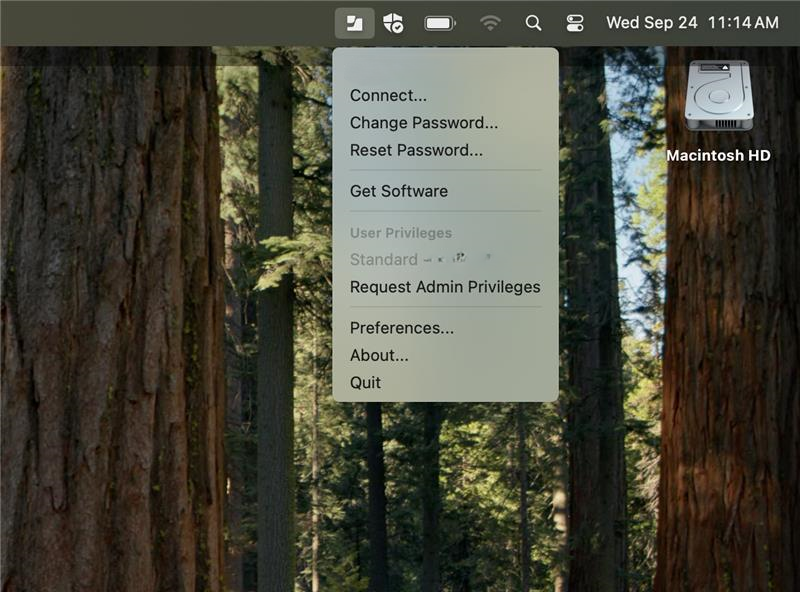
- Or selecting Connect from the Jamf Connect taskbar drop-down to sign-in with your UCCS email:
- Signing-in through the Jamf Connect Login Window:
Administrator Promotion Tool
After your admin request has been processed and resolved, your device should automatically download the Admin Promotion Tool, provided it's connected to a campus network/VPN. To use the Jamf Connect Administrator Promotion Tool:
- Ensure Jamf Connect is running in your taskbar. If not, open the Launchpad on your application menu and search for Jamf Connect:
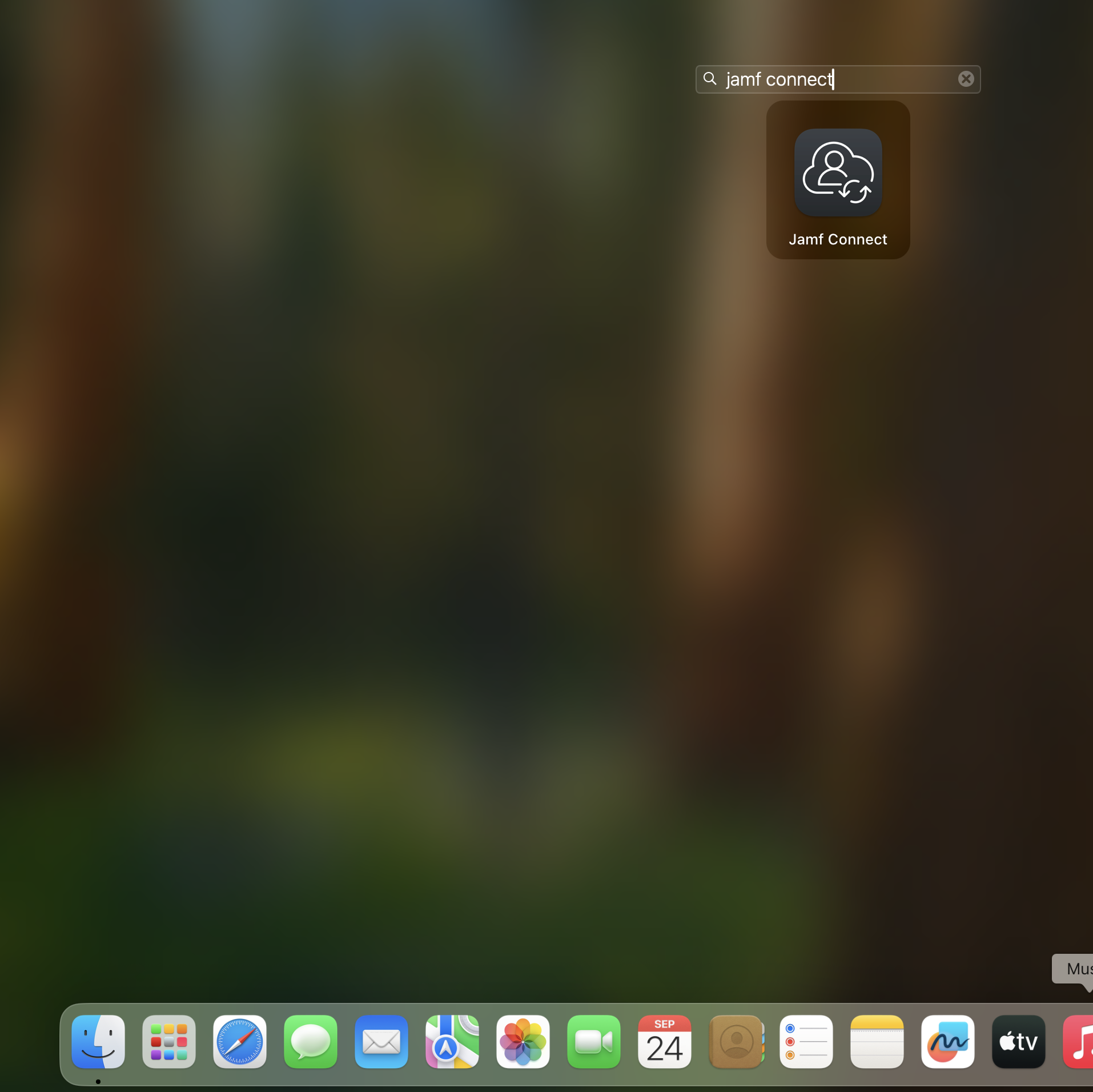
Then select the Jamf Connect application to run it in the taskbar. - Select the Jamf Connect taskbar icon to view its options:
- Select Request Admin Privileges from the drop-down. You must enter the reason for your Administrator Promotion; this is recorded for review by the OIT Security Office.
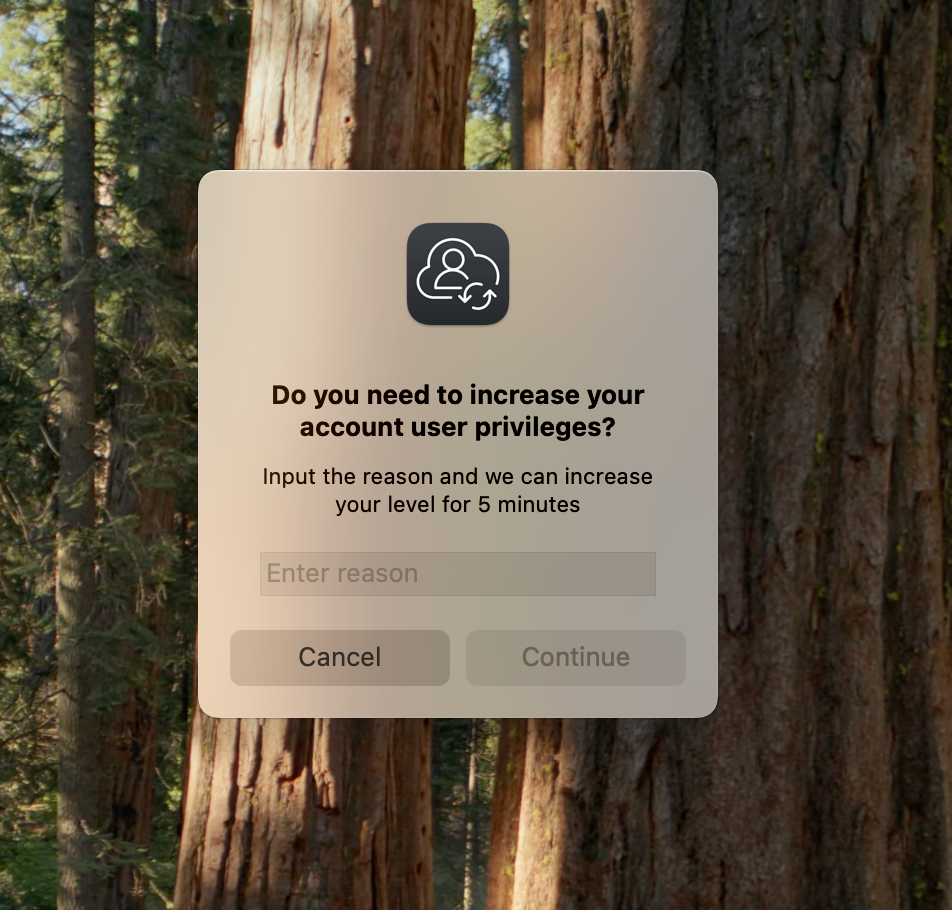
- Enter your reason and select Continue.
- Select Leave On if you would like more accurately timed notifications related to your Administrator Promotion:
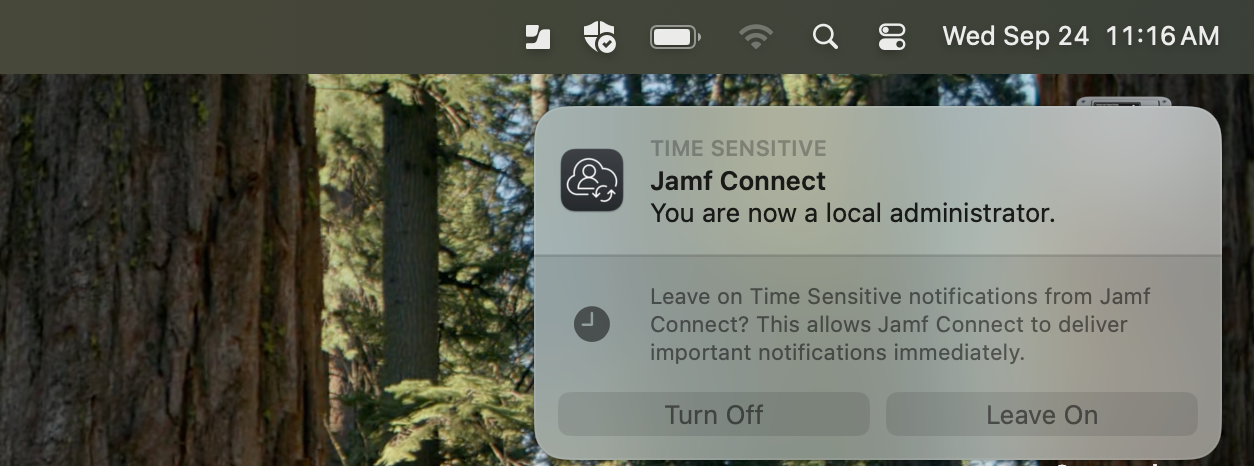
- A Jamf Connect notification will confirm you are now a local administrator:

- Since admin permissions are time limited, a Jamf Connect notification will also inform you when you are no longer a local administrator:
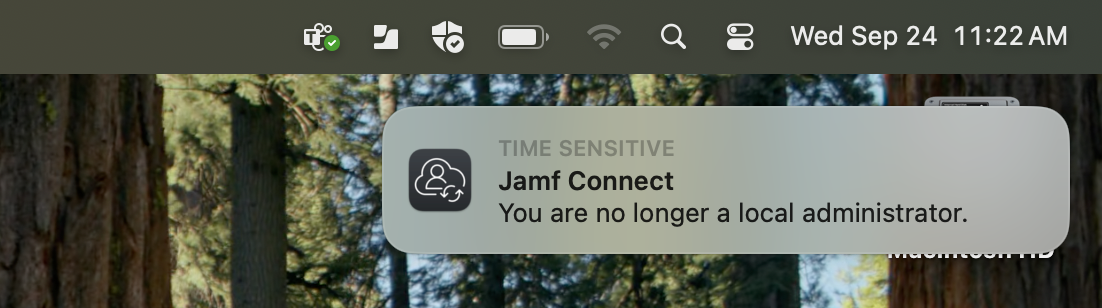
You may repeat this process to request local administrator permissions as often as needed.
Troubleshooting
"Request Admin Privileges" button not appearing
- Connect your device to a campus network or the VPN
- Ensure Jamf Connect is running in your taskbar. If not, open the Launchpad on your application menu and search for Jamf Connect:
"Jamf Connect wants to use your confidential information stored in "Jamf Connect" in your keychain"
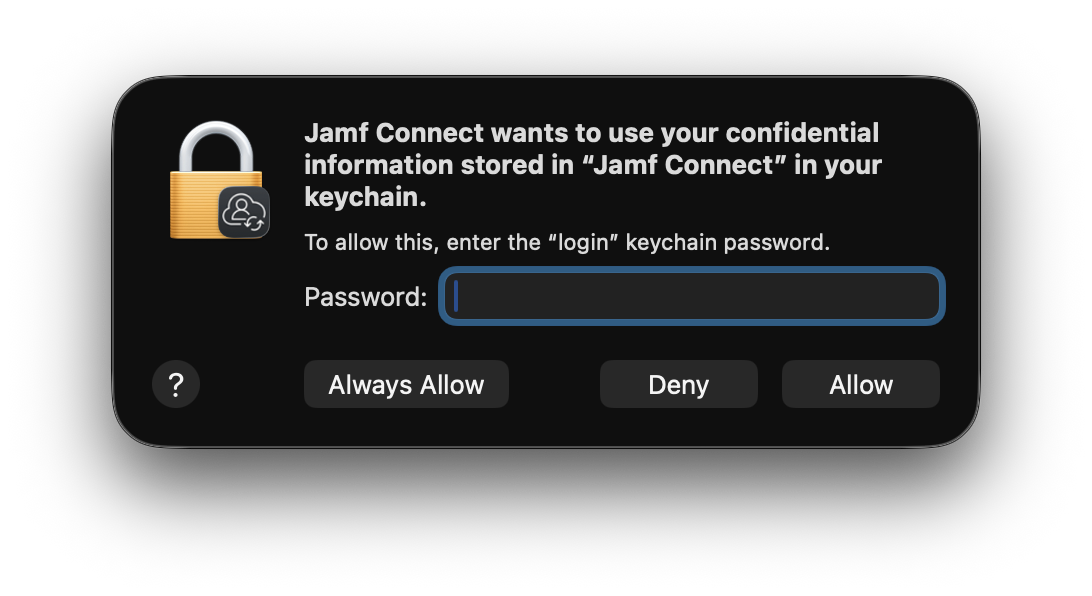
- This gives Jamf Connect the access it needs to mark your account as an administrator when you request it. If this occurs, just input the password you logged into the Mac with (usually your UCCS password) and click "Always Allow".
- If it prompts you again, follow the same process until the prompts disappear