Note Joining the eduroam wireless network requires you to meet either one of the two conditions below... If neither of the above apply to you, please visit the UCCS-Guest information page for information regarding guest wireless access.
.... or ....
Step 1: Getting to Settings
At the Start screen move your mouse to the top right corner to get the charms bar to appear, then click Settings.
Step 2: Opening Network Connections
Click on the Network button to bring up the list of wireless networks. It may appear as below, or it may say Available with the wifi bars icon. Alternate icon:
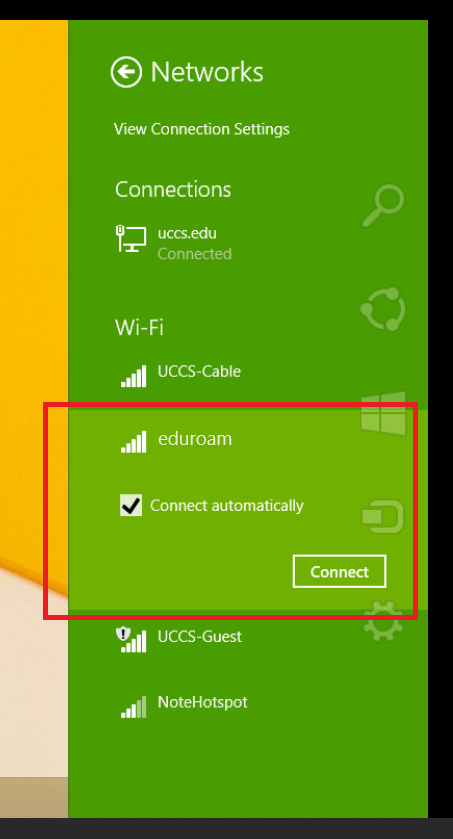
Step 3: Choose the eduroam wireless network
Select the eduroam network and click Connect
Step 4: Entering credentials
Enter your full domain username and password, then click OK to connect.
Your username must be in the form [email protected]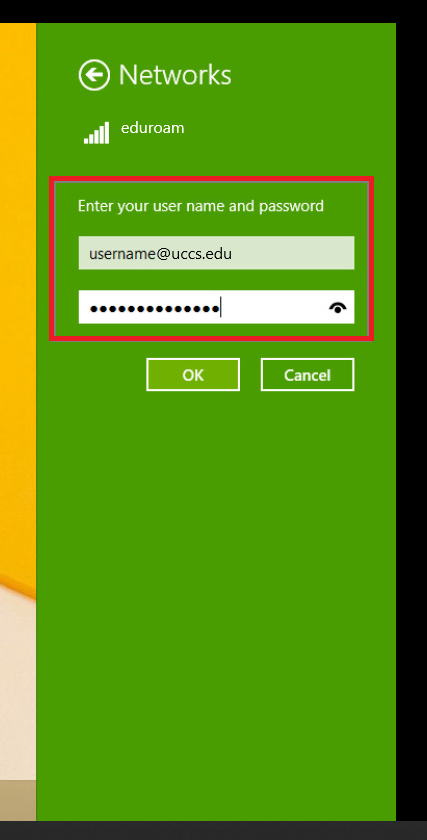
Step 5: Accepting security certificate
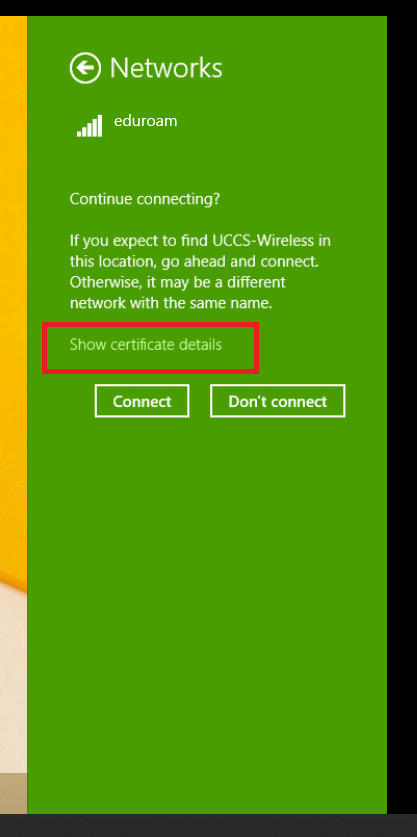
Click on Show Certificate Details and the server certificate thumbprint should be displayed. It should match the SHA-1 fingerprint listed below.
If the fingerprint matches, click Connect
CPPM Certificate Fingerprint (SHA-1) SHA-1: 36 88 97 DB 04 13 80 CE 84 1E BB 22 20 56 68 BF 92 F4 78 B4

Step 6: Verify connection
Your device should now be connected to eduroam.