| Table of Contents |
|---|
Step 1: Tap Settings
Tap the Settings icon to open up the device settings.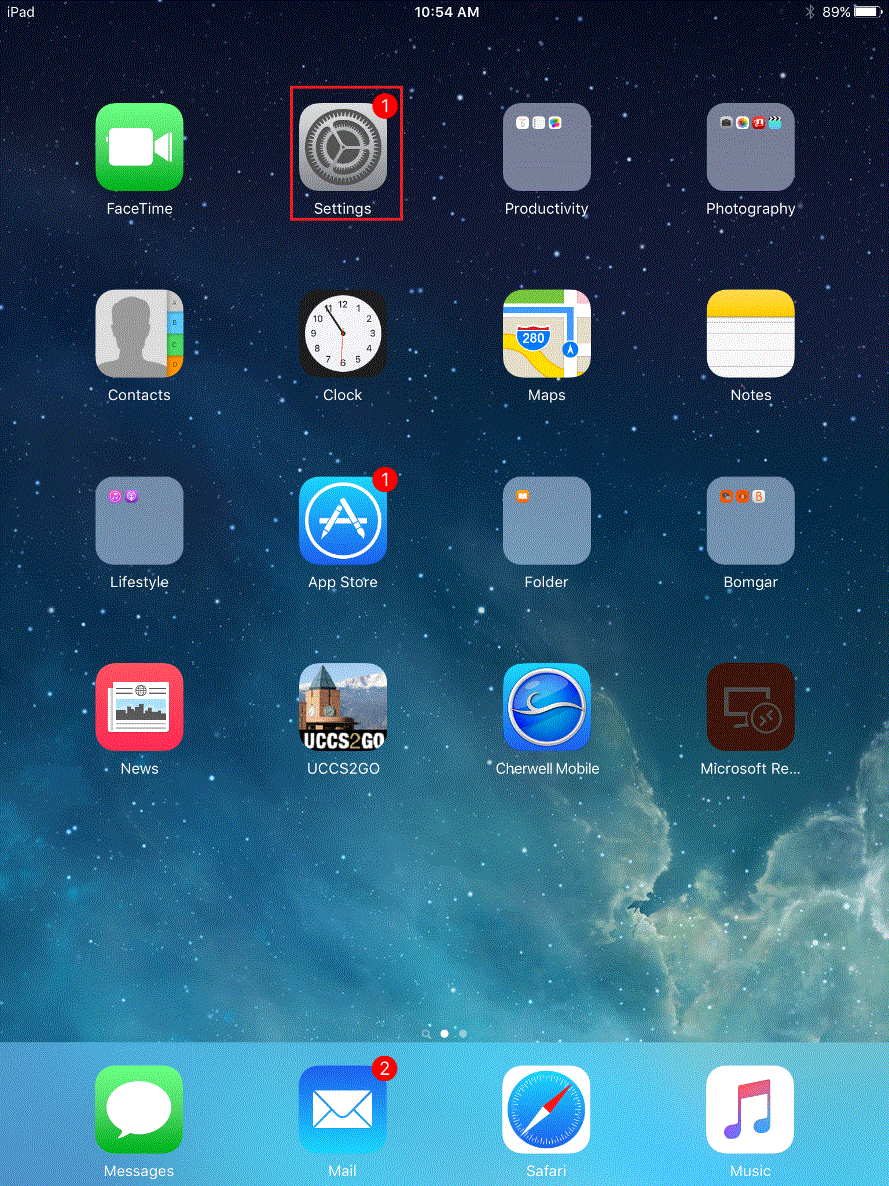
Step 2: Tap Wi-Fi
Tap the Wi-Fi option in the left bar menu.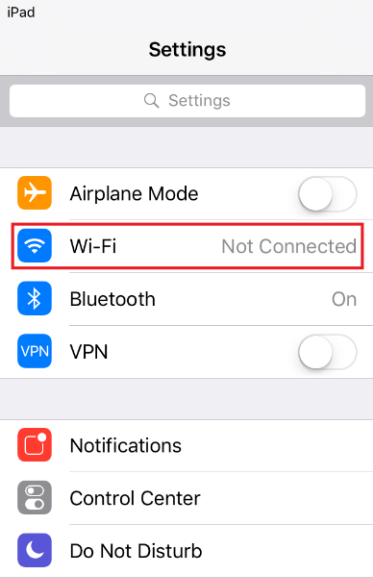
Step 3: Tap UCCS-Guest
Tap on the UCCS-Guest network to connect to the wireless network. After connecting a new page will open.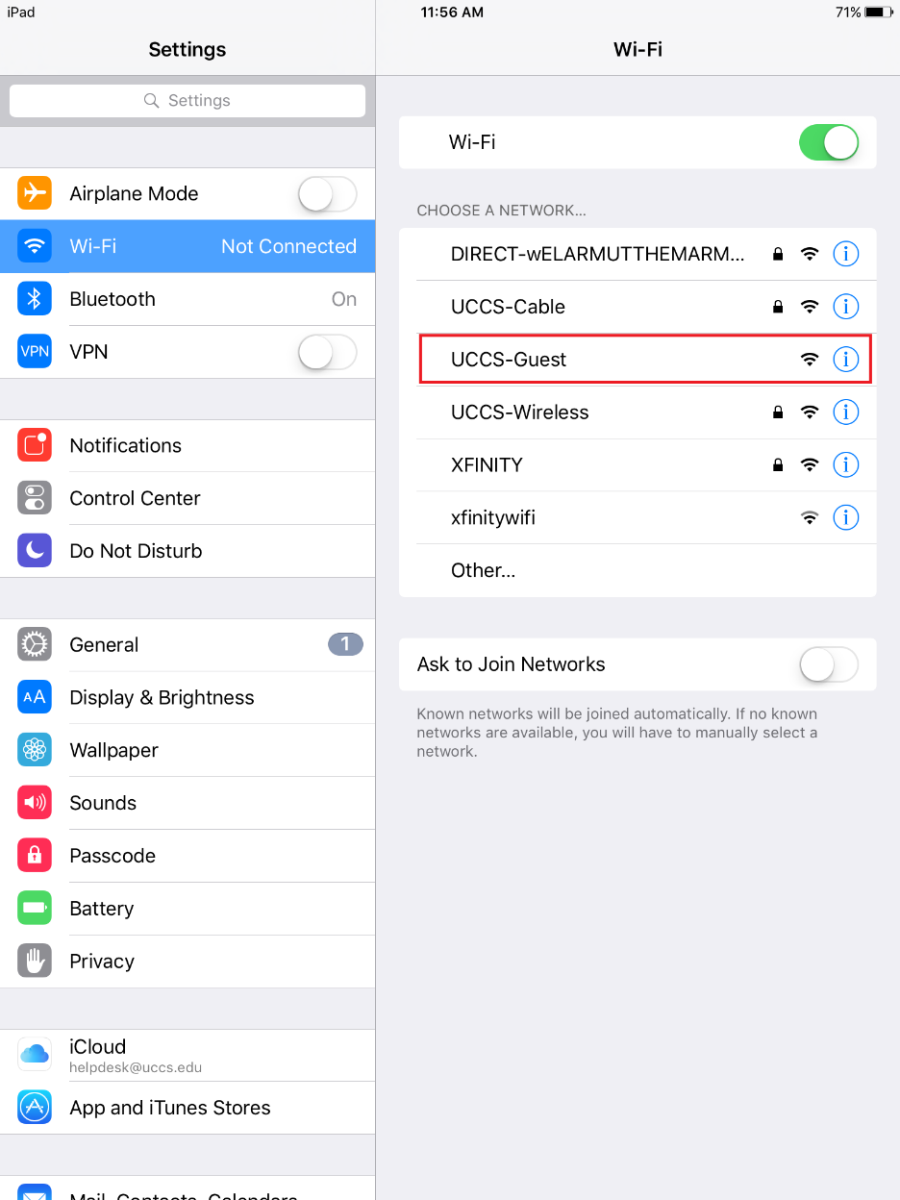
Step 4: Tap Create Guest Account
On the new page tap the Create Guest Account option under Guest Account.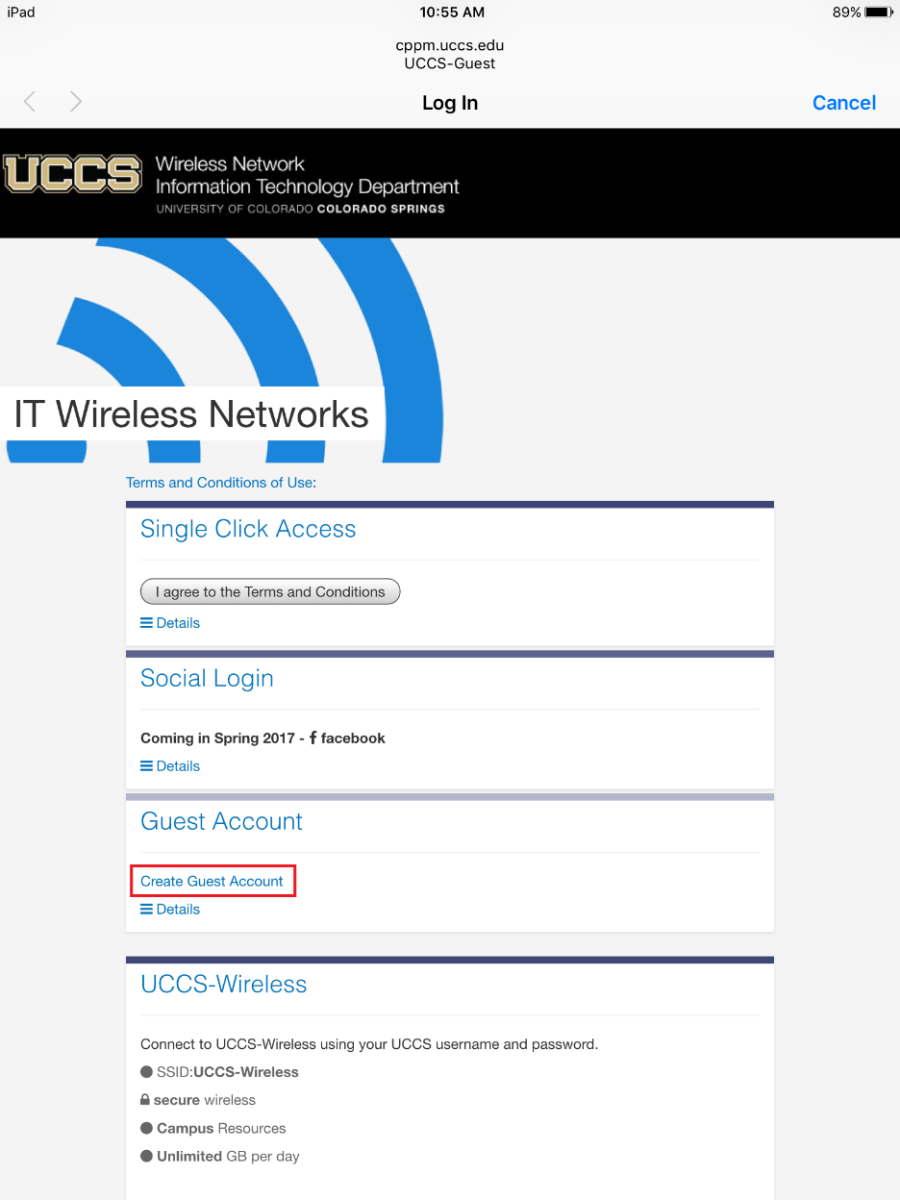
Step 5: Complete form and Register
Complete the form and then press the Register button at the bottom of the page.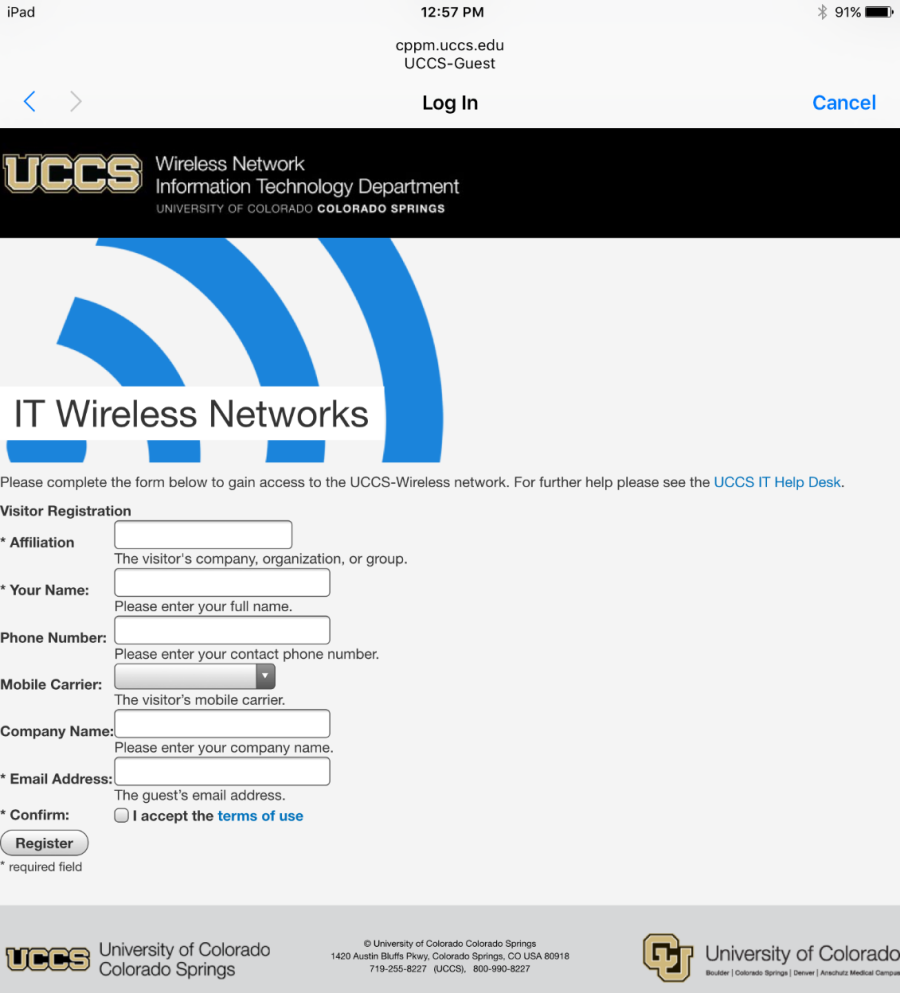
Step 6: Take Note of Login Information
Take note of your guest login credentials so you can use them to log into UCCS-Wireless.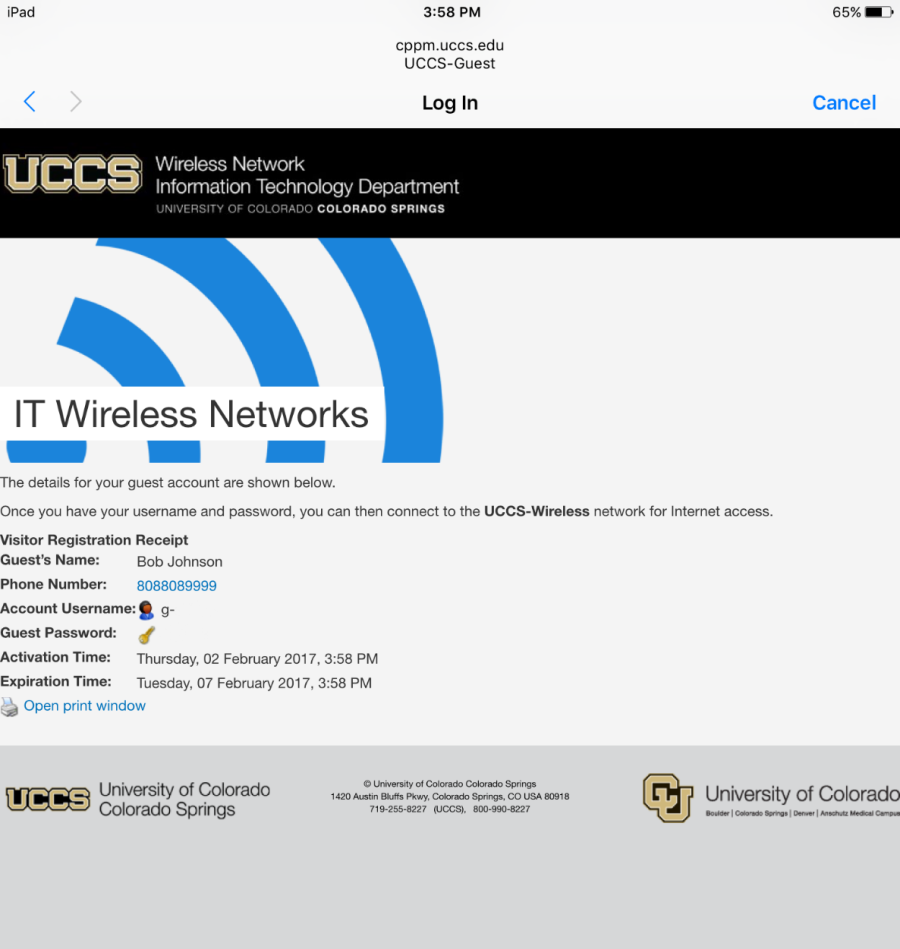
Step 7: Go back to the WiFi settings
Go back to the Wi-Fi settings to connect to UCCS-Wireless (same as steps 1 and steps 2)
Step 8: Tap UCCS-Wireless & Enter Guest Credentials
Tap on UCCS-Wireless and then enter the Guest Credentials.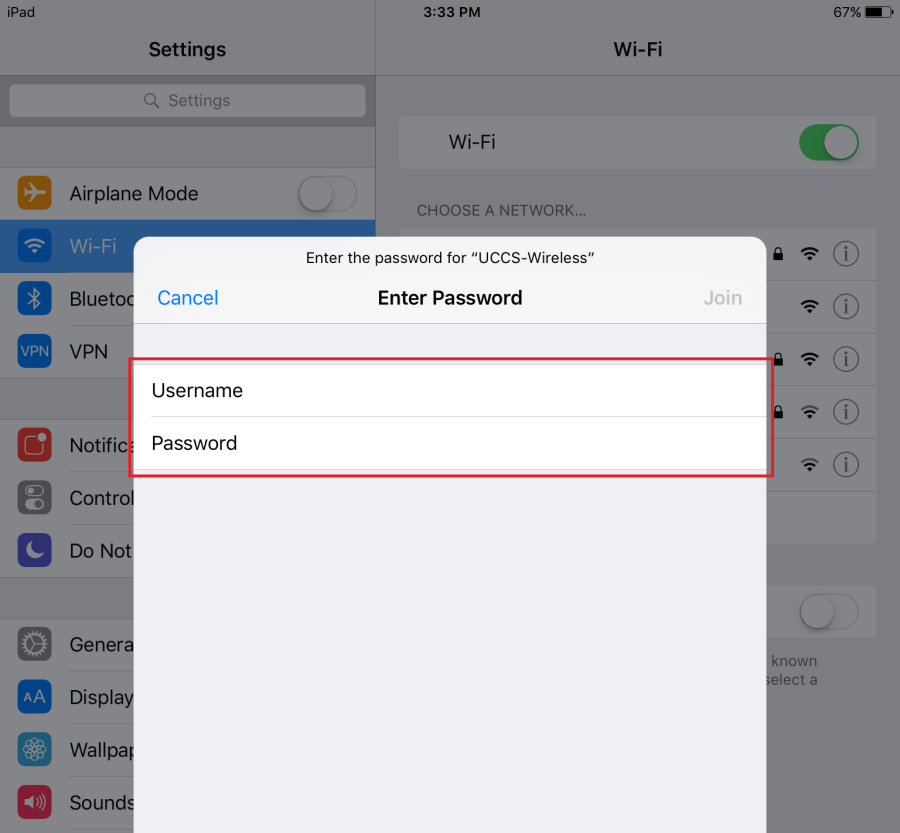
Step 9: If Prompted Trust Certificate
If you are prompted with the certificate for the network press Trust in the top right corner.
This tells your device to remember the network as a trusted network.
If you press cancel or close this window you will not be connected to UCCS-Wireless.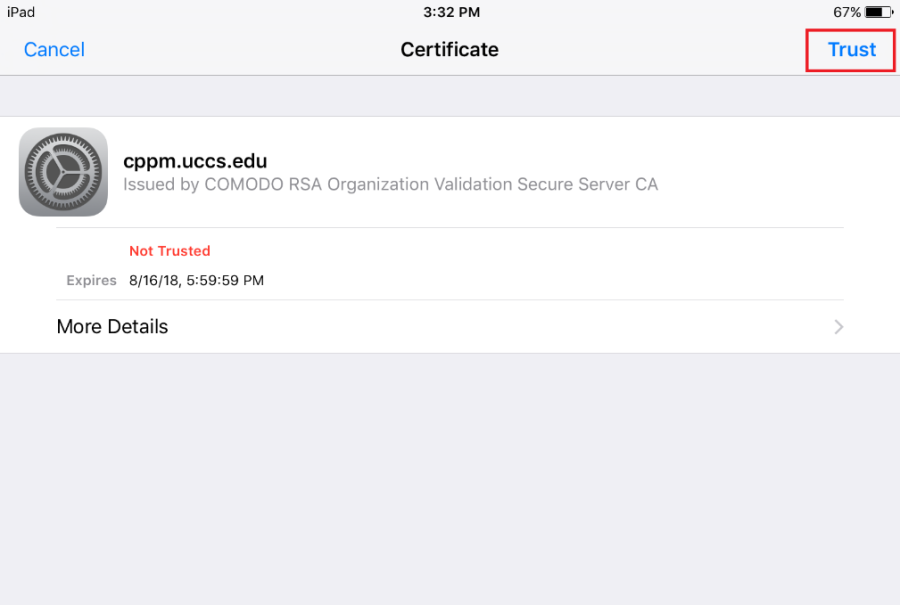
Step 10: Tap Done
Your phone will redirect you to the UCCS homepage. Tap Done in the top right corner to close this window. 
You are now connected to UCCS-Wireless with your guest account.