
...
In order to power off the system, simply leave the room. When the control panel's sensors no longer detect users in the room, and the device is no longer in use the devices' sleep timer will start. When this sleep timer finishes, the device along with the display will be turned off.
...
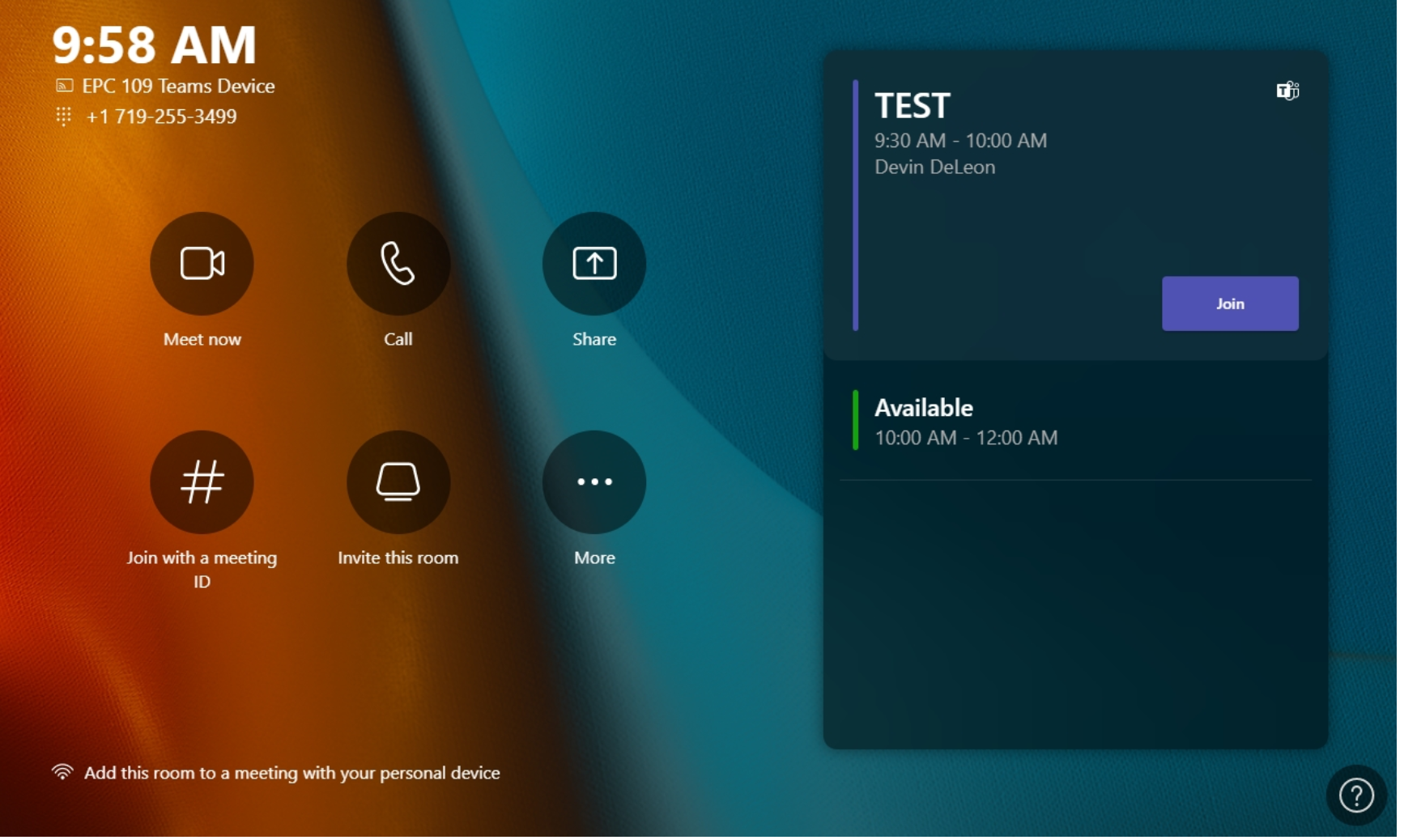
- First, ensure a Teams meeting invitation has been sent to the room's device (see steps above).
- On the device's control panel, you will notice a meeting tile(s) with a join button.
- If there is more than one meeting scheduled for the day, navigate up or down through the list to locate the desired meeting.
- The Meeting tiles will have basic information displayed for easier identification of the desired meeting.
- Once the desired meeting has been located, select the "Join" option on the corresponding meeting tile.
- This will join the Microsoft Teams Room device to the meeting room associated with the invitation.

| Info | ||
|---|---|---|
| ||
You may also join this meeting on your personal device while in the same room as the conferencing device. If this is done, please ensure to mute the microphone and speakers of your personal device before joining the meeting, as this will cause a feedback loop. |
...