| Excerpt Include | ||||||
|---|---|---|---|---|---|---|
|
Your iOS device will automatically find all Wi-Fi networks in range. On campus, you will see the UCCS Networks: UCCS-Wireless, eduroam and UCCS-Guest.
After successful connection, your device will remember the network and automatically connect when you are in range.
| Table of Contents | ||||||
|---|---|---|---|---|---|---|
|
Step 1:
...
Tap and open Settings


Step 2: Select Wi-Fi and enable Wi-Fi


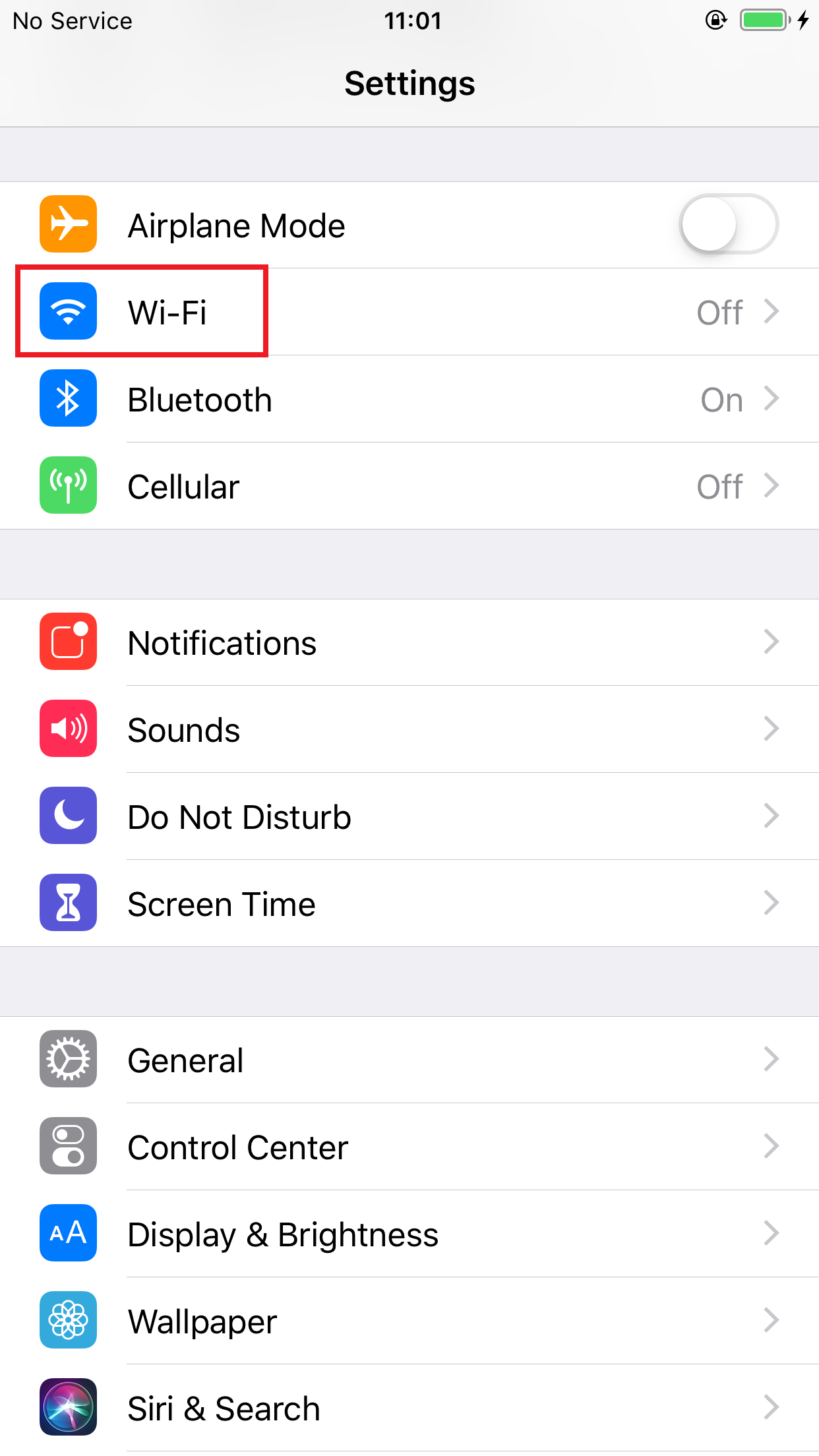
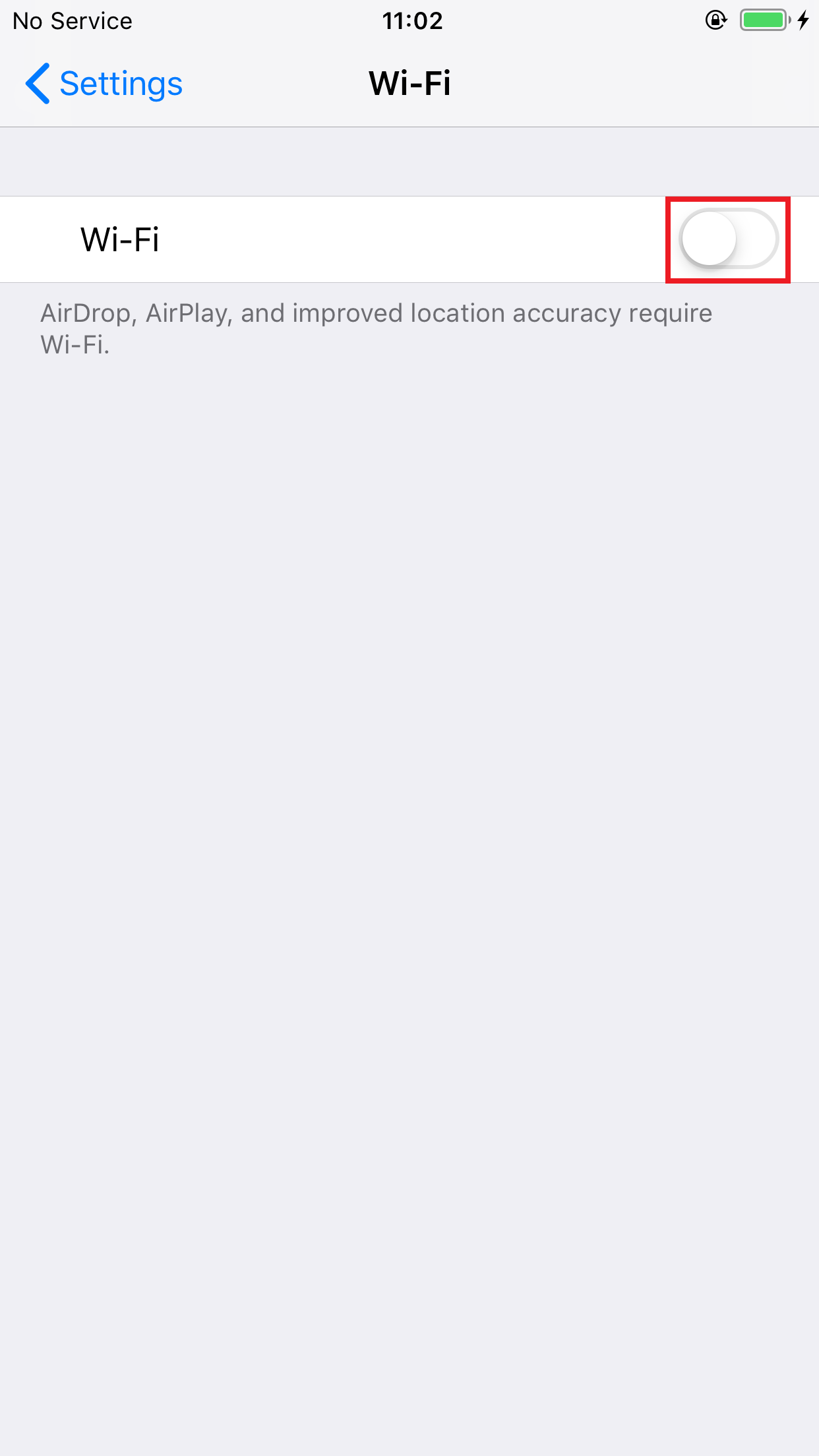
Step 3: Select the eduroam network
...

Step 4:
...
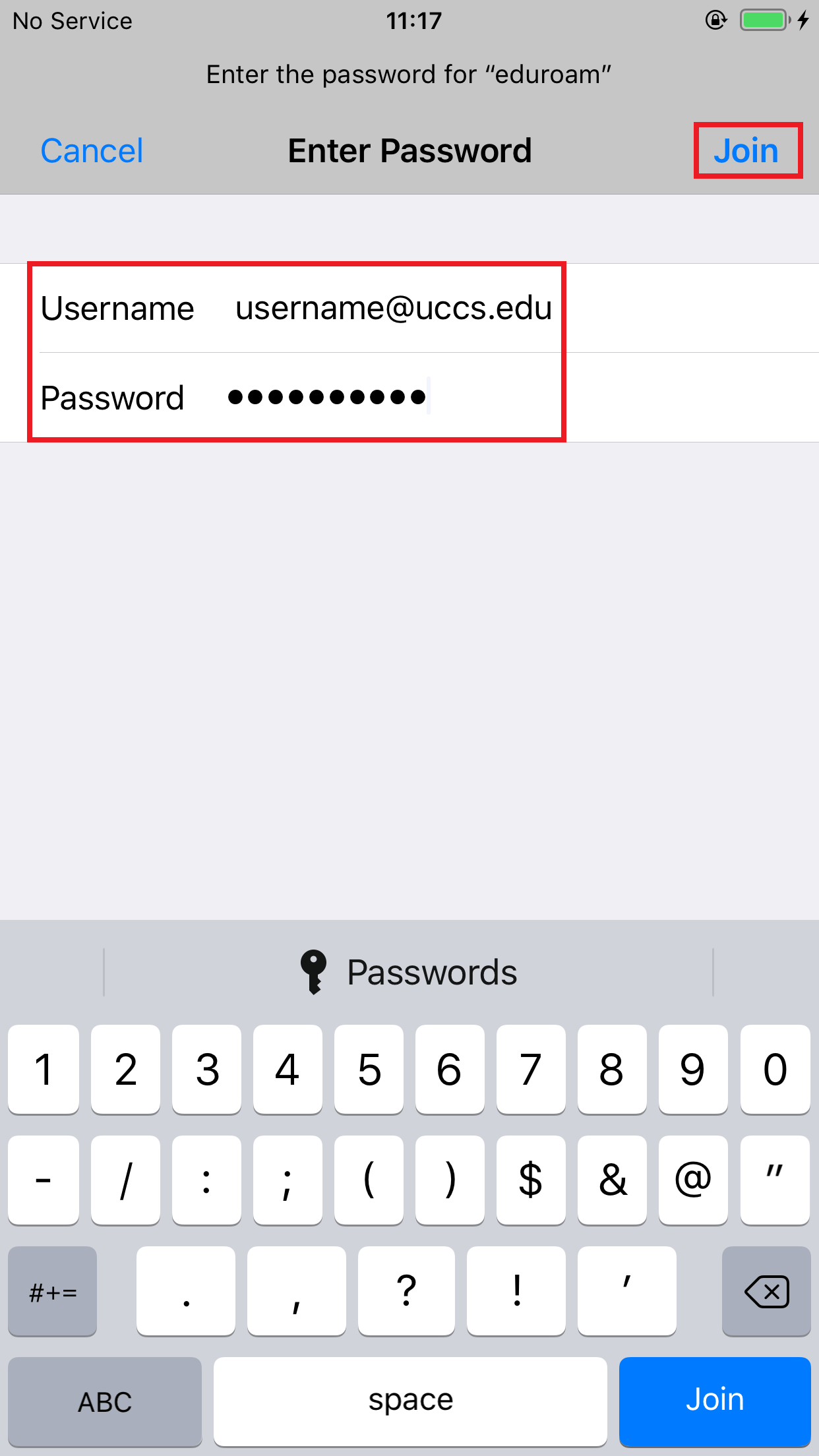
Enter your full domain username and password then tap Join
Enter your full domain username in the form [email protected] and your password, then tap Join
Step 5: Review security certificate
Note - the following refers to UCCS users who are joining eduroam either on the UCCS campus or at other eduroam institutions. For other eduroam guests on the UCCS campus from other eduroam institutions, you will want to make sure the certificate presented to you is from your home institution.

...
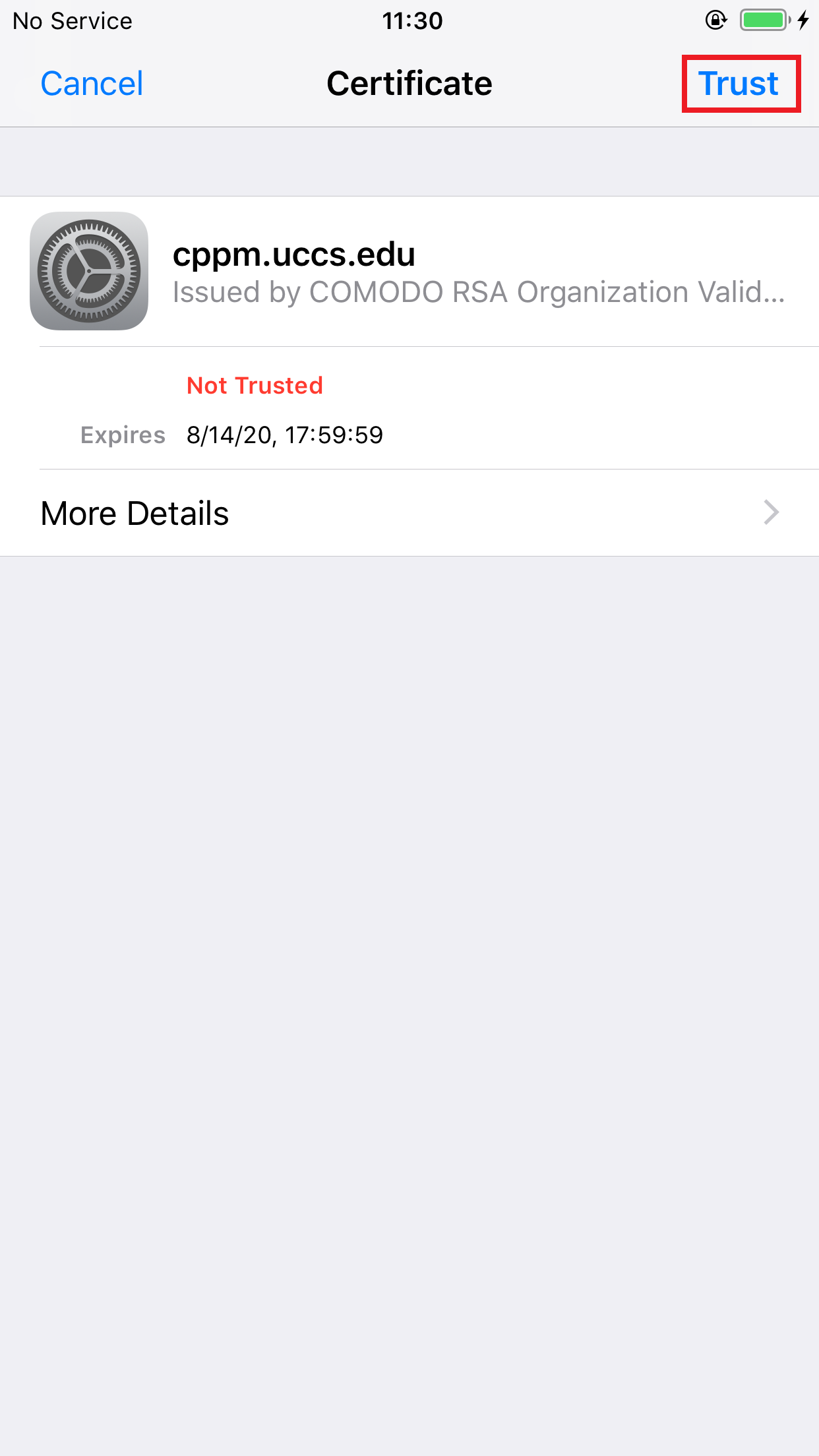
You should see a screen similar to the following asking you to verify and accept the server's security certificate. The server cppm.uccs.edu is the server you are authenticated against. To To be safe you should always validate the certificate you are about to trust.
To validate and see more information about the certificate, click More Details


Scroll down until you see the Fingerprint Fingerprints section

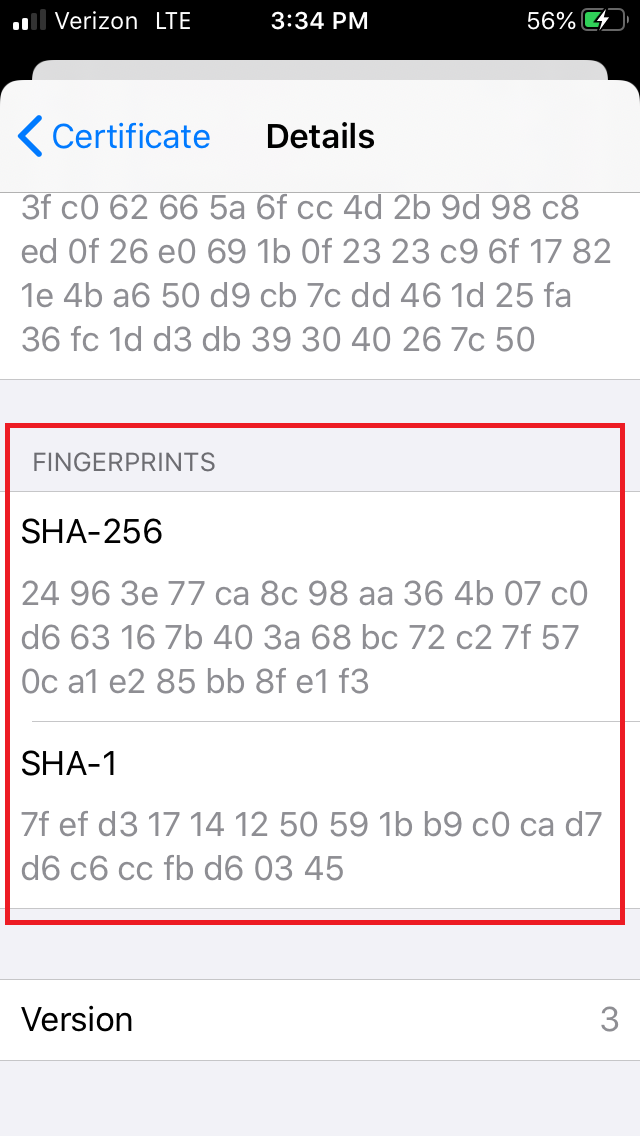
Your certificate fingerprints should match the fingerprints listed below...
...
| title | Server fingerprints |
|---|
SHA-256
0A 1E 26 F8 15 59 C8 68 6A 40 0A 00 18 EF 41 F1 D1 75 67 EC 18 03 22 1A 3A 35 2B 8E 94 00 2C F3
SHA-1
| Excerpt Include | ||||||
|---|---|---|---|---|---|---|
|
...
Step 6: Accept the security
...
certificate
...
If your certificate fingerprints match those listed above, you can trust the certificate is valid. Click Trust.
Step 7: Finished - Your device should now be connected to eduroam.
Screenshots from iOS version 12.2Updated on 2019-05-15
| Note | ||
|---|---|---|
| ||
Problem: Some devices may encounter a problem connecting to the any UCCS's wireless networks (UCCS-Wireless, UCCS-Guest or eduroam) with Private Addresses turned on. Solution: Many devices have updated their OS to include an option to randomize the MAC address of the device. You must turn off the option in settings to connect to the network. |
Still having problems? Please contact the OIT Service Desk.
| Anchor | ||||
|---|---|---|---|---|
|