| Table of Contents |
|---|
If you get the following prompt when trying to open your Zoom client, depending on whether or not you have administrator privileges on your device, you can try updating Zoom by uninstalling the program, and reinstalling the newest version.

...
Step 1) Uninstall Zoom
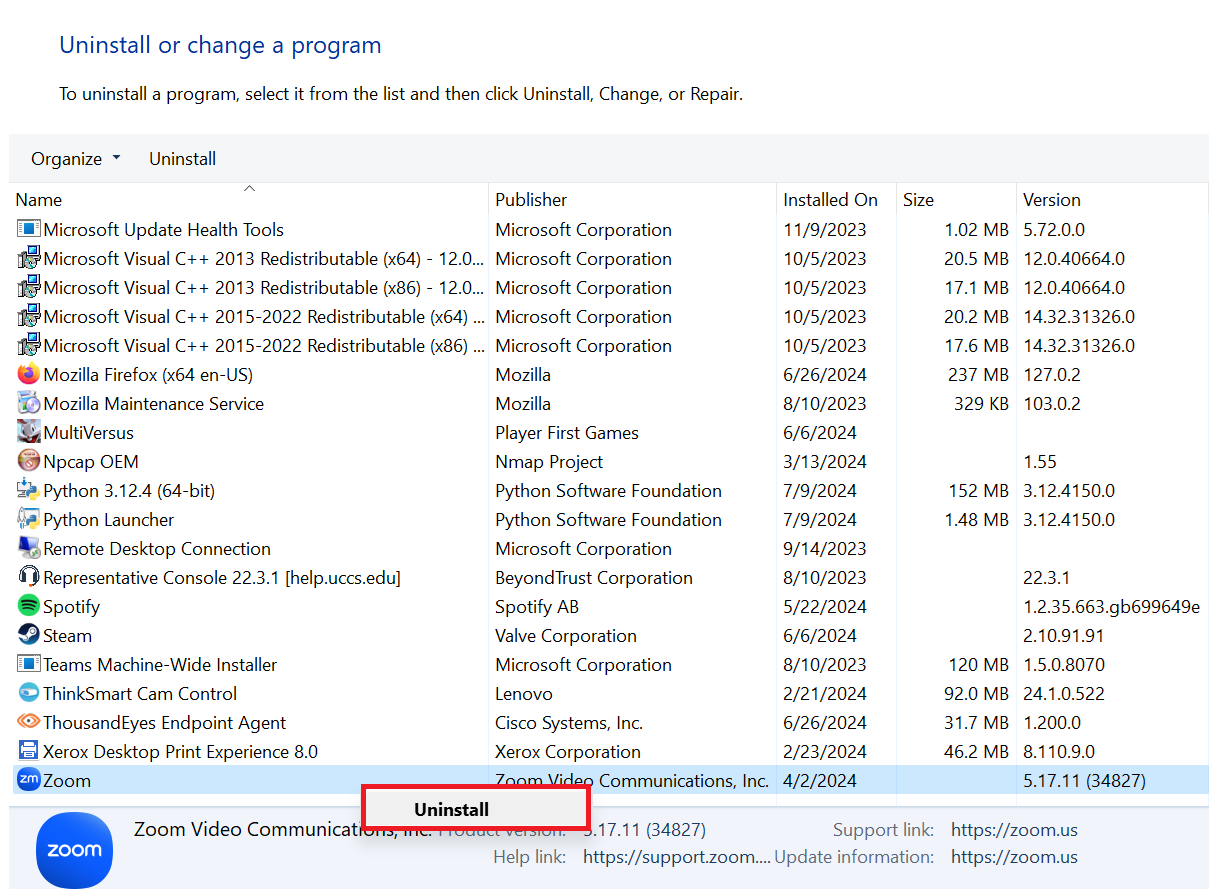
To install Zoom, open Control Panel and navigate to Uninstall a program

Scroll down to the bottom
...
until you find Zoom
...
. Right click and select Uninstall. If you are prompted, Are you sure you want to uninstall Zoom?, click Yes.
| Note | ||
|---|---|---|
| ||
If you do not have the proper permissions to uninstall the program, please reach out to your computer's administrator or the OIT Service Desk so we can help you install the newest version of the app. |
Step 2) Download the latest version of Zoom
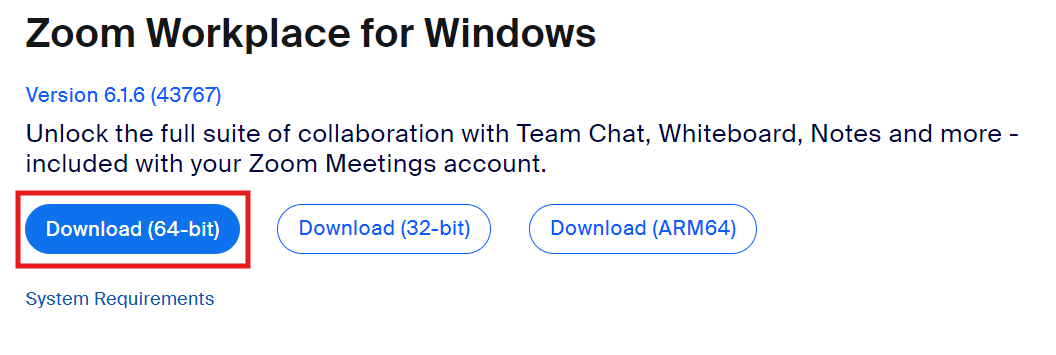
Once you have uninstalled Zoom, go to the Zoom Download Center and download the program.
Step 3) Open the Installer
After the download is complete
...
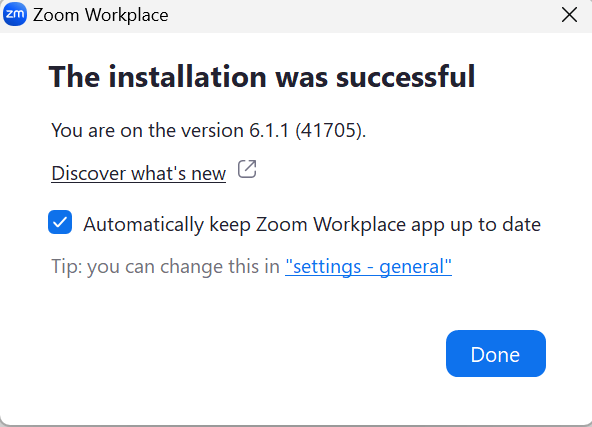
click on the Zoom installer ZoomInstaller.exeto install Zoom. A successful install will look like the screenshot below.
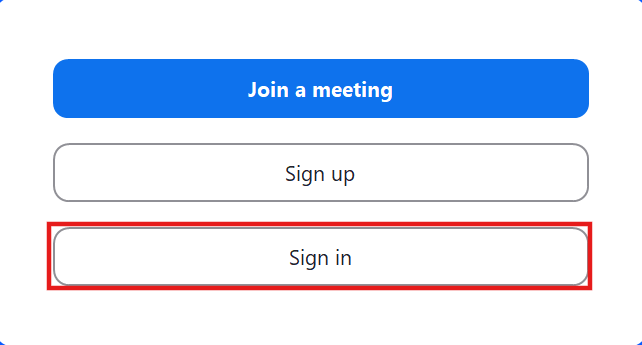
The Zoom app should automatically open. You will be prompted to either Join a Meeting or Sign In. Since there is no login required to join a meeting, click the Sign In button.
You can follow this guide (skip to step 4 in the guide) to re-set up Zoom to work on your computer.
Excerpt Include Download and Log in Download and Log in nopanel true