
| Table of Contents | ||
|---|---|---|
|
Scope
This is an Extron controlled room utilizing a Extron button panel at the podium with the following equipment:
- Extron Touch Panel
- Laptop HDMI Connection
- Crestron Air Media
- Epson L630U Projector
- Pull down projector screen
- 36 Lab computers
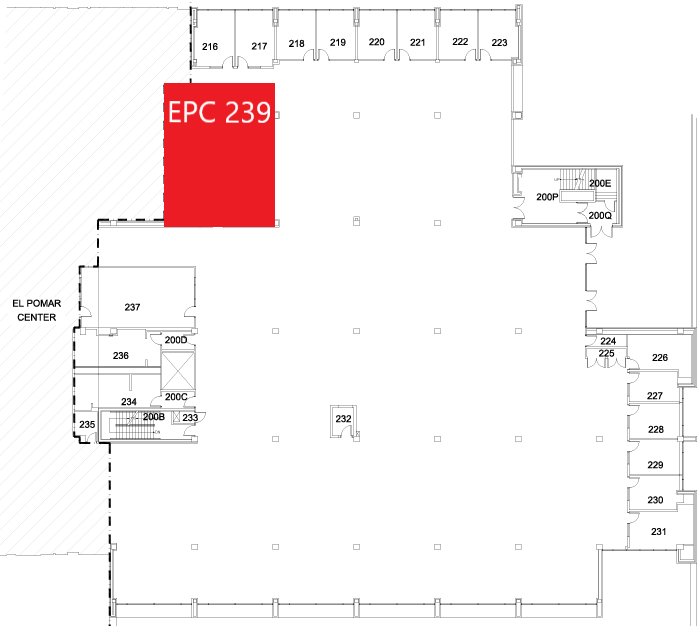
Location: 2nd floor of KFL
Controlling the A/V System
Using the Extron Touch Panel
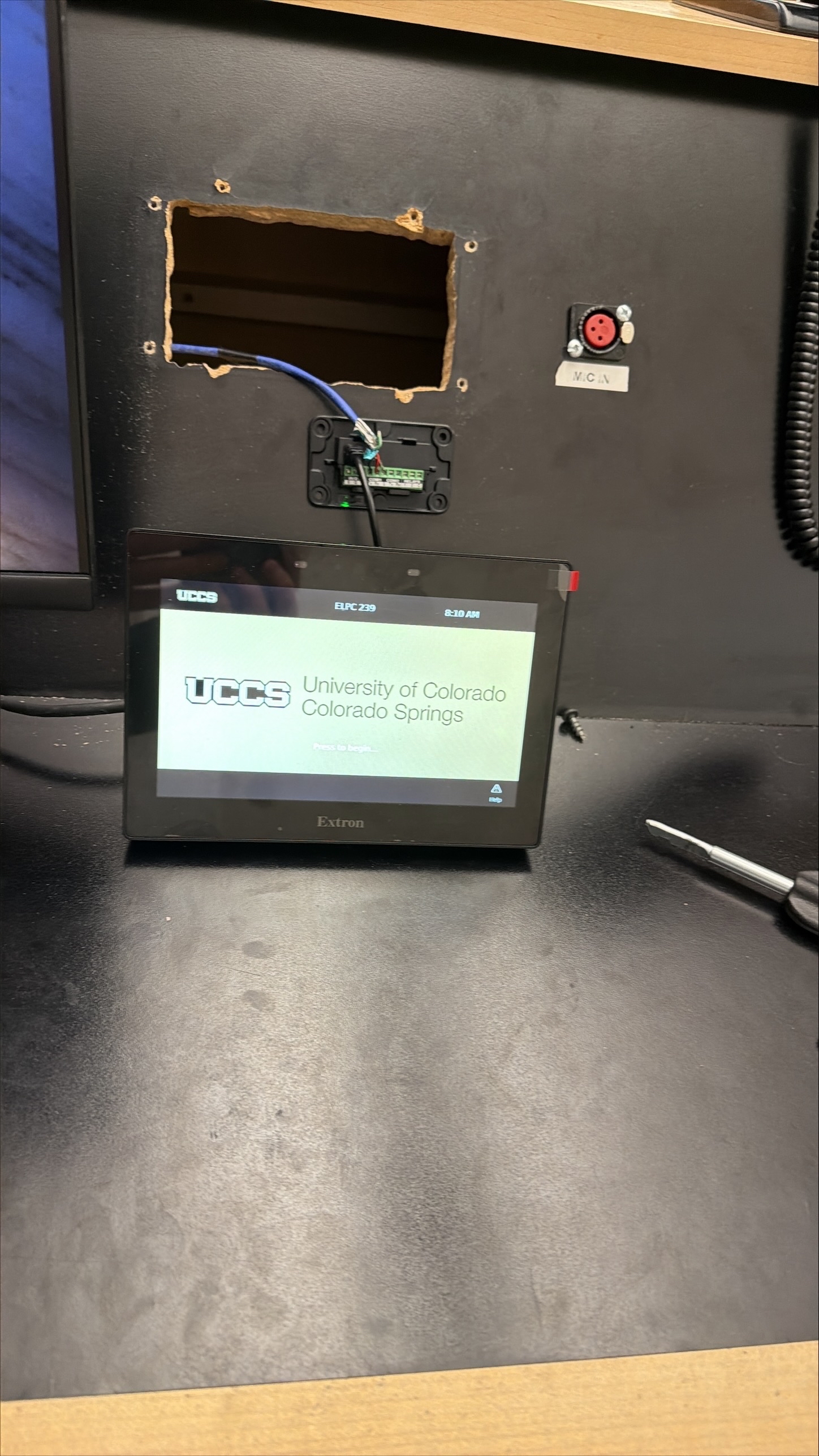
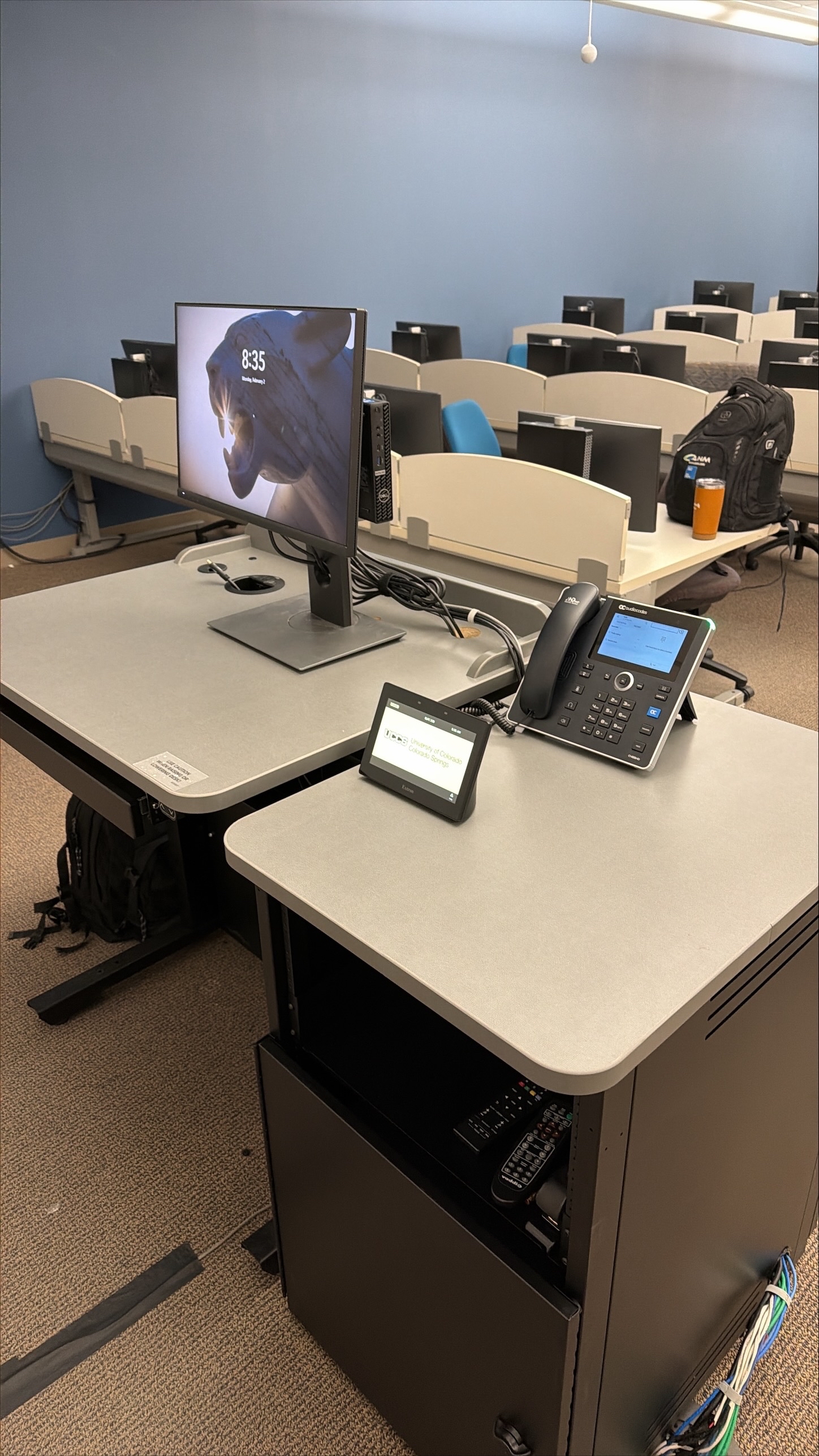
The Extron panel on the podium desk controls the functionality in the room. To turn on the projector and access the sources, press the UCCS logo.
Turning the system on and off
The AV system will power on when pressing the UCCS logo on the welcome page of the touch panel. This will turn on the projector and route audio and video from the last selected source to the AV system.
To turn the AV system off, press the "Power Off" button on the top right corner of the touch panel.
Source Selection
To change sources, select the input you would like to send to the projector from the available buttons on the panel. You will know one is selected when the button back light is lit up. You may choose between Podium PC, Laptop, and Wireless Presentation. For the laptop input, you will need to connect the HDMI cable to the laptop, then switch to that input by pressing the respective button on the panel.
Volume Control
Volume can be controlled using the volume knob on the bottom of the touch panel. (As of now this function is not functional and still being worked on).
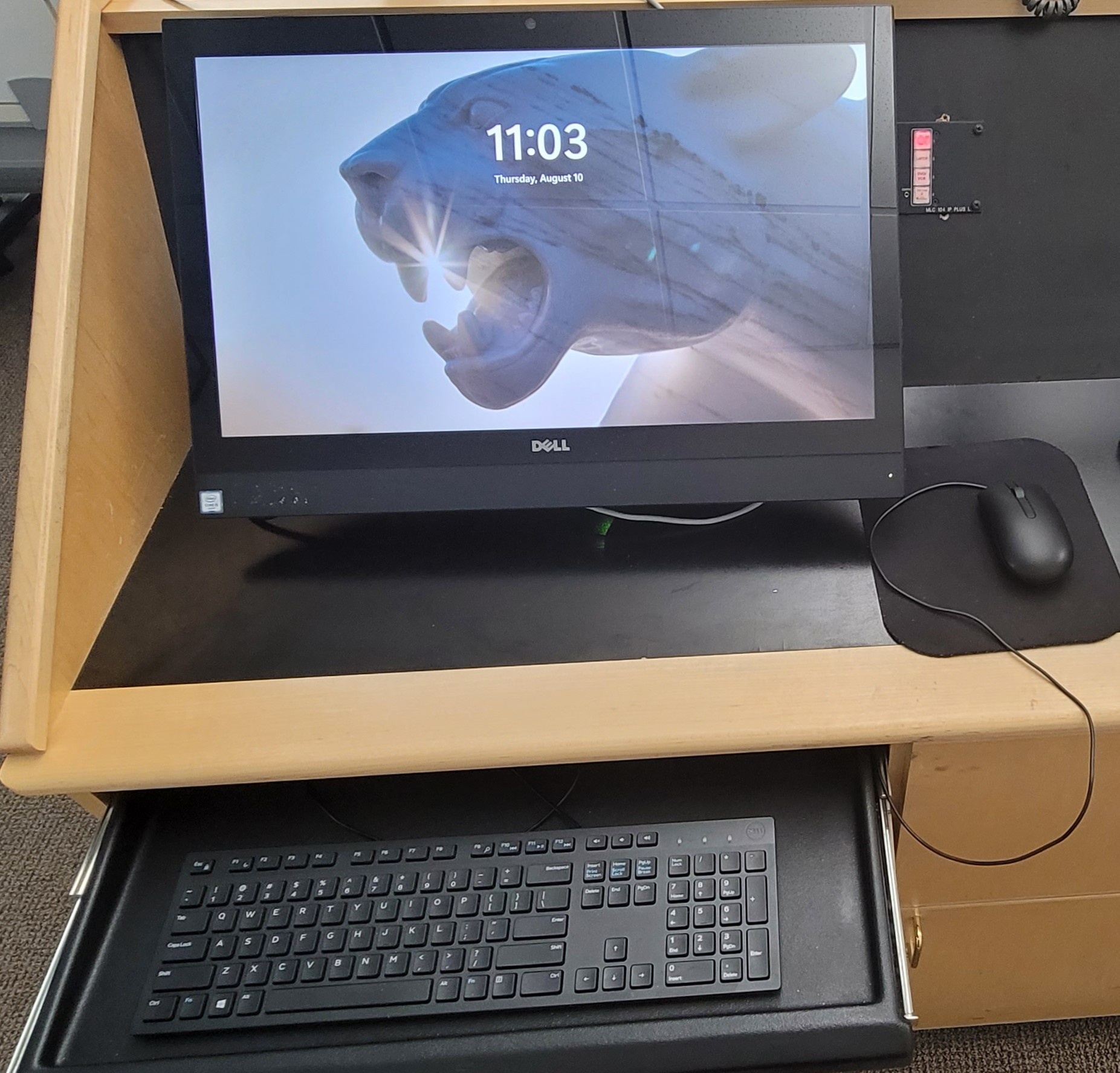
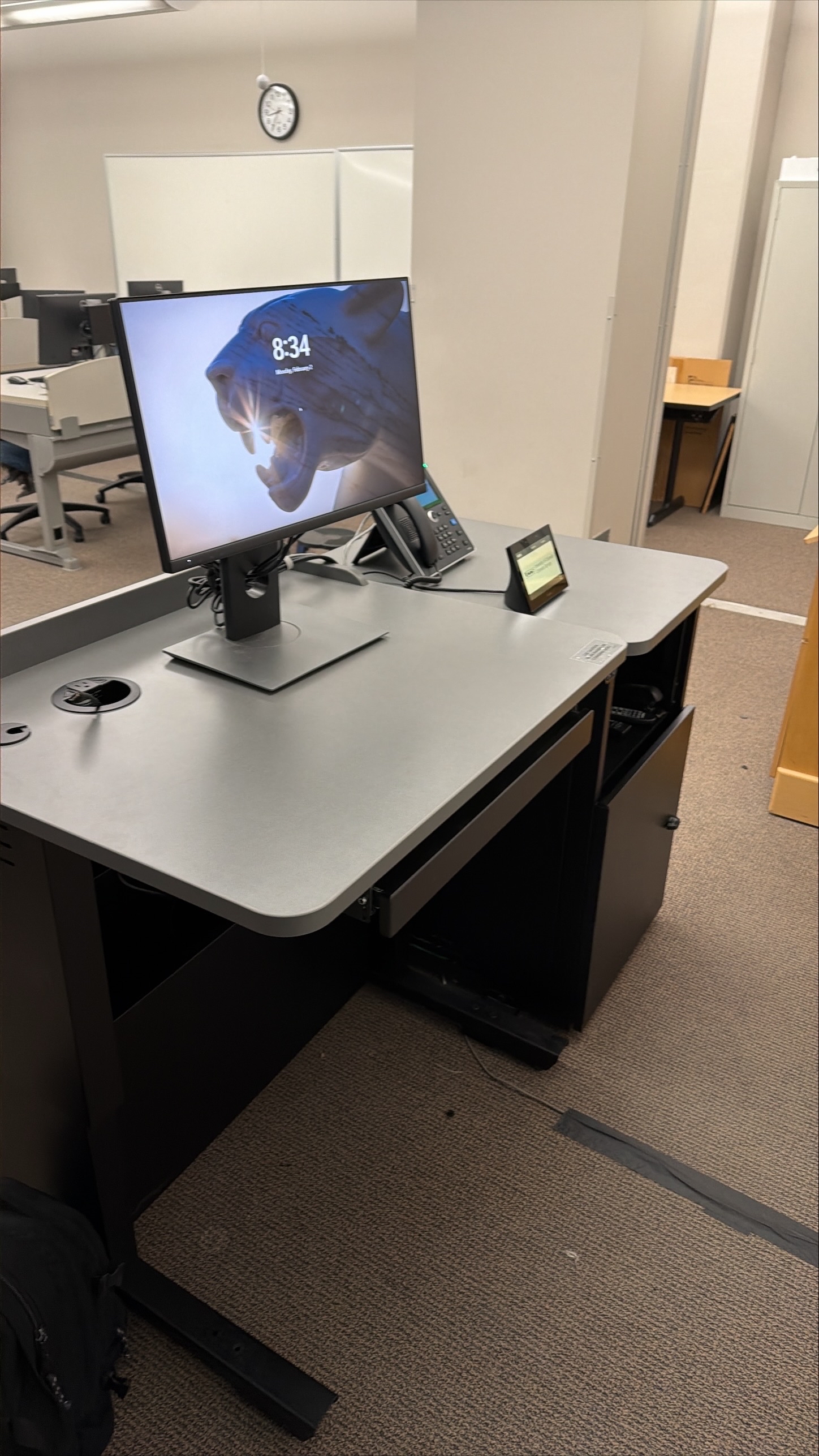
Using the Podium PC and Lectern
Using a Laptop
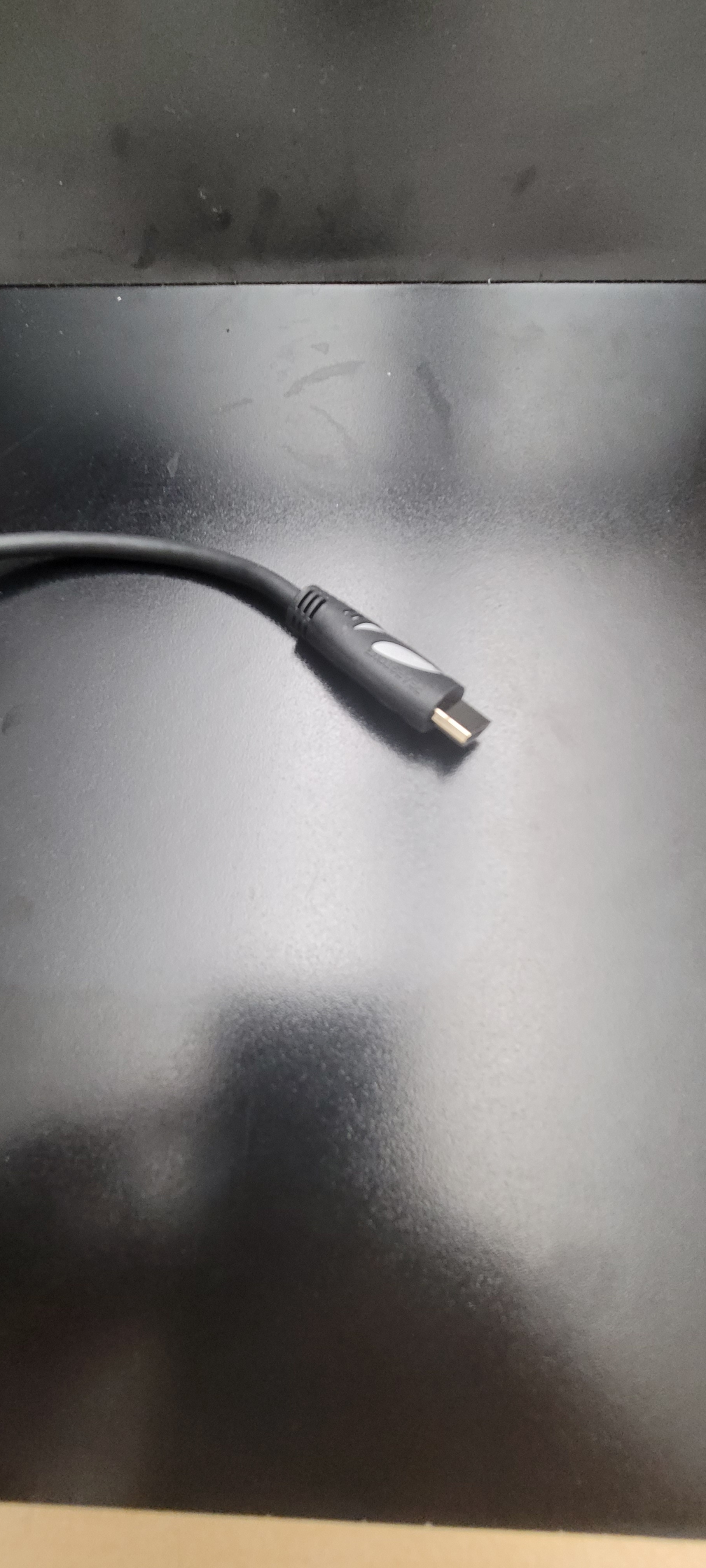
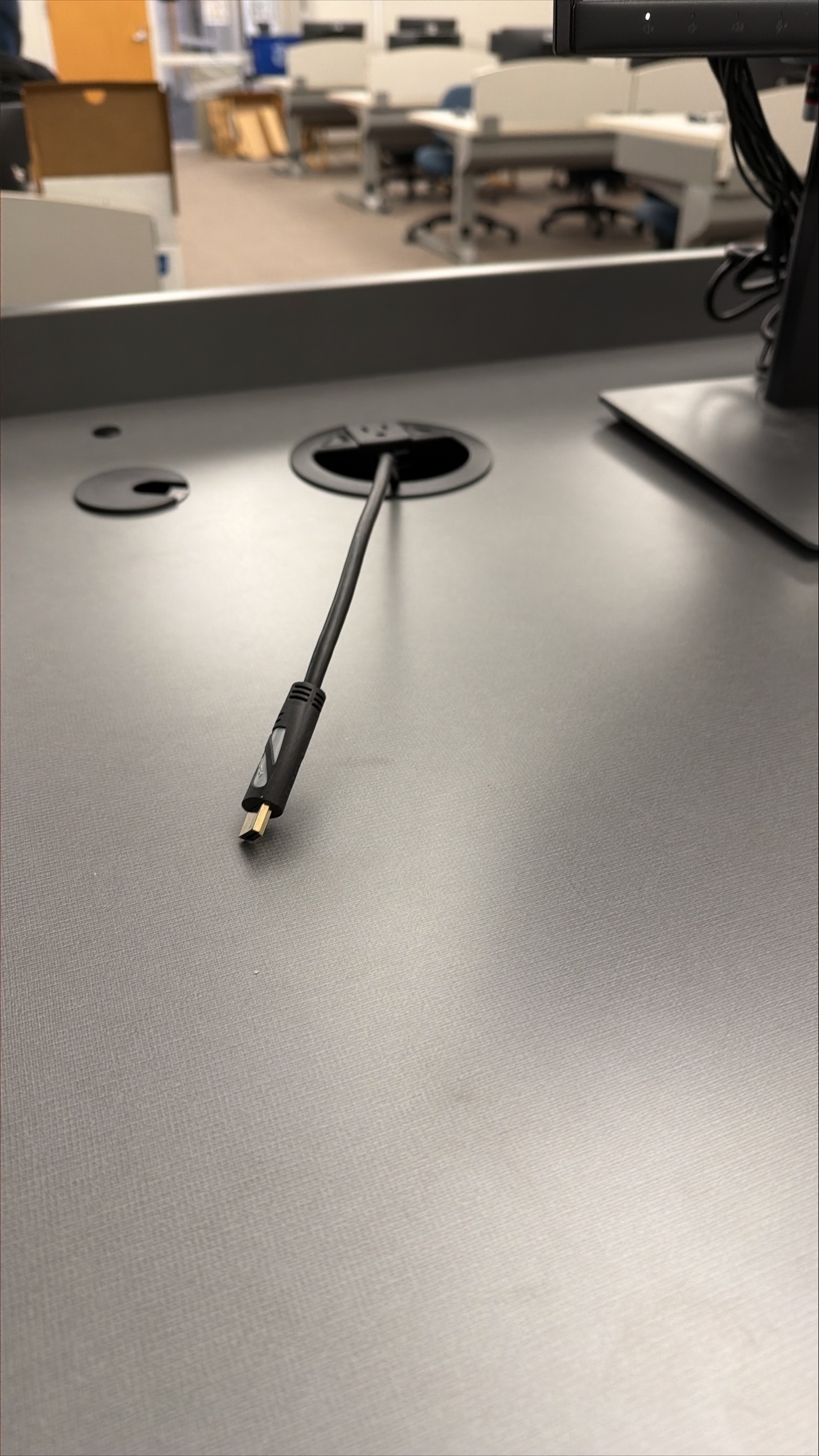
The HDMI cable on the lectern is for use with a laptop. Connect your device, and the system will automatically switch to the correct input.
Using Wireless Presentation
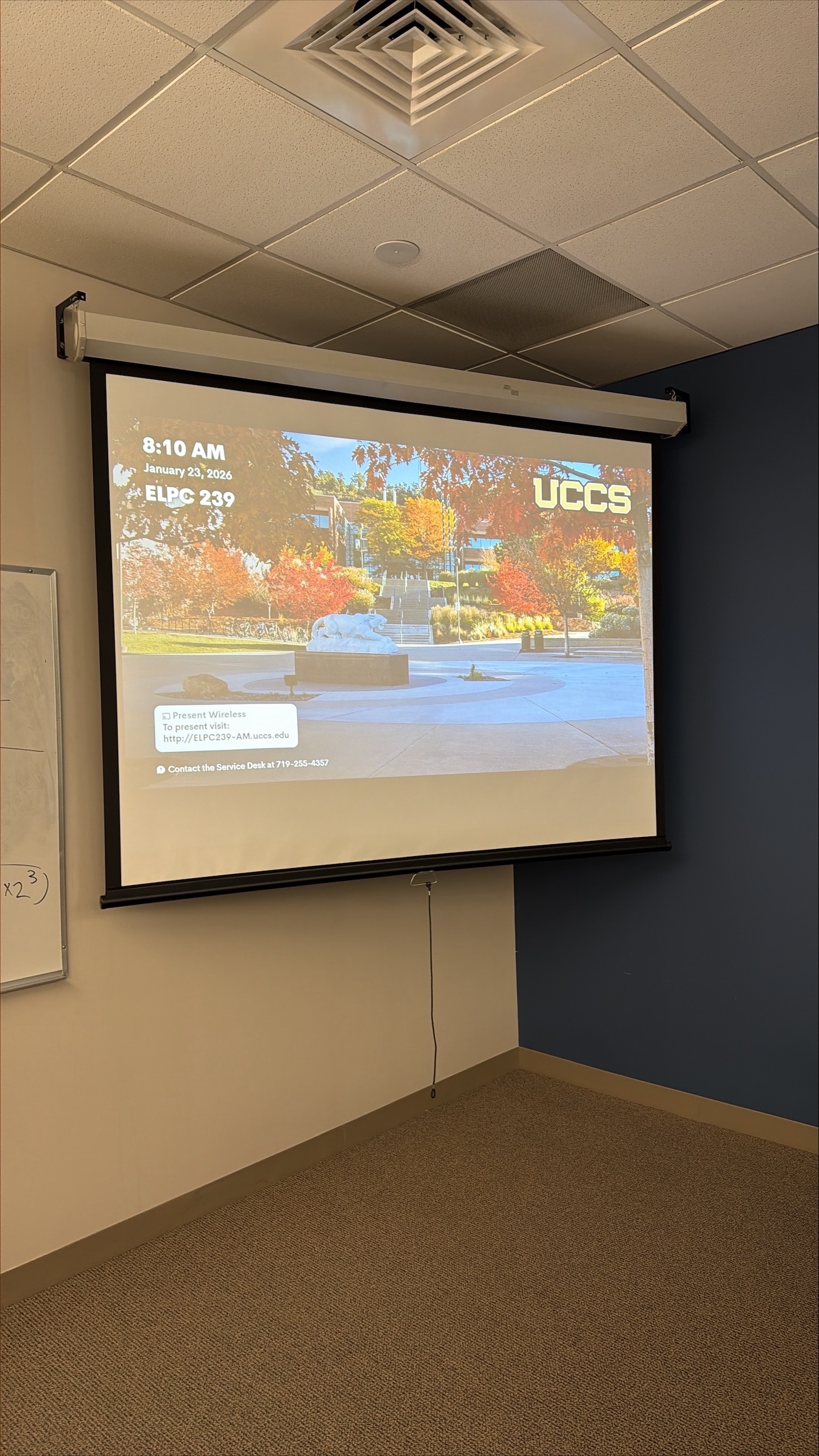
To connect to Wireless Presentation, follow the link that is displayed on both the touch panel and the screen. It may prompt to download the Crestron Air Media app. All users must be connected to UCCS-Wireless to be able to share wirelessly.
Troubleshooting & Checklist
Audio Issues
Fixing Audio Issues: Standard Extron Room
Video Issues
Fixing Video Issues: Standard Extron Room
Vaddio/Hyflex VTC System
Photos
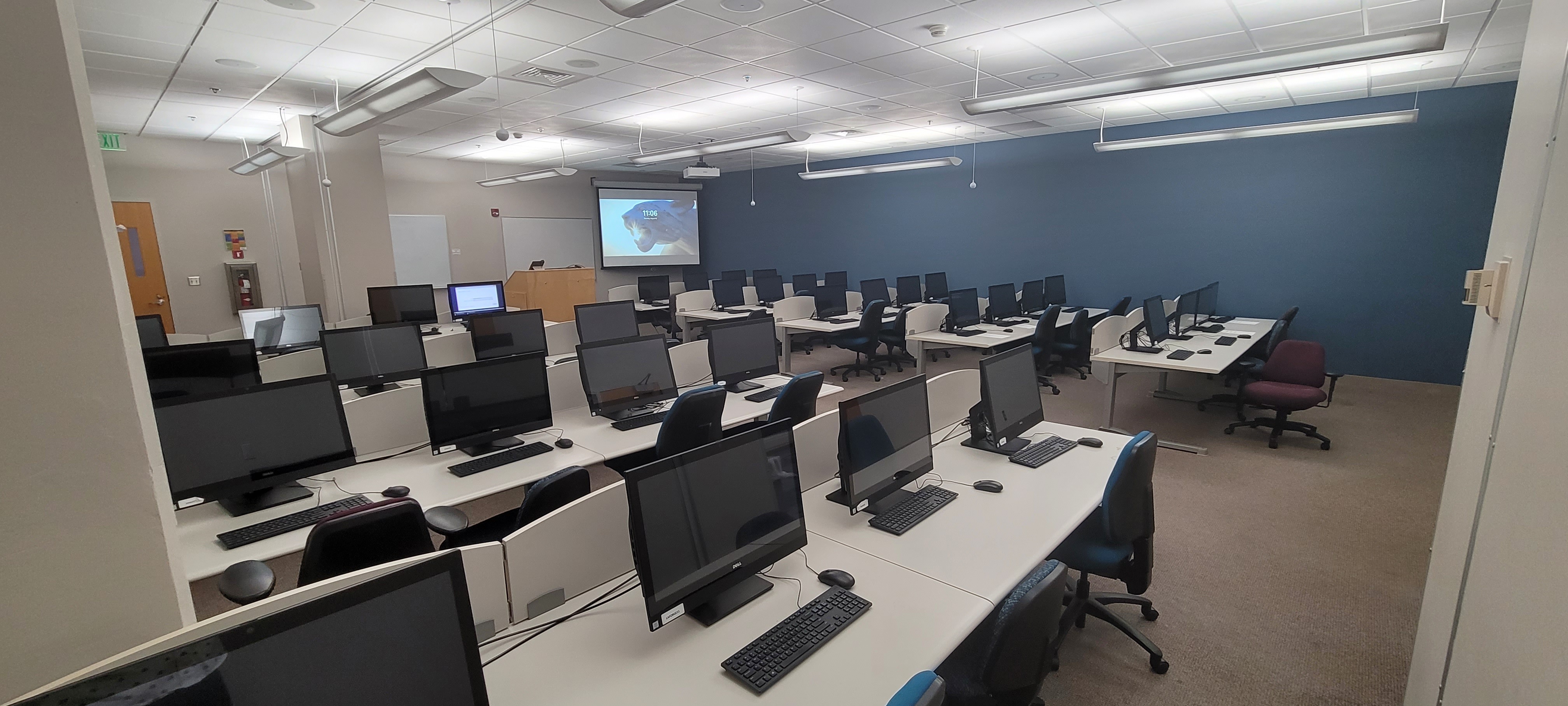
Back left corner view of the room
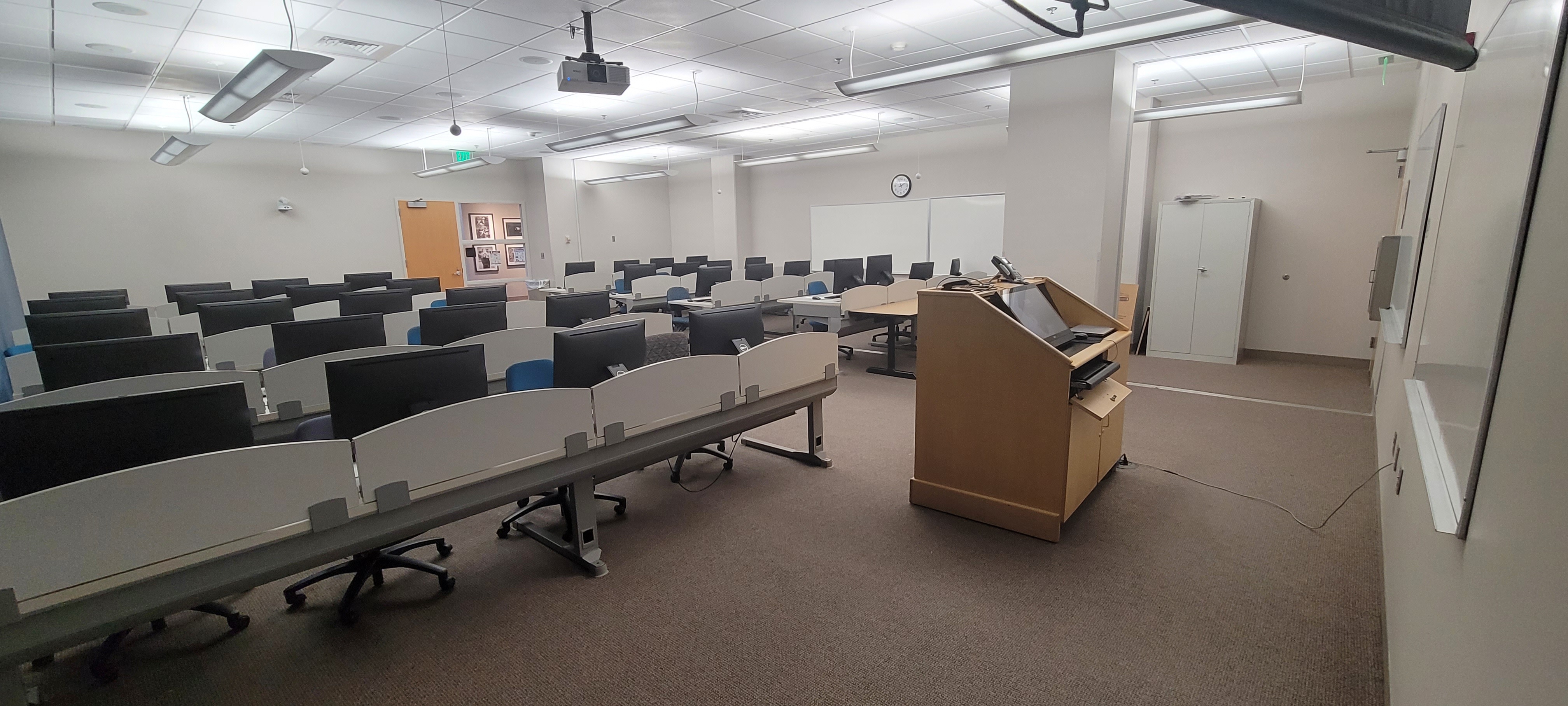
Front right corner view of the room
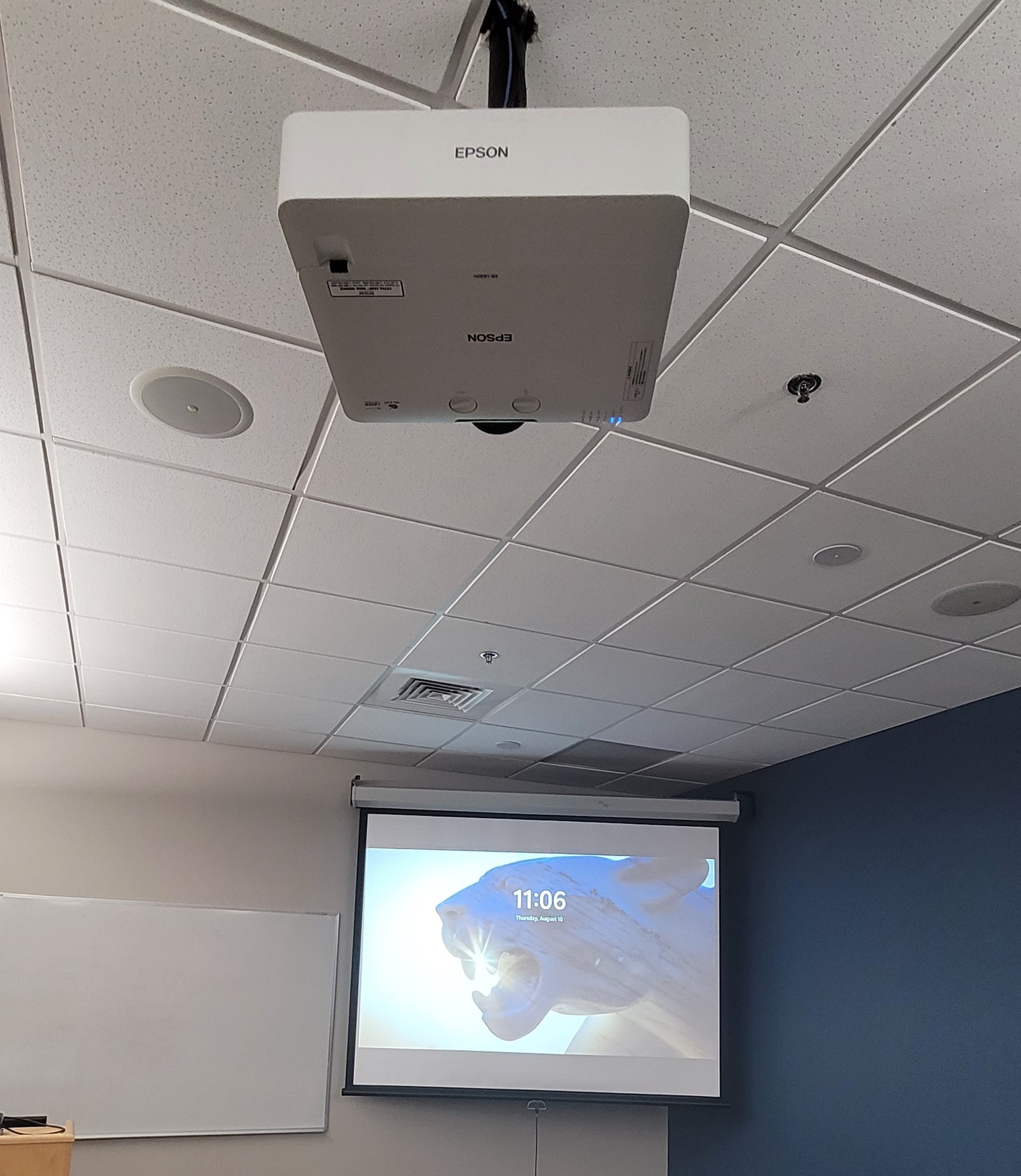
The projector and screen in the room (screen is a manual pull-down screen)
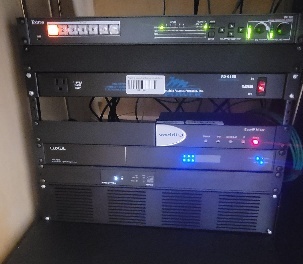
The A/V rack for the room, located on the left side of the podium