This guide will assist you in adding the UCTR306-P printer to your Windows device. If you have a Mac computer, or if you have tried all the steps below and you are still having issues, please contact the OIT Service Desk with the options listed on our website: Get Help | Office of Information Technology (uccs.edu)
We will be more than happy to help you get connected!
...
Download the appropriate driver from the link here: https://cscsupportftp.mykonicaminolta.com/DownloadFile/Download.ashx?fileversionid=3328133272&productid=23402277
Once downloaded, extract the zip to a folder.
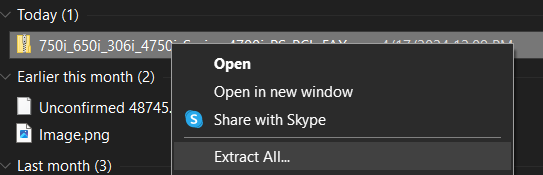
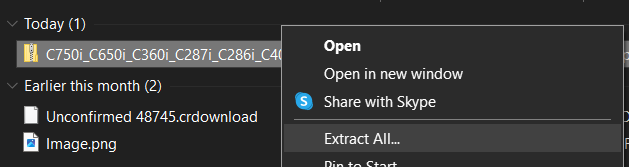
Right click the zip file, and choose "Extract All..."
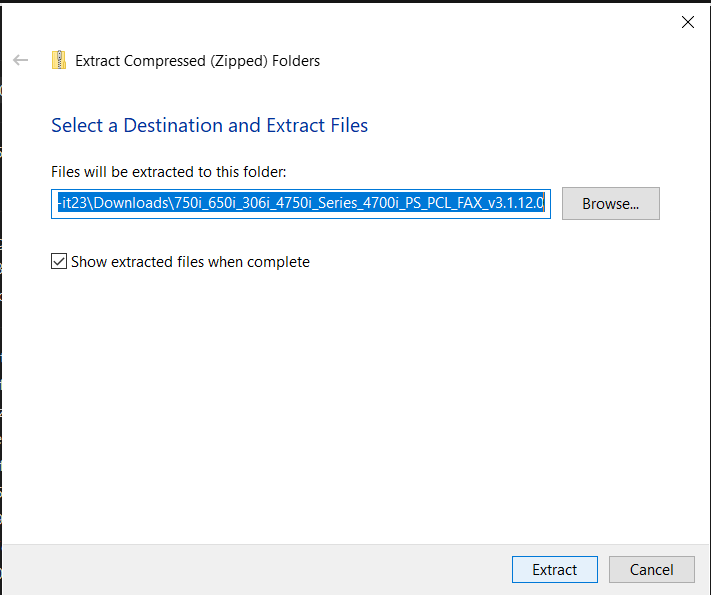
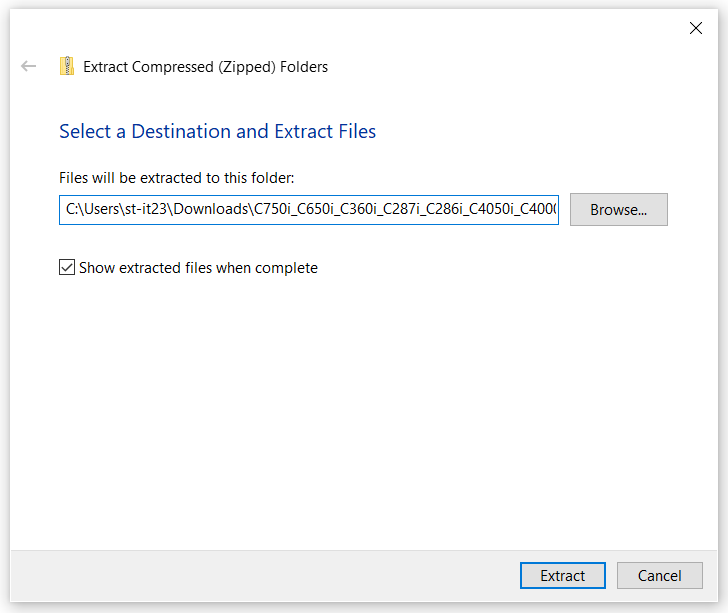
Then, you can choose the destination, or just select "Extract" to default to the Downloads folder.
Step 3: Install the Printer
- Go to "Printers & Scanners" in the Windows Settings.

- Choose "Add a printer or scanner".
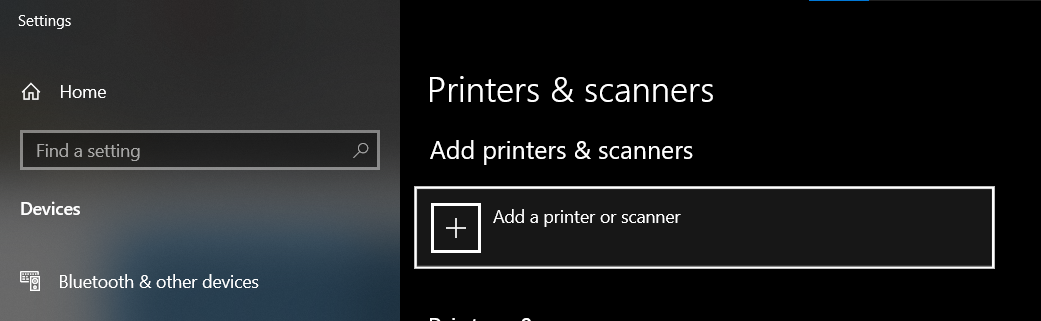
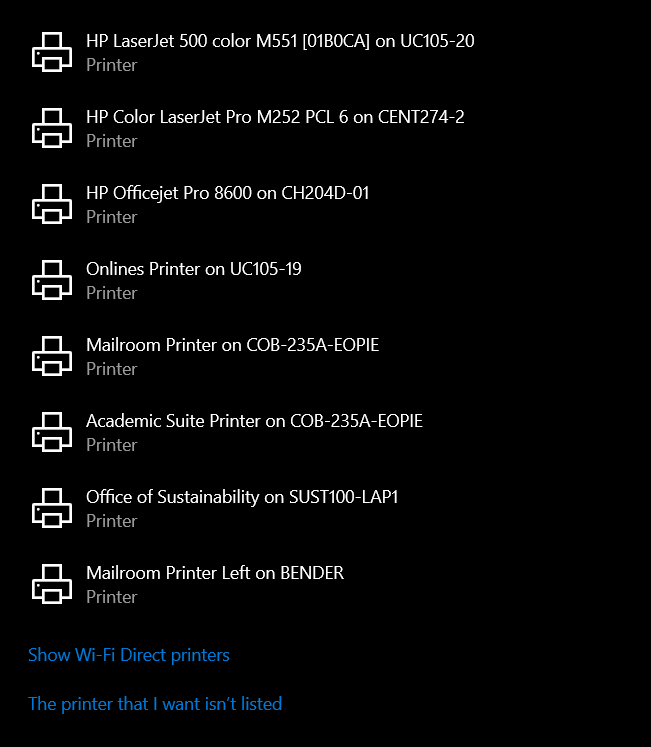
- Wait for a few seconds until "The printer that I want isn't listed" is shown at the bottom of the list. Click the "The printer that I want isn't listed" button.
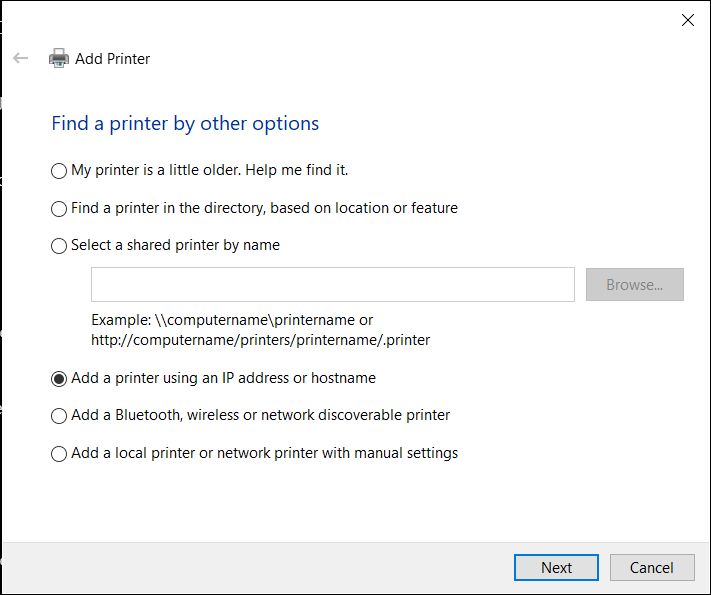
- Choose "Add a printer using an IP address or hostname". Choose "Next"
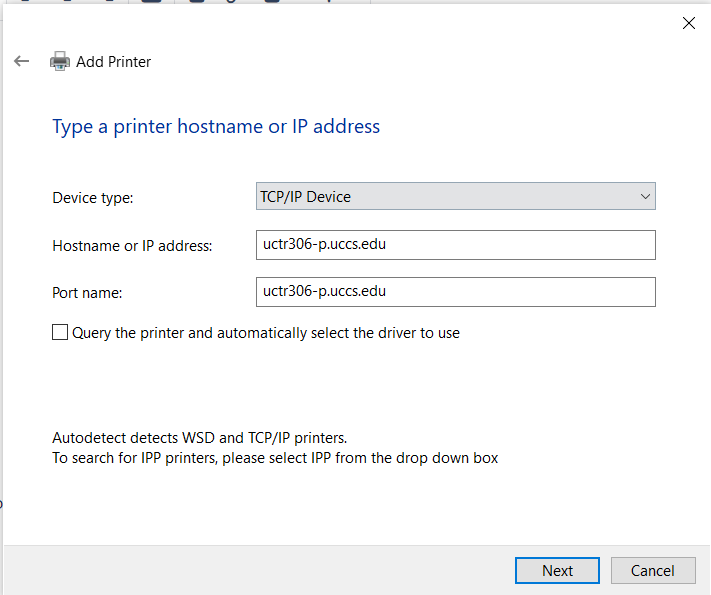
- For Device type, choose TCP/IP Device.
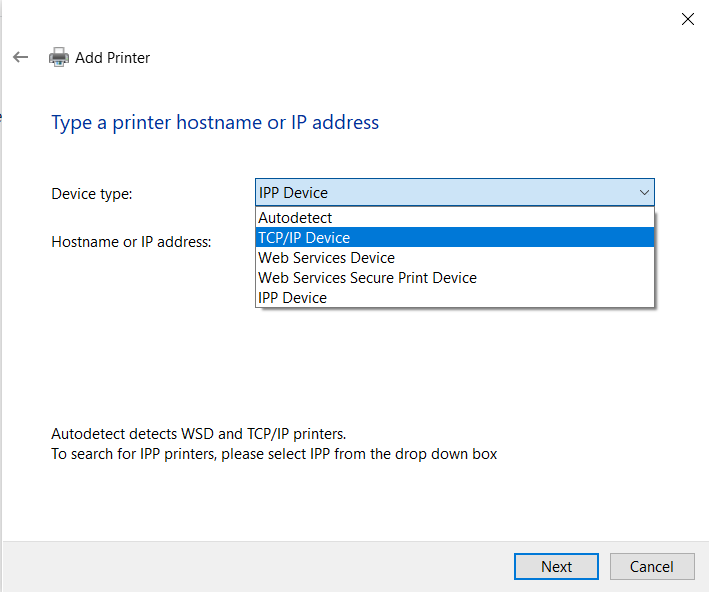
- For Hostname or IP address, enter uctr306-p.uccs.edu

- Uncheck "Query the printer and automatically select the driver to use". Click Next.
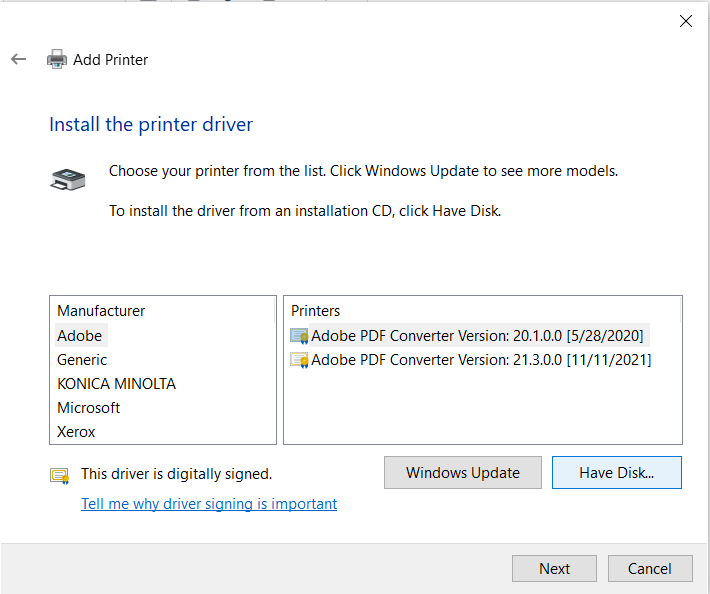
- Choose "Have Disk".
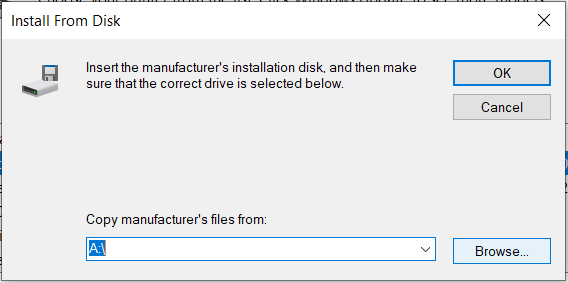
- Then, choose "Browse" and locate the folder to which you extracted the Zip file to.


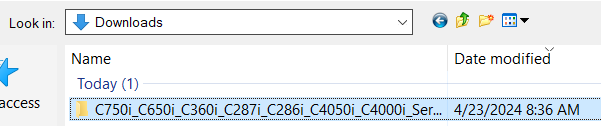
- Then, open the folders until you find the driver. The path will be "C750i_650iC650i_306iC306i_4750iC4750i_Series_4700i_PS_PCL_FAX_v3.1.12.0 > Drivers > PCL > EN > Win_x64 > KOAXDJ__.inf". Select the file, and choose "Open"
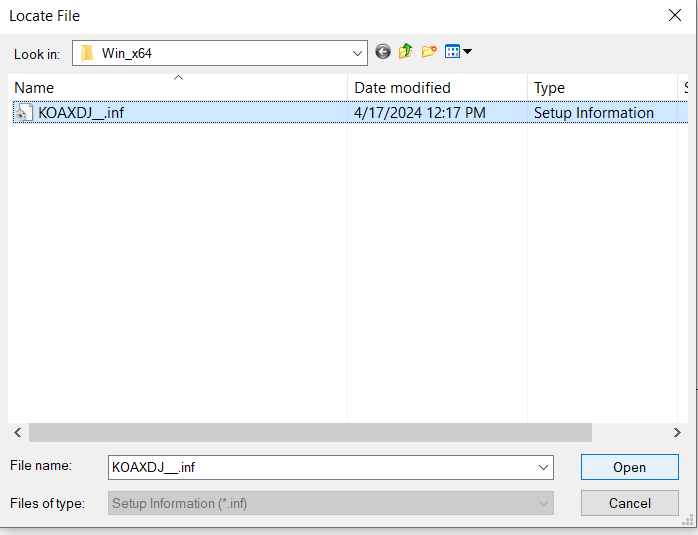
- Choose "OK"
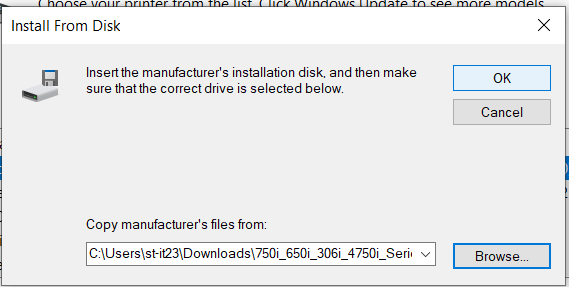
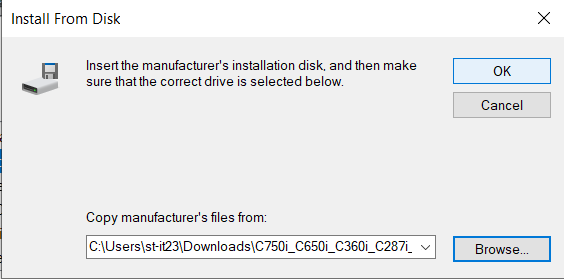
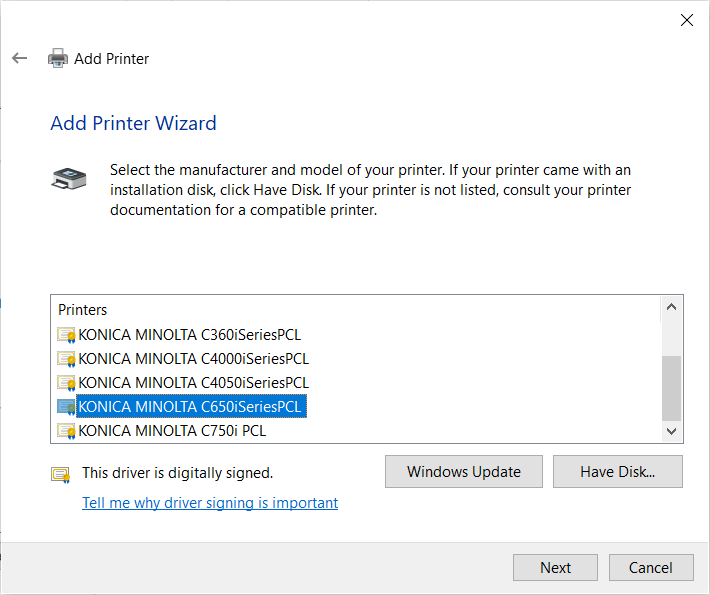
- Select "KONICA MINOLTA 650iSeriesPCLC650iSeriesPCL" and choose "Next".
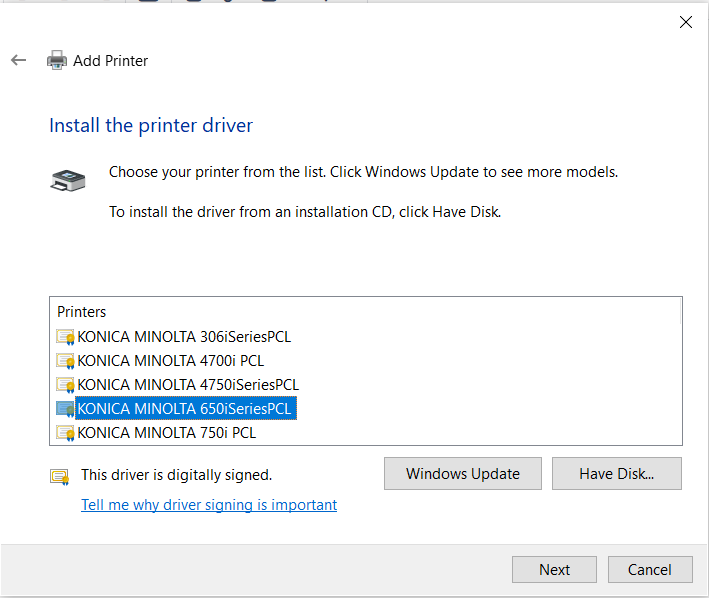
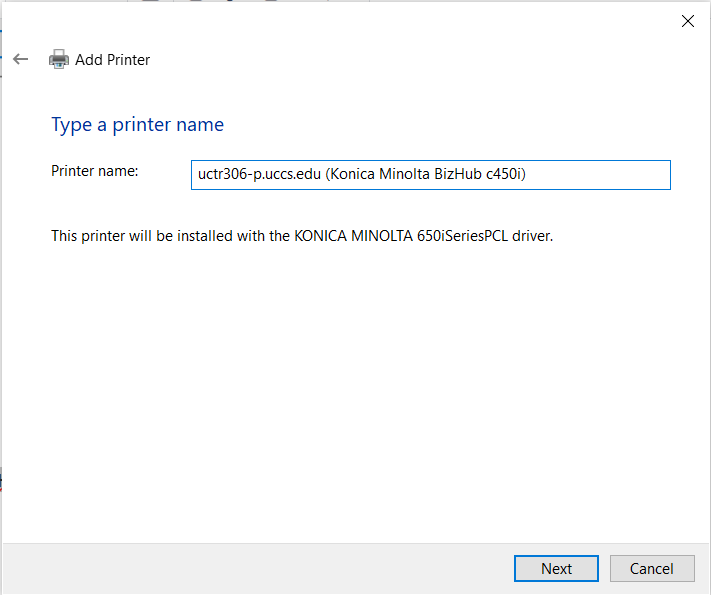
- Rename the printer to uctr306-p.uccs.edu (Konica Minolta BizHub c450i) and select "Next"
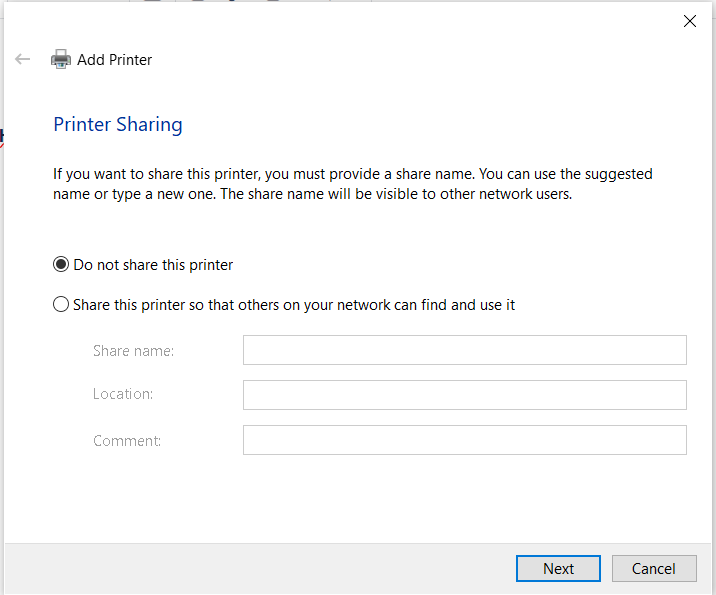
- Ensure the "Do not share this printer" option is selected and select "Next".
- If you would like, check the "Set as the default printer" pagebox.
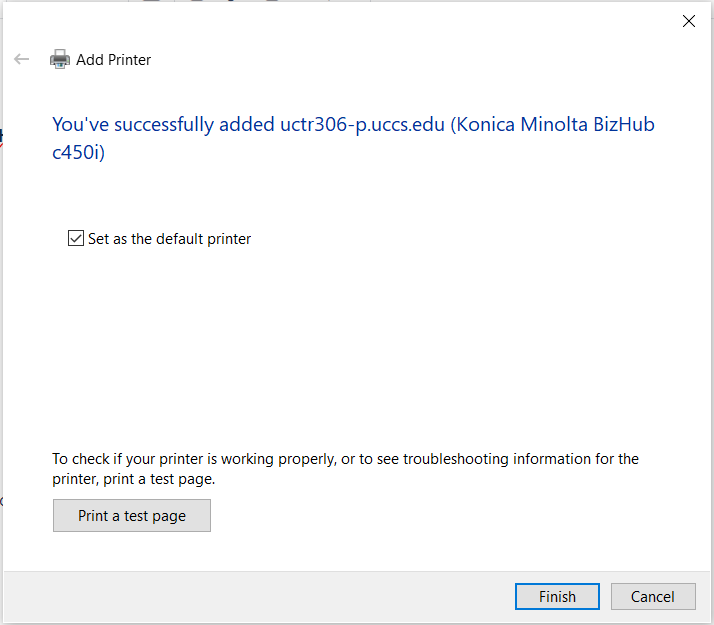 To test the printer, choose "Print a test page".
 - Click "Finish"
Step 4: Test Print Functionality
...