
| Table of Contents | ||
|---|---|---|
|
Description
This KB article serves to help the user use our conferencing spaces on campus. There are two main types of conferencing rooms currently, Microsoft Teams Rooms and Bring Your Own Device (BYOD) rooms. Depending on the room in which you are in, there may be differing instructions for operating and using the systems. Microsoft Teams Rooms are defined by spaces that utilize a Microsoft Teams Conferencing Device located on the the conferencing table in the room. BYOD rooms are defined by conferencing rooms that requires a user to plug in their own HDMI enabled device, such as a laptop.
Lenovo Core/Hub Use and Troubleshooting
Powering On and Off the Device
Rooms with conferencing devices should have their displays automatically turned on and off via light and touch sensors on the conferencing devices touch panel. Upon walking in to the room, wave your hand over the touch panel, if this does not wake the conferencing device up, tap on the control panel. When the device wakes up, the devices' controls will be shown on the control panel and the room's display will turn on.
In order to power off the system, simply leave the room. When the control panel's sensors no longer detect users in the room, and the device is no longer in use the devices' sleep timer will start. When this sleep timer finishes, the device along with the display will be turned off.
| Info | ||
|---|---|---|
| ||
In rooms where there are windows with walkways on the other side, it may prove best to angle the control panel away from these windows to avoid the device waking up due to those who walk by said windows. |
How To Invite A Room
To add a room to a meeting use the following steps:
...
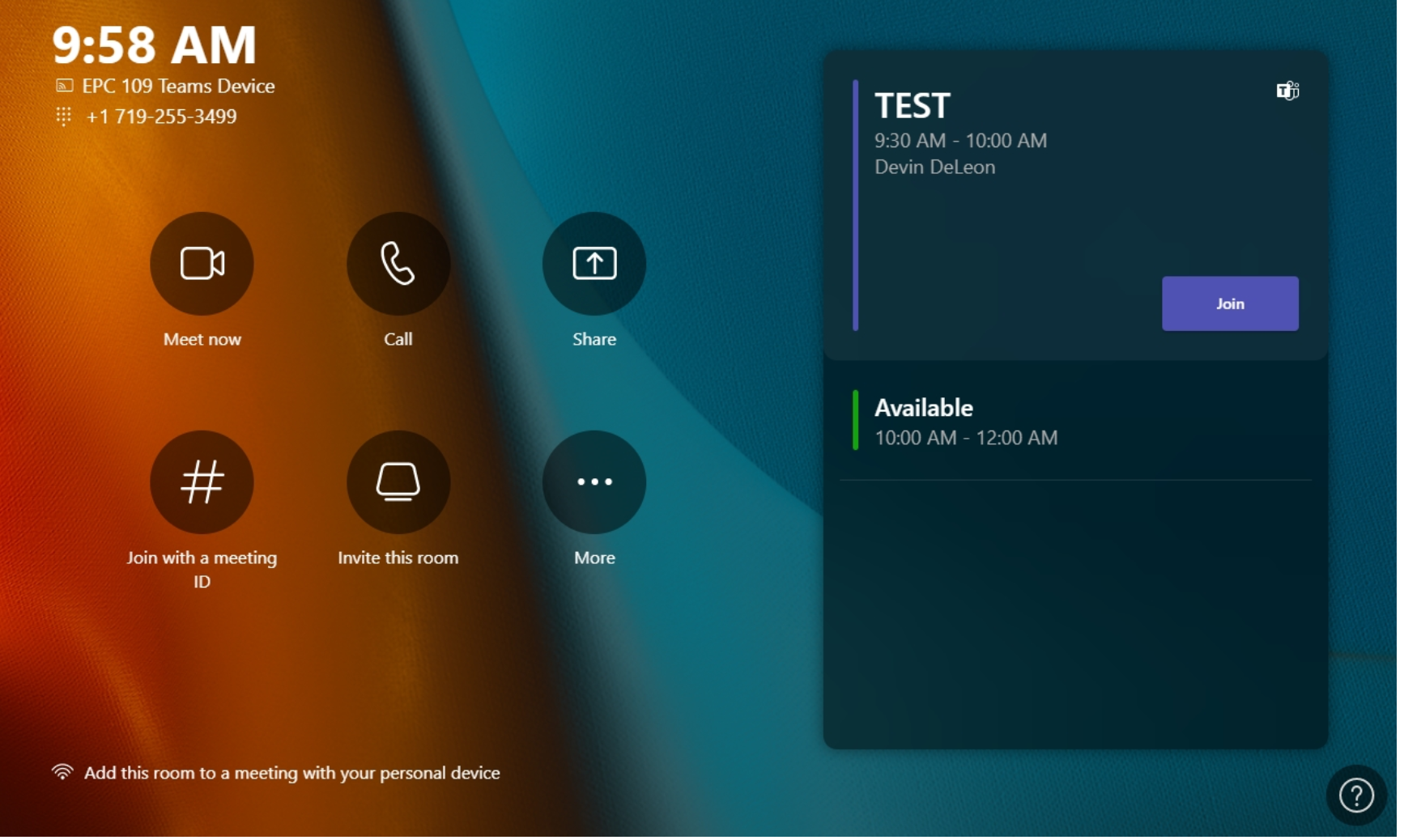
- First, ensure a Teams meeting invitation has been sent to the room's device (see steps above).
- On the device's control panel, you will notice a meeting tile(s) with a join button.
- If there is more than one meeting scheduled for the day, navigate up or down through the list to locate the desired meeting.
- The Meeting tiles will have basic information displayed for easier identification of the desired meeting.
- Once the desired meeting has been located, select the "Join" option on the corresponding meeting tile.
- This will join the Microsoft Teams Room device to the meeting room associated with the invitation.

| Info | ||
|---|---|---|
| ||
You may also join this meeting on your personal device while in the same room as the conferencing device. If this is done, please ensure to mute the microphone and speakers of your personal device before joining the meeting, as this will cause a feedback loop. |
...
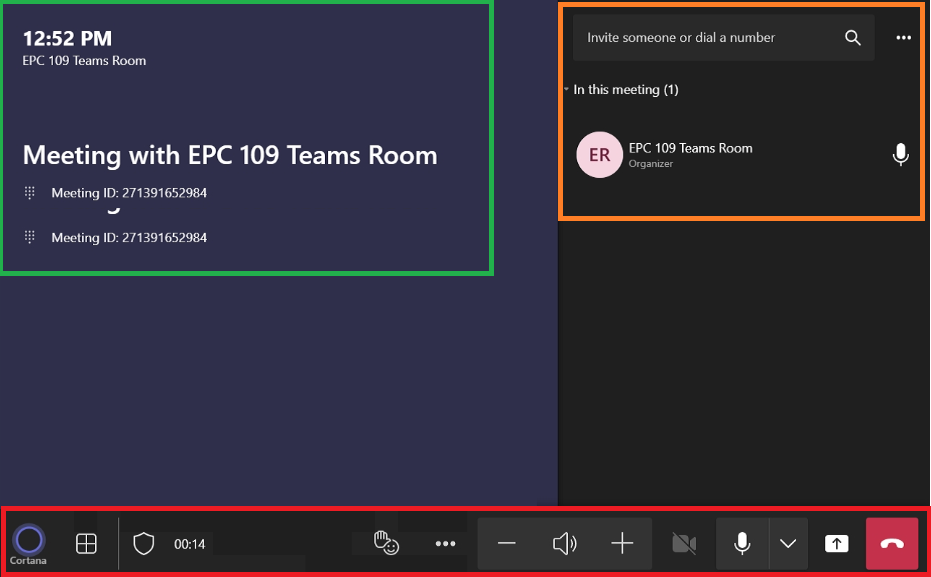
- In the top left, outlined in green, the meeting details will be displayed by default
- The pane on the right side of the panel, outlined in orange will allow the user to invite other members of the UCCS directory to the meeting
- The bottom of the control panel displays the meeting controls where the user may change gallery view, react, adjust the volume, mute the camera, share content, and leave the call
| Info | ||
|---|---|---|
| ||
While in a teams meeting, the chat and recording feature are only available on your personal device and not the Teams Device. |
Sharing Content
In order to share content from a personal device to the room display:
...
- Virtual attendees cannot see anyone in the Teams Room:
- Ensure that the camera is not disabled on the Teams Room device's control panel.
- If the camera icon on the meeting control bar has a line through it, the camera has been disabled. Tap this icon to re-enable the device's camera feed.
- Try leaving the meeting and re-joining.
- If this does not resolve the issue, please reach out to the UCCS Service Desk at (719) 255-4357
- The room has a conferencing device and is powered on, but there is no video output on the room display:
- Tap "More" on the control panel.
- Select "Restart".
- After restarting the device, if the issue persists, please call the UCCS Service Desk at (719) 255-4357
...