
Table of Contents
Scope
This is a projector based classroom controlled by a Crestron touch panel.
- Epson PowerLite L610U 6000 Lumen Laser Projector with mount
- One ceiling speaker
- iClicker
- Automatic tensioned screen
- Crestron touch panel
- HP ELITEONE 800 podium PC
- Extron microphone, composite video, and USB input
- Laptop HDMI and VGA
- WolfVision document camera
- DMPS3-4K-150-C
- Apple AirPlay
- Vaddio/Hyflex VTC System with Camera and Microphone Array
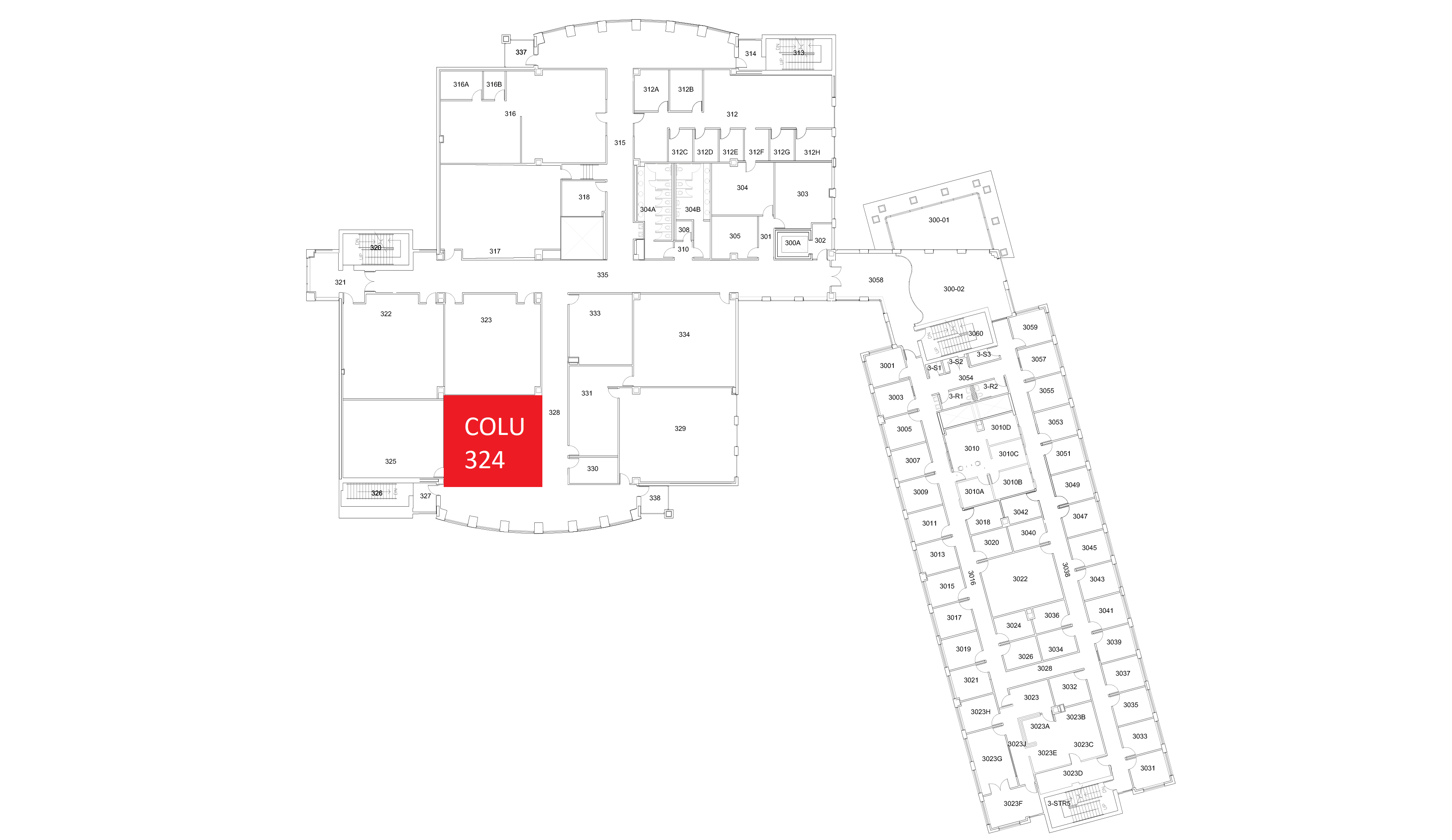
Location: Columbine 3rd Floor
Remotes
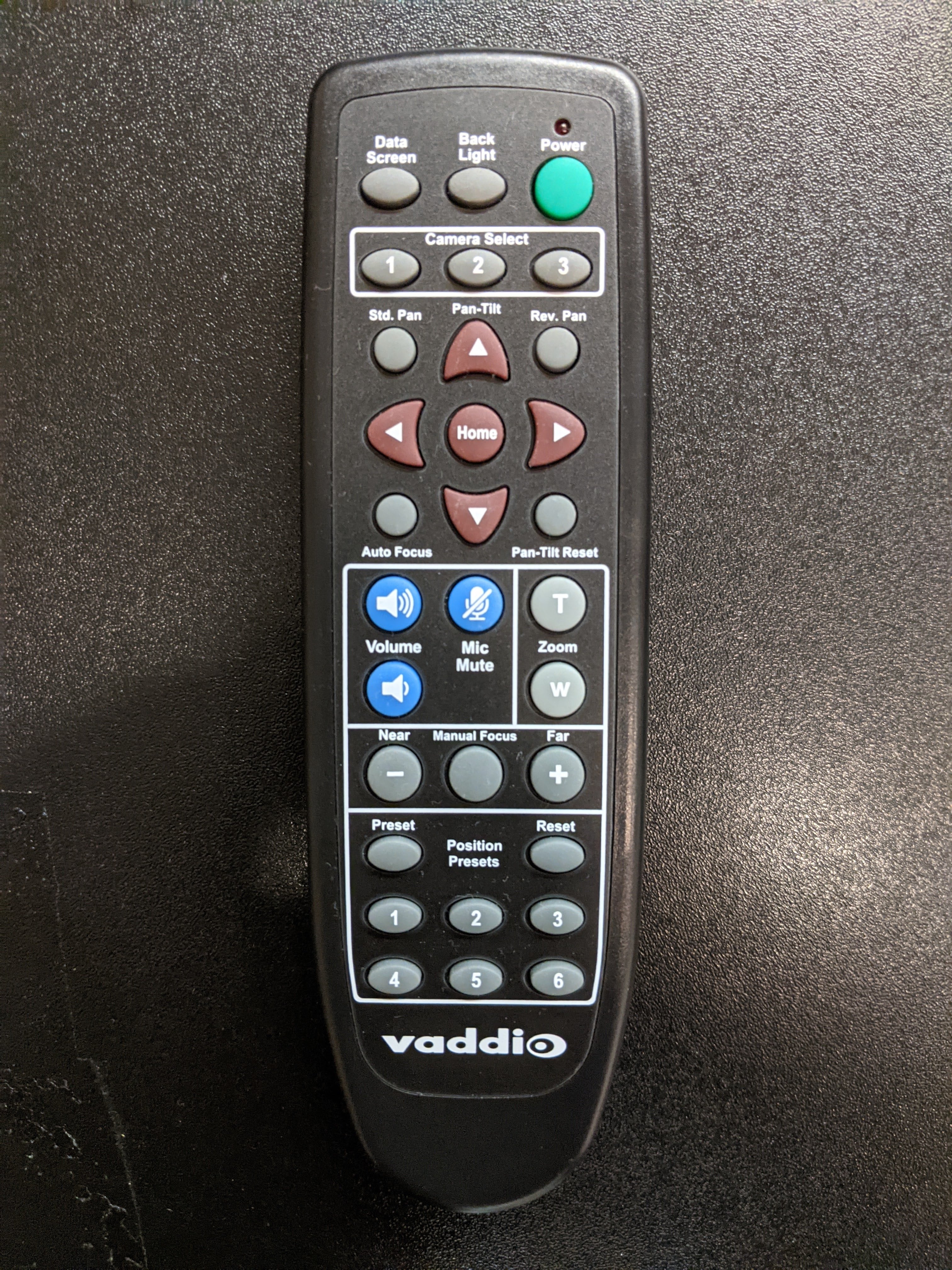
Hyflex Remote
Controls the Hyflex VTC System. Located in the top right podium drawer.
Controlling the A/V System
Using the Touch Panel
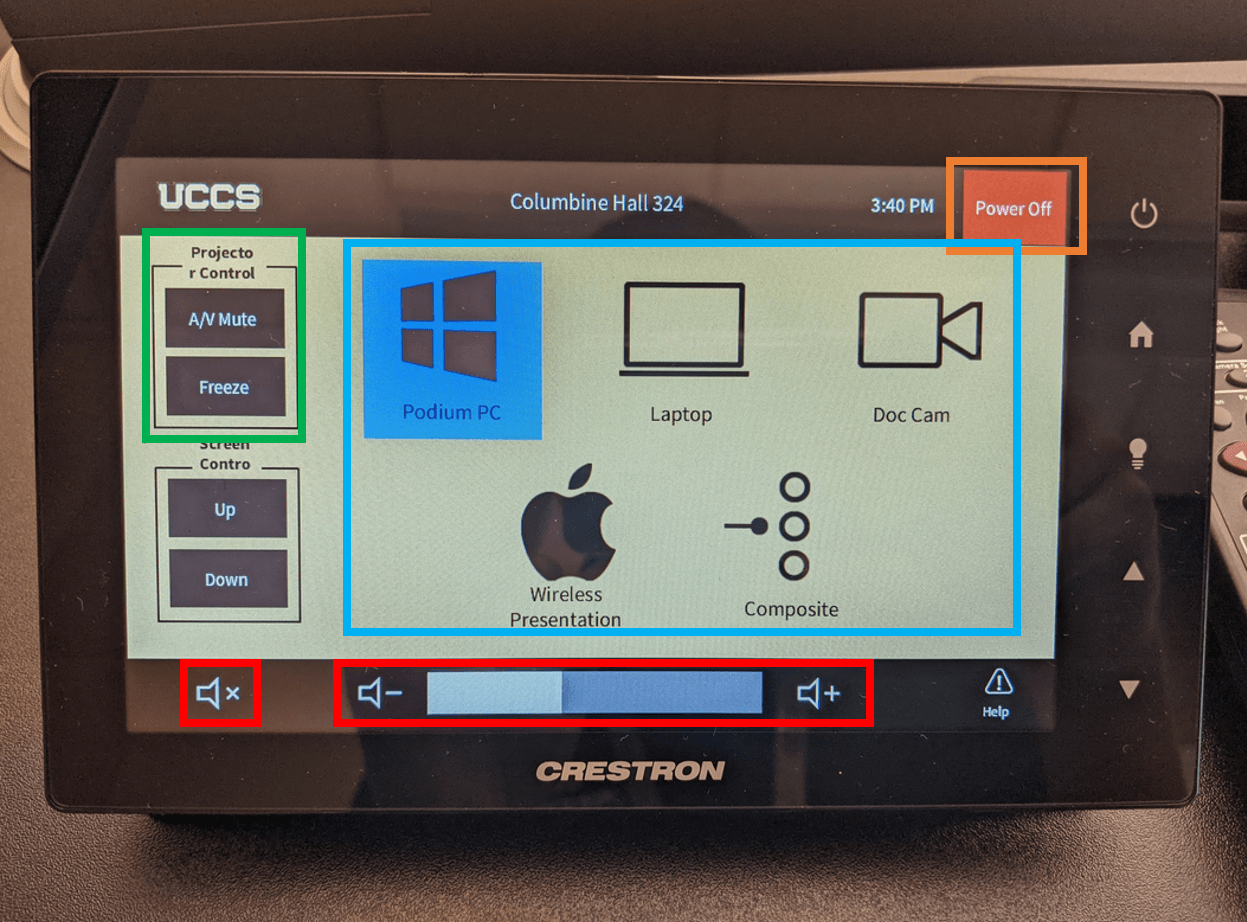
The touch panel controls most functions in the room. The touch panel is labeled below with the colors corresponding to a particular section explaining that function.
Turning the system on and off
The AV system will power on when pressing the start page on the touch panel. This will turn on the projector, lower the screen, and switch the panel to the main menu page.
To turn the AV system off, press the red Power Off button in the upper right corner. You will have 10 seconds to cancel the power off, then the system will shut down.
Source Selection
To change sources, select the input you would like to send to the projector. You may choose between Podium PC, Laptop, Doc Cam, Wireless Presentation (Apple AirPlay), or Composite.
The Wireless Presentation option only works with Apple devices.
Volume Control
Volume can be controlled using the volume buttons at the bottom of any page on the touch panel. The raise and lower buttons are on either side of the volume bar and the mute button is located in the lower left corner.
Projector Controls
The projector and screen will automatically power on and off/raise and lower with the system.
On the left side of the touch panel are options for A/V Mute, Freeze, and screen controls.
- A/V Mute will shutter the projector and raise the screen. Use this feature when you want to use the whiteboard or front of the room without shutting down the system. Please only use this feature for up to 20 minutes, otherwise it's best to shut down the system.
- Freeze will freeze the currently displayed image on the screen. Use this feature if you'd like to hold a frame still on the screen or use the podium PC for another activity without displaying it, such as checking your email.
Inputs
Using the Podium PC and Lectern
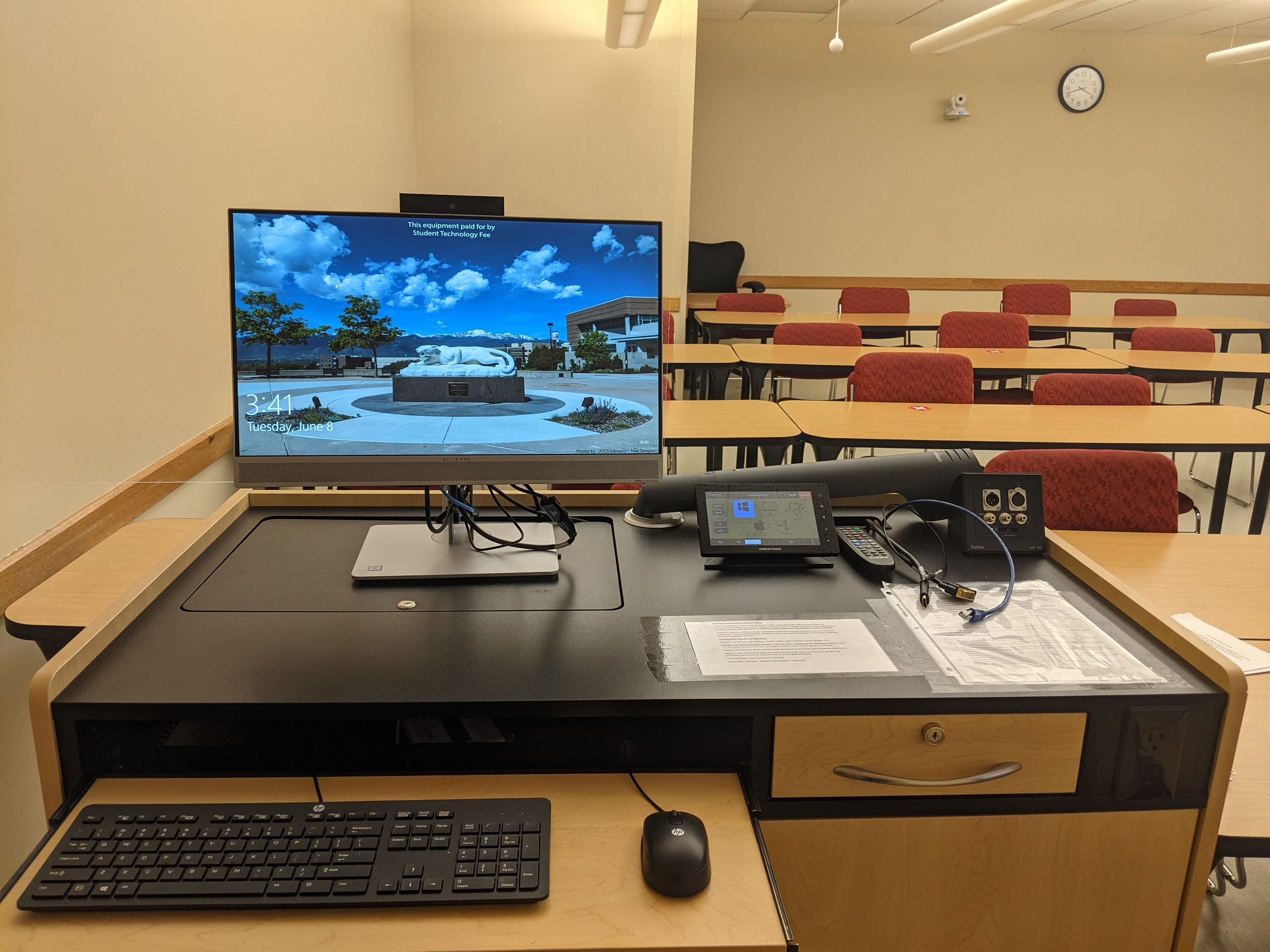
The computer placed on the podium is the primary source for this AV system. This computer runs the same image as all other podium computers in general fund classrooms and labs. You can sign in with your UCCS credentials.
Using a Laptop
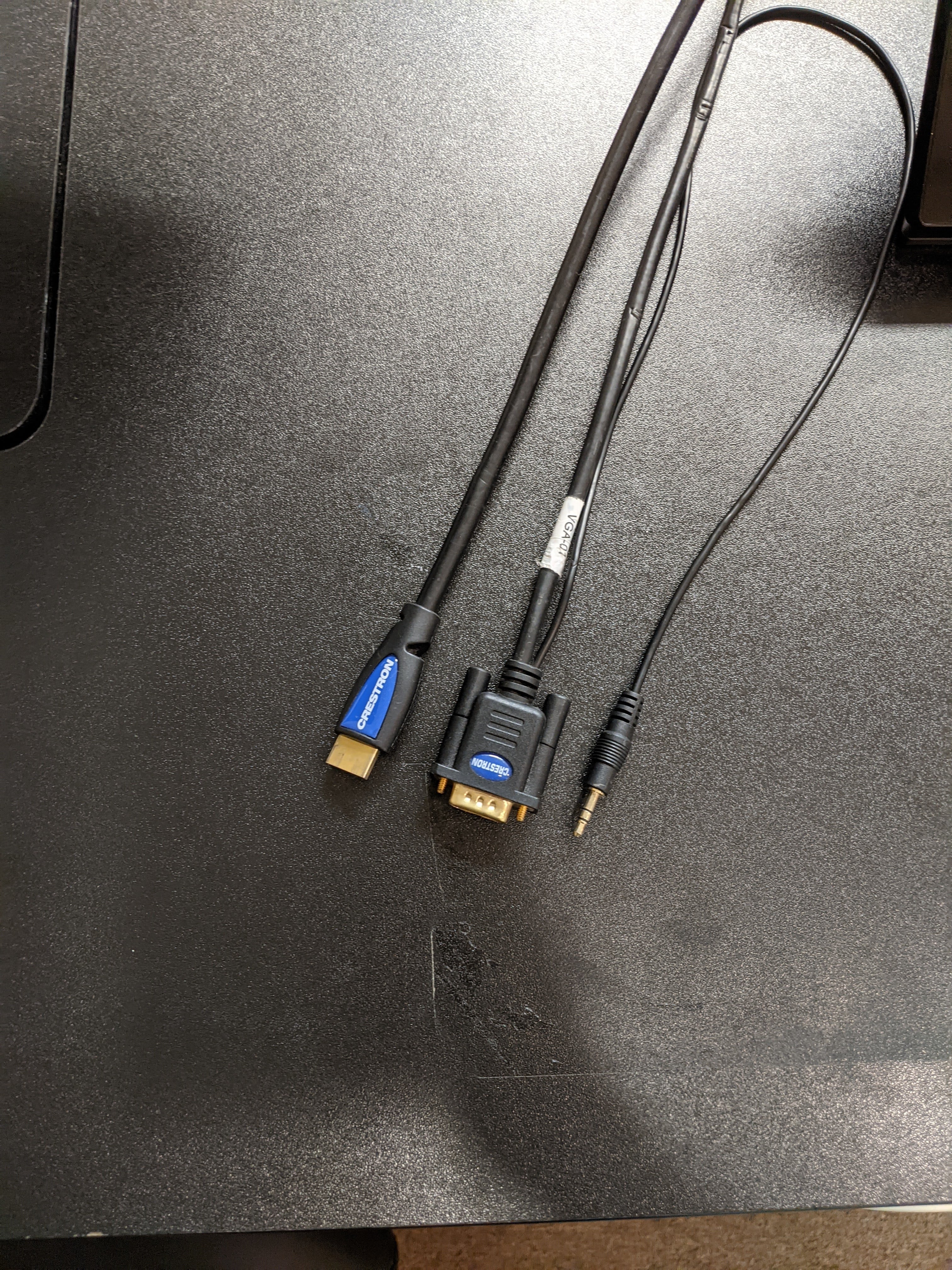
The HDMI and VGA cables on the lectern are for use with a laptop. Connect your device and switch to the laptop input on the touch panel to project.
Using the Document Camera
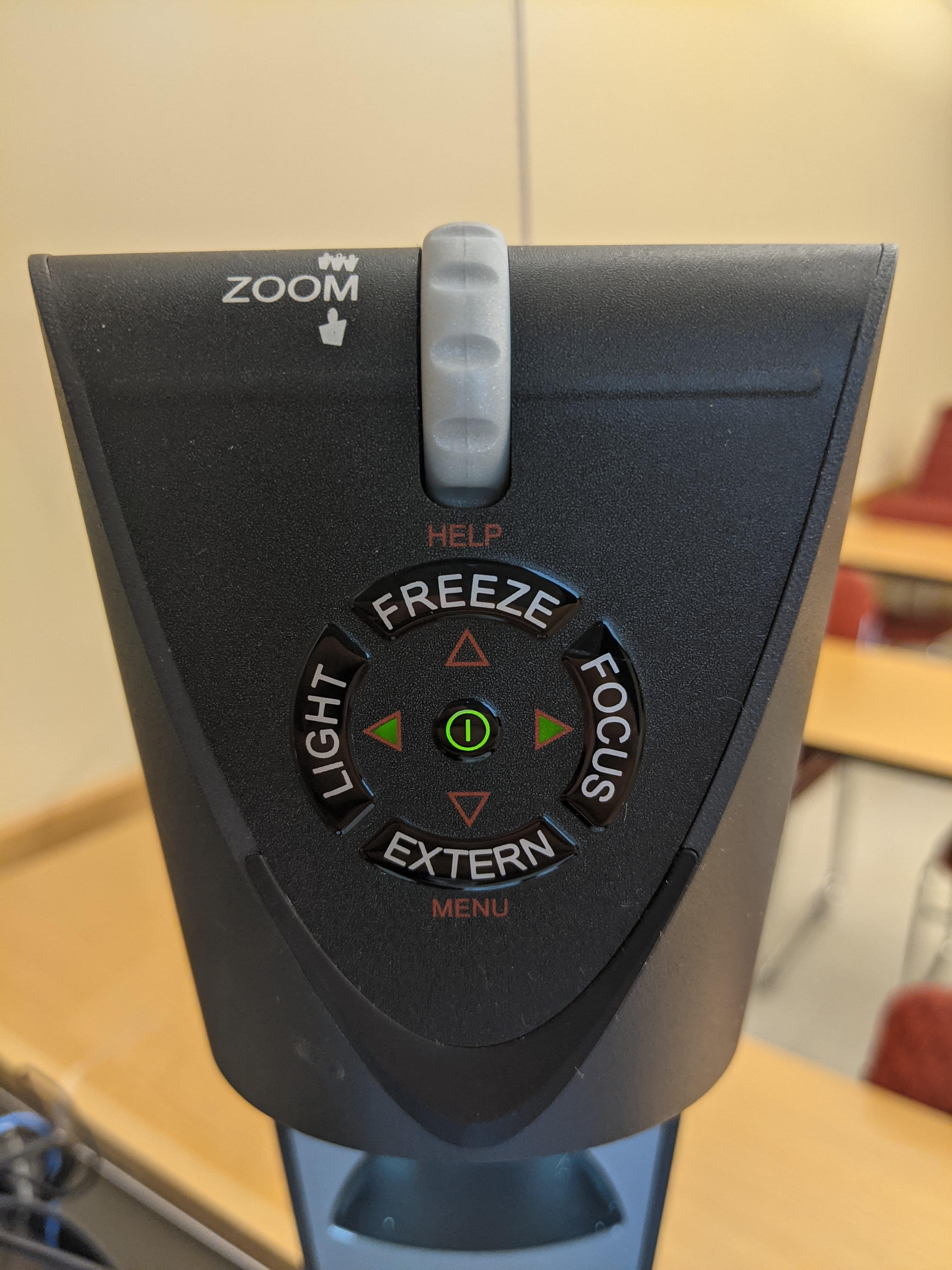
Selecting the document camera source on the touch panel will route it to the projector. The document camera on the lectern is powered on by raising/folding it up.
On the top of the document camera are controls for zoom and auto focus.
Microphones

There is a microphone input and output located to the right of the Crestron touch panel on the lectern. These are primarily for use with assistive listening systems.
The microphone input panel allows for two devices to be connected to the system, one for input and one for output. Both devices must use the XLR connections provided. Any microphone or audio input device connected to the input port will add audio to the system. This audio will be heard on the in-room speakers and the XLR output. The XLR output port will allow any connected device to receive all audio from a selected source and the XLR input.
Wireless Presentation
We also have an Apple TV in this space for use when you select "Wireless Presentation". Unfortunately, this feature is only for Apple devices using AirPlay.
iClicker
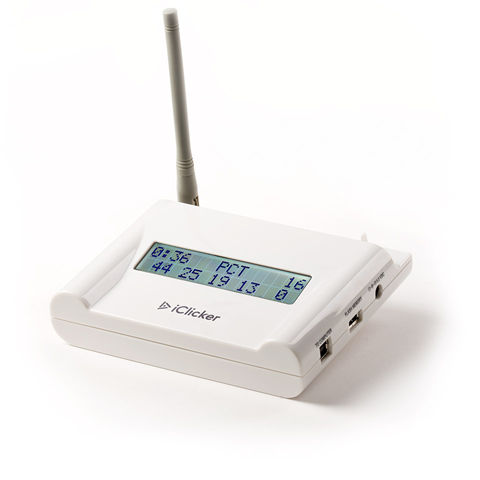
The iClicker system is used for student engagement and is located inside the lectern. Unfortunately, this is not supported by OIT. If an instructor asks for assistance, they need to visit the Faculty Resource Center
Screen Control
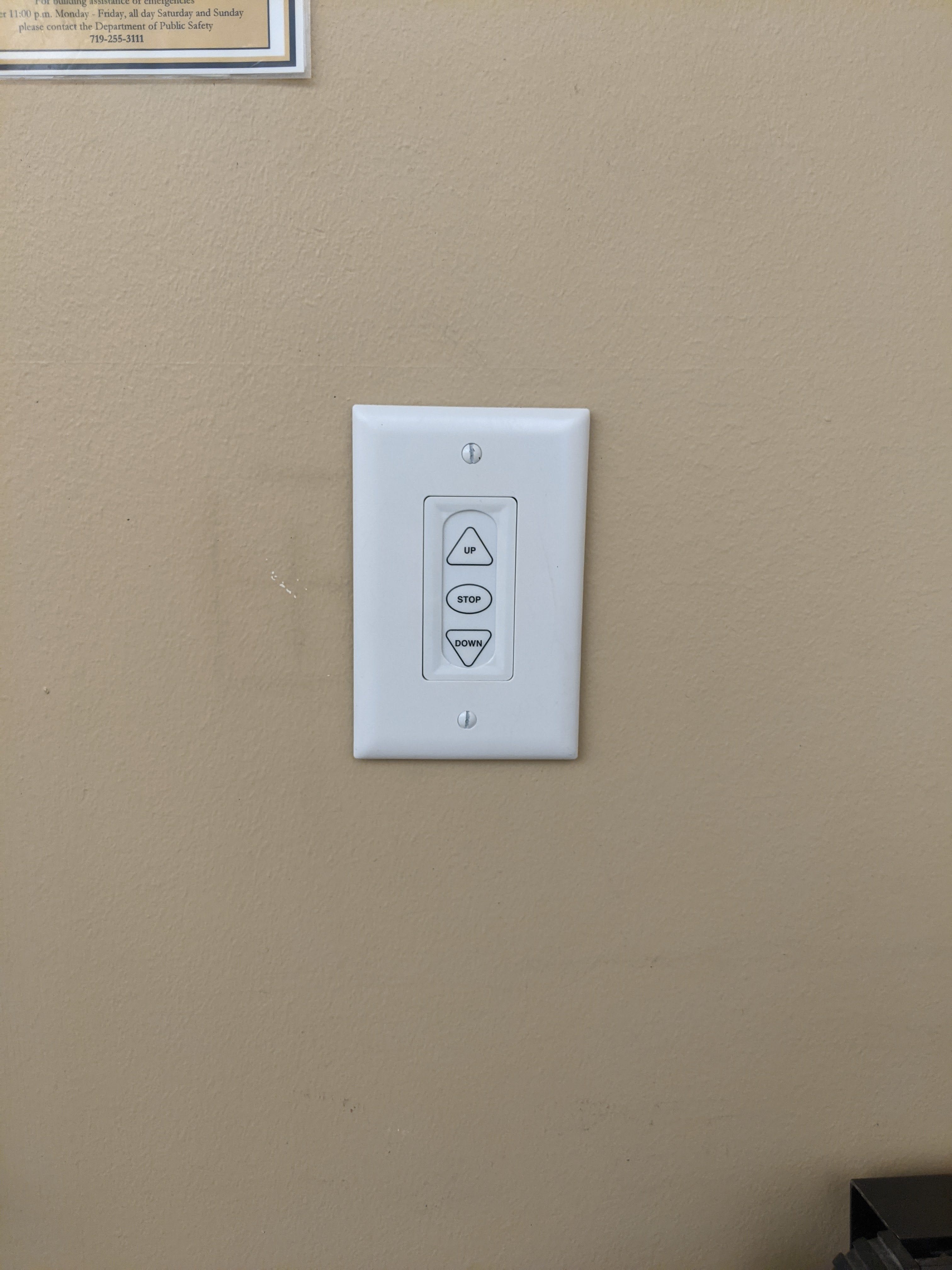
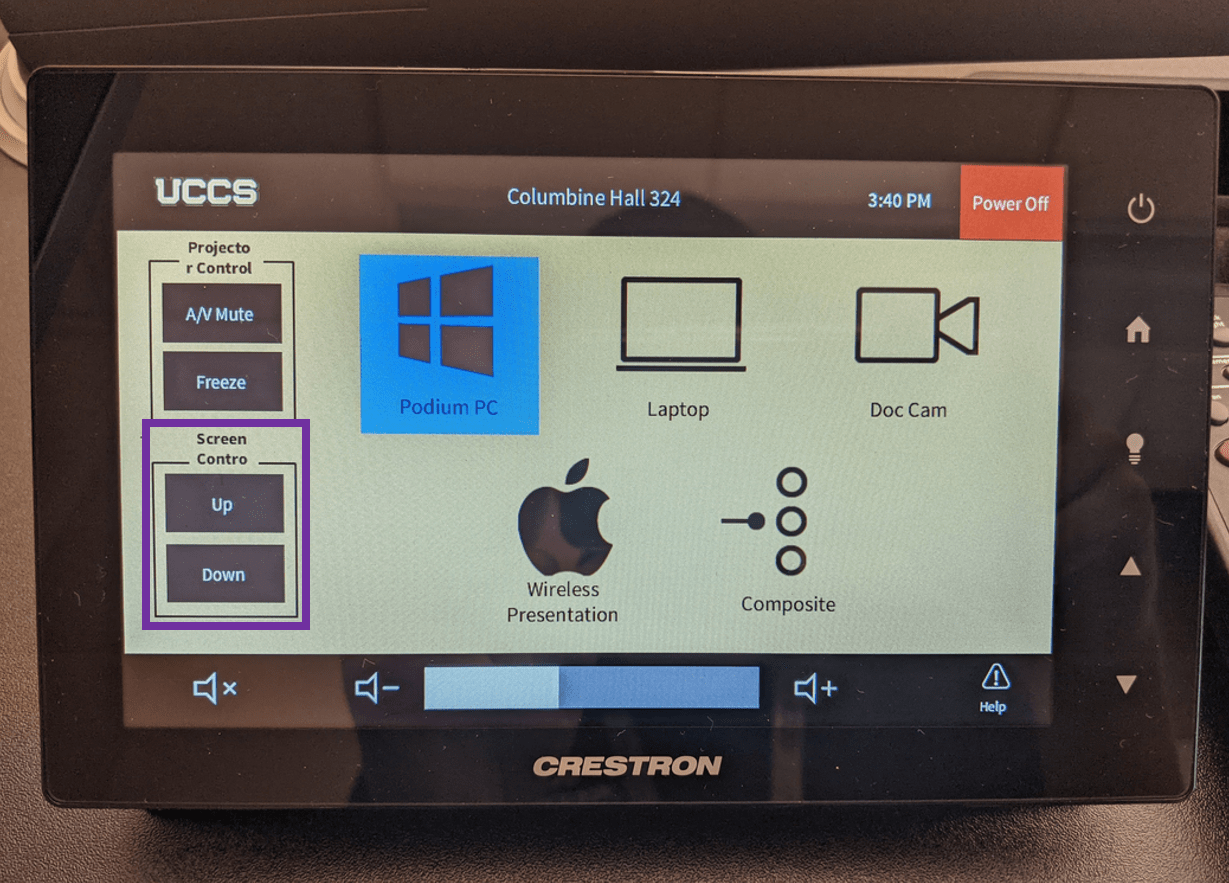
Screen controls will allow you to raise or lower the screen while the system is on. This is useful if you'd like to use the whiteboard while the projector is on. Manual screen controls are also available; located on the wall behind the lectern.
Troubleshooting
Audio Issues
Fixing Audio Issues: Standard Crestron Room
Video Issues
Fixing Video Issues: Standard Crestron Room
Vaddio/Hyflex VTC System
AirMedia/AirPlay
Wireless Presentation (AirPlay/AirMedia)
Room Specific Issues
This room has no unique equipment or known issues.
Photos
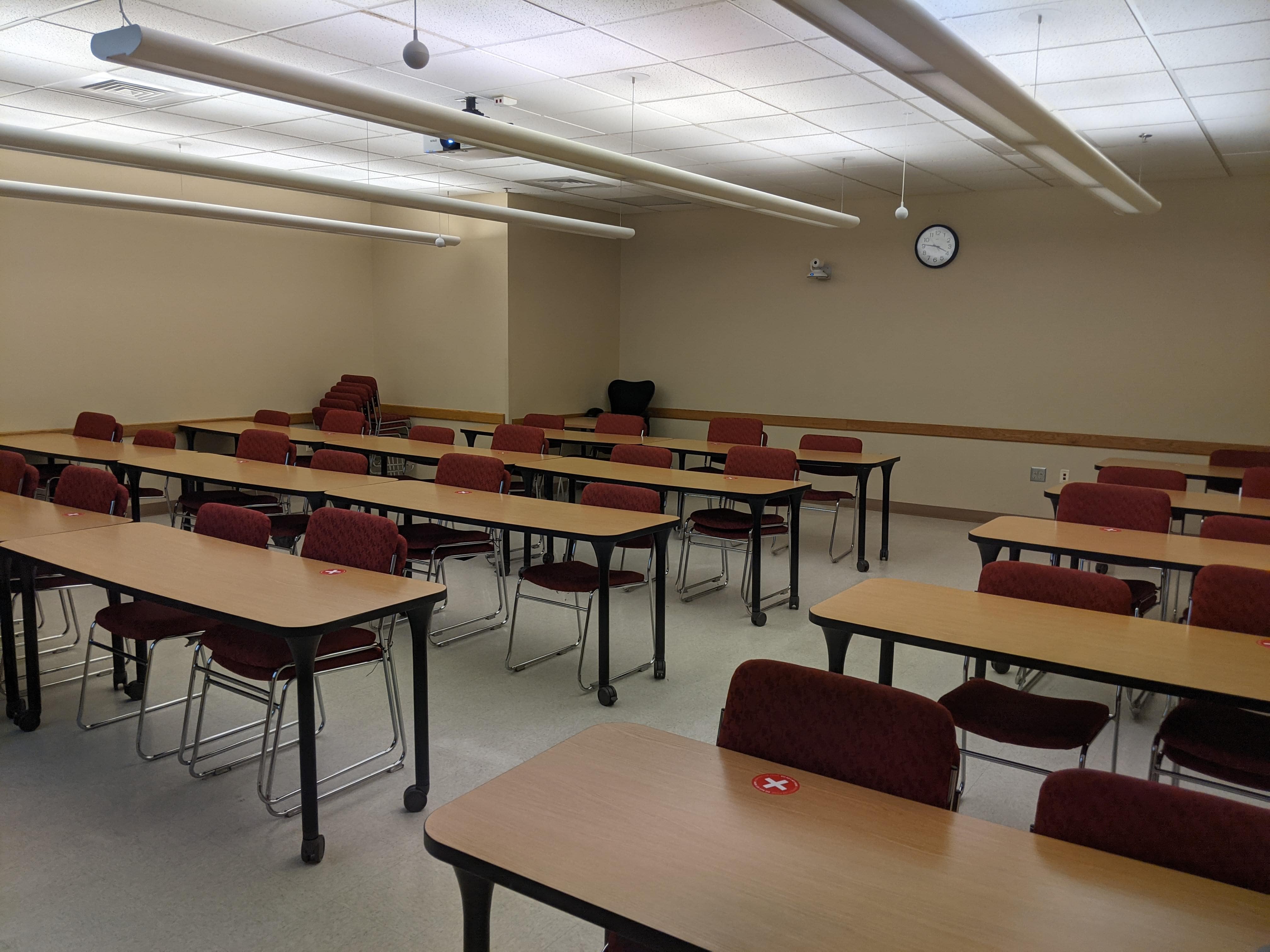
This is a Crestron controlled classroom.
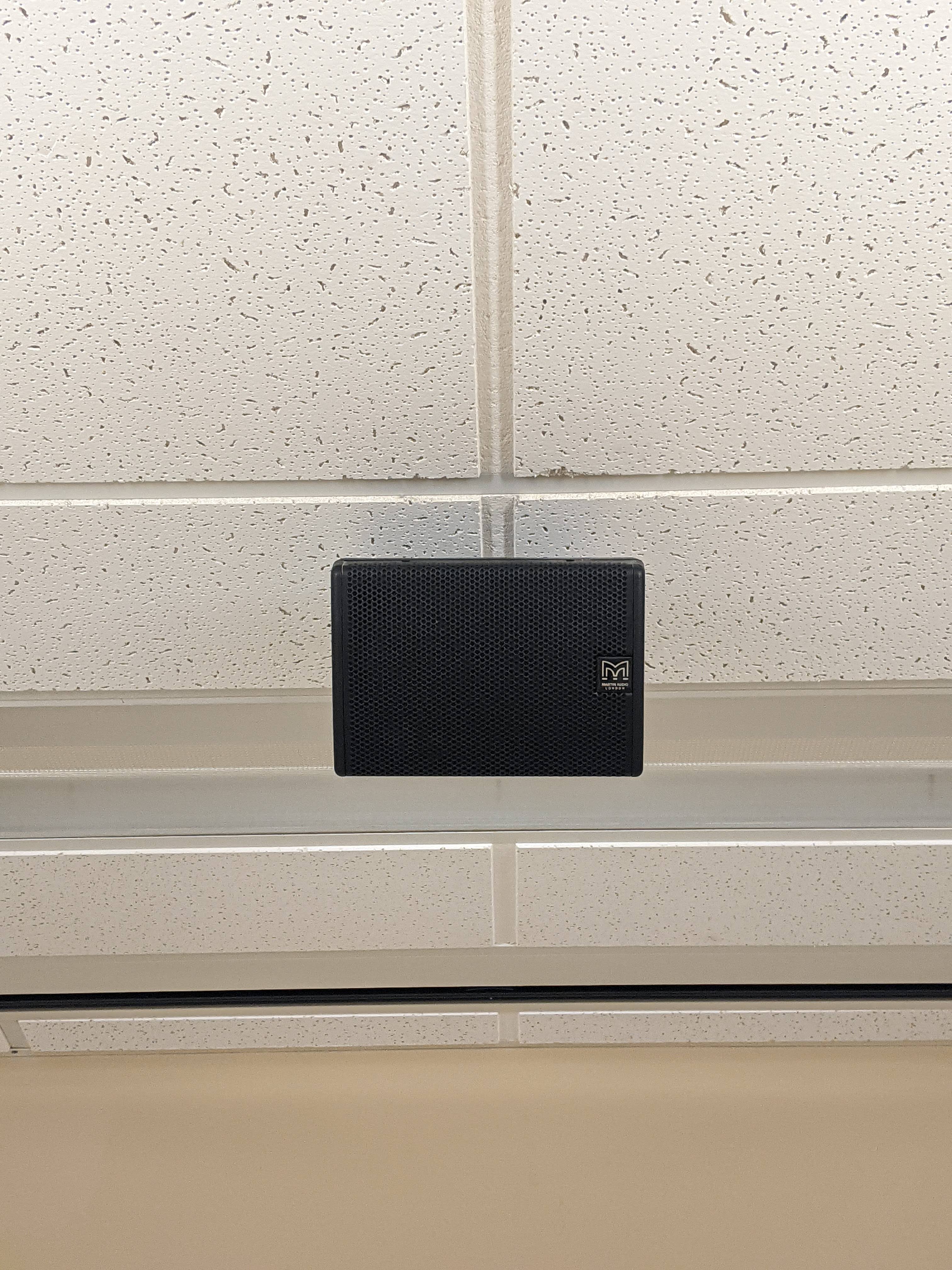
The speaker is located at the front of the room above the projector screen.
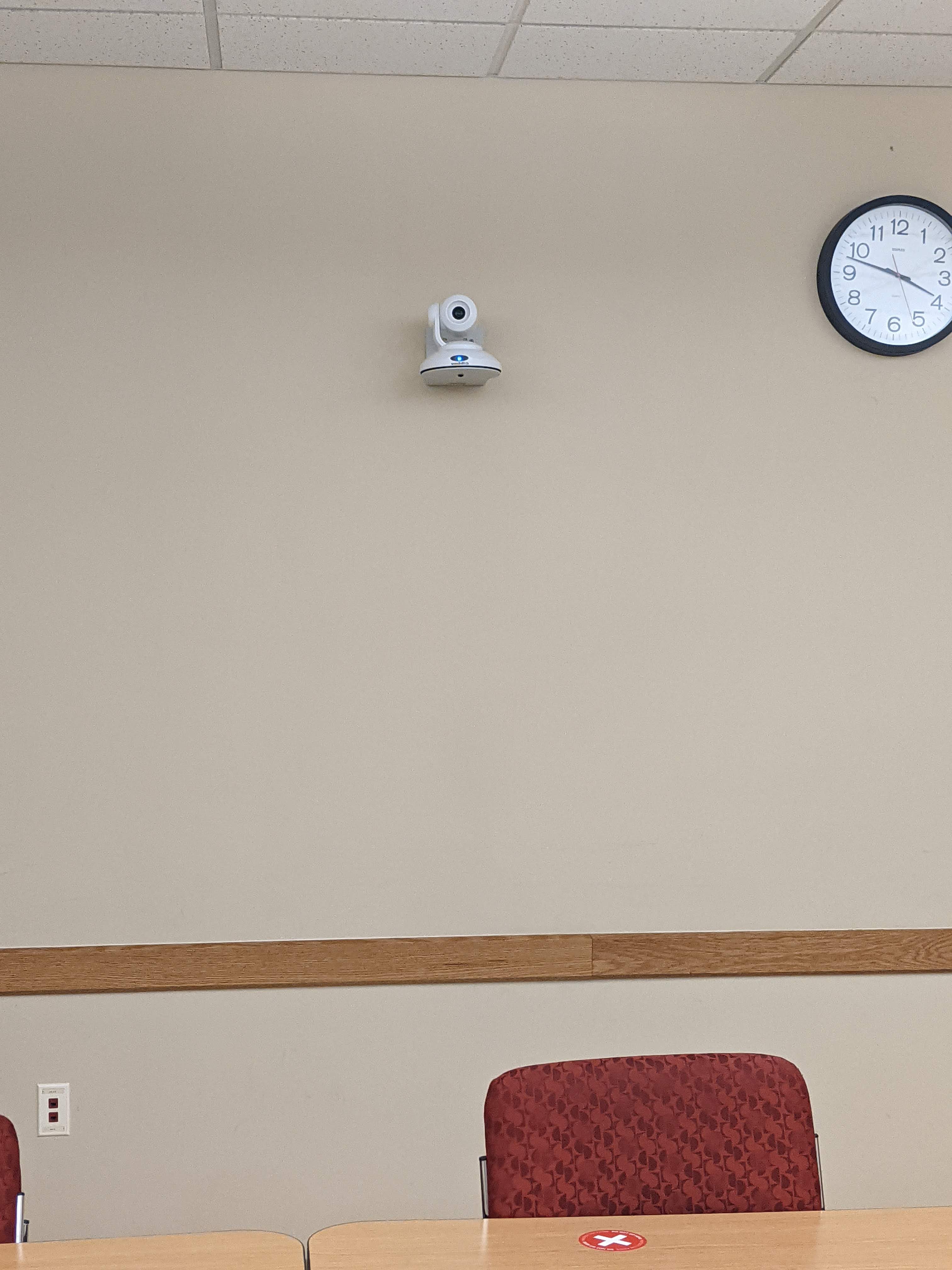
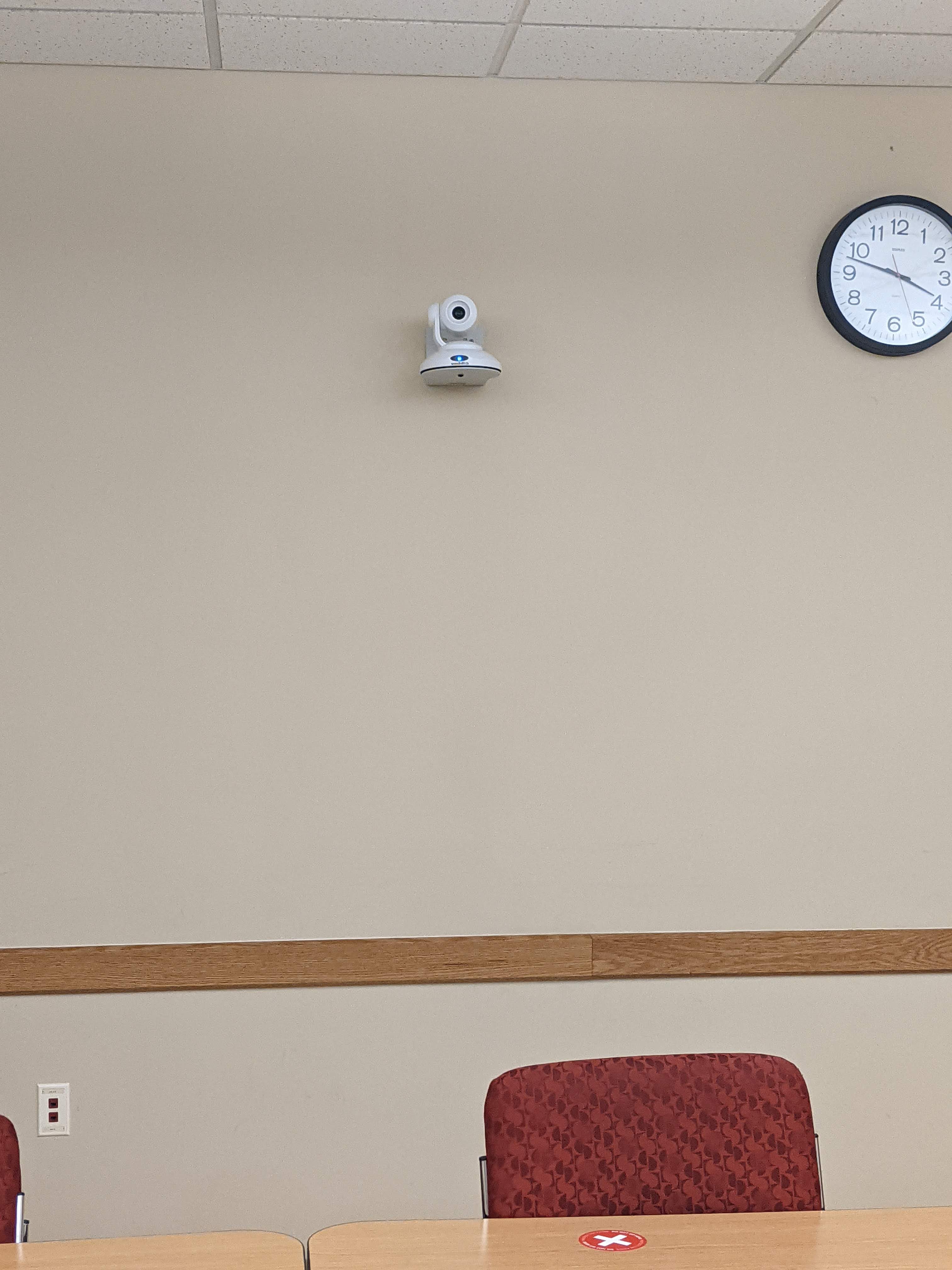
The Hyflex camera is located on the back wall of the room.
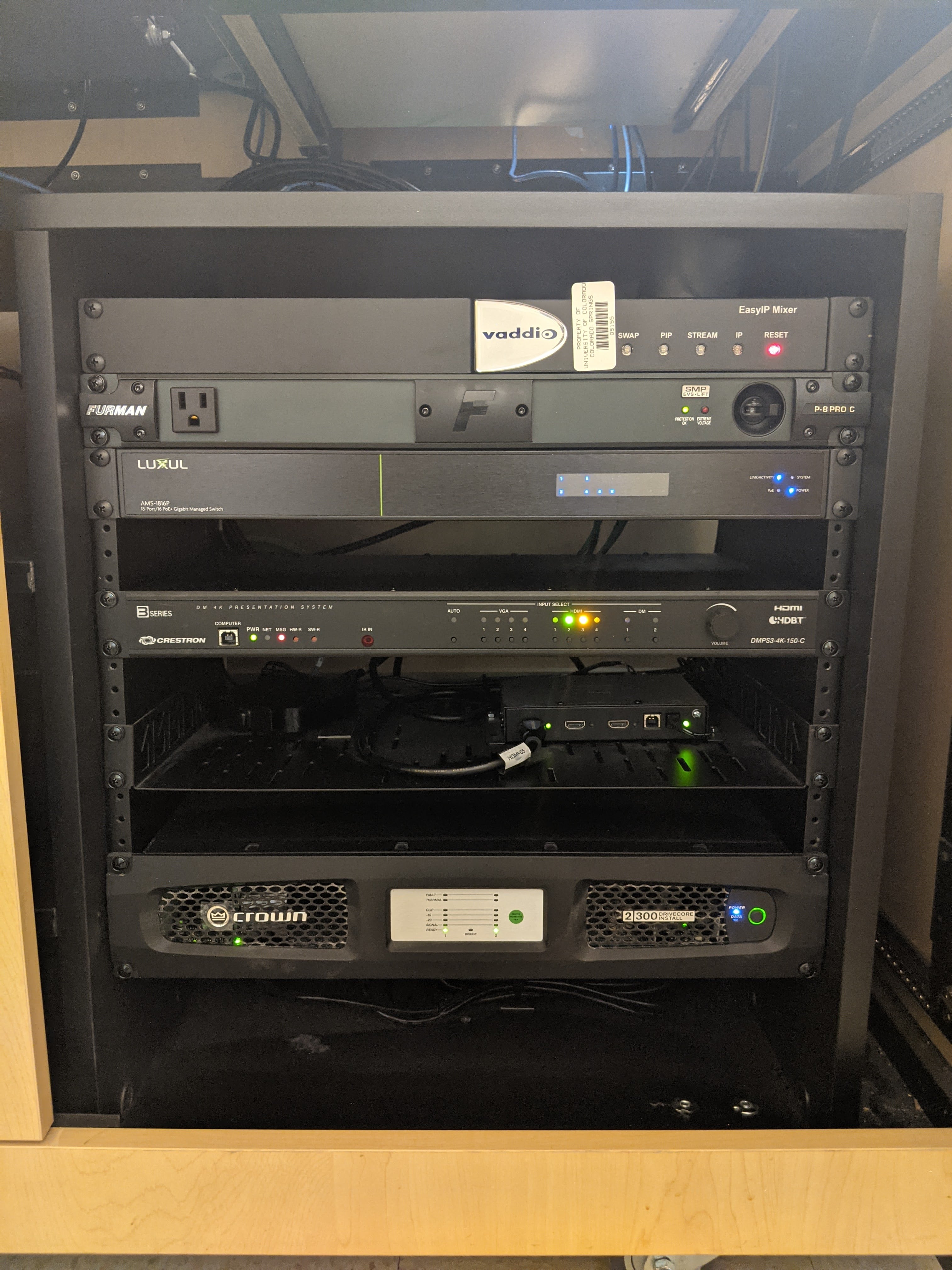
The AV rack is located behind the right door of the lectern.
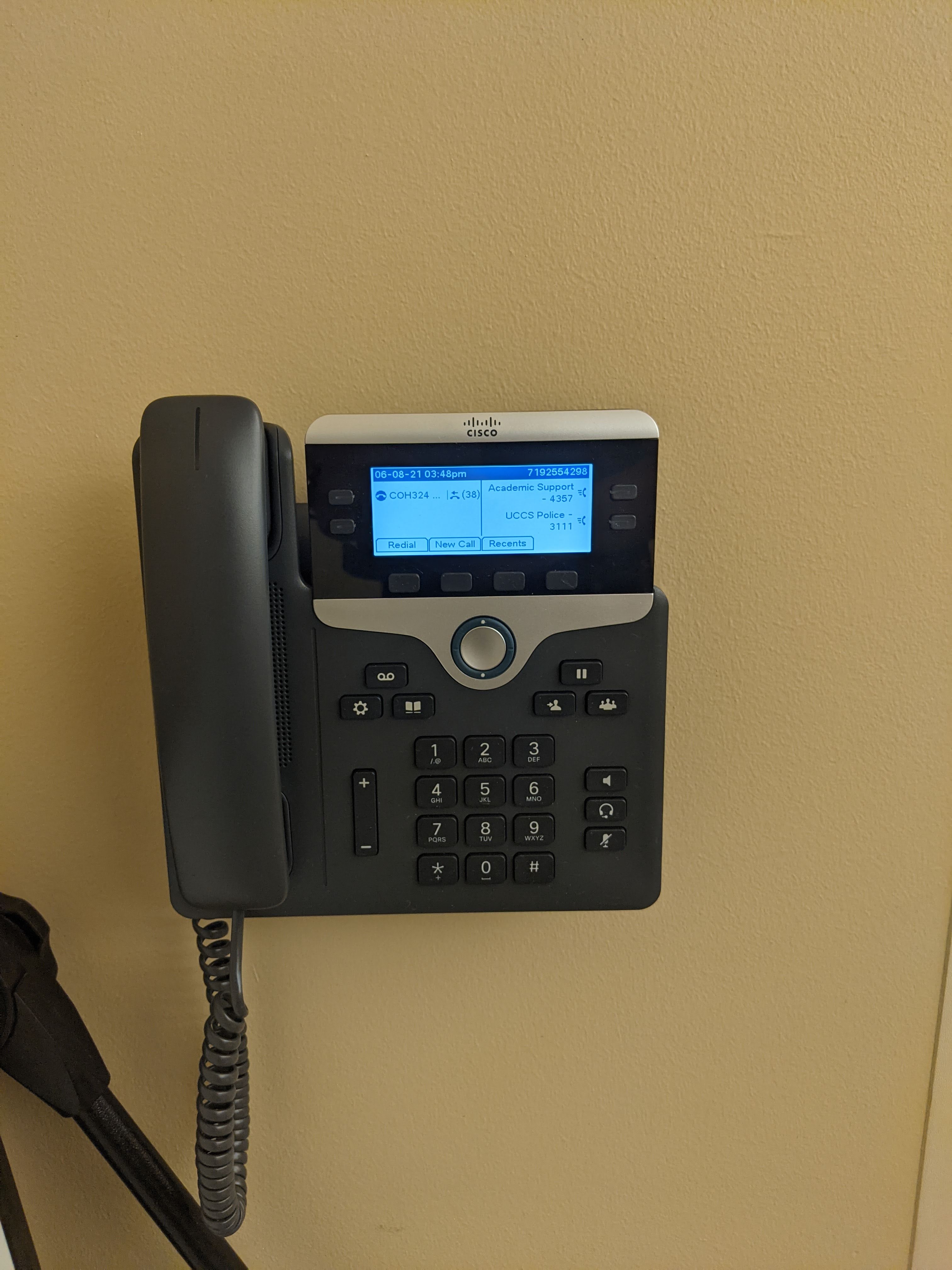
The phone is located on the wall to the left of the lectern.
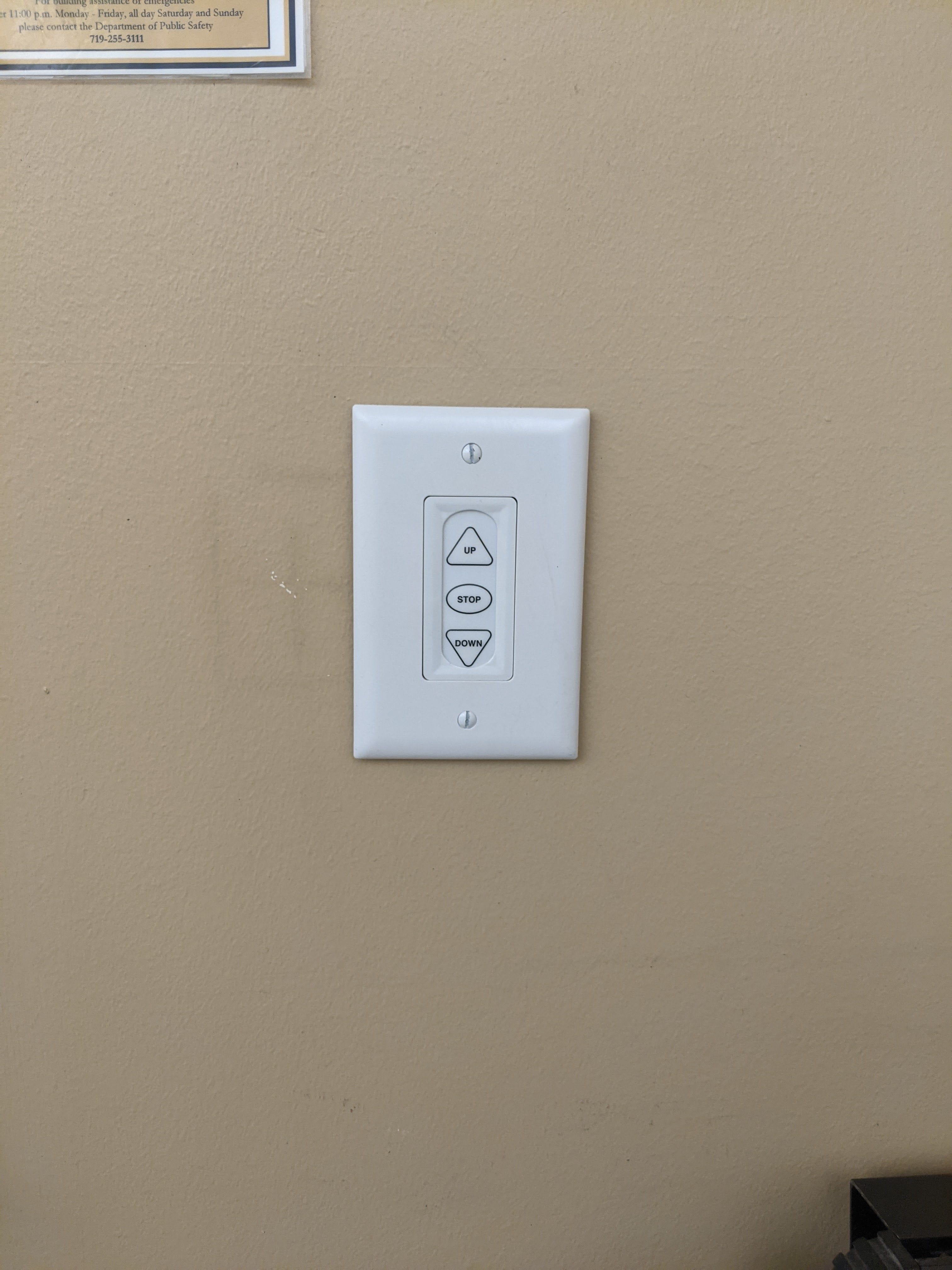
The projector screen controls are located on the wall behind the lectern.