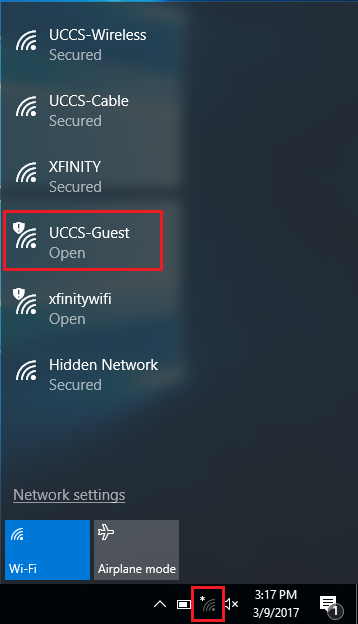
Step 1: Click Network Icon and Select UCCS-Guest
Click on the network icon in the bottom right corner. Then select the UCCS-Guest network.
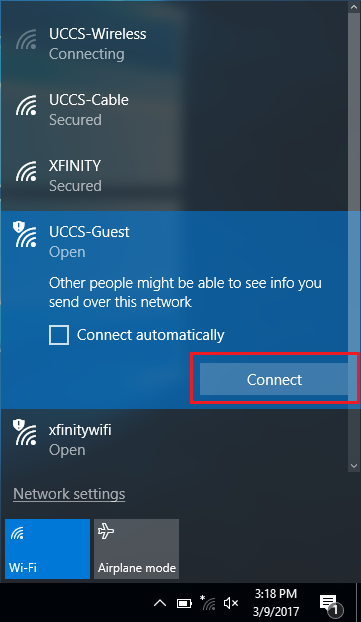
Step 2: Click Connect
Click Connect to begin connecting to the UCCS-Guest network.
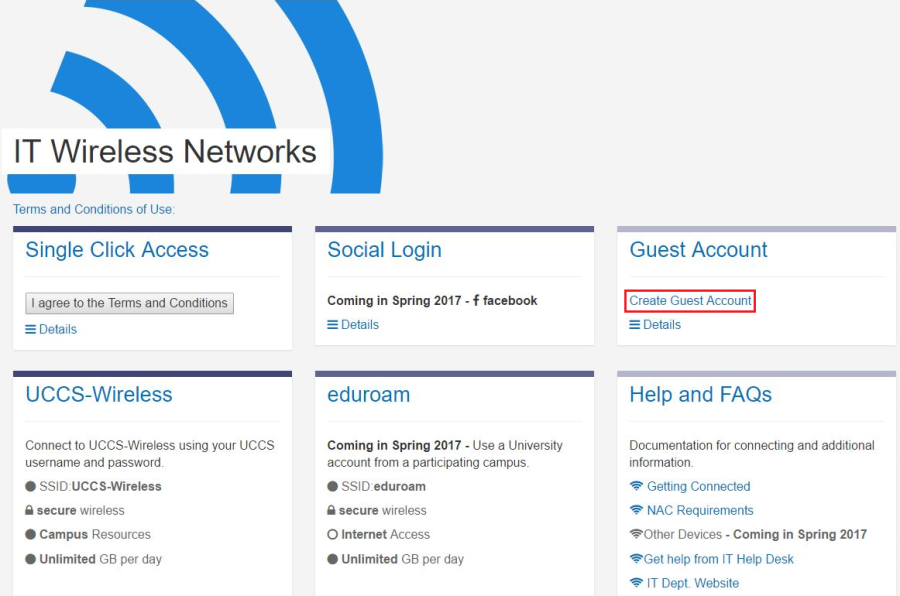
Step 3: Click Create Guest Account
A browser window will automatically open once connected to UCCS-Guest. Select the Create Guest Account option.
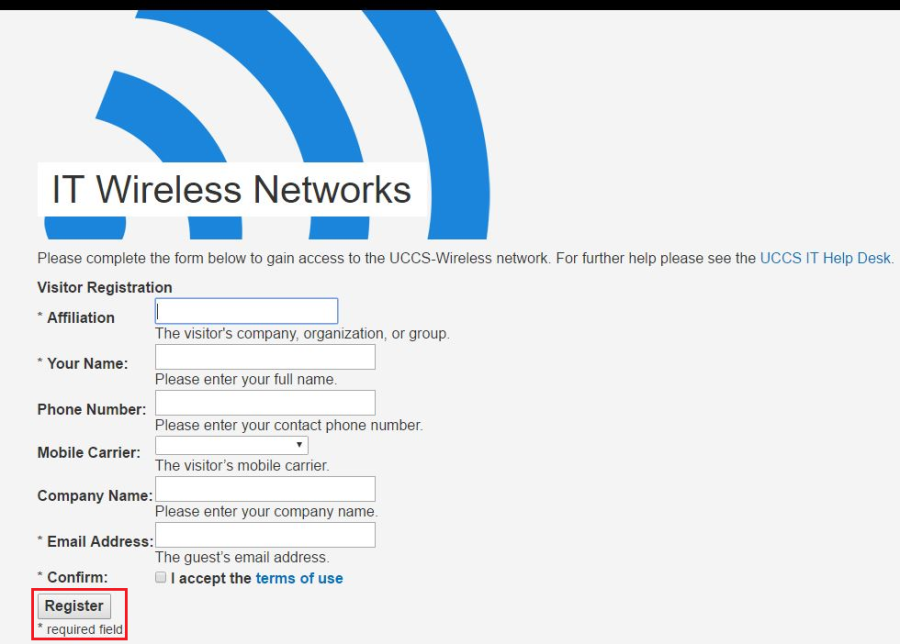
Step 4: Fill Out Form and Click Register
Fill out the form and then click the Register button at the bottom.
Step 5: Take Note of Guest Account Information
You will be provided with information about your Guest Account once the form has been completed. Please take note of this information.
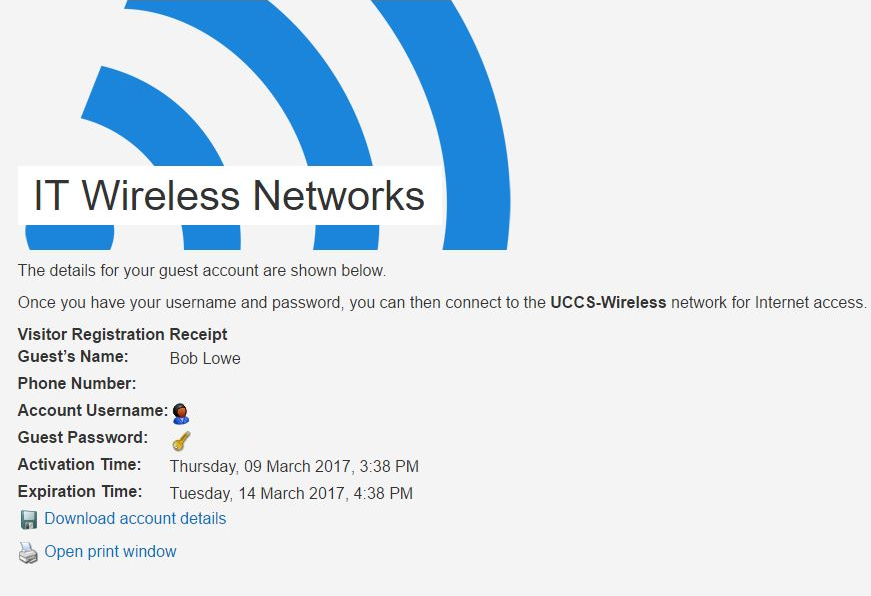
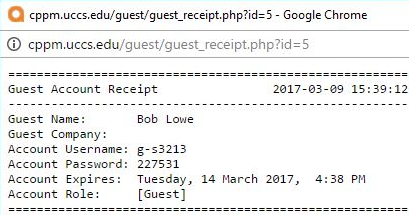
Download Option
This option will save your Guest Account information as .txt file onto your computer.

Print Option
This option will open a printer friendly window. If you have a printer available you can print the information out.
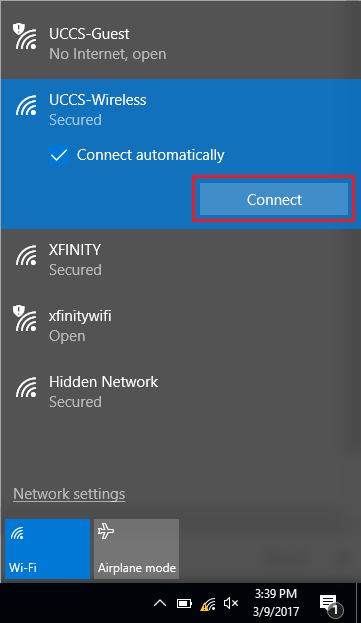
Step 6: Click Network Icon and Select UCCS-Wireless
Click on the network icon again in the bottom right corner. Then select UCCS-Wireless from the list and click connect.
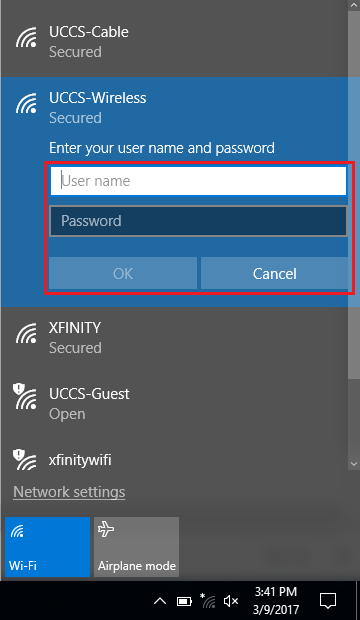
Step 7: Enter Guest Account Username/Password and Click Ok
Enter the Guest Account information and then click okay.
You are now connected to the UCCS-Wireless network.