ChatGPT Edu is currently in a pilot phase. We are anticipating being able to roll this out to the entire campus community on March 31st, 2026. Access to the training is currently limited and has not been fully rolled out yet.
Please watch this space for any updates.
Getting Started with ChatGPT Edu at UCCS
UCCS provides ChatGPT Edu access to eligible students, faculty, and staff. This guide walks you through the one-time setup process to activate your account.
Eligibility
ChatGPT Edu is available to the following groups:
- Faculty
- Students who are currently enrolled and taking courses for the current semester
- Staff
Before You Begin
You will need:
- An active UCCS campus account (your
@uccs.educredentials) - Completion of the required AI training module in Percipio
- If you have an existing ChatGPT account with a
@uccs.eduemail address, please see Merging your ChatGPT account
Step 1: Complete the Required Training
Before you can access ChatGPT, you must complete the AI Acceptable Use Training in Percipio.
- Log in to my.uccs.edu
- Navigate to Percipio (search for it in the portal if needed)
- Complete the ChatGPT / AI Acceptable Use training module
- Once you see a completion confirmation, you're ready to proceed
Note: It may take a few minutes after completing the training for our systems to recognize your completion. If you run into issues, wait 5–10 minutes and try again.
Step 2: Activate Your ChatGPT Account
Once your training is complete, visit the UCCS ChatGPT setup page to activate your account.
- Go to chatgptlogin.uccs.edu/api/gateway
- Sign in with your UCCS campus credentials when prompted
- You should see a welcome screen with your name and email:
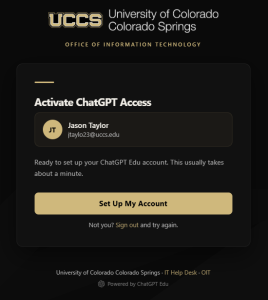
- Click the "Set Up My Account" button
- Wait while the system verifies your training and configures your access — this usually takes less than a minute
- When you see a green success message, your account is being provisioned and will be ready within 5 minutes.
Tip: If you see a message saying your training is not complete, double-check that you finished the Percipio training module and try again after a few minutes.
Step 3: Wait for Your Invitation (Recommended)
After your account is activated, OpenAI will send an invitation email to your @uccs.edu address. This email confirms your account is fully provisioned and ready to use.
- Check your UCCS email inbox (and spam/junk folder) for an email from OpenAI
- While you might be able to log in immediately, waiting for the invitation email ensures everything has synced properly
Step 4: Log in to ChatGPT
Go to chatgpt.com
On the "Log in or sign up" screen, type your UCCS email address (e.g.
[email protected]) in the Email address field at the bottom, then click Continue⚠️ Important: Do not click "Continue with Google," "Continue with Microsoft," or any of the other buttons. Type your email in the field at the bottom of the screen.
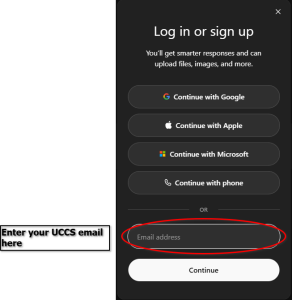 Enter your UCCS email here
On the next screen — "How do you want to log in?" — click the "CU - Colorado Springs (Edu)" button at the top
⚠️ Important: You must use the CU - Colorado Springs (Edu) option. Do not click "Continue with Microsoft" or any other option — those will sign you in with a personal account, not your UCCS Edu account.
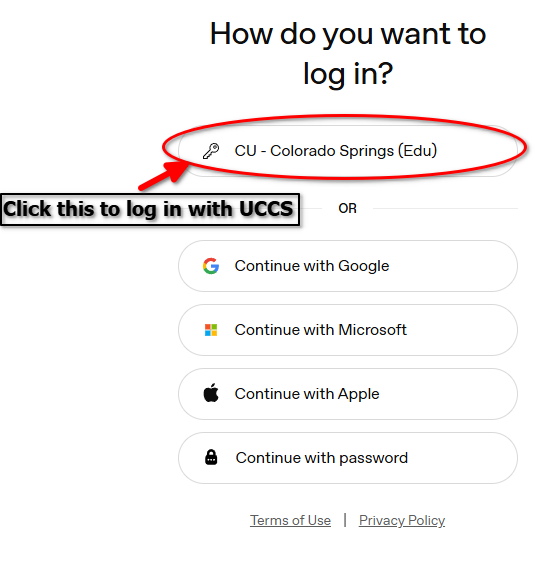 Click this to log in with UCCS
You'll be redirected to the familiar UCCS sign-in page. Enter your campus credentials and complete MFA if prompted.
You're in! You should now see the ChatGPT interface with your UCCS workspace.
Troubleshooting
"Training not complete" error on the setup page You need to finish the Percipio training first. If you've already completed it, wait 5–10 minutes and try again — there can be a short delay before our system recognizes the completion.
"No access groups found" error on the setup page Your account hasn't been assigned to a ChatGPT access group yet. This is typically handled automatically based on your role (student, faculty, or staff). If you believe this is an error, contact the IT Help Desk.
"How do you want to log in?" screen doesn't show the CU option Make sure you entered your @uccs.edu email address in Step 4. If you used a personal email (Gmail, Outlook, etc.), you won't see the UCCS option. Go back and enter your campus email.
Signed in but seeing a personal account instead of UCCS Edu You may have clicked "Continue with Microsoft" or "Continue with Google" instead of entering your email in the email field. Sign out of ChatGPT completely, then follow Step 4 again — making sure to type your email in the field and select the CU - Colorado Springs (Edu) button.
Still having trouble? Contact the OIT Help Desk or visit oit.uccs.edu/get-help for assistance.
For help with the ChatGPT platform itself please email [email protected]