Table of Contents
Features
This is a projector-based, uncontrolled classroom with an Epson projector and remote.
- Podium Computer
- Audio system with speakers
- Pull down projection screen
- Full HD Laser Projector
- Hyflex VTC System with Camera and Microphone
- HDMI Laptop Connection
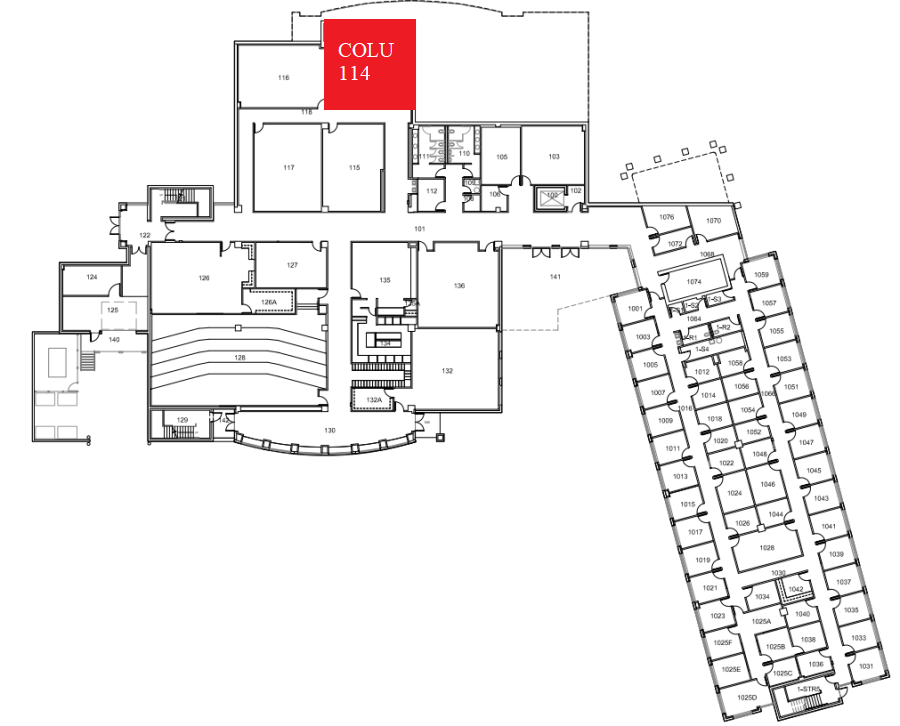
Location: Columbine 1st Floor
Remotes
Projector Remote
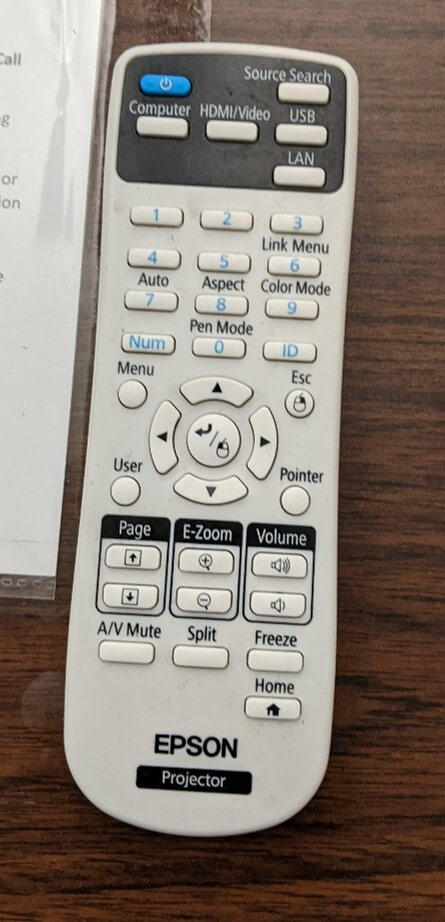
Controls the projector and volume in the room.
Hyflex Remote
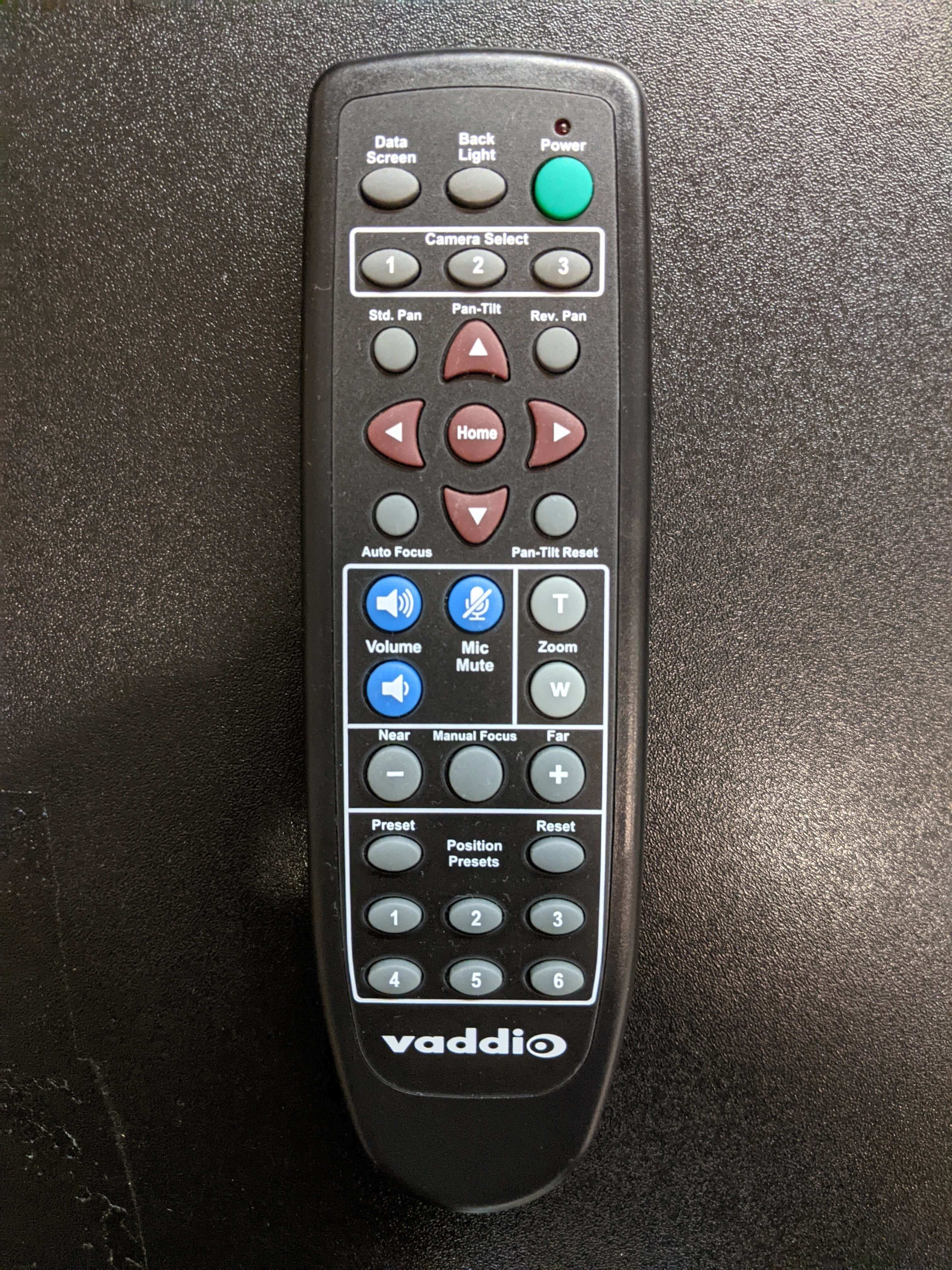
Controls the Hyflex VTC System.
Lectern
Remote Location

Locations for both remotes are located in the middle drawer on the left side of the lectern shown above.
Keyboard/Mouse Location

Keyboard and mouse are located in the top drawer on the left side of the lectern shown above.
Courtesy Shelf
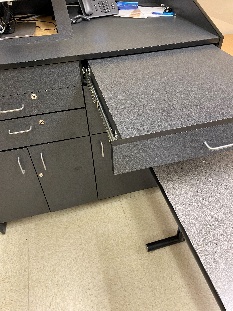
At the top right of the podium, there is a pull out shelf which can be utilized for placing additional materials on the podium.
Controlling the A/V System
Using the Remote
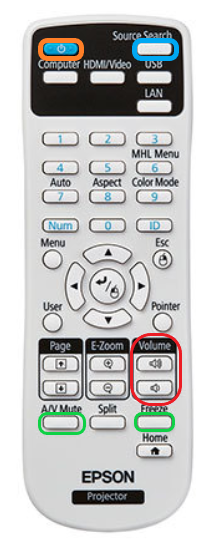
The remote for the projector controls most functions in the room. The remote is labeled below with the colors corresponding to a particular section explaining that function.
Turning the system on and off
To turn the system on, press the power button on the remote (outlined in orange above). This will only turn on the projector. You must physically pull on the string/handle on the screen to lower it.
To turn off the system, press the power button twice. This will turn off the projector. To raise the screen, pull on the string/handle and the screen should raise. You may have to push on it a bit to get it all the way up.
Source Selection
Just like all our other classrooms, the correct source should be HDBT, however, this remote does not have that as an option. To select the correct source, hit the blue "Source Search" button to automatically select the HDBT source.
Volume Control
Volume can be controlled with the volume buttons on the remote (outlined in red above), or on the PC using the volume controls  on the bottom right corner of the screen.
Projector Control
The most commonly used projector functions are A/V Mute and Freeze. A/V Mute is on the bottom left of the remote, and Freeze is on the bottom right of the remote (both outlined in green above).
- A/V Mute will shutter the projector and mute the audio. Use this feature when you want to use the whiteboard or front of the room without shutting down the system. Please only use this feature for up to 20 minutes, otherwise it's best to shut down the system.
- Freeze will freeze the currently displayed image on the screen. Use this feature if you'd like to hold a frame still on the screen or use the podium PC for another activity without displaying it, such as checking your email.
Inputs
Using the Podium PC
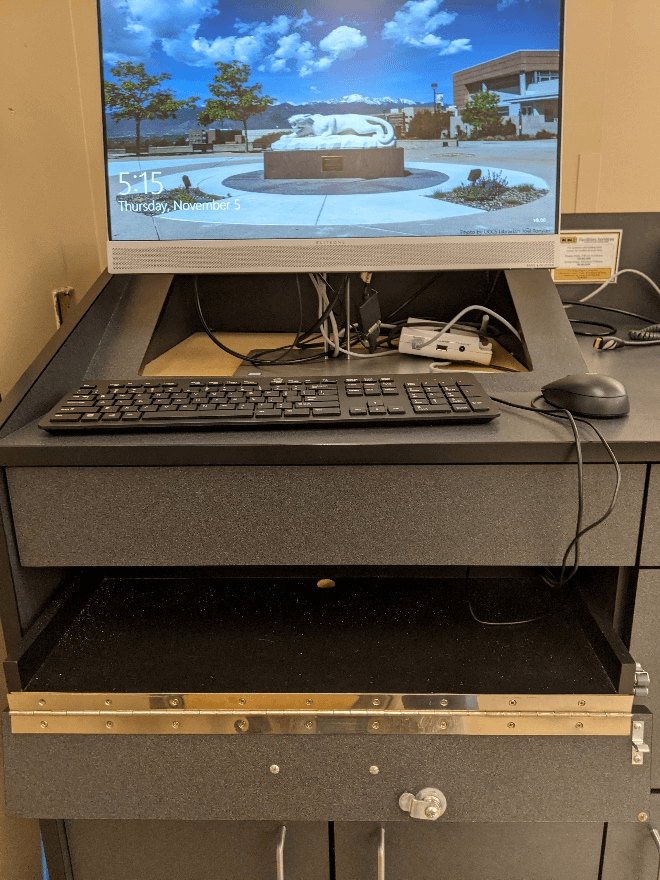
The podium PC is on the desk at the front of the room and is the primary source for this AV system and should use the VGA connection. This computer runs the same image as all other podium computers in general fund classrooms and labs. You can sign in using your UCCS credentials.
Using a Laptop
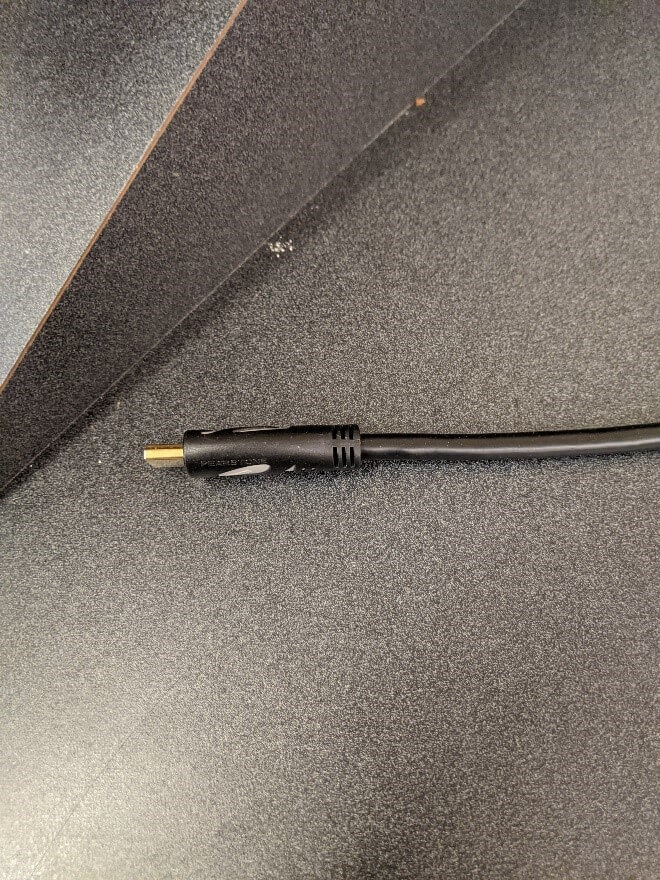
The HDMI cable on the lectern is for use with a laptop. Connect your device, and the system will automatically switch to the correct input.
Screen Control
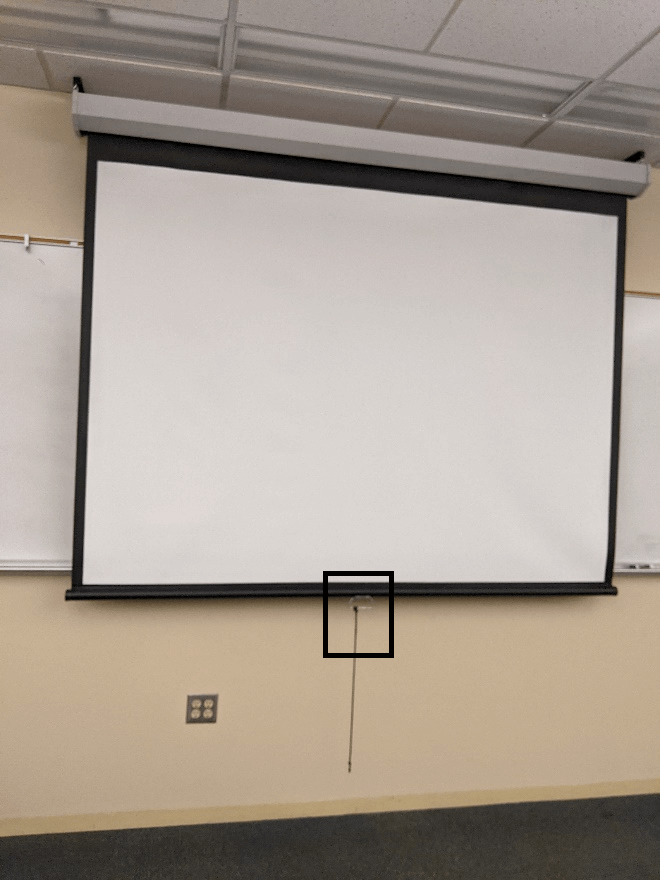
The screen in this room is manually operated. The handle, with a string attached, is outlined in black in the photo above.
| OIT calibrates the projector image when the bottom weighted bar of the screen is closest to the marker tray. If the screen isn't the same height as the marker tray, the image may be off centered or cut off. |
Troubleshooting
Audio Issues
Fixing Audio Issues: Uncontrolled Room
Video Issues
Fixing Video Issues: Uncontrolled Room
Vaddio/Hyflex VTC System
Photos
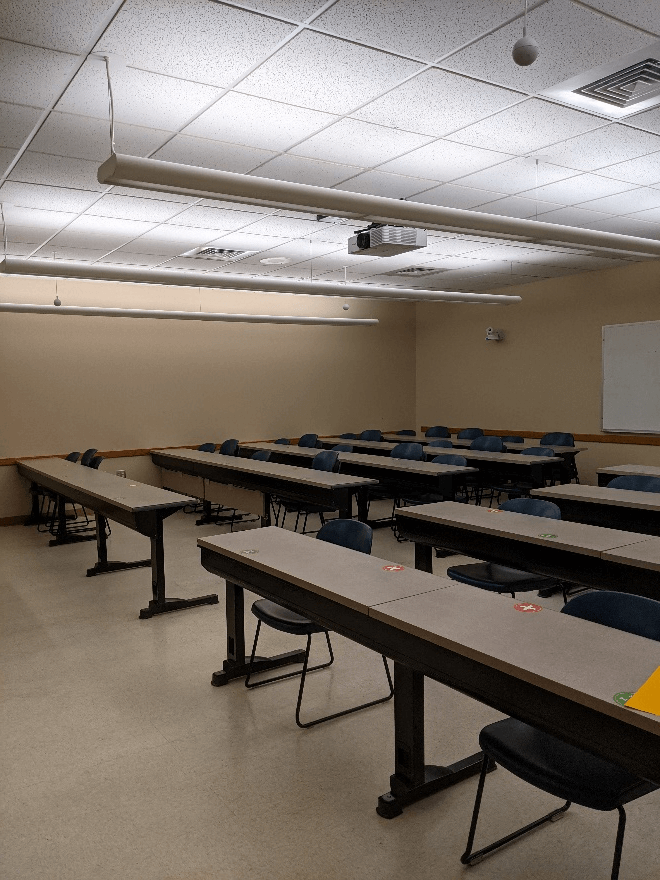
Picture of the room with the 4 Vaddio microphones for HyFlex

The room speakers are located in the ceiling on each corner of the classroom.
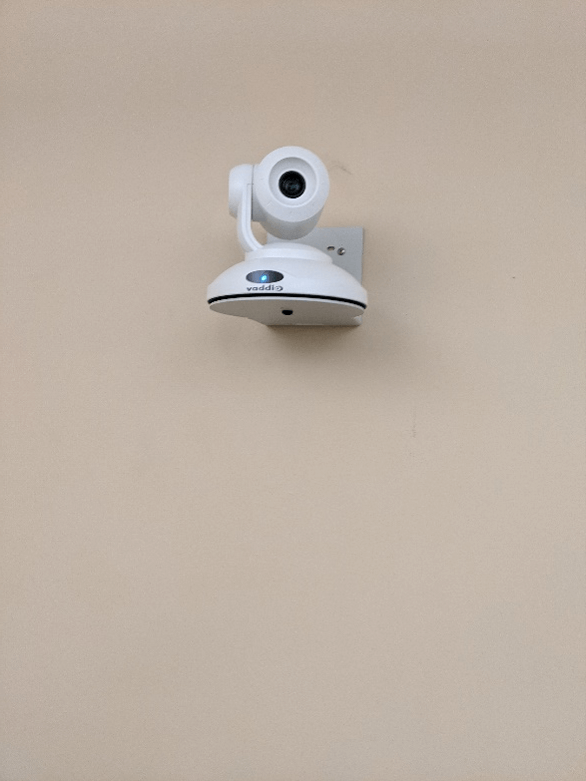
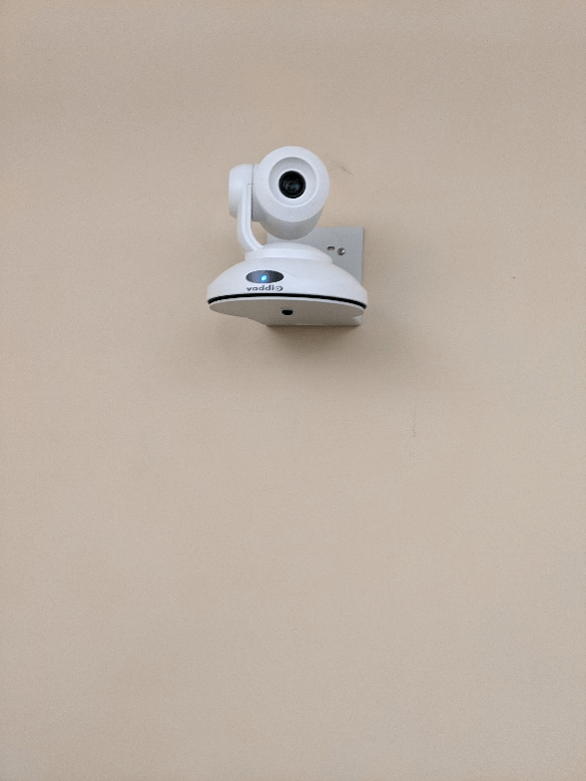
This is the camera in the room. It is located on the back wall on the left side.
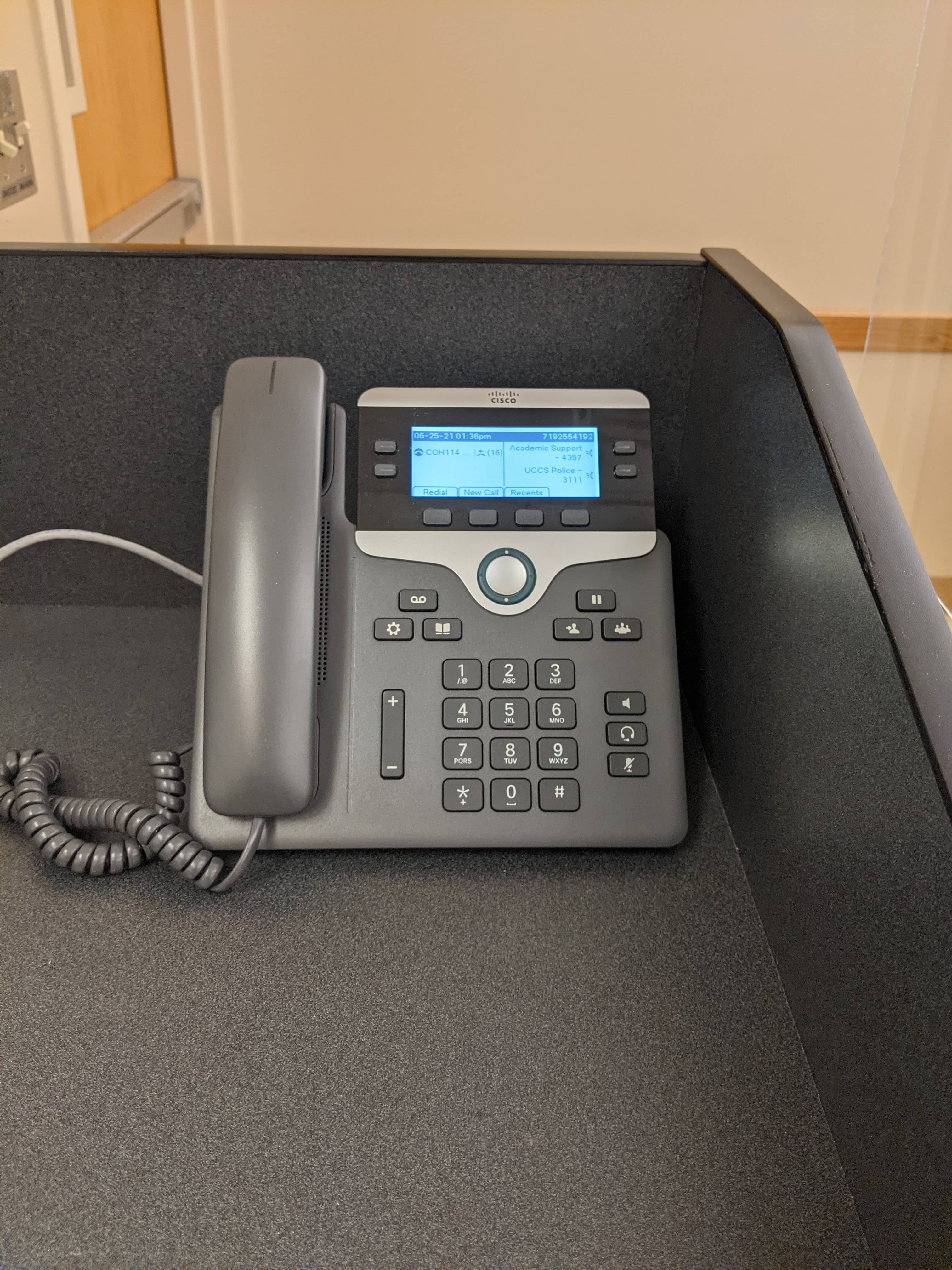
This is the Cisco phone located on the top of the podium in the upper right hand corner.