For security reasons you should attempt to setup your wireless connection using system certificate checks. This should be possible on newer Android versions. If you cannot connect with these settings, you can try connecting without validating certificates, but this is not recommended. |
There are many different versions of Android OS available. While the setup instructions below are similar for all devices, the exact wording or menu locations may vary slightly device to device, and version to version. |
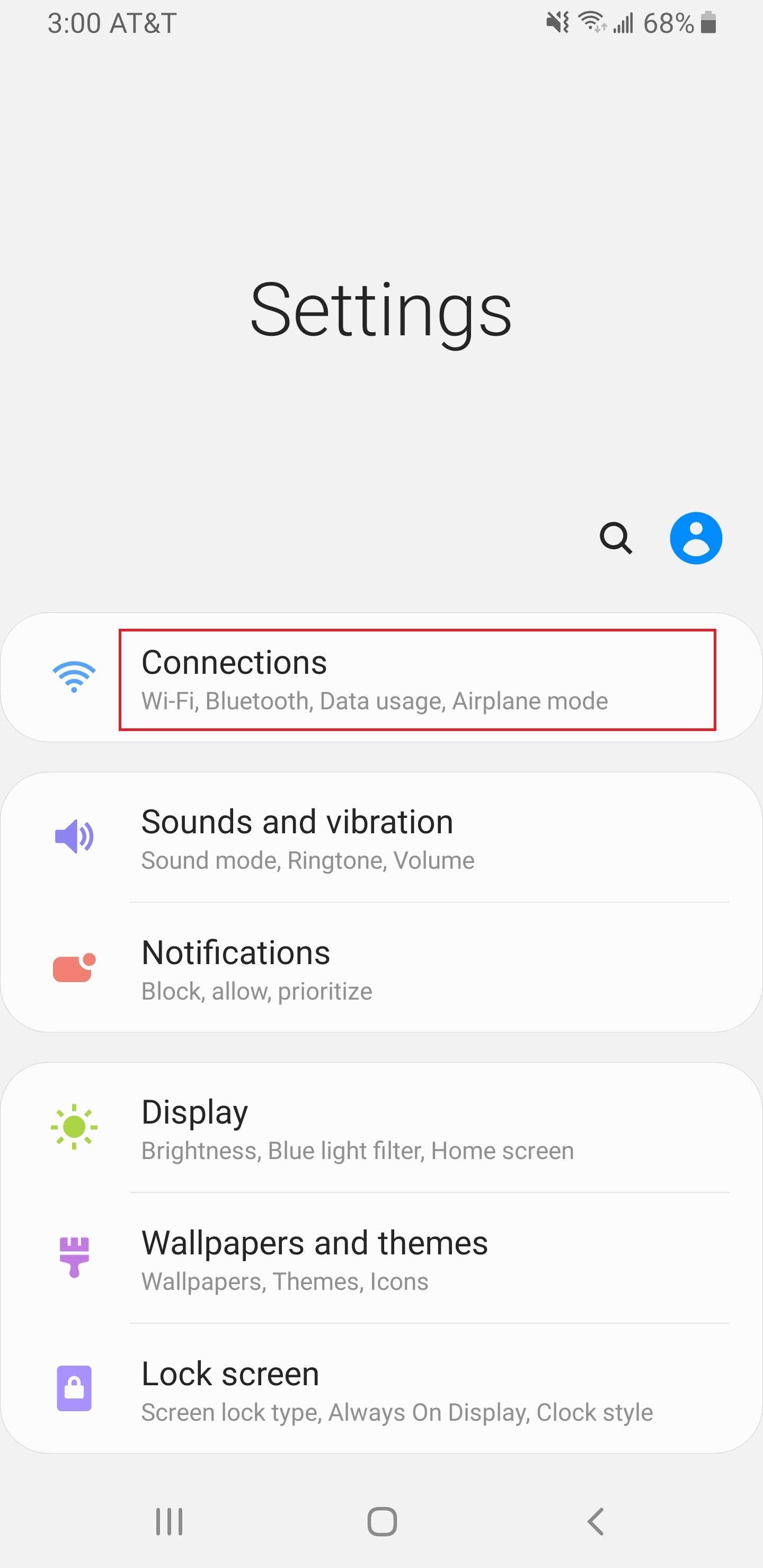
On your Android device open Settings, then tap Connections.
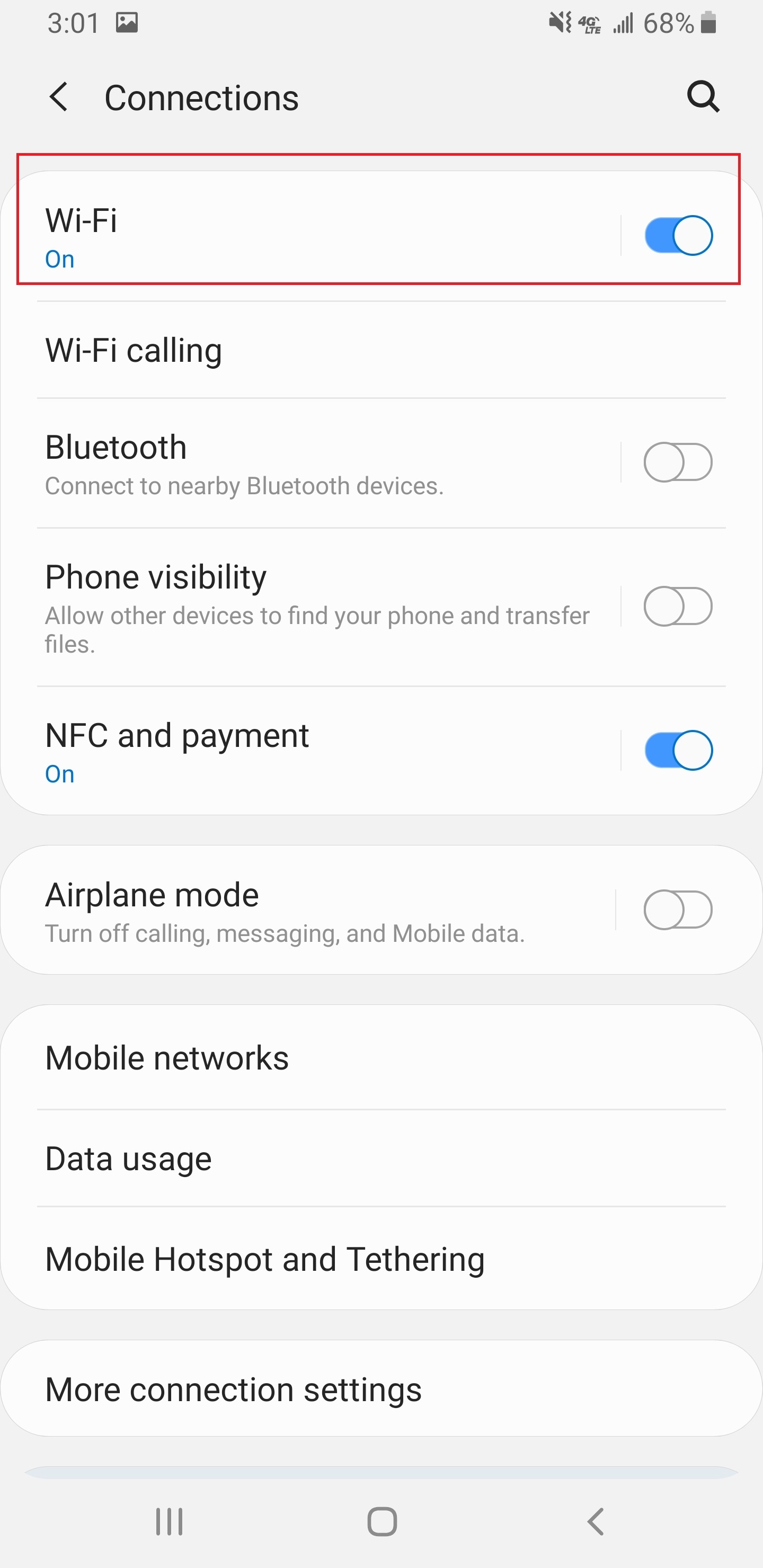
Enable or Turn on Wi-Fi, then tap Wi-Fi
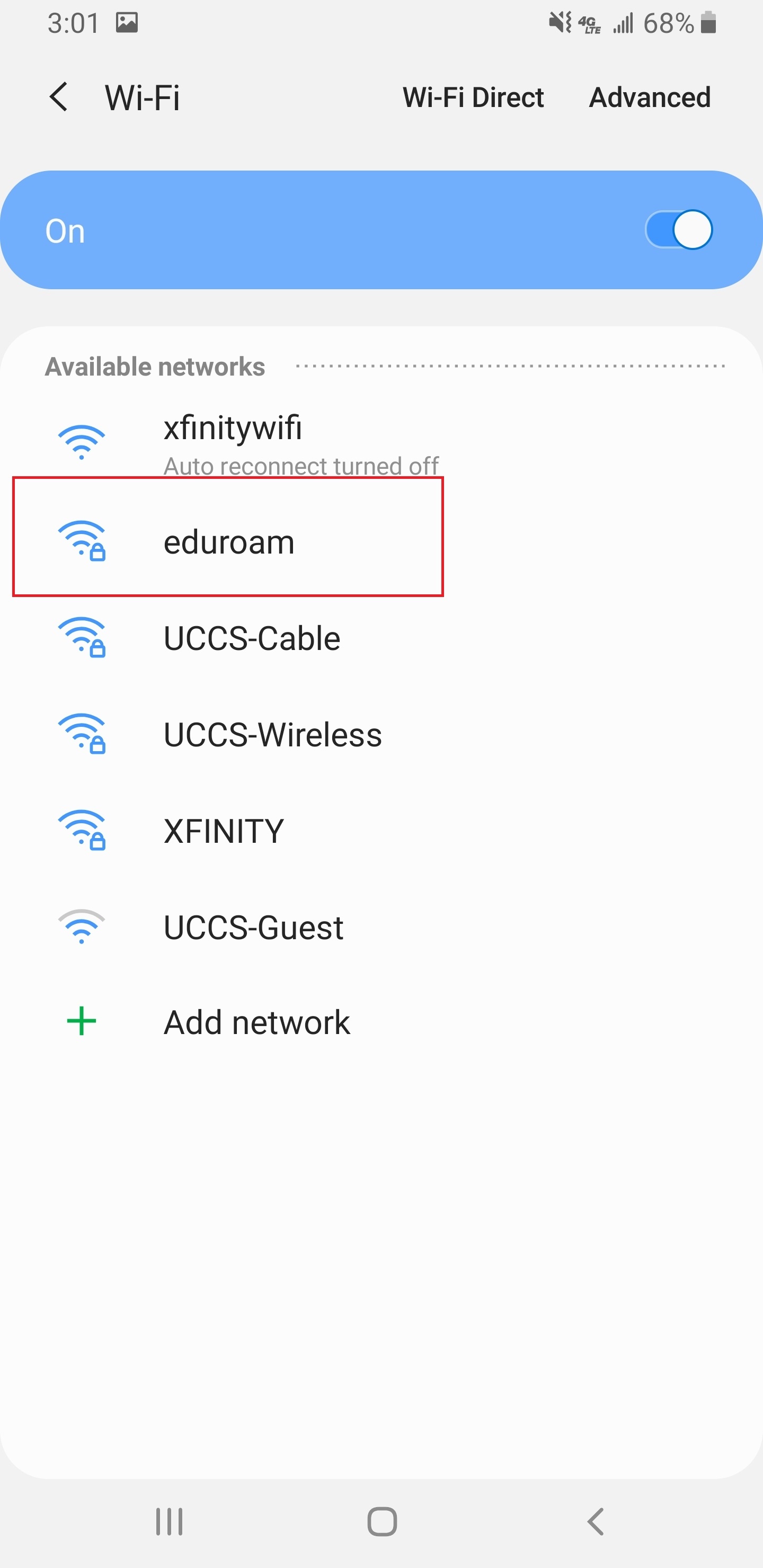
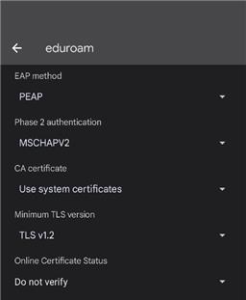
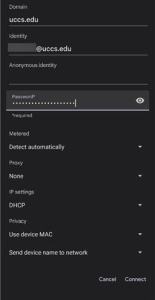
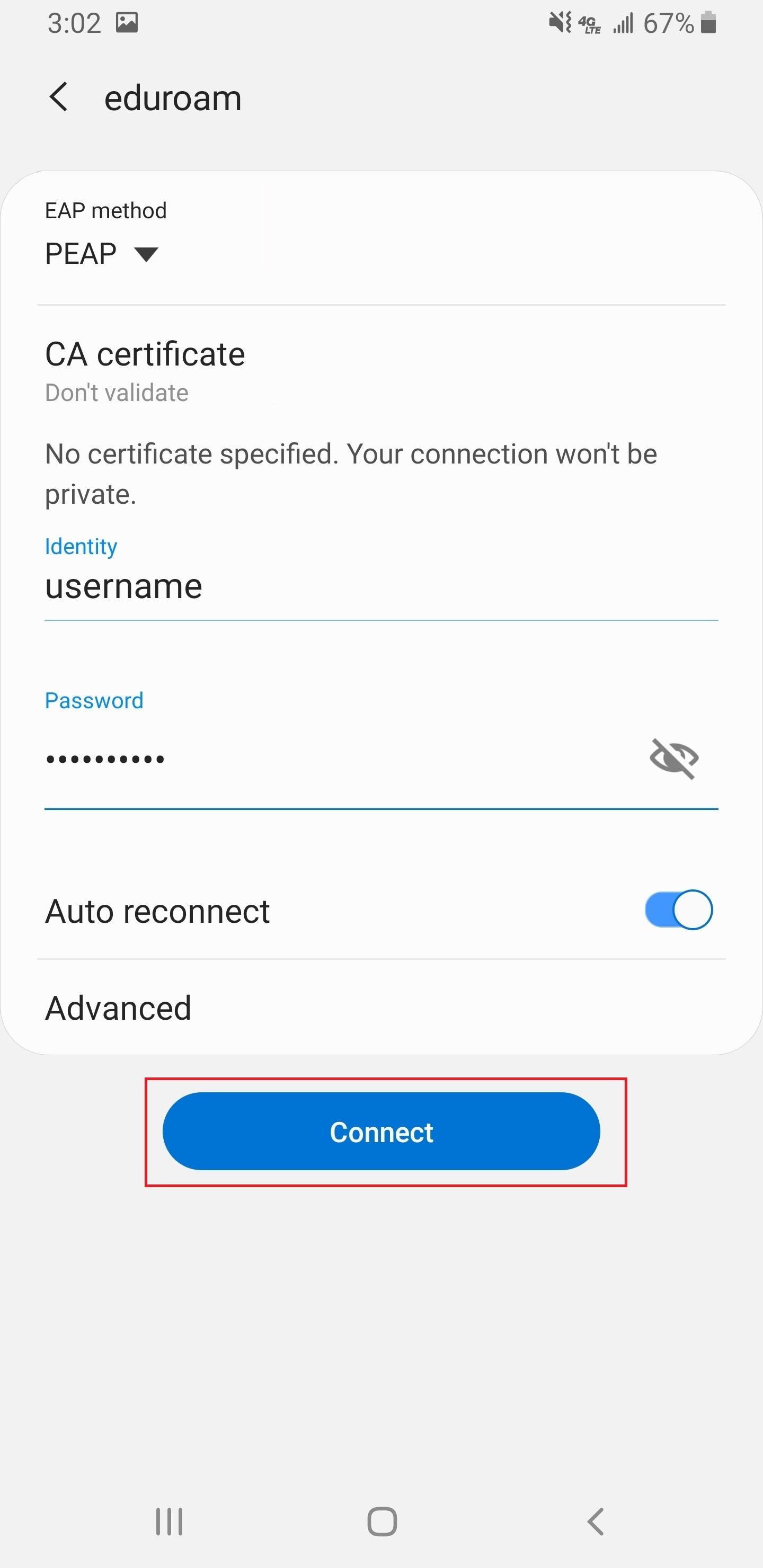
EAP method: Select PEAP
Phase 2 authentication: Select MSCHAPV2
CA certificate: Select Use System Certificates
Minimum TLS version: Select TLS v1.2
Online Certificate Status: Select Do not verify
Domain: Enter your institutions domain (for UCCS members it would be uccs.edu)
Identity: Enter your full domain username in the form [email protected]
Anonymous Identity: Leave blank
Password: Enter your password
Privacy: Use device MAC
all other Settings unchanged.
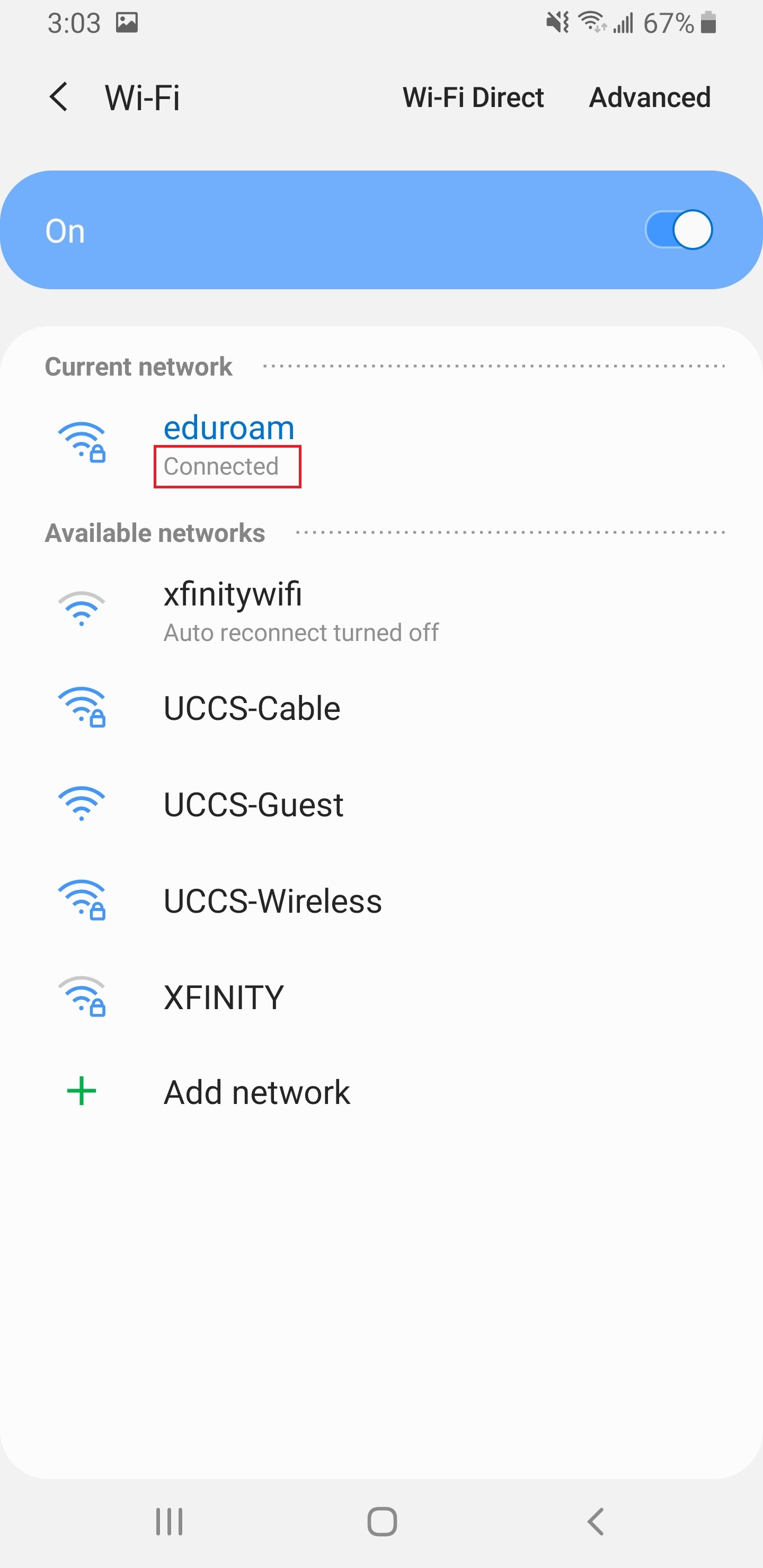
Make sure that the word Connected is visible underneath .
Problem: Some devices may encounter a problem connecting to the any UCCS's wireless networks (UCCS-Wireless, UCCS-Guest or eduroam) with Private Addresses turned on. Solution: Many devices have updated their OS to include an option to randomize the MAC address of the device. You must turn off the option in settings to connect to the network. |
Still having problems? Please contact the OIT Service Desk.