
Table of Contents
Features
This is a standard Extron classroom utilizing a button control panel and a Vaddio Hyflex system.
- Podium PC
- Full HD Laser Projector
- Automated Projection Screen
- Audio system
- Lectern
- HDMI input at Lectern
- Document Camera
- Hyflex VTC System with Camera and Ceiling Microphones
- Blu-Ray Player
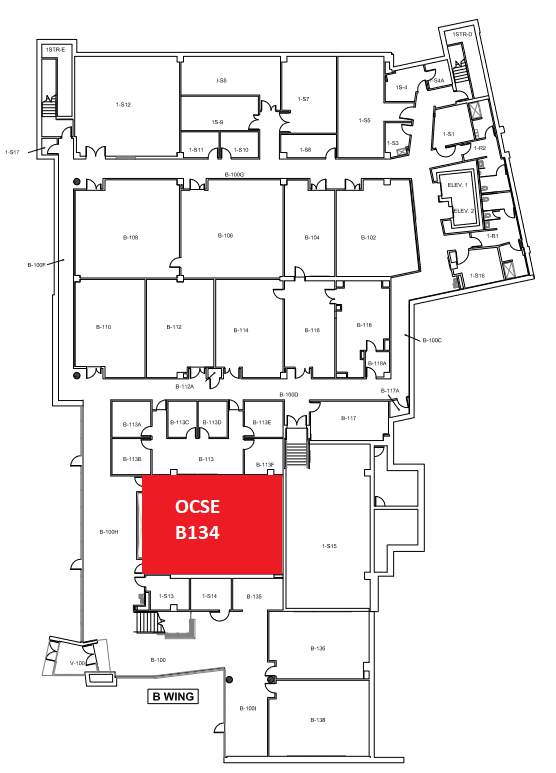
Location: OCSE 1st Floor
Remotes

Hyflex Remote
Controls the Hyflex VTC System
Controlling the A/V System
Using the Extron Panel
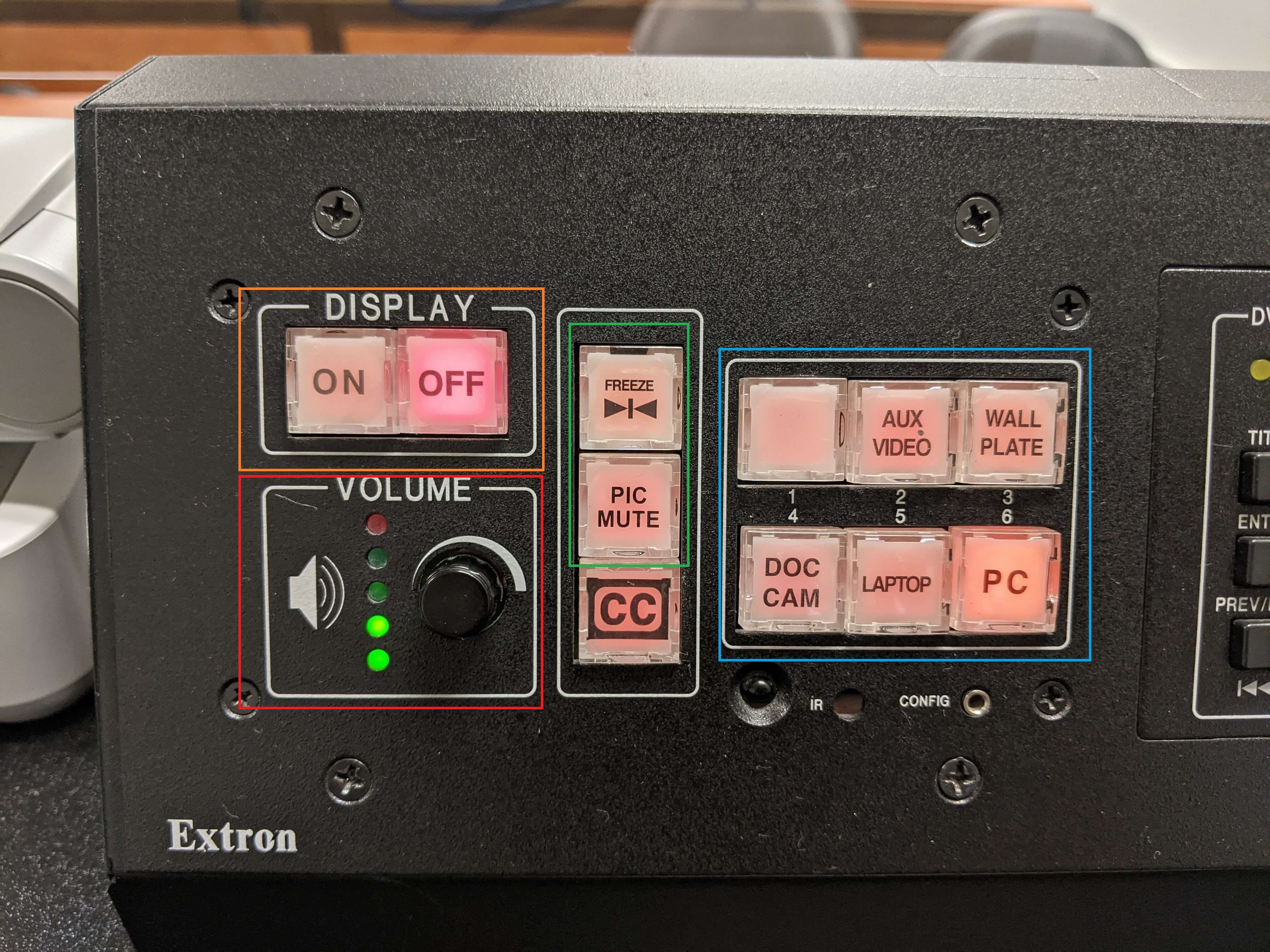
The Extron panel controls most functions in the room. The buttons and their functions are explained on the right.
Turning the system on and off
The AV system will power on when pressing the "On" button on the left side of the button panel (outlined in orange to the left). The button panel is located on the right side of the lectern. This will turn on the projector. lower the projection screen and route audio and video from the last selected source to the AV system.
To turn the AV system off, press the "Off" button (outlined in orange to the left). This will turn off the projector and raise the screen, immediately after the button is pressed.
Source Selection
To change sources, select the input you would like to send to the projector from the available buttons on the panel (outlined in blue to the left). You will know one is selected when the button back light is lit up. If the back light is flashing, this means the inputs are actively switching and you will need to wait before changing. You may choose between Podium PC, Laptop, or the Document Camera. For the laptop input, you will need to connect the VGA and 3.5mm audio jack to the laptop, then switch to that input by pressing the respective button on the panel. For the document camera, you will need to stand it up from behind the button panel and then switch to the appropriate input.
- The top 2 inputs labeled "AUX VIDEO" and "WALL PLATE" are not currently used and should not be selected.
Volume Control
Volume can be controlled using the volume knob on the left side of the button panel. The lights indicate the volume level. The system may be muted by turning the knob all the way counterclockwise. Audio can also be controlled in the applications audio settings and the Windows system audio.
Note
This room features energy save rated amps and may shut off. If this is the case, please turn up the volume, slowly, while audio is playing until sound is heard. Then adjust to desired volume levels.
Projector Control
The most commonly used projector functions are A/V Mute and Freeze. There is a vertical 3-button section to the right of the volume knob. This contains AV Mute, Freeze, and Auto Image. At this time, Auto Image is not a function we utilize.
- A/V Mute will shutter the projector and mute the audio. Use this feature when you want to use the whiteboard or front of the room without shutting down the system. Please only use this feature for up to 20 minutes, otherwise it's best to shut down the system.
- Freeze will freeze the currently displayed image on the screen. Use this feature if you'd like to hold a frame still on the screen or use the podium PC for another activity without displaying it, such as checking your email.
Inputs
Using the Podium PC and Lectern

The computer located on the podium is the primary source for this AV system. This computer runs the same Windows image as our other podium PCs and can be signed into with your UCCS credentials.
The keyboard and mouse are located underneath the computer, on the shelf.
Using a Laptop

The HDMI on the lectern is for use with a laptop. Connect your device, and select LAPTOP on the button panel to switch inputs.
Using the Document Camera

Selecting the document camera source on the panel will route it to the projector. The document camera on the lectern is powered on by pressing the power button.
On the front of the camera are controls for zoom and auto focus. Similar to the Extron panel, there is a freeze option that will freeze the image being shown.
Using the OPPO Blu-ray Player
Using the Blu-ray Player
OppoBlu-rayInstructions.pdf
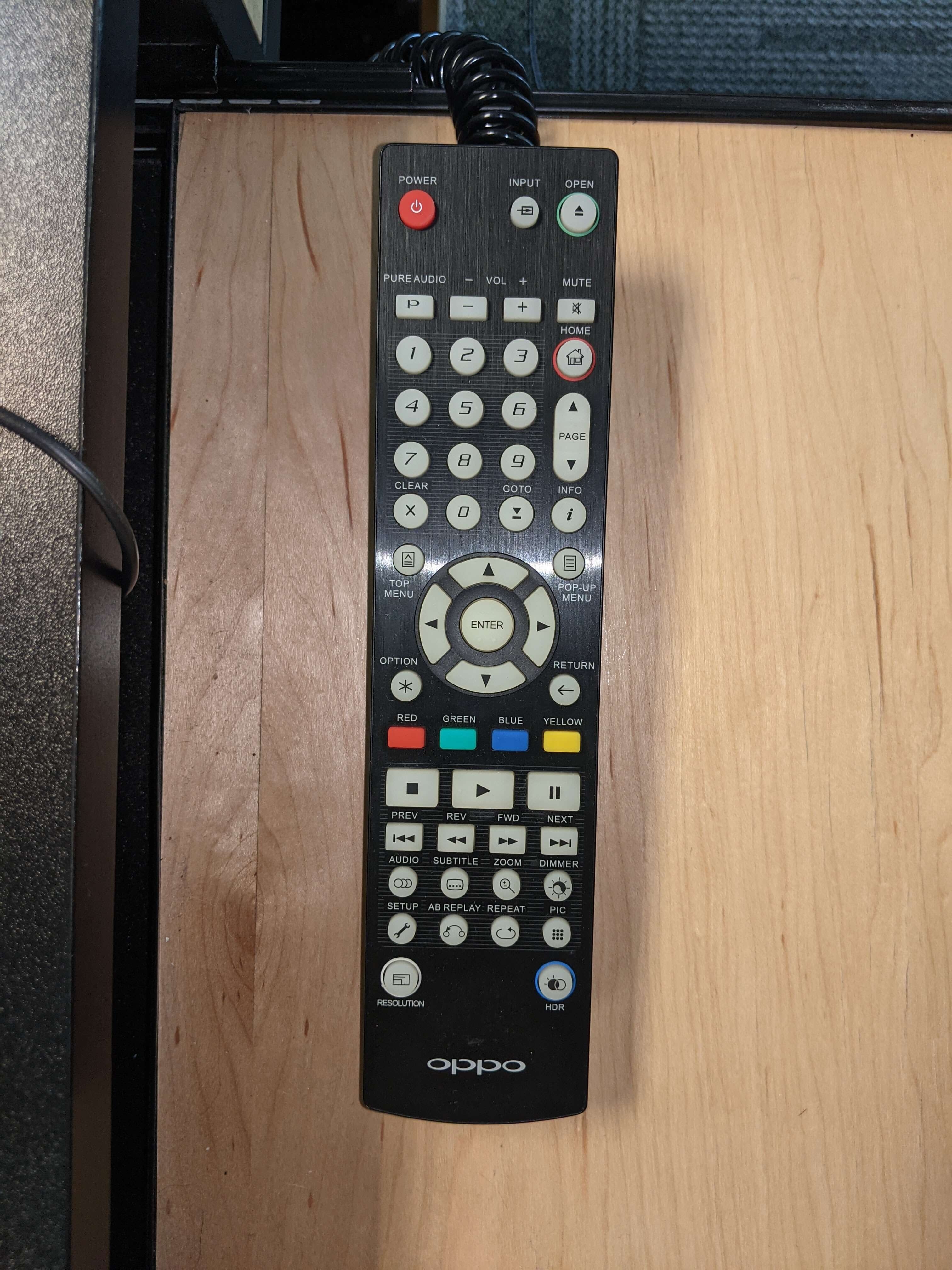
OCSE B134 is equipped with an OPPO region-free Blu-ray player for playing foreign films during film courses. Please see the above link for specific operation of the remote, including changing regions and turning on subtitles. Additionally, this Blu-ray player is connected to a surround sound amplifier which is separate from the rest of the system.
Screen Control

The controls to raise and lower the projector screen are located on the wall next to the lectern. The screen does raise and lower automatically with the rest of the system.
Troubleshooting
Audio Issues
Fixing Audio Issues: Standard Extron Room
The volume control knob may need to be adjusted on startup to push enough sound through the amp so that the person in the room can hear the audio.
Video Issues
Fixing Video Issues: Standard Extron Room
Vaddio/Hyflex VTC System
Photos

A tiered-style classroom with an Extron panel, Podium PC, and a Hyflex system.

The room speakers are located in the ceiling. There are many around the room.

This is the Hyflex camera in the room. It is perched on the wall to the right of the lecturn.

This is the Cisco phone located on the wall next to the podium. The screen controls are underneath the phone.