Computer (Windows)
Option 1: Firefox Settings Menu
Click the menu button
 and select .
- Select the panel.
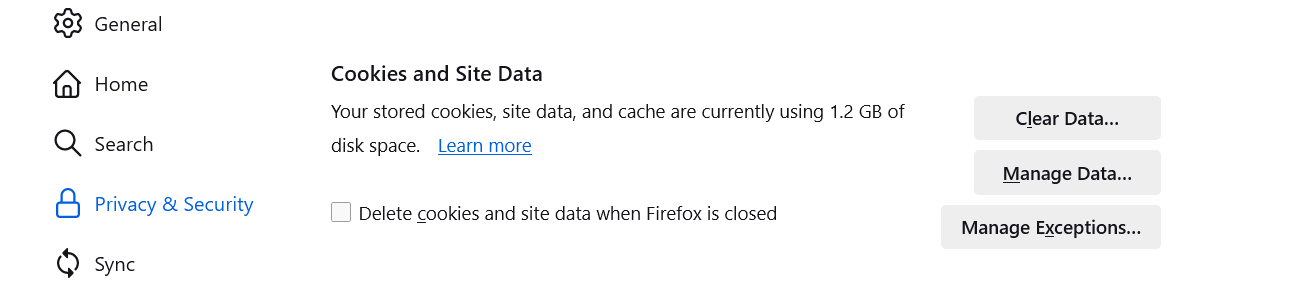
- Scroll down to the Cookies and Site Data section, click
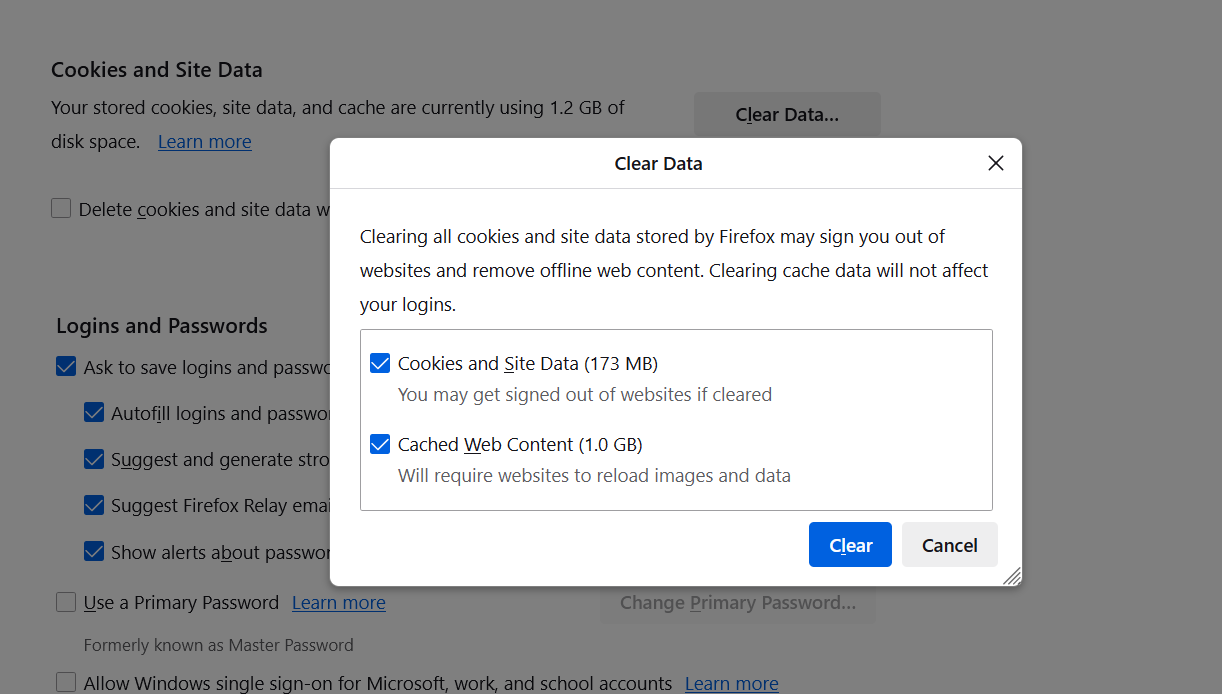
- With Cookies and Site Data and Cached Web Content check marked, click the button.
- You can now close the about:preferences page. Any changes you've made will automatically be saved.
Option 2: Firefox History Menu
- Click on the menu button
 to open the menu panel.
 - Click and select .
- Next to Time range to clear, choose Everything from the drop-down menu, select Cache in the items list, make sure other items you want to keep are not selected and then click the button.
Option 3: Keyboard Shortcut
- At the same time, press the keys CTRL + SHIFT + DEL.
- A new Window opens. Next to Time range to clear, choose Everything from the drop-down menu, select Cache in the items list, make sure other items you want to keep are not selected and then click the button.
Computer (Mac)
- In the main menu
 select "History" and then select "Clear recent history..."
 - A popup opens. In the drop-down menu, you can define the time range you want to delete the cache. You have the following options: last hour, last two hours, last four hours, today or Everything.
- To delete all cache data, select "Everything" from the drop-down menu.
- If you want to delete only the cache, then check only the checkbox next to "Cache".
- Proceed by clicking "Clear now" to delete the cache.
- Reload the site.
