Description of Change
Upcoming changes to how Android wireless connections are setup will involve a few extra configuration steps. Android operating systems will remove the ability to select “Do not validate” for the “CA Certificate” dropdown menu in the network settings for a given SSID (wireless network) if that network uses 802.1X authentication. This option is also encountered when first connecting to wireless networks that uses 802.1X authentication. This will affect Android users trying to connect to the UCCS-Wireless or eduroam wireless networks.
This change is to reflect newer and better security enhancements outlined by the Wi-Fi Alliance (a group who helps write the standards of how wireless networks should operate). Google/Android is making the decision to follow the standards recommendations outlined by the Wi-Fi Alliance, and thus they are removing the ability to choose "Do not validate" for a server certificate.
What this means for Android 11 users wanting to connect to the wireless networks at UCCS
The secure wireless networks at UCCS (UCCS-Wireless for faculty/staff/students, or eduroam for visitors from other higher-ed institutions), like many secure networks, use 802.1X for authentication. These wireless networks on campus should be used by our users since it encrypts your traffic for security. Our guest network (UCCS-Guest) is not encrypted and should not be used by our normal users who have a UCCS username and password. This guest network is meant to provide basic internet access to guests visiting campus.
Android users who eventually get the security updated on their devices can still connect to UCCS-Wireless. The main difference is that the steps to connect will change slightly, and the user may have to perform a few extra steps to get connected.
However, once the wireless profile is set up on the device, you should not have to repeat the steps unless you remove or "forget" the wireless profile on the device.
New steps Android users will have to take on their wireless devices
The main difference when you go to connect to UCCS-Wireless or eduroam is that under the drop-down menu under "CA Certificate" you will choose "Use System Certificates."
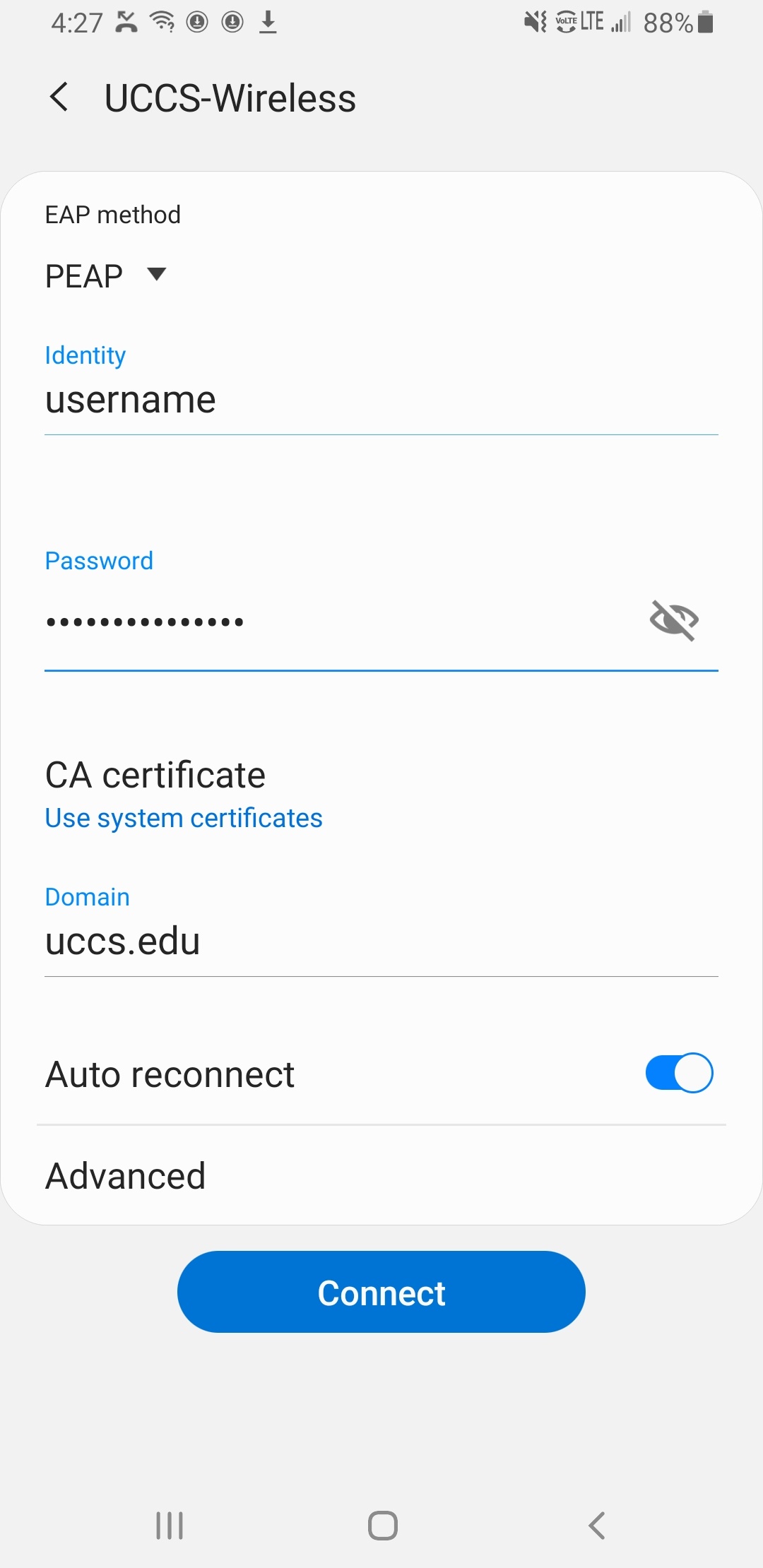
Below is a screenshot showing the proper setup of a wireless connection to UCCS-Wireless. The options outlined below must be set correctly.
Wireless connection settings to use when connecting to UCCS-Wireless
Wording and options may vary slightly depending on your device make and model, but these are the major settings that need set.
- EAP Method -> PEAP
- This might be referred to as PEAP-MSCHAPv2. You might also have to first choose EAP or 802.1X EAP as the security type, and then choose PEAP as the eap method. Menus and wording can vary among devices.
- Identity -> this is your UCCS username in the form [email protected]
- Password ->this is your UCCS password
- CA Certificate -> Use system certificates
- Domain -> uccs.edu
If the settings above do not work, try again and note the following...
- Make sure you are avoiding typos. Did you type your password correctly? Did you enter the domain (uccs.edu) properly?
- Did you choose the correct EAP method? Make sure you choose PEAP or PEAP-MSCHAPv2
- Delete the profile, and start over.
- Try not to change a setting after you entered it - there have been examples where this can mess up the configuration. If you do this, try deleting the profile and starting over.
Still having problems connecting to wireless?
If you have problems connecting to the wireless networks at UCCS, you can contact the OIT Help Desk.
Visit this page for the various ways to get in touch with the Help Desk: https://oit.uccs.edu/get-help