
Table of Contents
Features
This is a projector-based, uncontrolled classroom with an Epson projector and remote.
- Manual Pull-Down Projector Screen
- Full HD Laser Projector
- HDMI input for laptop at Projector on desk
Location: ELPC 2nd Floor

Remotes
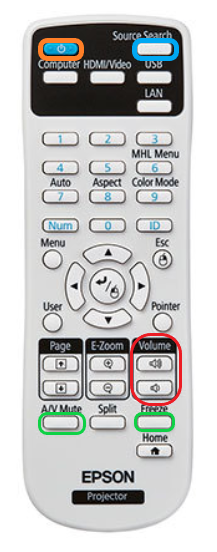
Projector Remote
Controls the projector in the room. Located on top of the podium or in the podium drawer.
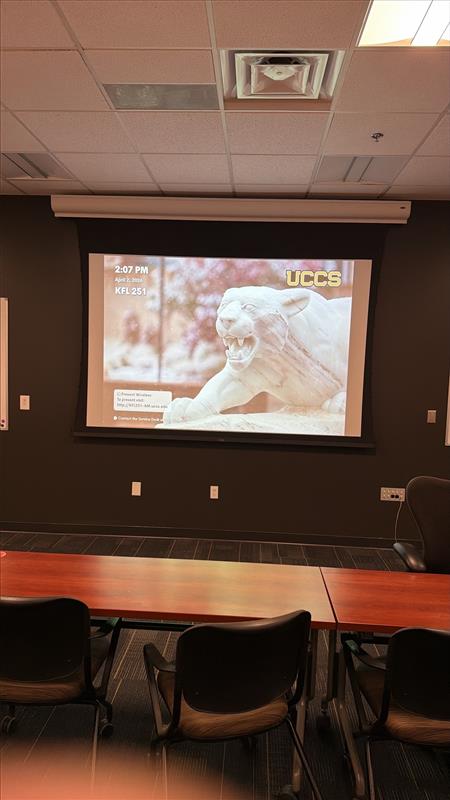
Wireless Presentation
The only existing way to connect to the projector is to connect to the Crestron AirMedia.
Controlling the A/V System
Using the Remote
The remote for the projector controls most functions in the room. The remote is labeled below with the colors corresponding to a particular section explaining that function.
Turning the system on and off
To turn the system on, press the power button on the remote (outlined in orange to the left). This will only turn on the projector. You must manually lower the screen using the pull-down string located on the projection screen at the front of the room.
To turn off the system, press the power button twice. This will turn off the projector. To raise the screen, use the same pull-string on the projection screen.
Source Selection
The source in this space is going to be "HDBaseT". This can be selected by pression the Source Search button (outlined in blue to the left). In order to switch from your laptop to the podium pc and vice versa, press the appropriate source name located on the button panel on the lectern tabletop. Note: The volume knob on this button panel does not control volume in this room.
Volume Control
Volume can be controlled with the volume buttons on the projector remote, or on the PC using the volume controls on the bottom right corner of the screen.
Before adjusting volume buttons on the remote, make sure the computer volume is up/not muted and that the source you're playing from also is not muted.
Projector Control
The most commonly used projector functions are A/V Mute and Freeze. A/V Mute is on the bottom left of the remote, and Freeze is on the bottom right of the remote (both outlined in green to the left).
- A/V Mute will shutter the projector and mute the audio. Use this feature when you want to use the whiteboard or front of the room without shutting down the system. Please only use this feature for up to 20 minutes, otherwise it's best to shut down the system.
- Freeze will freeze the currently displayed image on the screen. Use this feature if you'd like to hold a frame still on the screen or use the podium PC for another activity without displaying it, such as checking your email.
Inputs
Using Podium PC and other sources
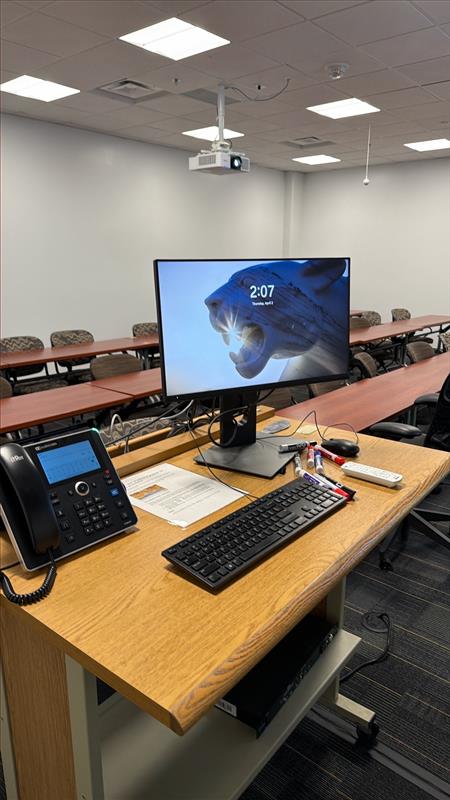
Their is a Podium PC located in the room for a user's convivence. All sources (include the Podium PC) must connect to the Crestron AirMedia in order to present to the projector.
Screen Control
The screen can be raised and lowered using a button panel on the wall:

Troubleshooting
Audio Issues
Fixing Audio Issues: Uncontrolled Room
Video Issues
Fixing Video Issues: Uncontrolled Room
Photos
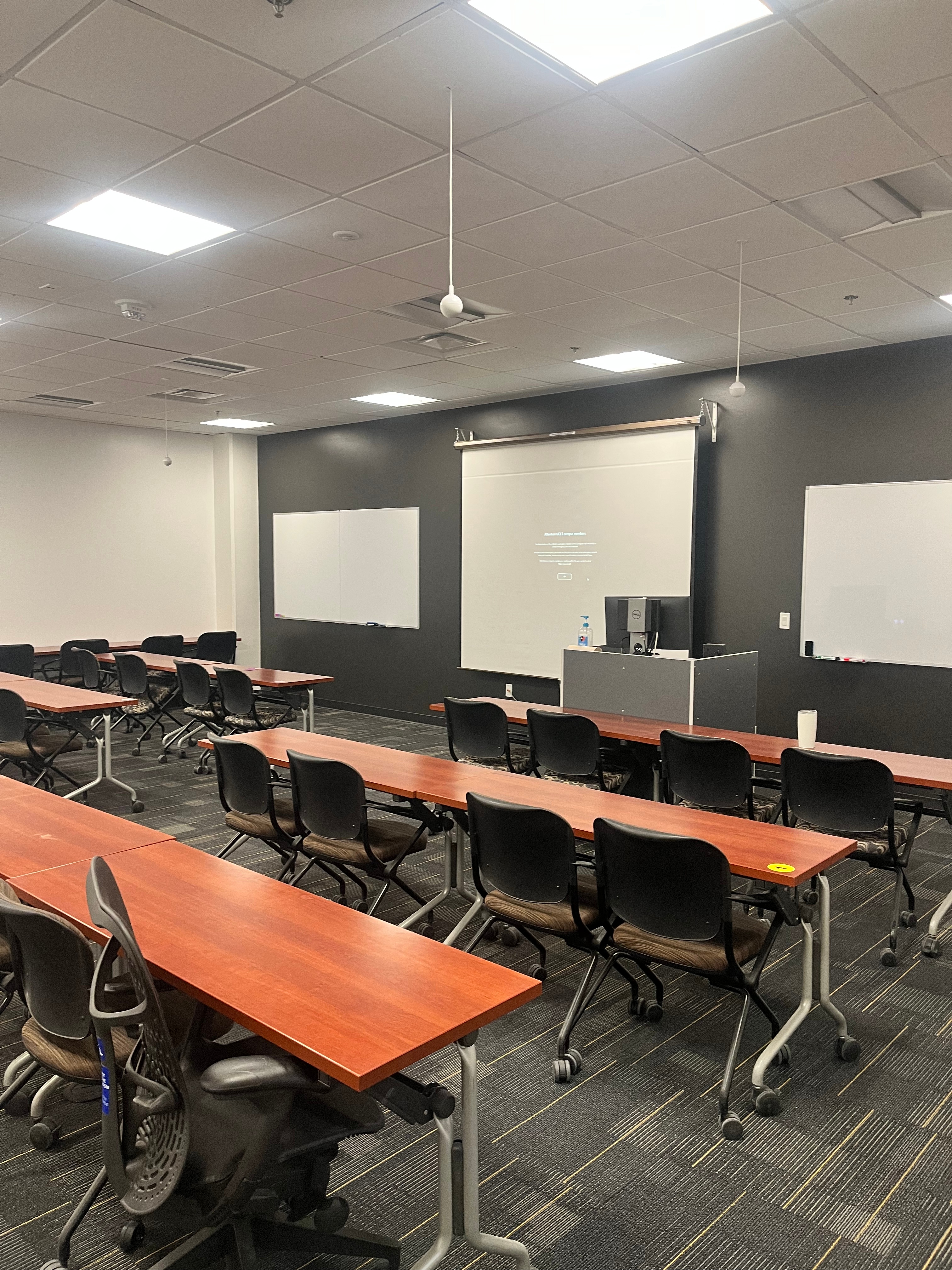
This is a projector-based, uncontrolled classroom