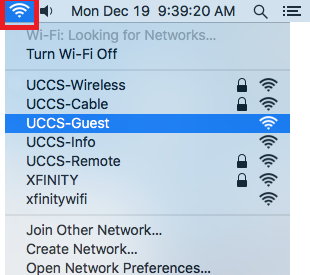
Step 1: Connect to UCCS-Guest
Click on your wireless network icon in the top right corner of the computer and then select UCCS-Guest from the list.
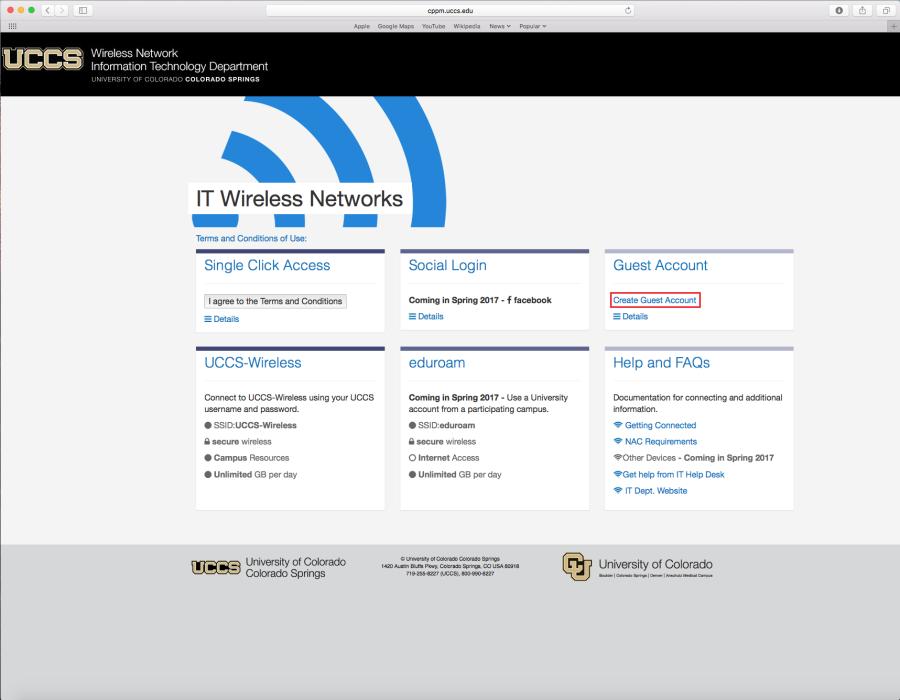
Step 2: Click Create Guest Account
Your default browser will open up the UCCS-Guest wireless page. Click Create Guest Account to request a guest account.
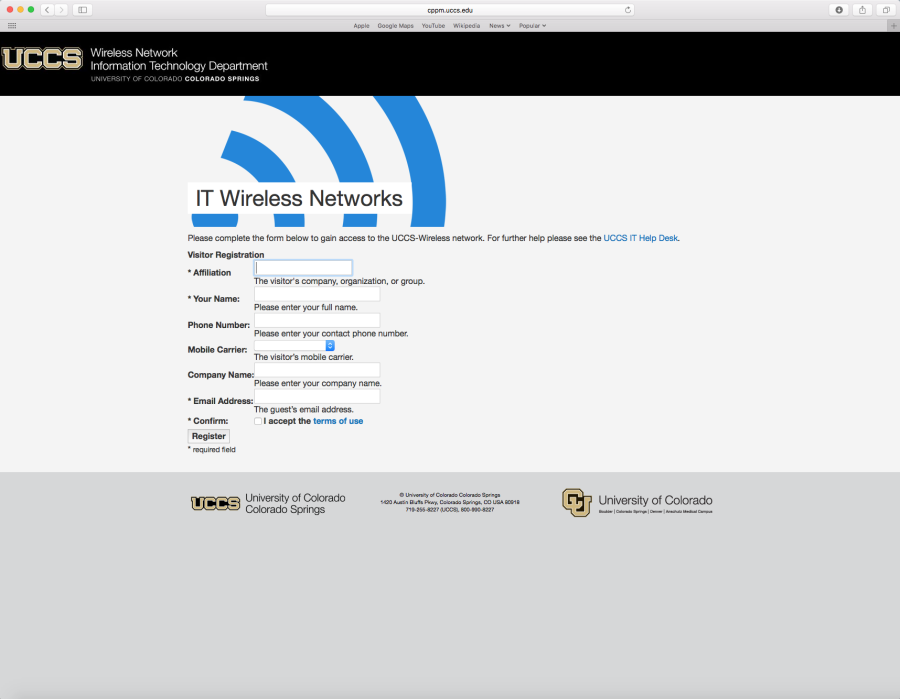
Step 3: Fill Out Form
Fill out the request form and then click Register at the bottom of the page.
Step 4: Take Note of Guest Account
Take note of your newly issued guest login credentials (username and password) so you can use them to log into the UCCS-Wireless network in the steps below.
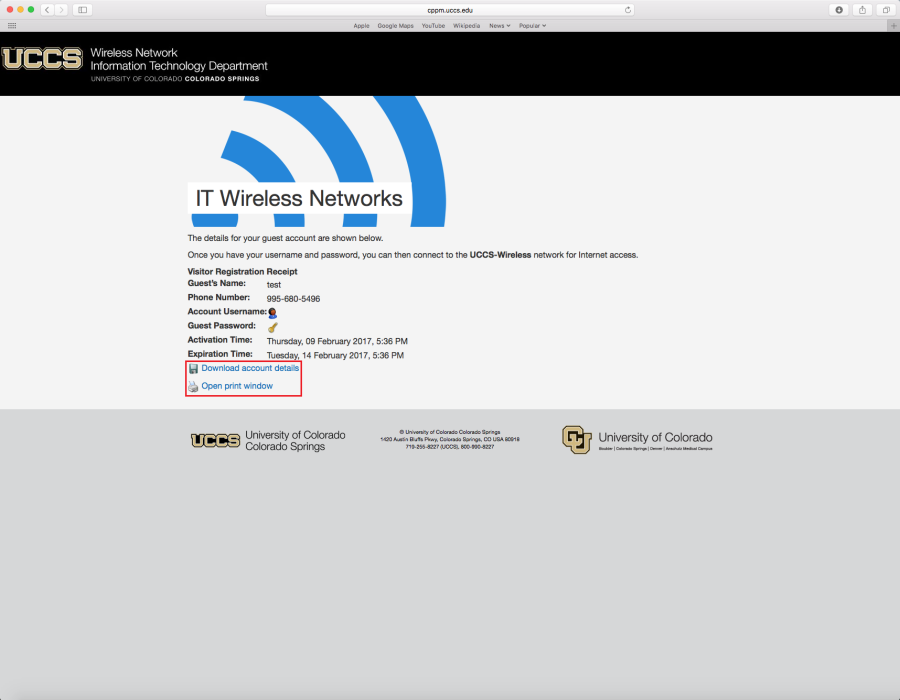
Option A: Download account details
Your account details will be opened in a text file (.txt). You can then save that information to your computer or you can print it.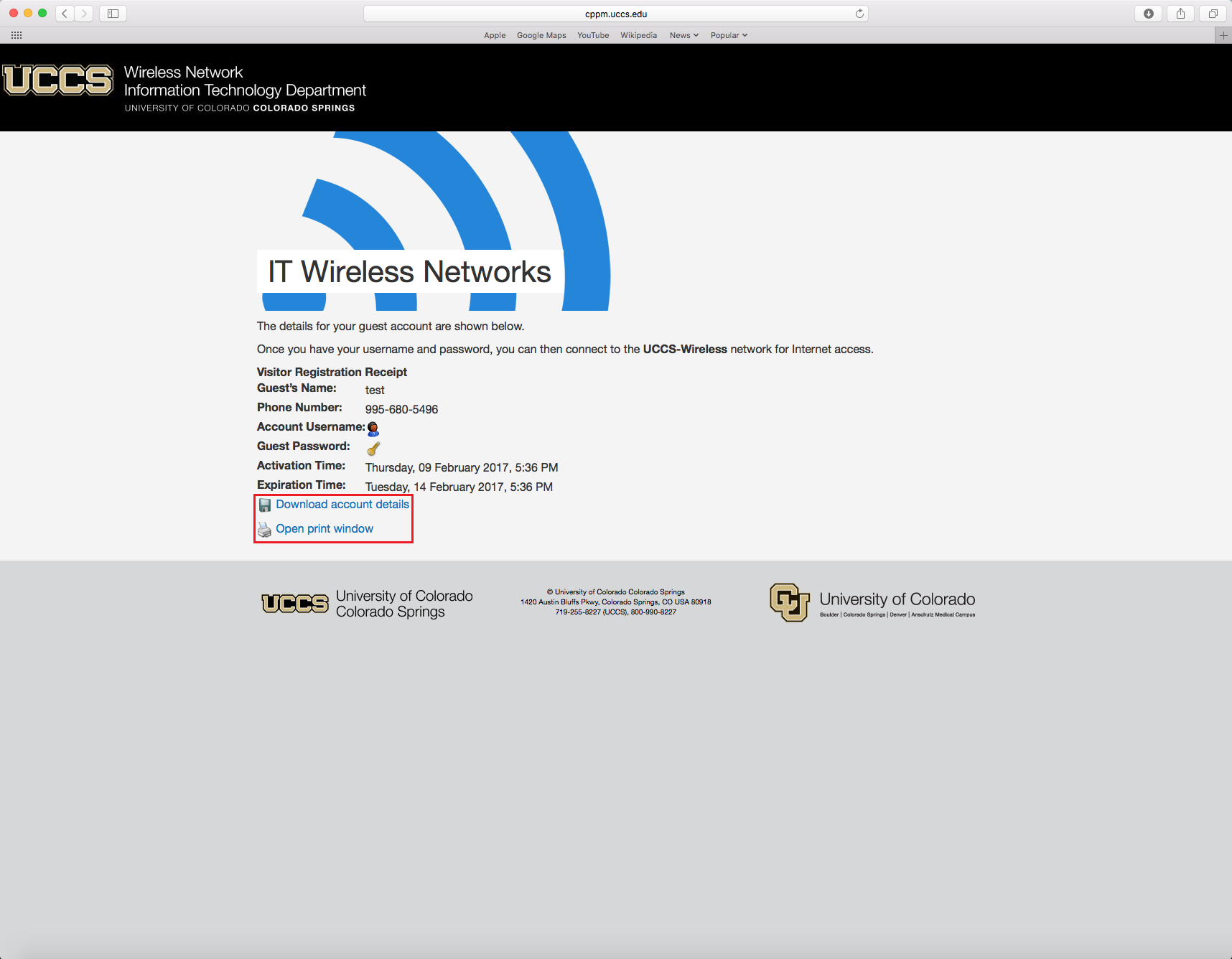
Option B: Open Print Window
This will open a window with your login information that you can print.
Step 5: Connect to UCCS-Wireless
Click on your wireless network icon in the top right corner of the computer and then select UCCS-Wireless from the list.

Step 6: Enter your Guest Account
Enter the Guest Credentials you obtained from the registration step above..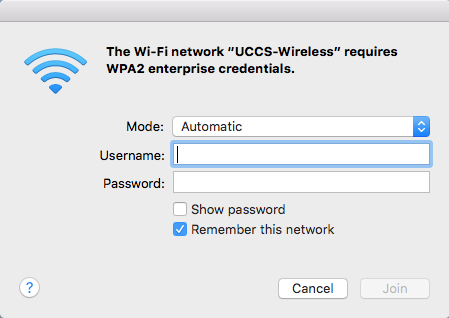
You are now connected to the UCCS-Wireless network.