Wireless guest accounts You can use this option to request a temporary username and password from OIT that can then be used to join the UCCS-Wireless network. These temporary accounts are active for five days from the point in time they are created, and can be used to log in to the UCCS-Wireless network (which is secure) in order to gain Internet access. The username and password for these temporary accounts are delivered to the guest by email (also displayed on screen during time of registration), and can also be sent through a text message. Additionally, guests accounts can be obtained by visiting the Office of Information Technology Service Desk. For hours and location see the Get Help page. If you are on campus just temporarily and need basic web browsing access, you can simply use the Single-Click Access option that the UCCS-Guest network provides. This option requires no username and password - but note that this is unsecure and non-encrypted.
Steps:
Step 1: Connect to UCCS-Guest
Click on your wireless network icon in the top right corner of the computer and then select UCCS-Guest from the list. 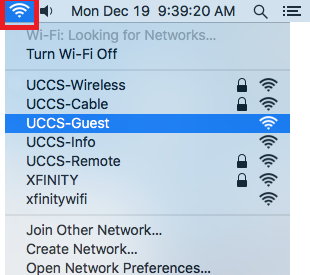
Step 2: Click Create Guest Account
Your default browser should open up the UCCS-Guest captive portal page. Under the Guest Account section, click the Create Guest Account link. 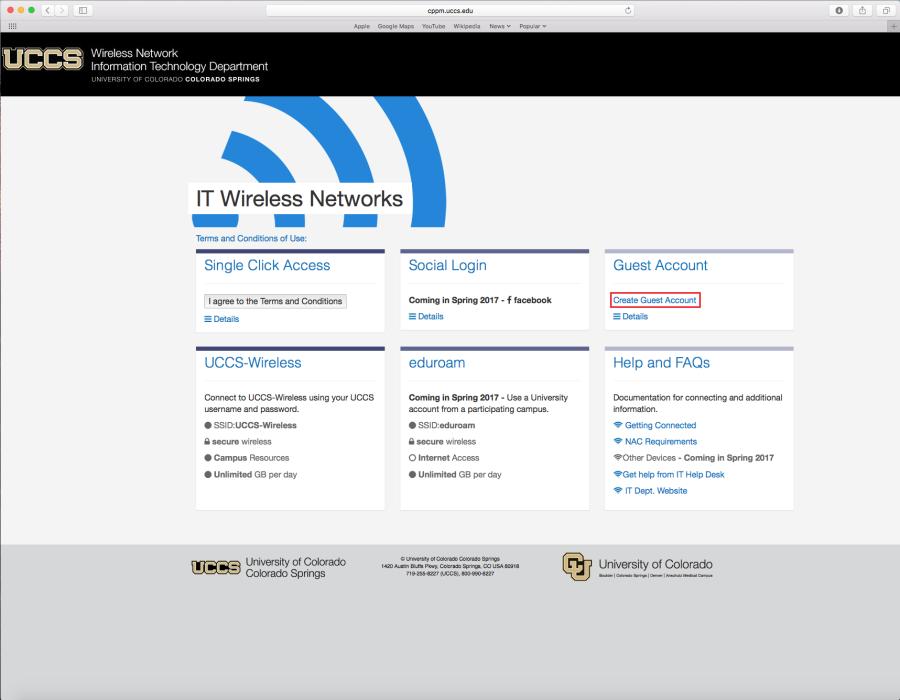
Step 3: Fill Out Form
Fill out the request form and then click Register at the bottom of the page.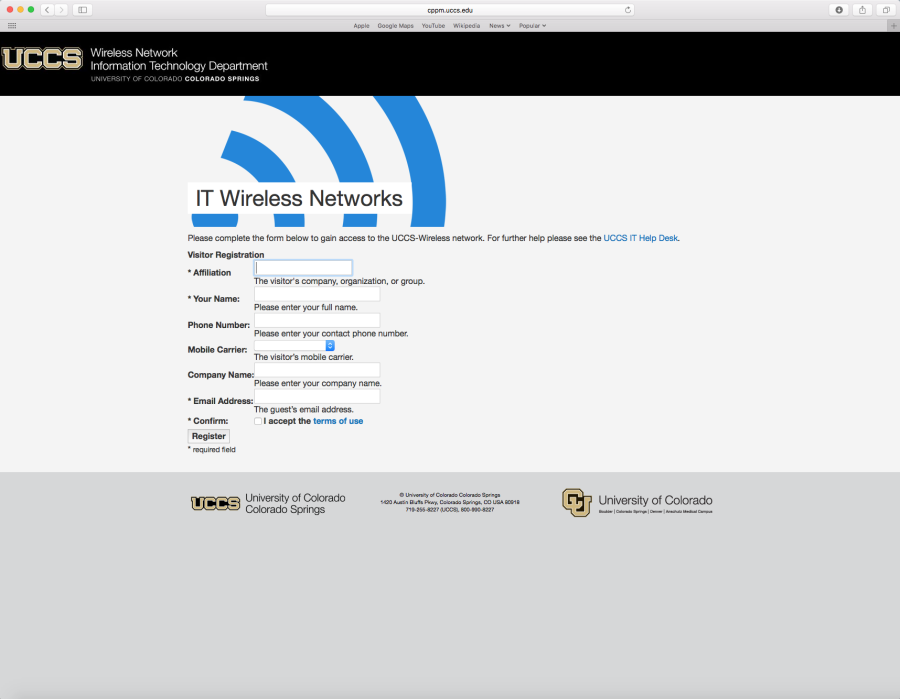
Step 4: Take Note of Guest Account
Take note of your newly issued guest login credentials (username and password) so you can use them to log into the UCCS-Wireless network in the steps below.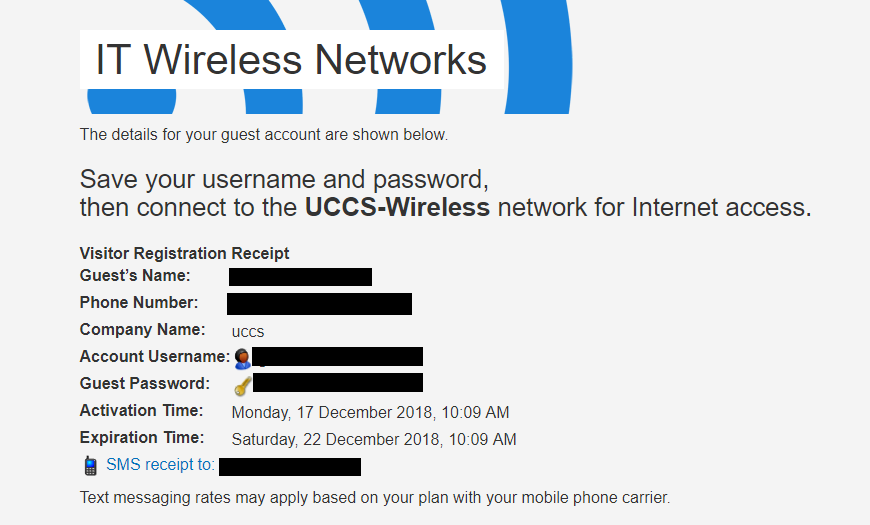
Step 5: Connect to UCCS-Wireless
Click on your wireless network icon in the top right corner of the computer and then select UCCS-Wireless from the list. 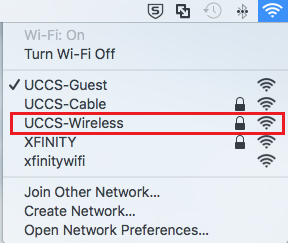
Step 6: Enter your Guest Account
Enter the guest username and password you obtained from the registration steps above.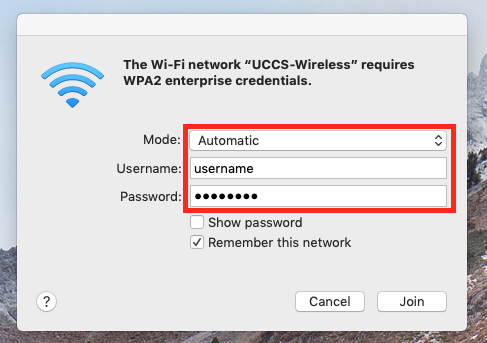
Step 6: Accepting the security certificate.
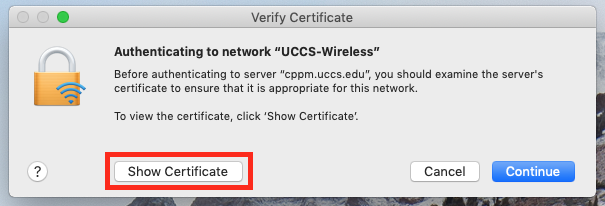
You should see a screen similar to the following asking you to verify and accept the server's security certificate. The server "cppm.uccs.edu" is the server you are authenticated against.
To be safe you should always validate the certificate you are about to trust. To validate and see more information about the certificate, click Show Certificate.
Our certificate is issued by Comodo RSA Certificate Authority.
Expand the Details by clicking the small triangle, and you should see more details about the certificate as seen below.
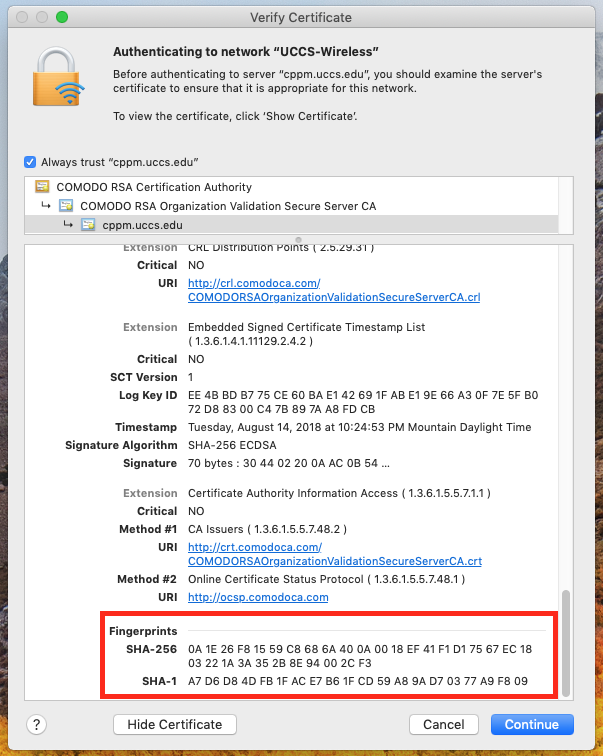
Scroll towards the bottom and you should see the certificate fingerprints. Your certificate should match the fingerprints listed below... Wireless Authentication Server Certificate Fingerprints (SHA-256 and SHA-1) SHA-256: 6B A9 C8 29 D3 C4 3A E2 ED BE 88 29 9E F9 4C 46 4F 10 5D 12 E0 C0 6F E2 CD 07 6D D7 A8 54 8F DA SHA-1: 36 88 97 DB 04 13 80 CE 84 1E BB 22 20 56 68 BF 92 F4 78 B4 If the fingerprints do not match, DO NOT trust the certificate! Click CANCEL and contact the OIT Service Desk.
If your certificate fingerprints match those listed above, you can trust the certificate is valid. Go ahead and click Continue.
NOTE → If the fingerprint do not match, DO NOT trust the certificate! Click CANCEL and contact the OIT Helpdesk for assistance.
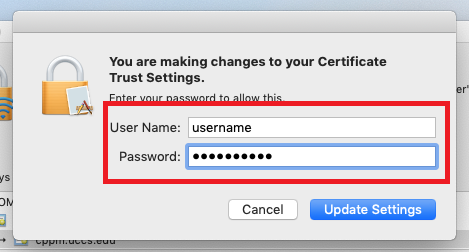
Your computer may then prompt you for your username/password to allow your computer to store the newly trusted certificate.
If prompted, enter your credentials and click "Update Settings."
Your device should now be connected to UCCS-Wireless.
Still having problems? Please contact the OIT Help Desk.