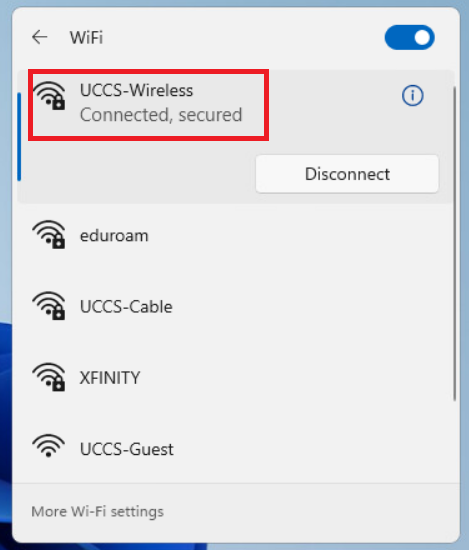
...
Note - if you want the computer to remember and save this network so it will automatically connect when in range, check the Connect automatically box.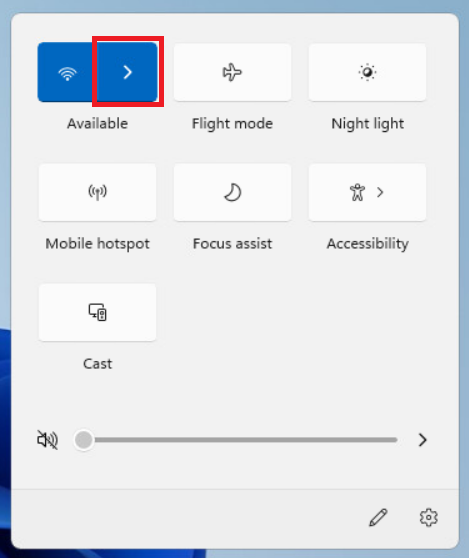
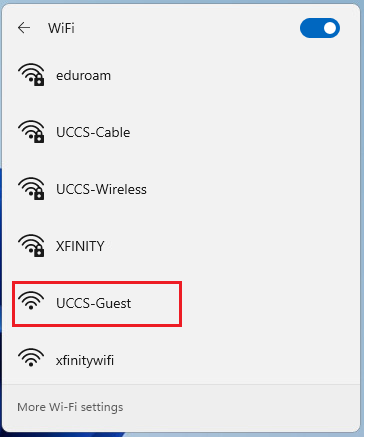
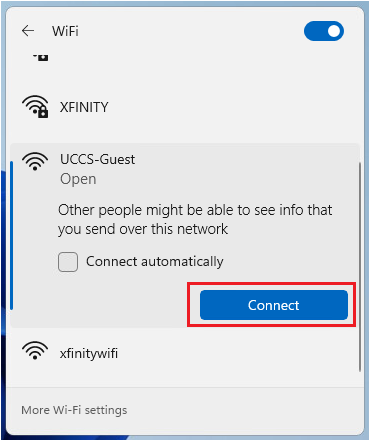
Step 3:
...
<edit>
steps here
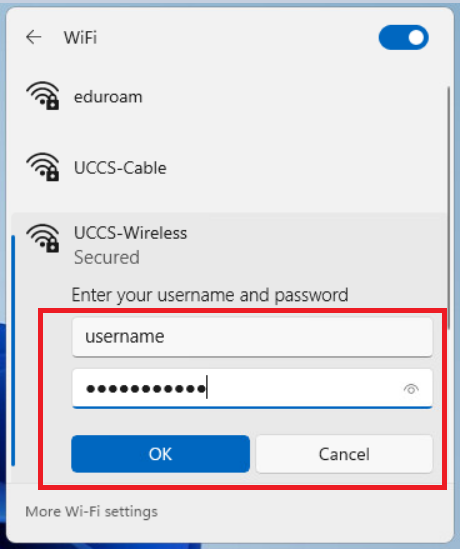
Enter your username and password and click OK.
Step 4:
...
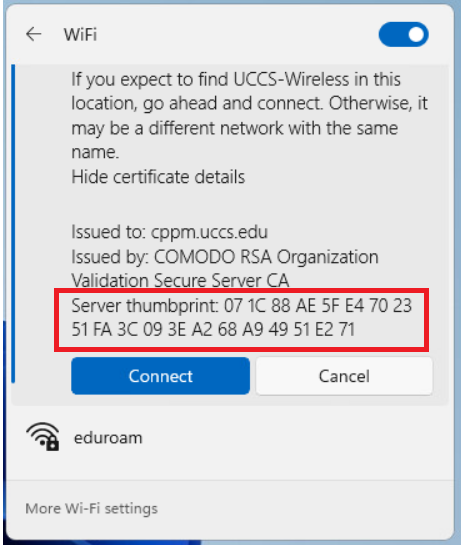
Click Show Certificate Details. The server certificate thumbprint should be displayed. It should match the SHA-1 fingerprint listed below.
If the fingerprint matches, go ahead and click Connect.
NOTE → If the fingerprint does not match, DO NOT trust the certificate! Click Cancel and contact the OIT Helpdesk for assistance.
...
<edit>
steps here

Step 5: Confirm connection
Your device should now be connected to UCCS-WirelessGuest.
If you are still having problems connecting, please contact the OIT Help Desk.