Step 1: Open Network Connections
Click the networking icon in the system tray, typically located in the lower right side of the screen.
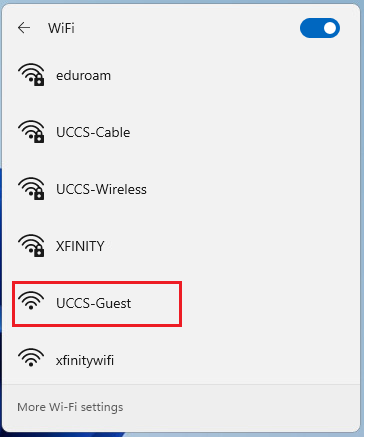
Step 2: Select the UCCS-Guest network
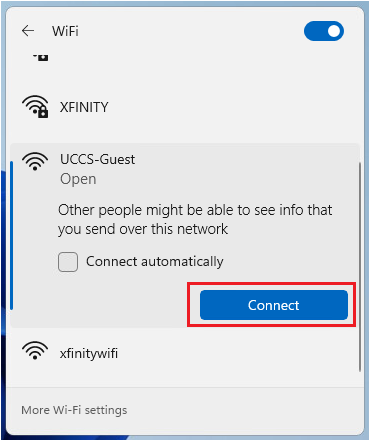
Click the right-arrow to open the list of wireless networks, and choose the UCCS-Guest network, then click Connect.
Note - if you want the computer to remember and save this network so it will automatically connect when in range, check the Connect automatically box.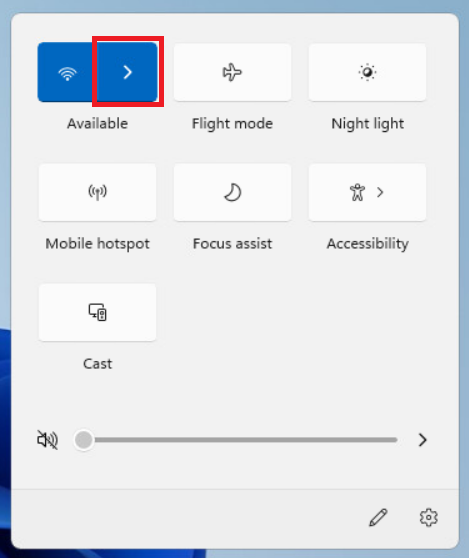
Step 3: <edit>
steps here
Step 4: <edit>
steps here
Step 5: Confirm connection
Your device should now be connected to UCCS-Guest.
If you are still having problems connecting, please contact the OIT Help Desk.