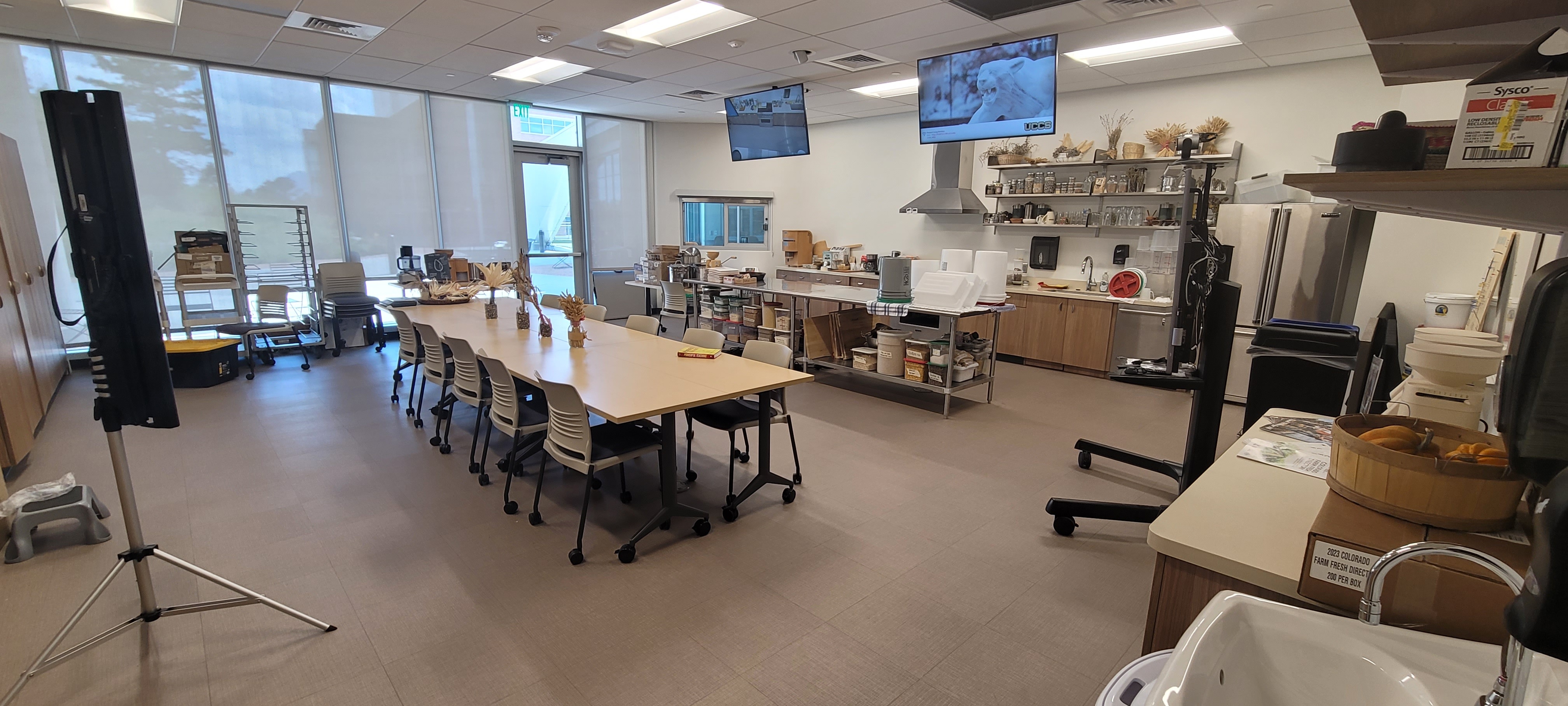
This is a non-standard Crestron room utilizing a Crestron control panel with the following equipment located in the room:
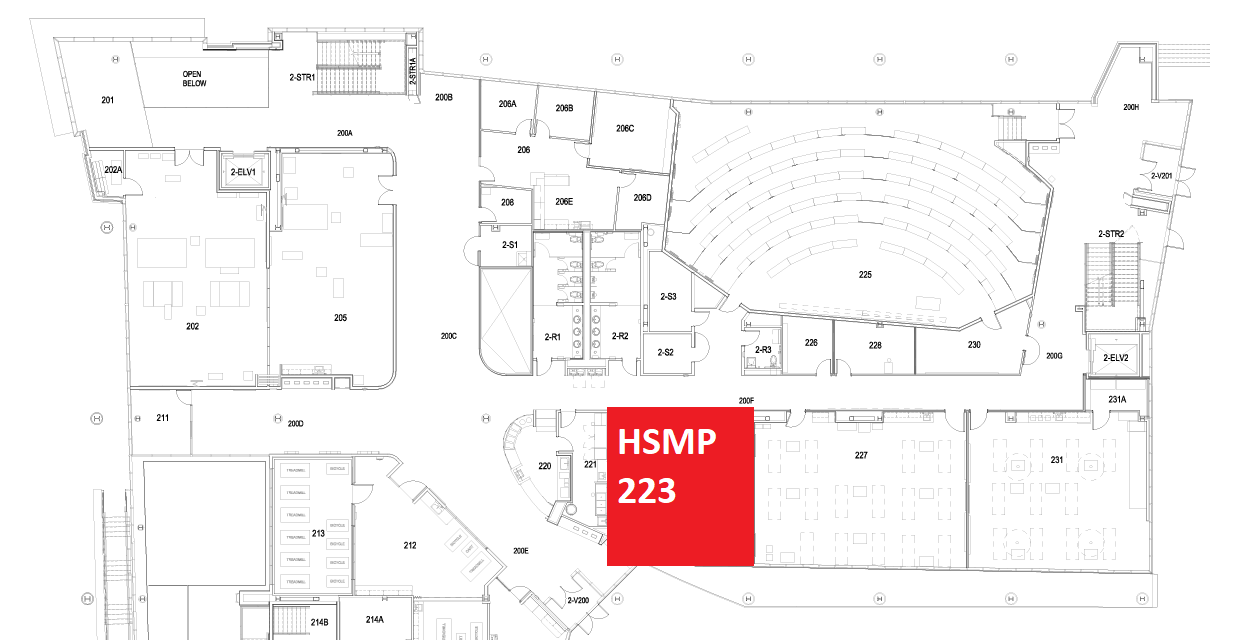

The AV system will power on when pressing the start page on the touch panel. This will turn on the displays and switch the panel to the main menu page.
To turn the AV system off, press the red Power Off button in the upper right corner. You will have 10 seconds to cancel the power off, then the system will shut down.
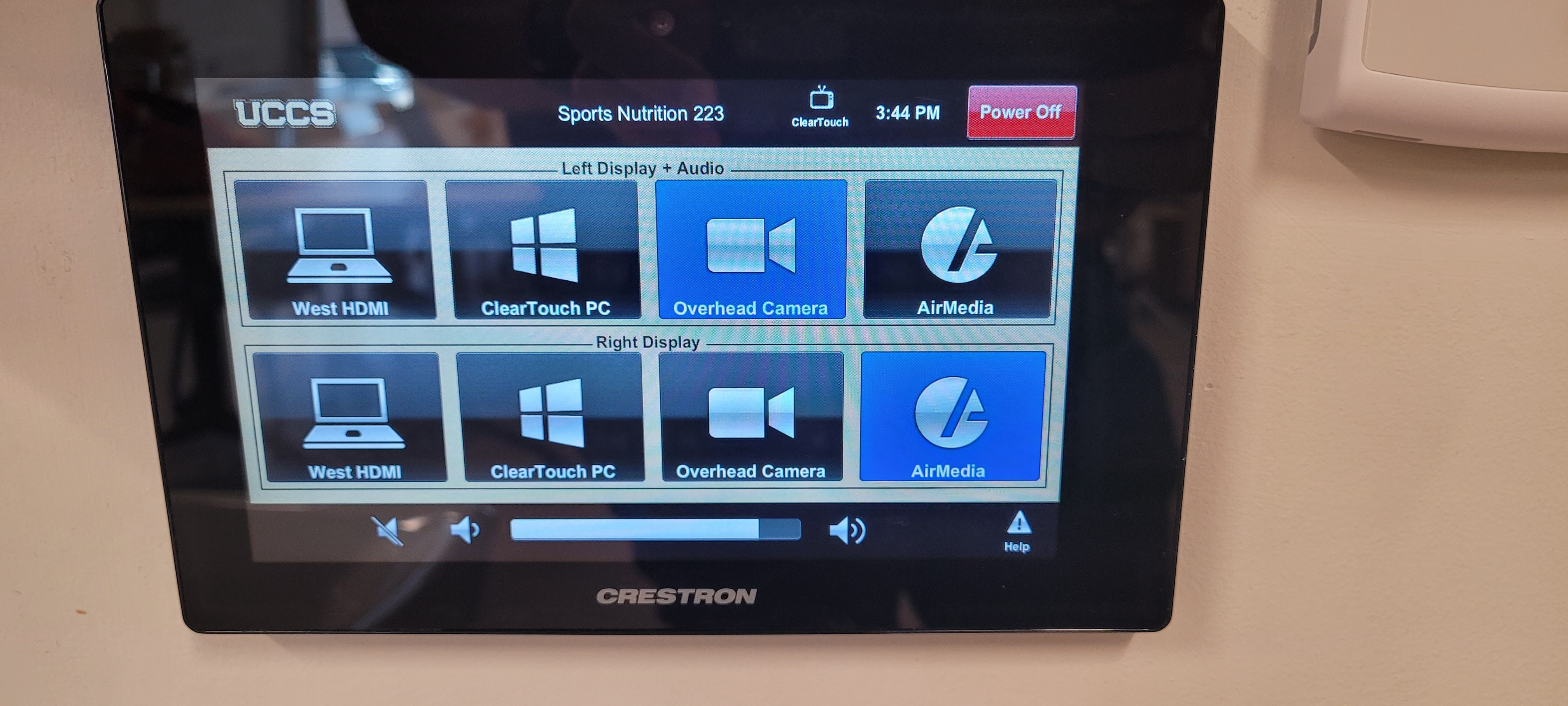
Source selection is divided into two sections, one for the Left Display and Audio and one for the Right Display. To change inputs, select the input you would like to send to the projector listed. You may choose between ClearTouch PC, HDMI West, Overhead Camera and AirMedia.
It is important to remember that the audio in the room will reflect the source selected for the Left Display.
Volume can be controlled using the volume buttons at the bottom of any page on the touch panel. The raise and lower buttons are on either side of the volume bar and the mute button is located in the lower left corner.

The interactive touch screen of the ClearTouch PC controls all features of the PC and display. The screen and menus are labeled below with the colors corresponding to a particular section explaining that function.
To navigate the built-in PC you can use your hands and fingers or the provided keyboard and mouse.
The built-in on the podium is the single source for this AV system. This computer runs the same image as all other podium computers in classrooms and labs. You can sign in with your UCCS credentials.
Plug your laptop into the HDMI cable located in the west wall of the room and ensure that "West HDMI" source is selected on the touchpanel.
The AirMedia allows for wireless presentation of any device connected to the UCCS-Wireless network.
To connect to the AirMedia:
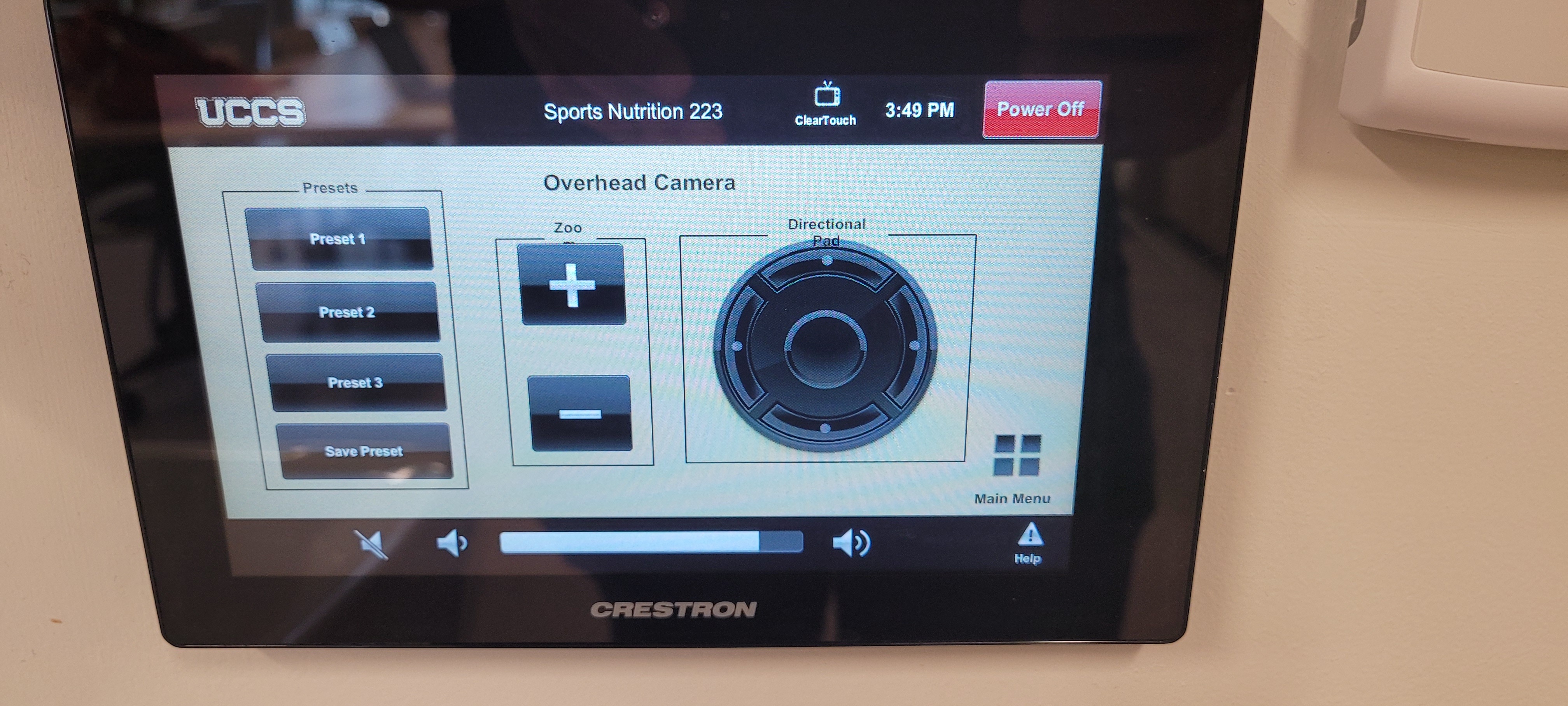
When wanting to control the overhead camera within the room, select the Overhead Camera input on the touchpanel and the menu shown above with appear with the proper camera controls.
Fixing Audio Issues: Standard Crestron Room
Fixing Video Issues: Standard Crestron Room
Wireless Presentation (AirPlay/AirMedia)
This room has a standalone projector screen in the room with a potential option for a tabletop projector setup. (This is not OITs equipment)
View of room from door |
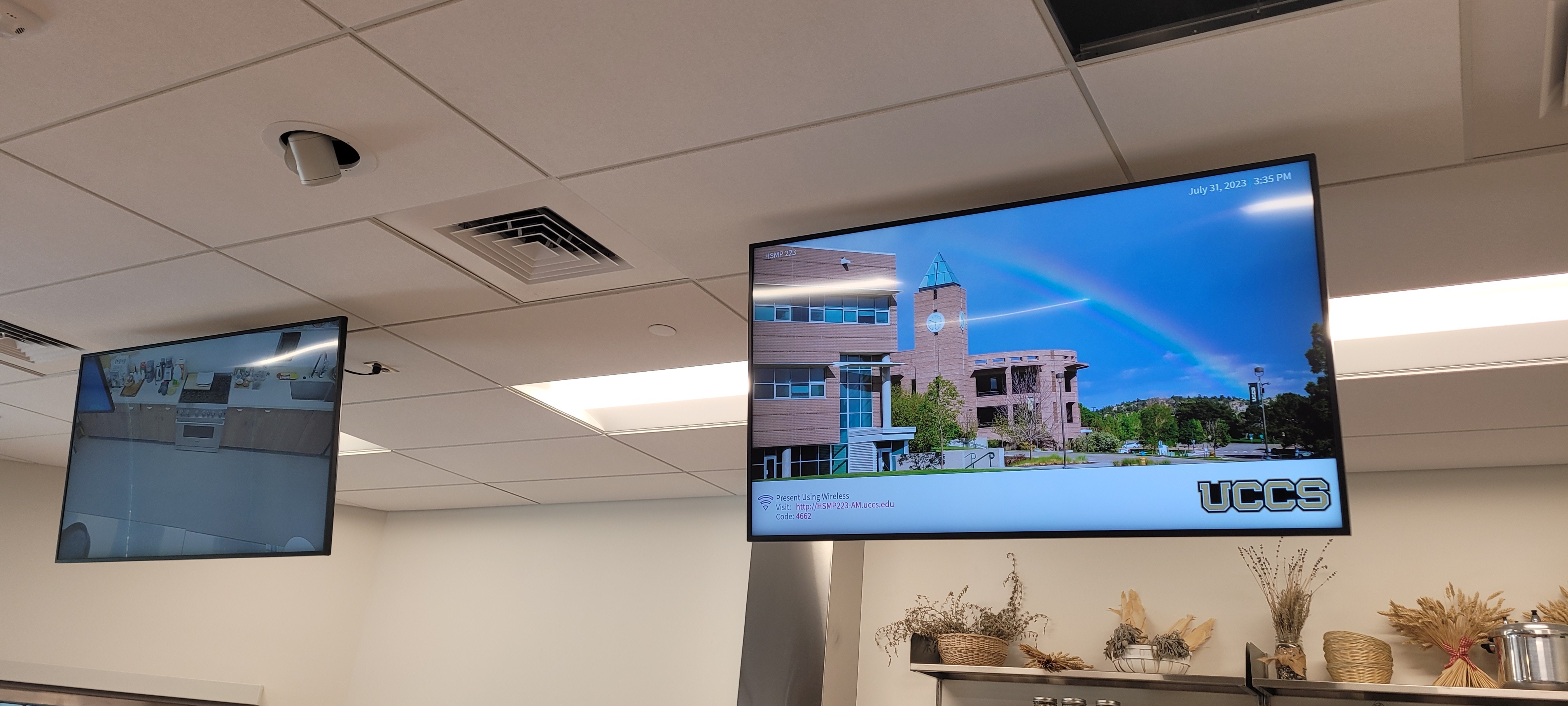
View of displays in room reflecting the AirMedia and Camera sources |
|---|---|
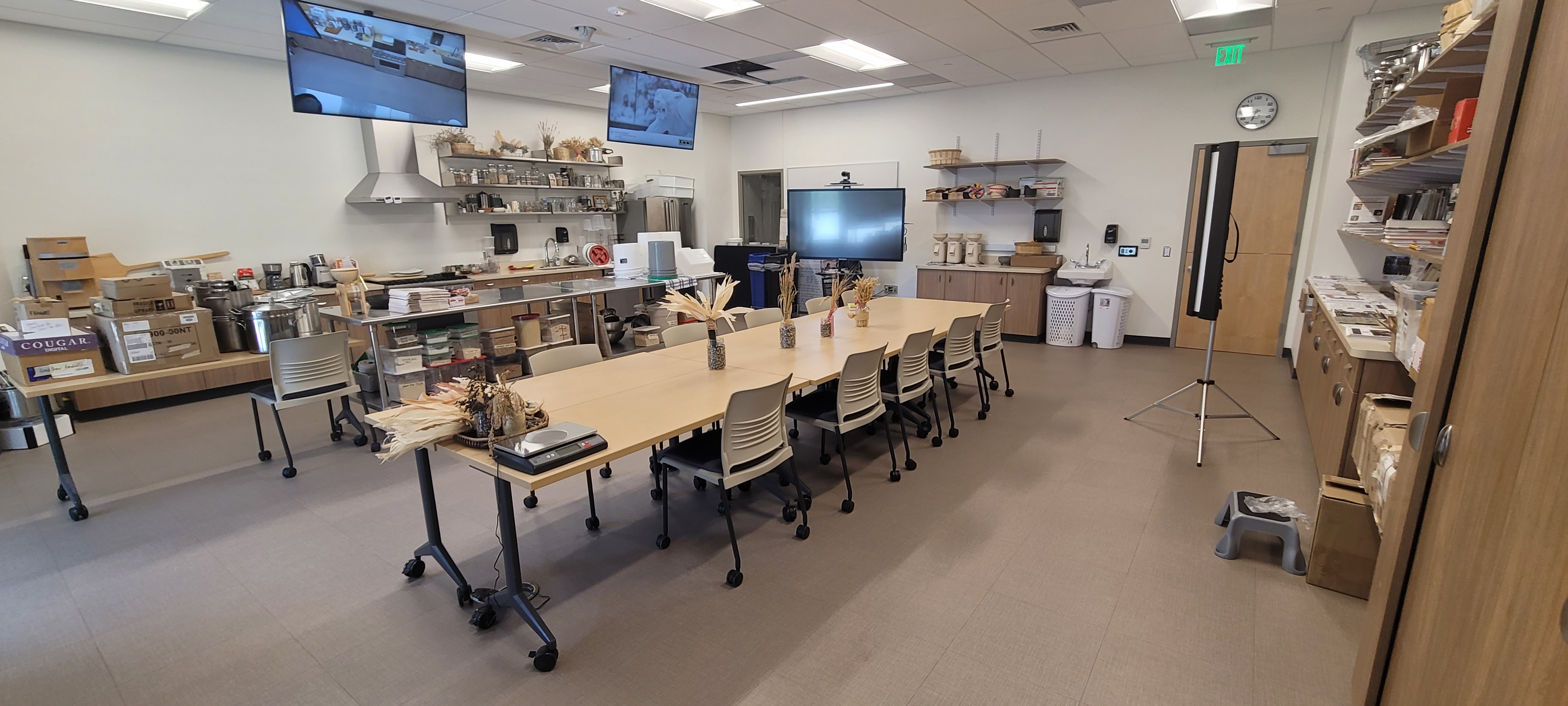
View of room from back left corner |