If you have first connected to UCCS-Guest and then registered for a guest username and password for connecting to the eduroam network.
If you are visiting from an eduroam participating institution, you can connect to the eduroam wireless network.
Step 1: Click on Network Icon
Click the network icon in the task bar, typically located in the lower right side of the screen. Then go to network settings by clicking on the gear icon at the top of the card.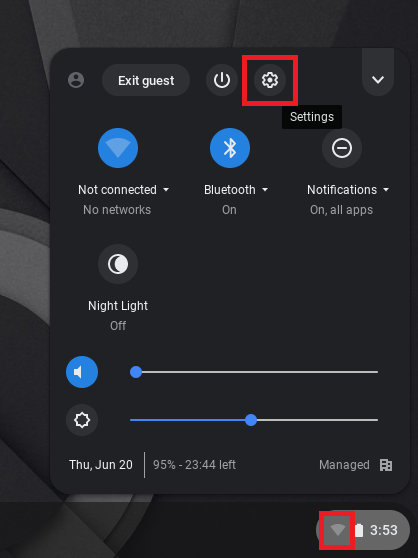
Step 2: Connect to the UCCS-Guest Network
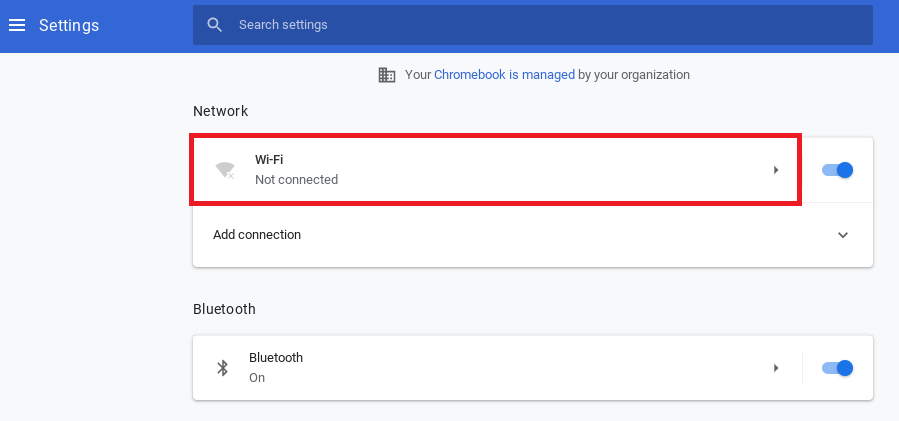
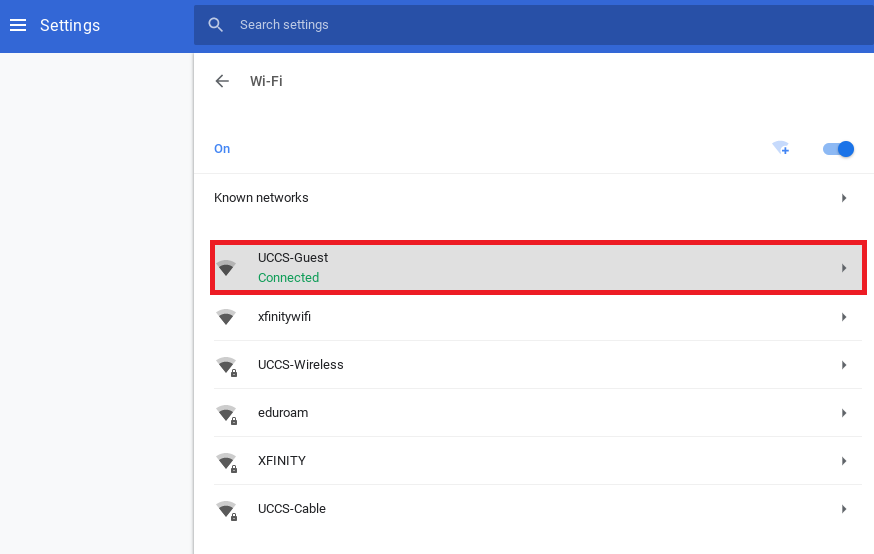
Click on "Wi-Fi" to show all available networks. Find UCCS-Guest from the list and click on it to connect to the network.
Step 3: Accept Terms
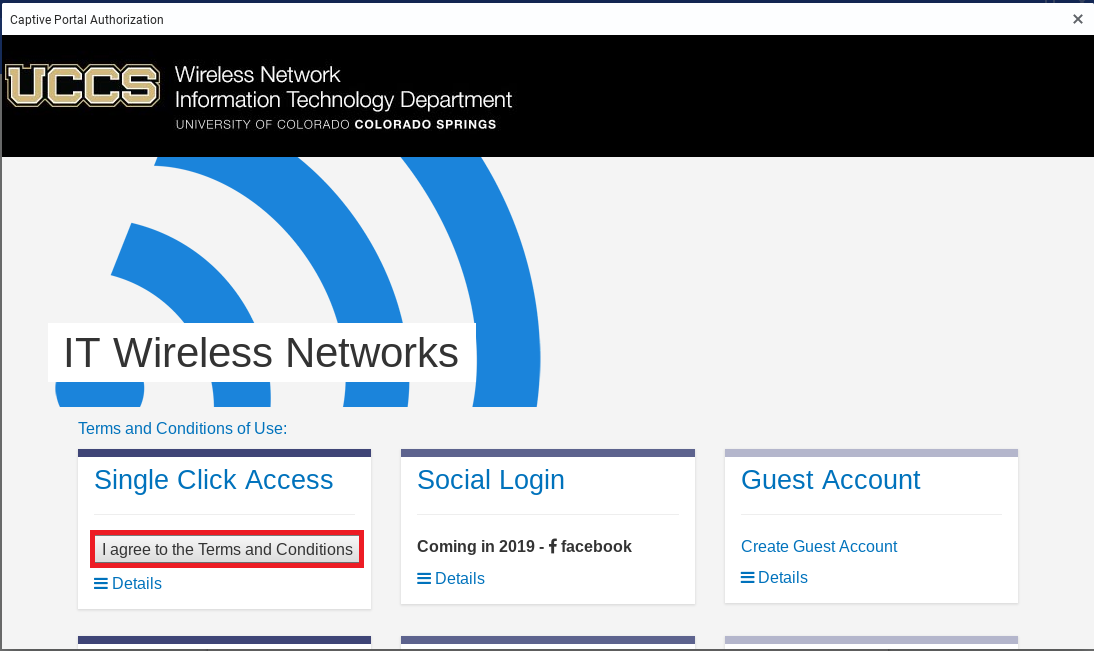
Click on the "Connect to Wi-Fi network" notification in the bottom right corner of the screen and you should be automatically directed to the captive portal page below. Open a web browser if the notification isn't there.
For temporary guest access, under the Single Click Access section, you will click the I agree to the Terms and Conditions button.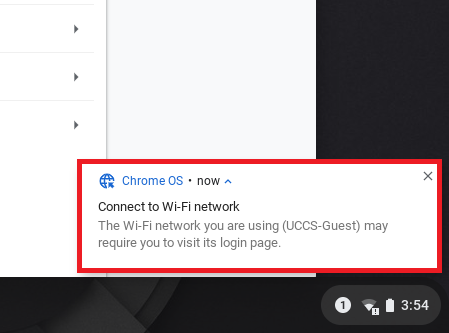
Your device should now be connected to UCCS-Guest.
Still having problems? Please contact the OIT Help Desk.