
Table of Contents
Features
This is a computer lab classroom with one screen, one professor PC at the front desk, and 22 student PCs around the room.
- 23 Windows Computers
- Audio system with speakers
- Pull down projection screen
- Full HD Laser projector
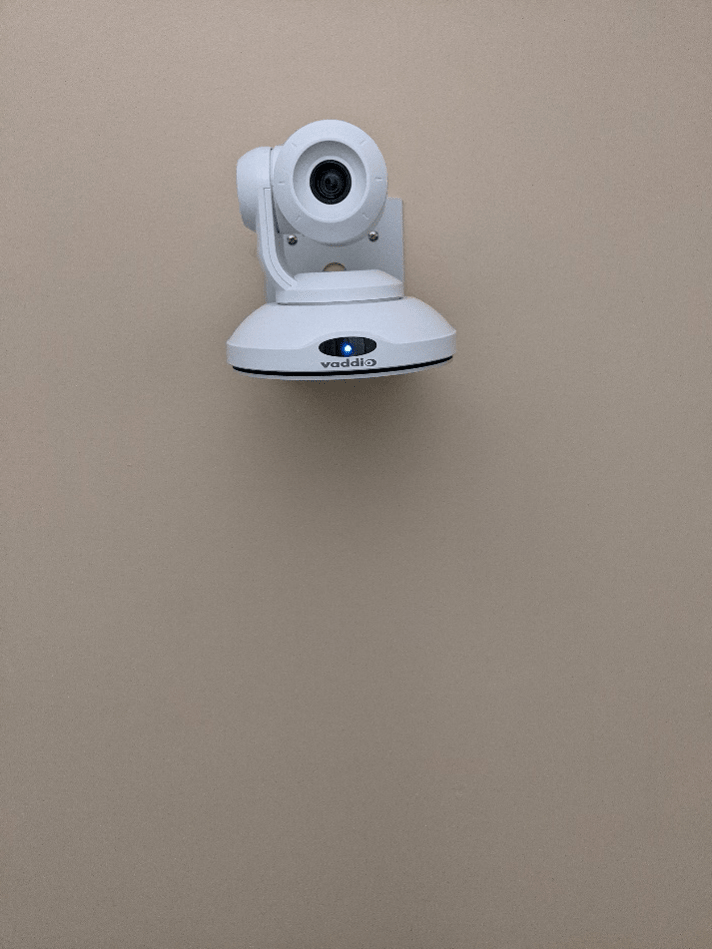
- Hyflex VTC System with Camera and Microphones
- HDMI Laptop Connections
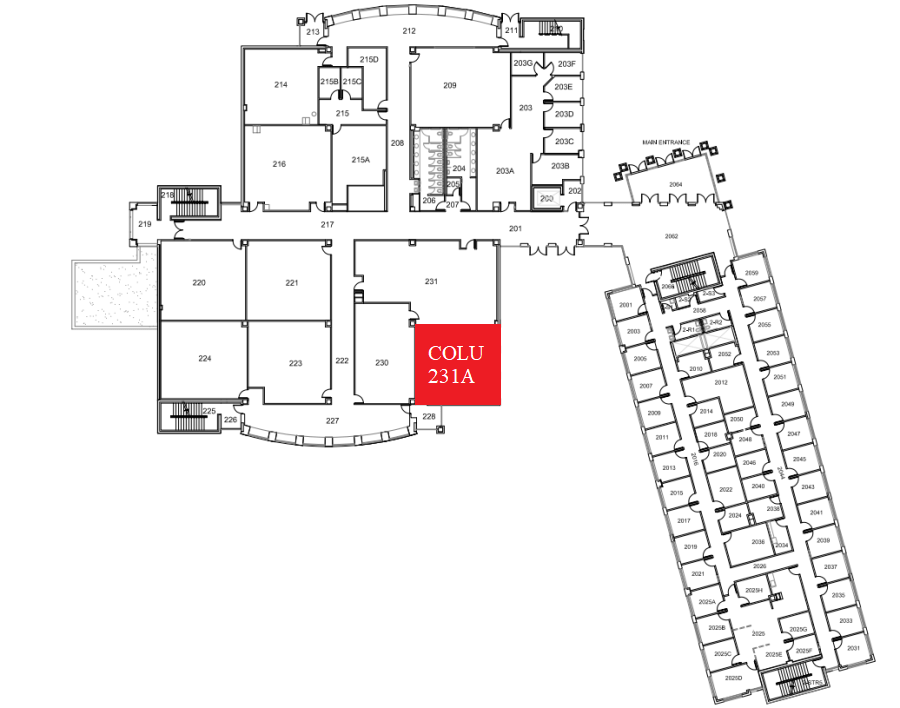
Location: Columbine 2nd Floor
Remotes
Projector Remote
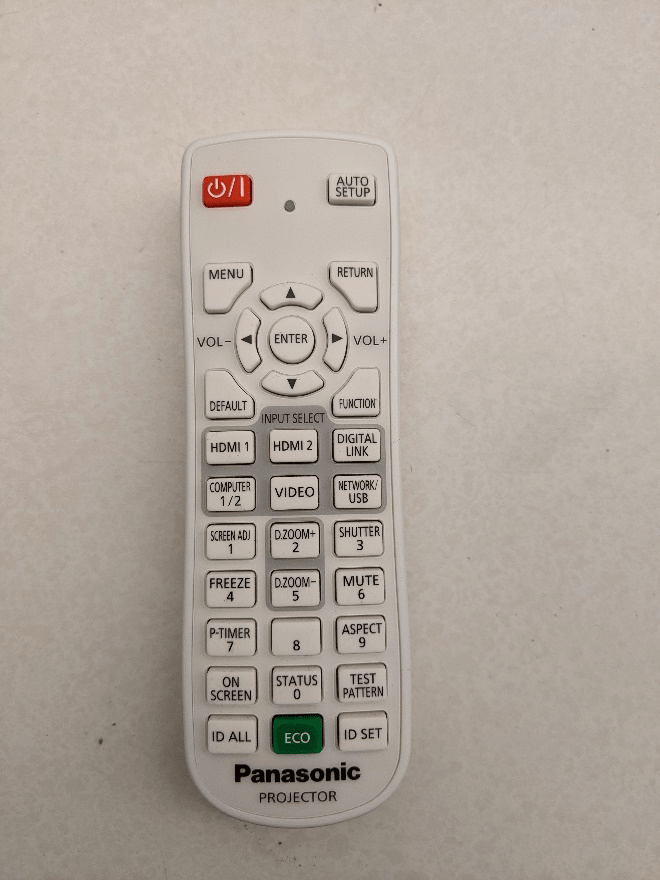
This is the remote that should always be on the front desk in this room and controls the projector in the room.
Hyflex Remote
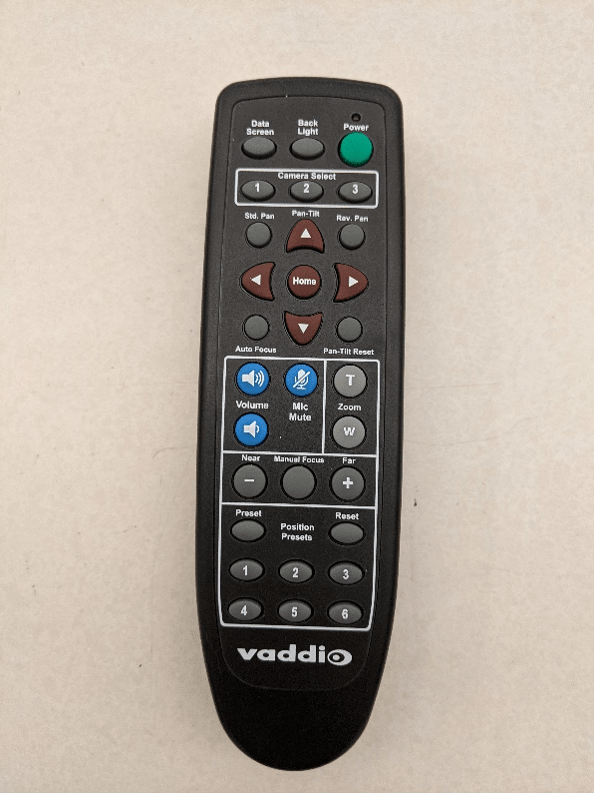
Controls the Hyflex VTC System. This remote should be located on the desk.
Controlling the A/V System
Using the Remote
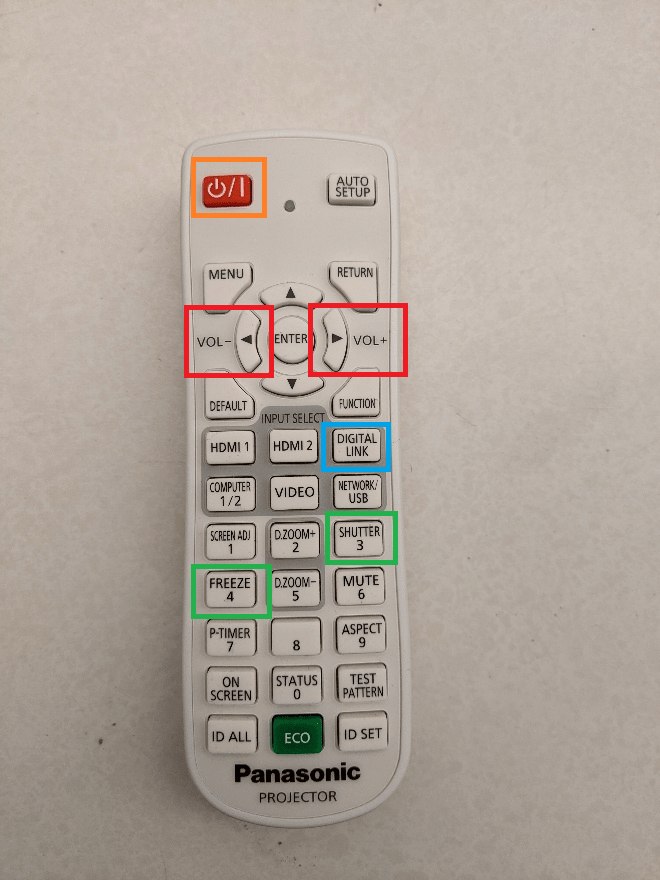
The remote for the projector controls most functions in the room. The remote is labeled below with the colors corresponding to a particular section explaining that function.
Turning the system on and off
To turn the system on, press the power button on the remote, which is outlined in red in the photo to the left. This will only turn on the projector. You must physically pull on the string/handle on the screen to lower it.
To turn off the system, press the power button on the remote twice, which is outlined in red in the photo to the left. This will turn off the projector. To raise the screen, pull on the string/handle and the screen should raise. You may have to push on it a bit to get it all the way up.
Source Selection
The source should be Digital Link (outlined in blue in the photo to the left). Digital Link will automatically go to the HDMI for the laptop if it is plugged into a laptop. If not, it will then use the podium PC as the input for the projector.
Volume Control
Volume can be controlled with the volume buttons on the remote (outlined in red in the photo to the left) or on the PC using the volume controls in the bottom right-hand corner.
Projector Control
The projector can be controlled with the remote in the room. The freeze function is number 4 on the remote (outlined in green to the left) and shutter is number 3 on the remote ( also outlined in green to the left).
- Shutter, equivalent to A/V Mute, will shutter the projector and mute the audio. Use this feature when you want to use the whiteboard or front of the room without shutting down the system. Please only use this feature for up to 20 minutes, otherwise it's best to shut down the system.
- Freeze will freeze the currently displayed image on the screen. Use this feature if you'd like to hold a frame still on the screen or use the podium PC for another activity without displaying it, such as checking your email.
Inputs
Using the Podium PC and Lectern
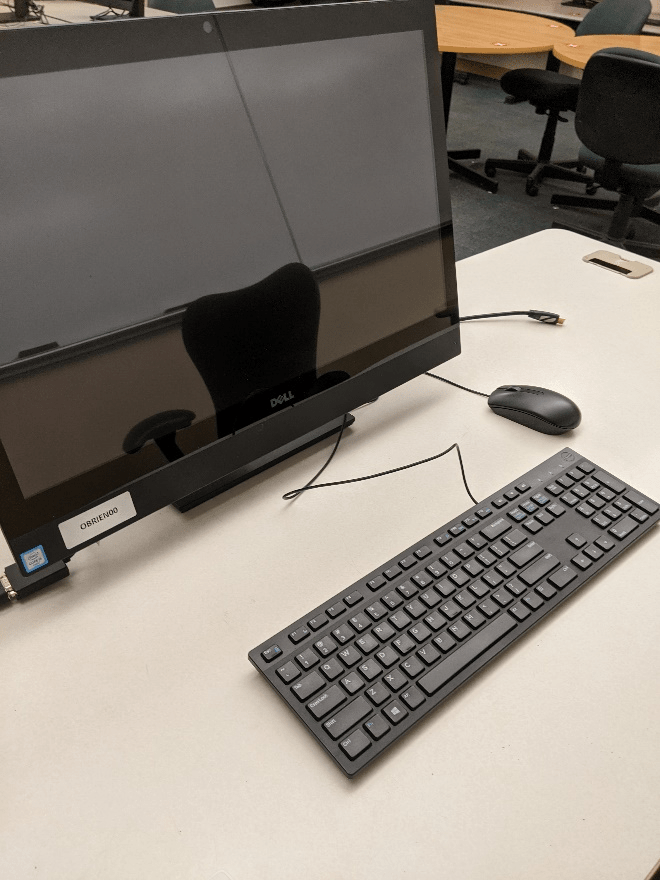
The podium PC is on the desk at the front of the room and is the primary source for this AV system and should use the VGA connection. This computer runs the same image as all other podium computers in general fund classrooms and labs. You can sign in using your UCCS credentials.
The keyboard and mouse are sitting right in front of the PC on the desk.
Using a Laptop
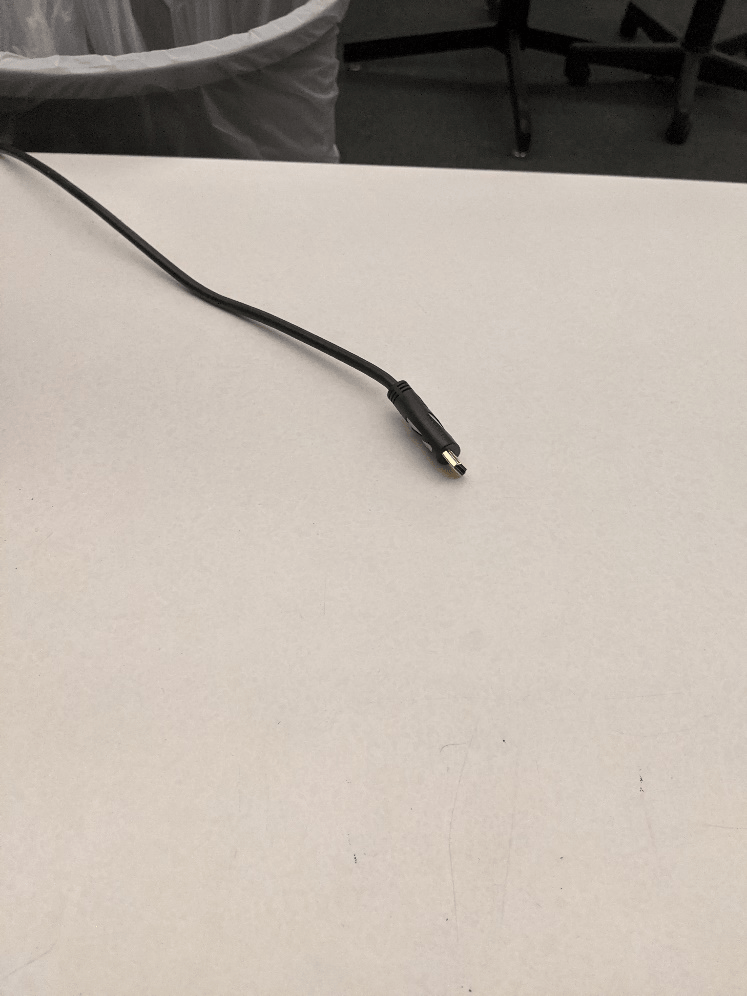
This room is only equipped with an HDMI cable for a laptop. You can connect your laptop to this HDMI cord and the Digital Link source will automatically switch the projector to using your laptop as the input.
Screen Control
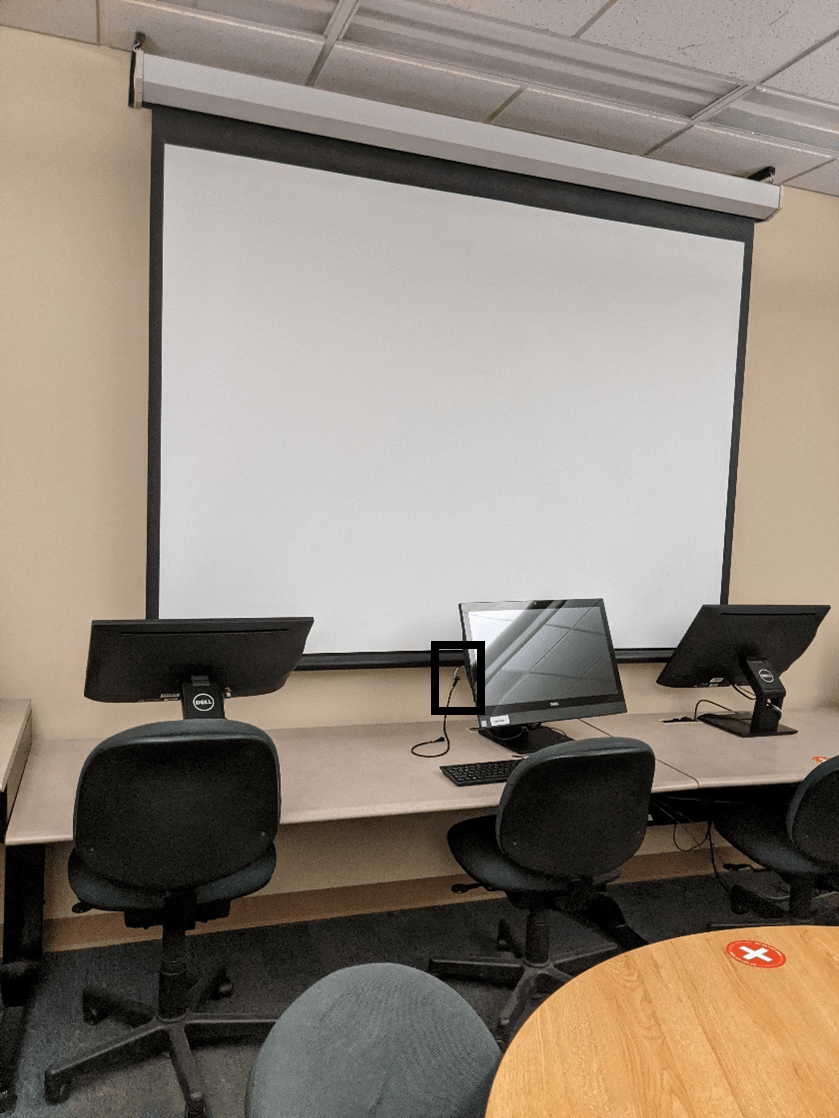
The screen in this room is manually operated. The handle, with a string attached, is outlined in black in the photo below.
Troubleshooting
Audio Issues
Fixing Audio Issues: Standard Extron Room
Video Issues
Fixing Video Issues: Standard Extron Room
Vaddio/Hyflex VTC System
Photos
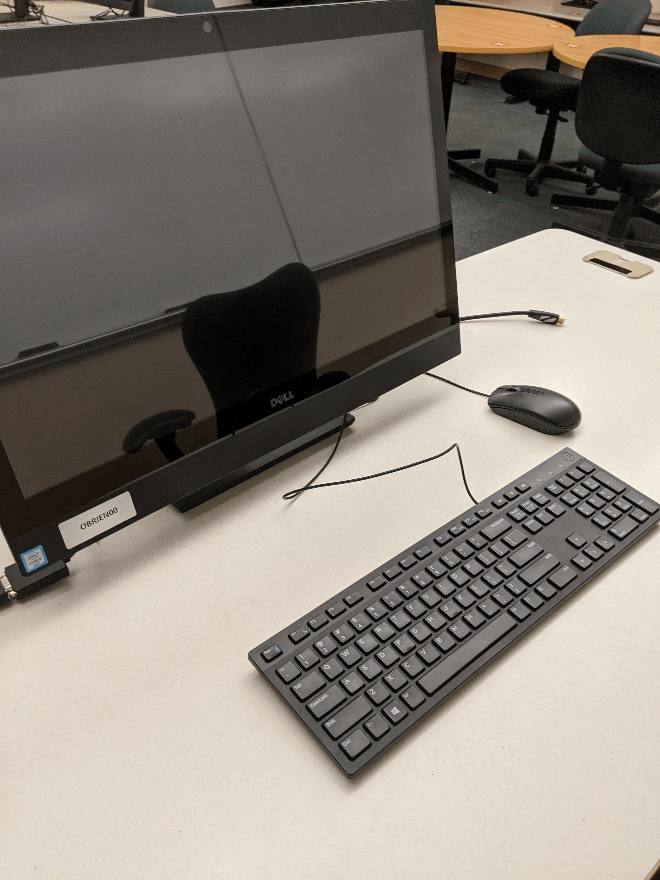
This is the podium PC that is at the front of the room on the desk and is the main source for the AV system.

The room speakers are located in the ceiling on each corner of the classroom.
The room speakers are located in the ceiling on each corner of the classroom.
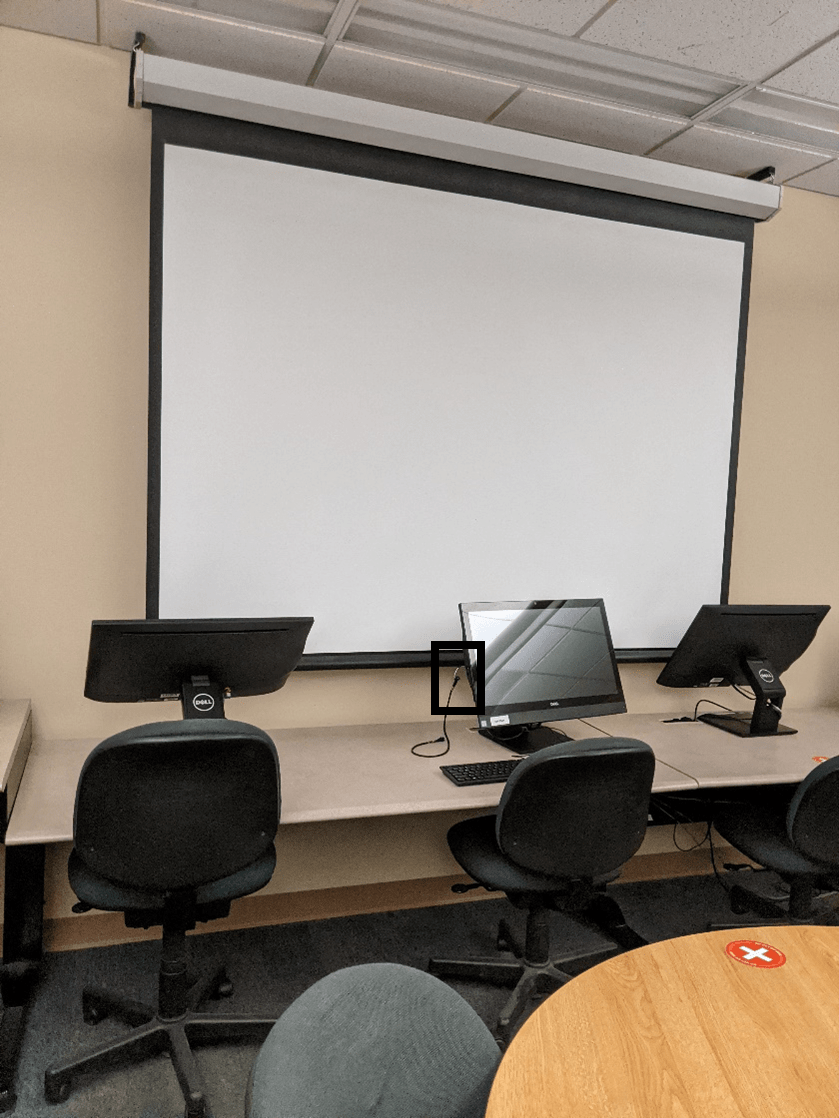
This is the screen located on the left wall when you're looking at it from the desk at the front of the room.
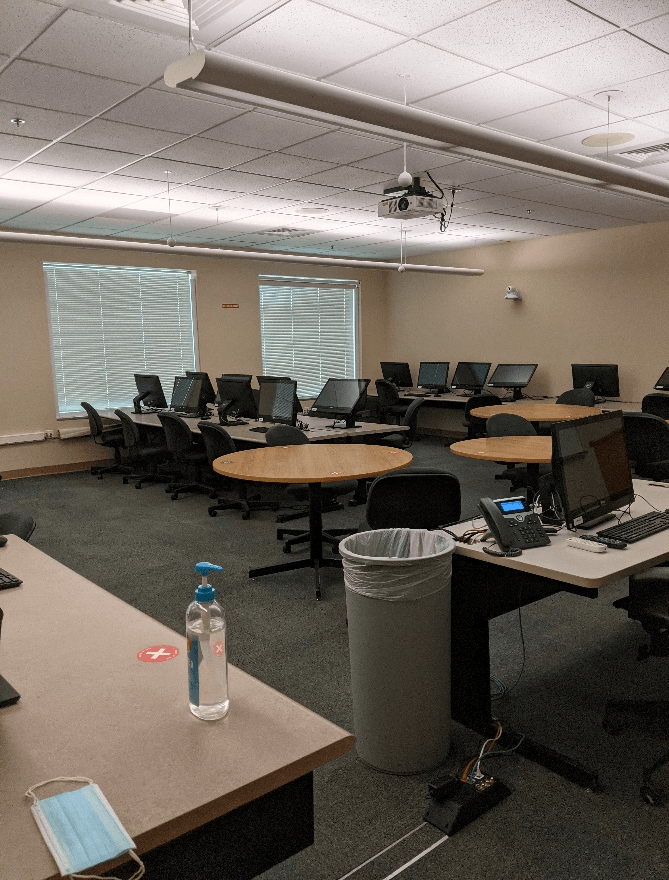
This is the view of the room from the door at the front left of the room.

This is the view of the room from the front right of the room.
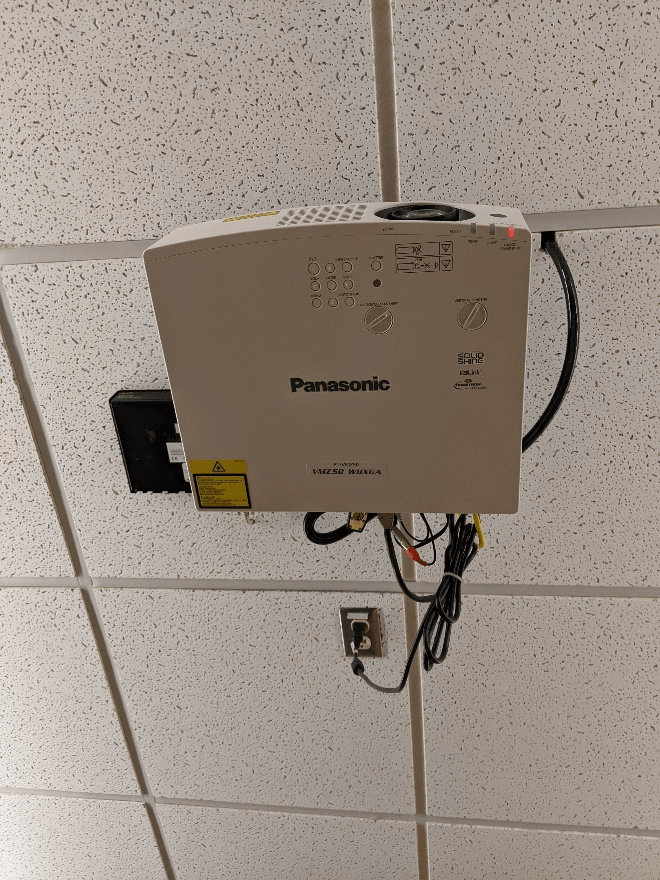
This is the projector in the room.
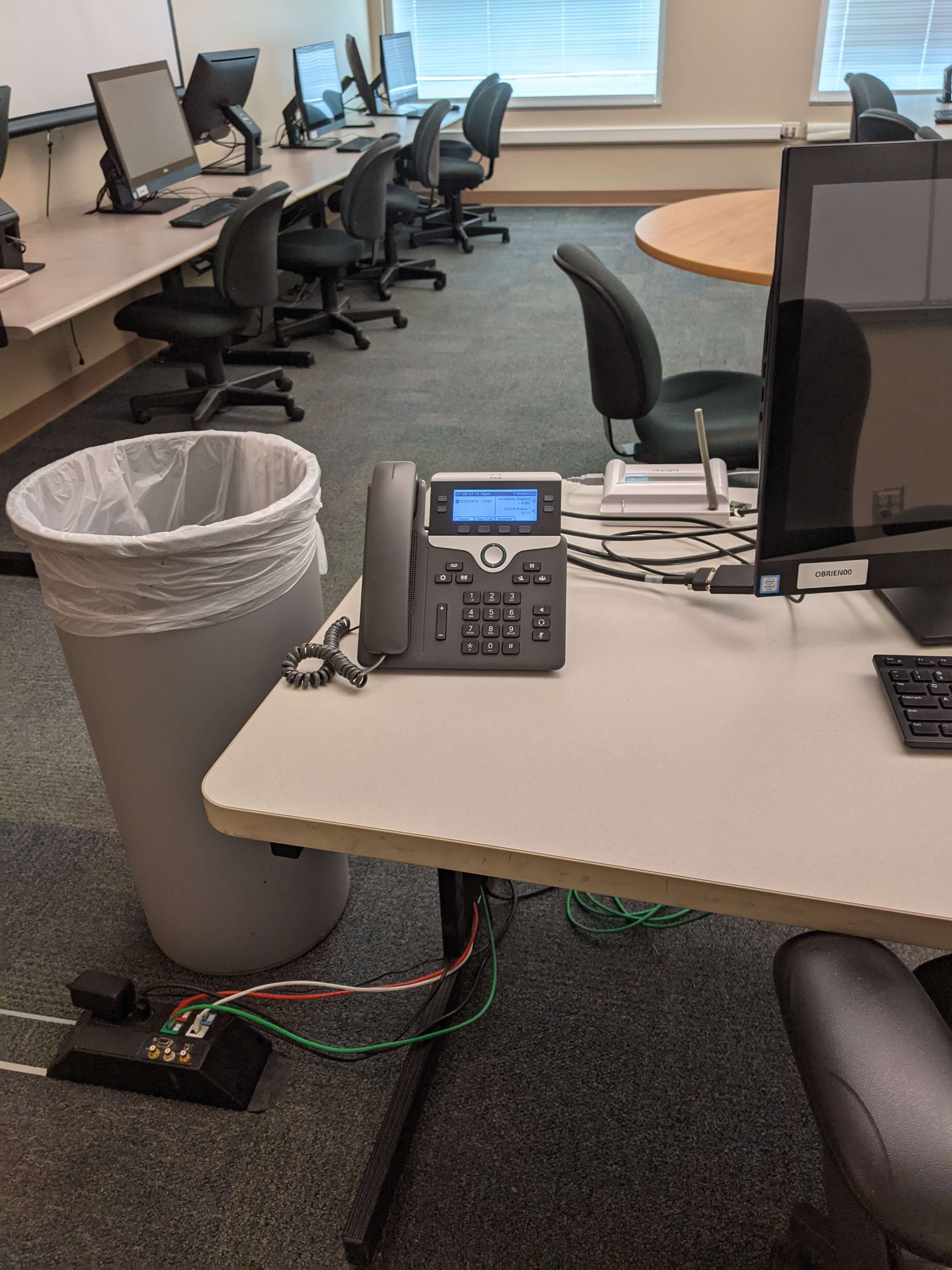
This is the phone, located to the left of the podium PC.
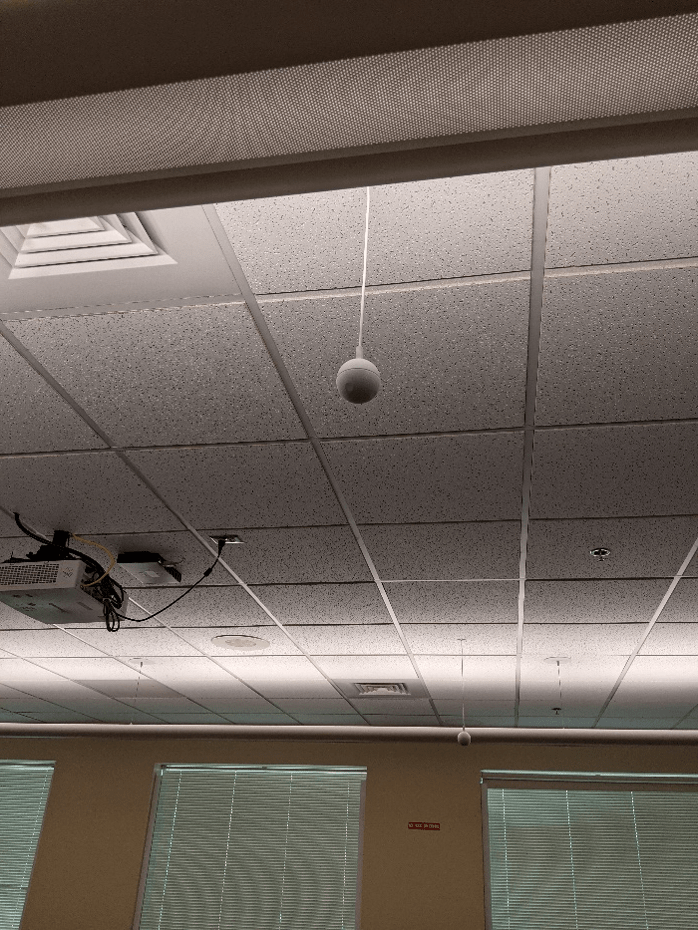
This is one of the four microphones in the room.