
Table of Contents
Features
This is a standard Extron classroom with a full-size panel and a Vaddio Hyflex system installed.
- Podium Computer
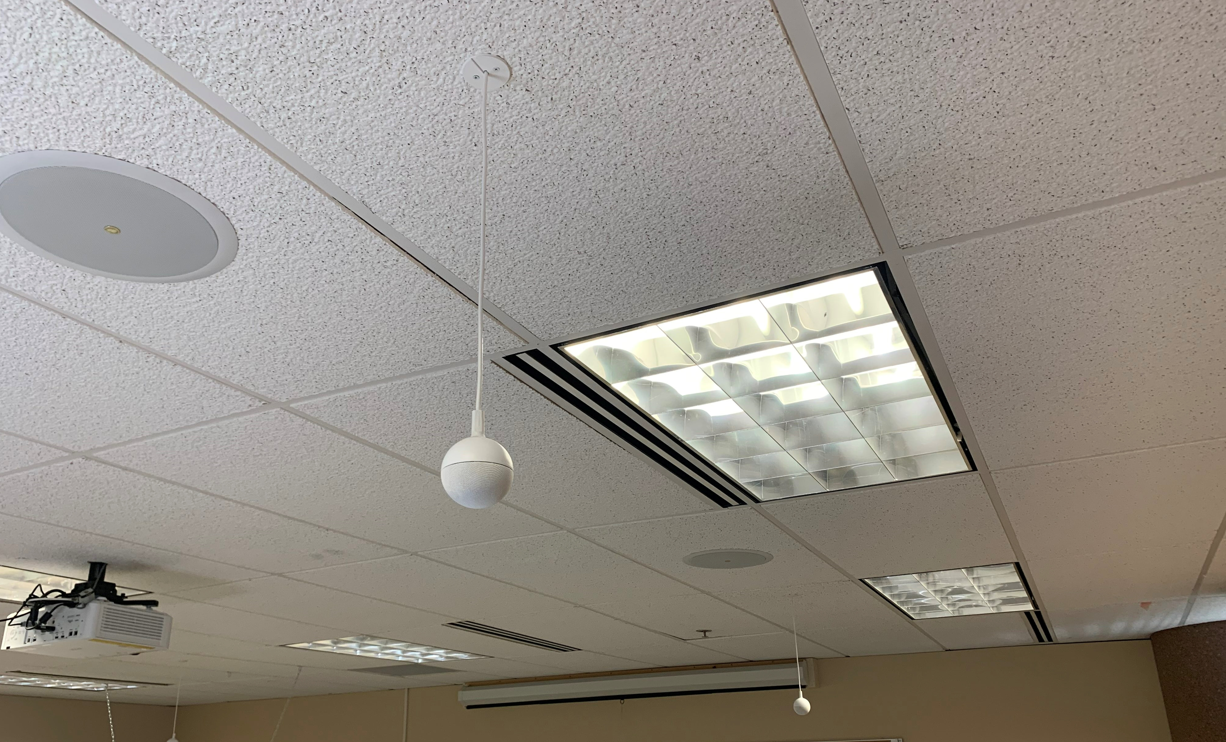
- Audio System with Speakers
- Pull down projection screen
- Full HD Laser Projector
- HDMI input at Lectern
- Extron IN1806 Media Switcher
- Extron Touch Panel Controller
- Hyflex VTC System with Camera and Ceiling Microphones
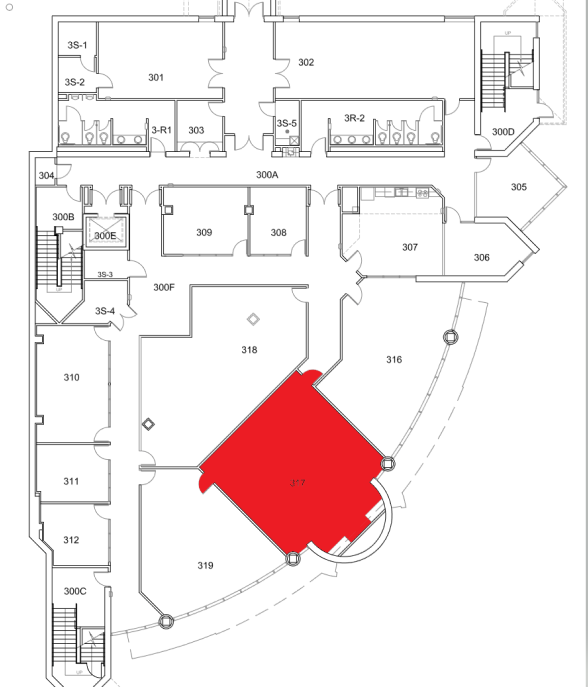
Location: UHAL 3rd Floor B-Wing
Remote
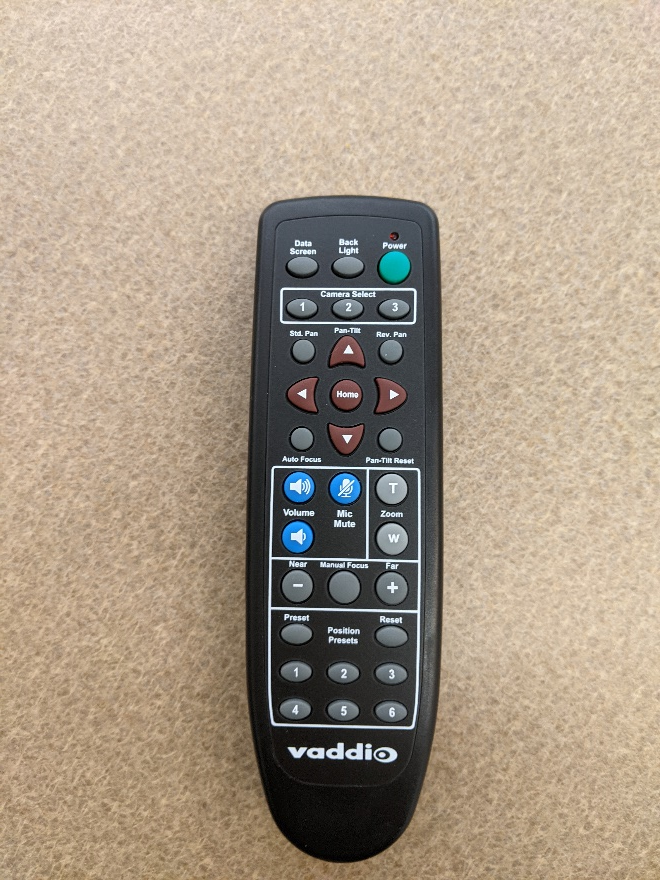
Controls the Hyflex VTC System. Located on top of the podium or in the podium drawer.
Controlling the A/V System
Using The Extron Touch Panel
The touch panel controls most functions in the room. The descriptions for touch panel functions are described to the right of the photo below.
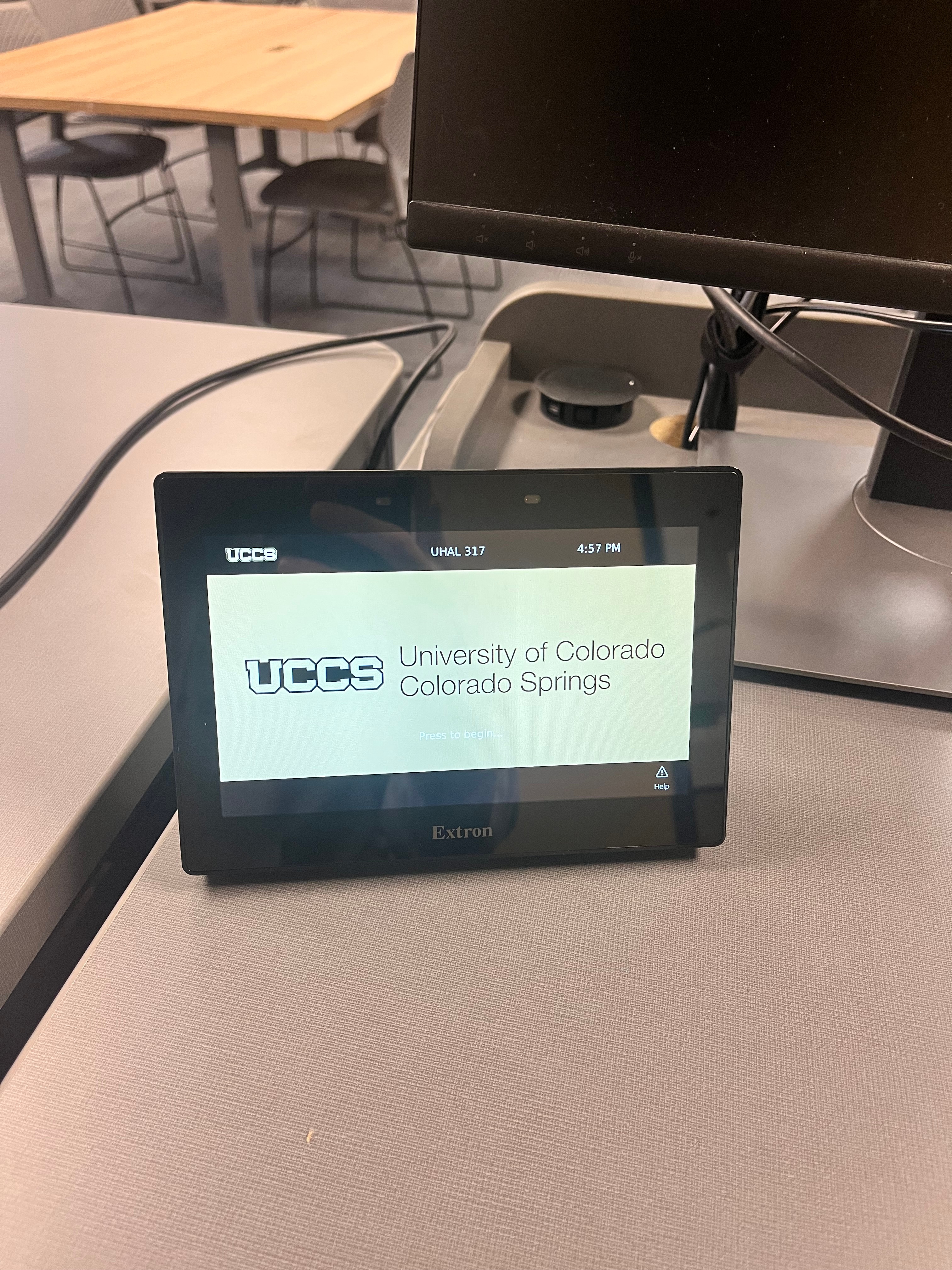
Turning the system on and off
The AV system will power on when pressing the start page on the touch panel. This will turn on the projector, lower the screen, and switch the panel to the main menu page.
To turn the AV system off, press the red Power Off button in the upper right corner. You will have 10 seconds to cancel the power off, then the system will shut down.
Source Selection
To change sources, select the input you would like to send to the projector. You may choose between Podium PC & Laptop.
Volume Control
Volume can be controlled using the volume buttons at the bottom of any page on the touch panel. The raise and lower buttons are on either side of the volume bar and the mute button is located in the lower left corner.
Note
This room features energy save rated amps and may shut off. If this is the case, please turn up the volume while audio is playing to hear the audio.
Projector Controls
The projector will automatically power on and off with the system.
On the left side of the touch panel are options for A/V Mute, Freeze, and screen controls.
- A/V Mute will shutter the projector and raise the screen. Use this feature when you want to use the whiteboard or front of the room without shutting down the system. Please only use this feature for up to 20 minutes, otherwise it's best to shut down the system.
- Freeze will freeze the currently displayed image on the screen. Use this feature if you'd like to hold a frame still on the screen or use the podium PC for another activity without displaying it, such as checking your email.
Inputs
Using the Podium PC and Lectern
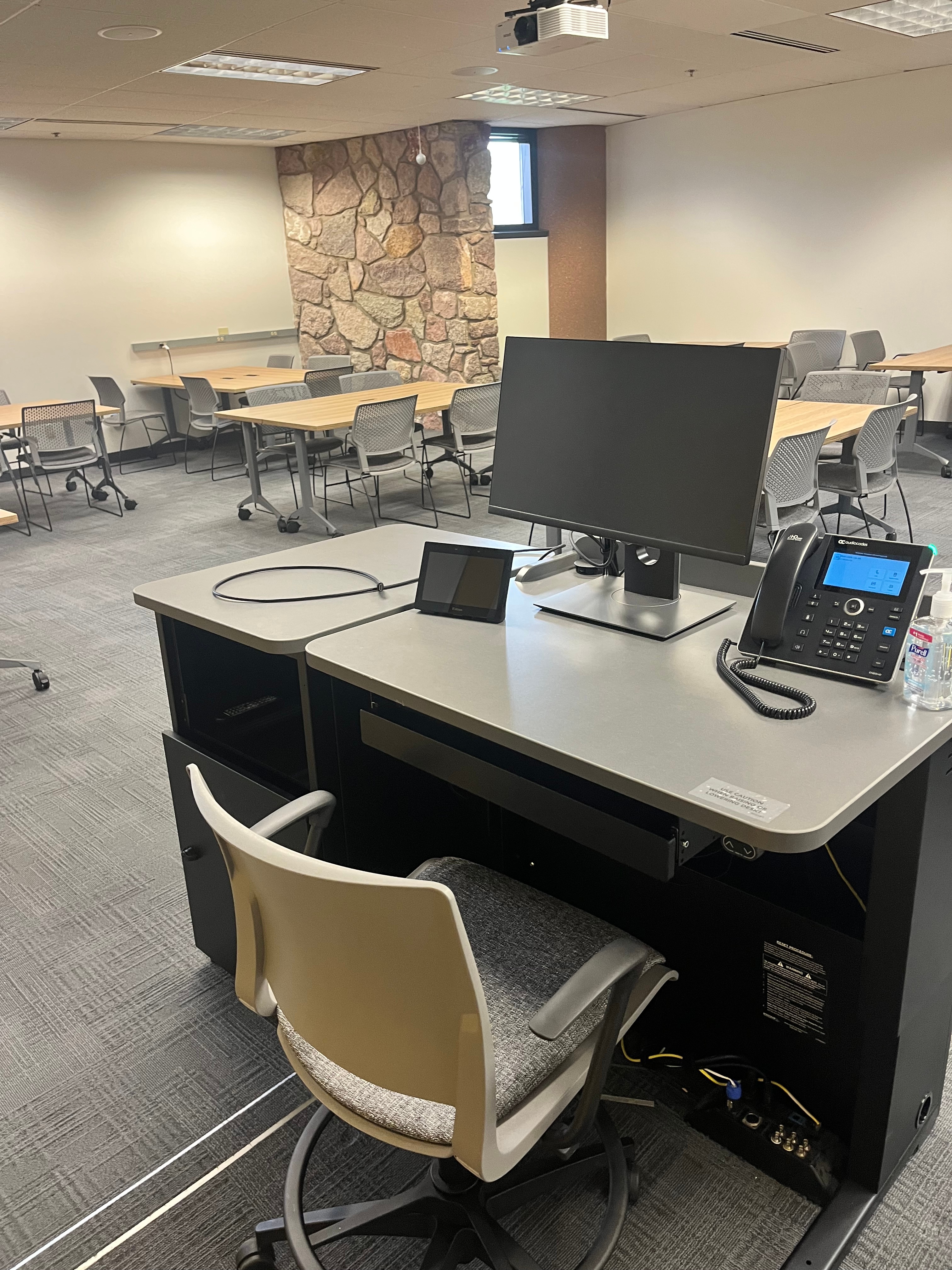
The computer placed on the podium is the primary source for this AV system. This computer runs the same image as all other podium computers in general fund classrooms and labs. You can sign in with your UCCS credentials.
The keyboard and mouse are located in the pull-open tray below the computer. Please return them to this tray after use.
Using a Laptop
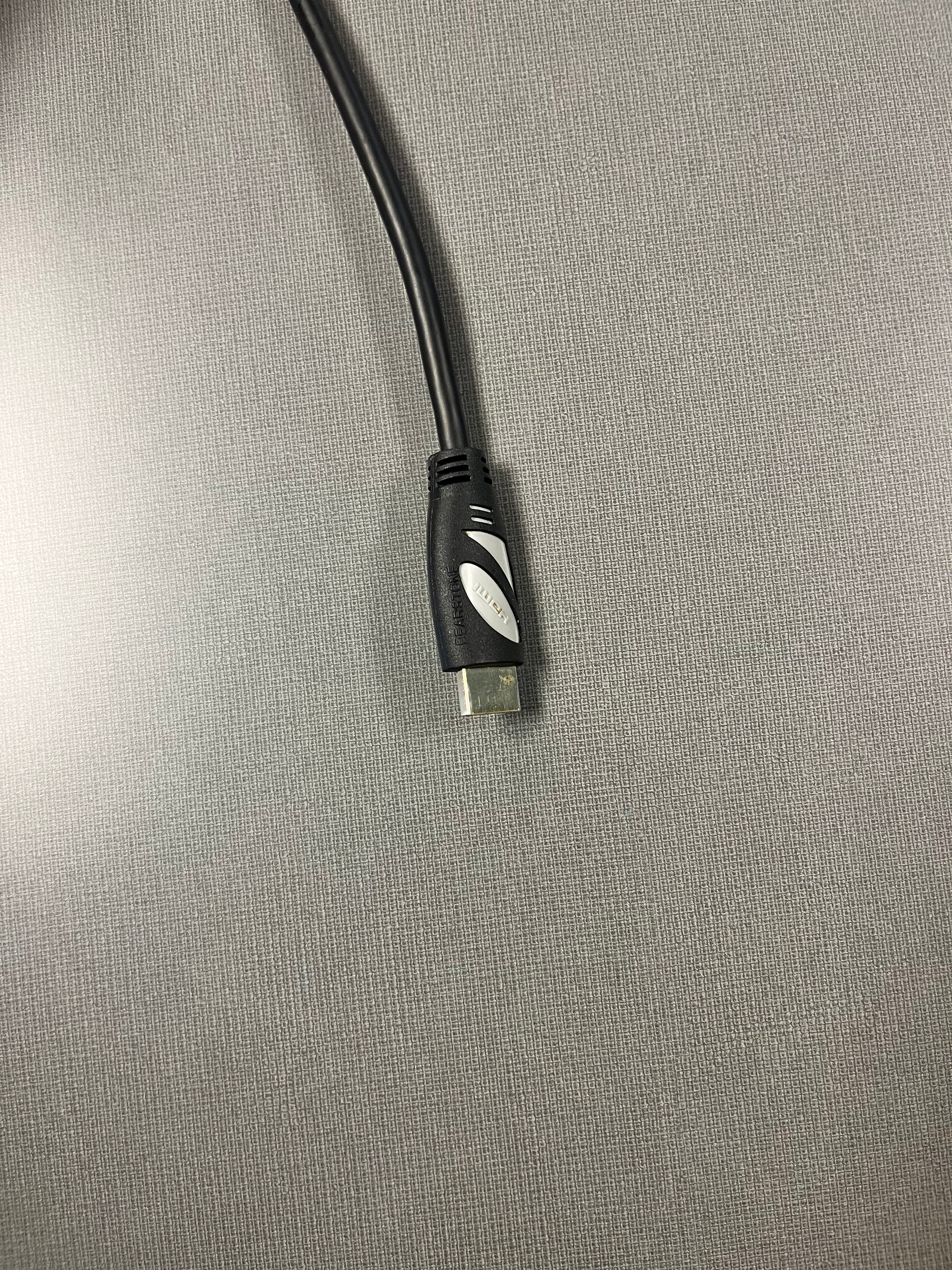
There is an HDMI cable available for use with a personal laptop. The HDMI cable will route both audio and video to the system after pressing the "Laptop" option on the button panel.
Troubleshooting
Audio Issues
Fixing Audio Issues: Standard Extron Room
Video Issues
Fixing Video Issues: Standard Extron Room
Vaddio/Hyflex VTC System
Photos
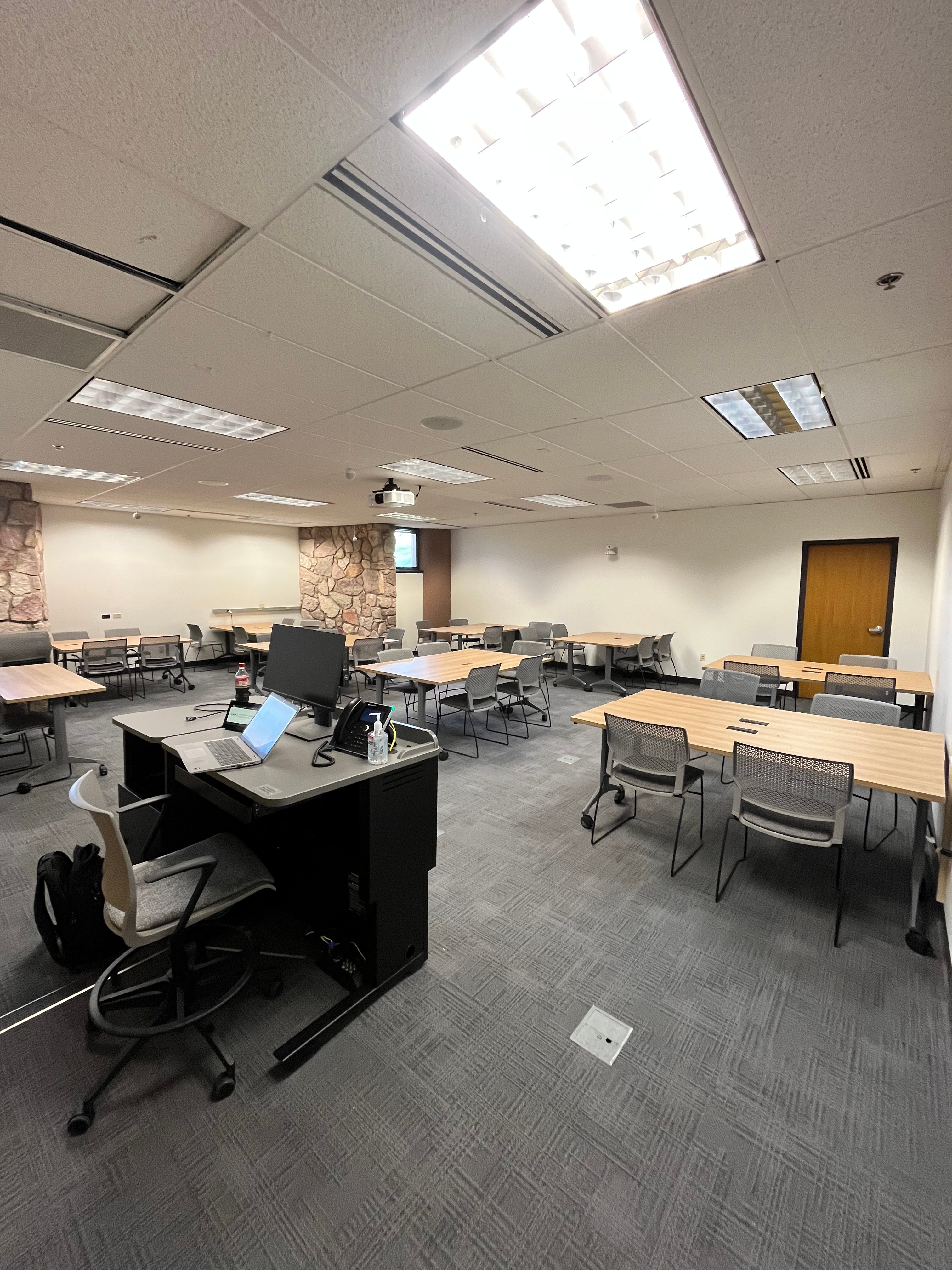
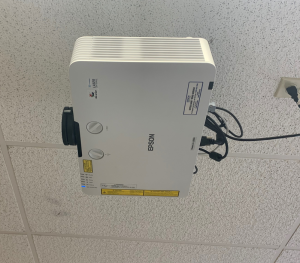
The projector for the room is mounted on the ceiling.
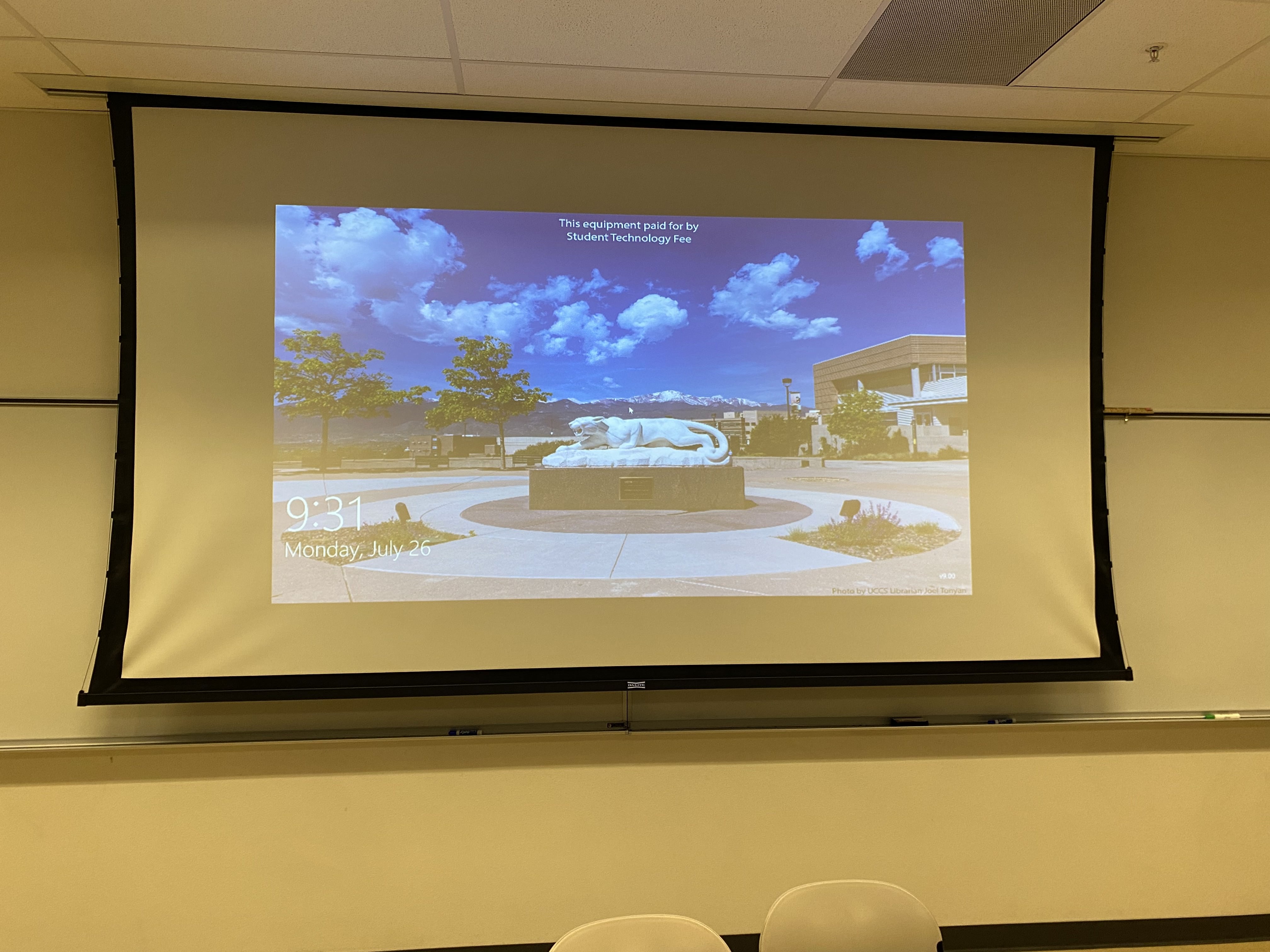
A large tensioned screen
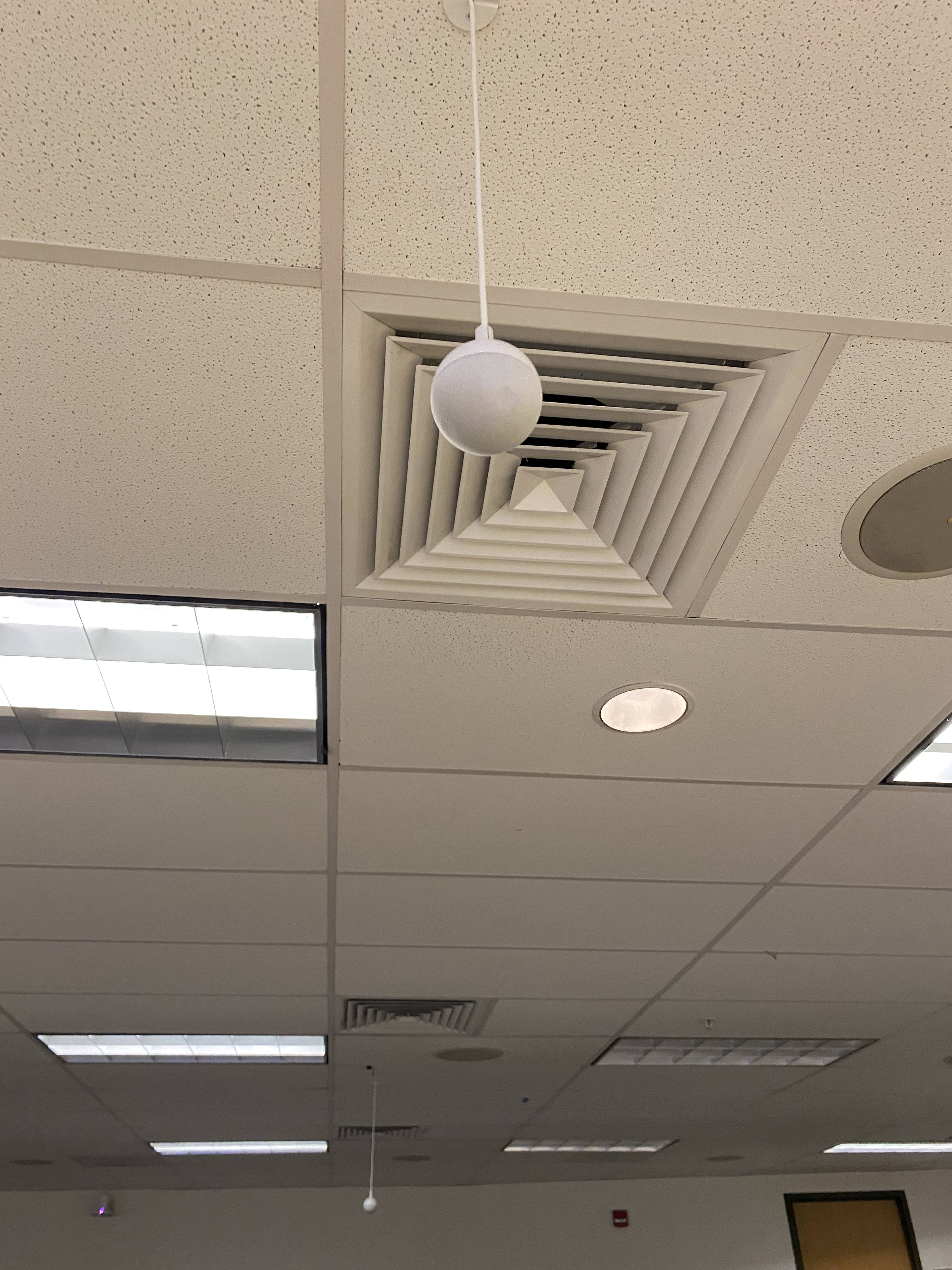 Microphones hanging from the ceiling and Speakers built into the ceiling
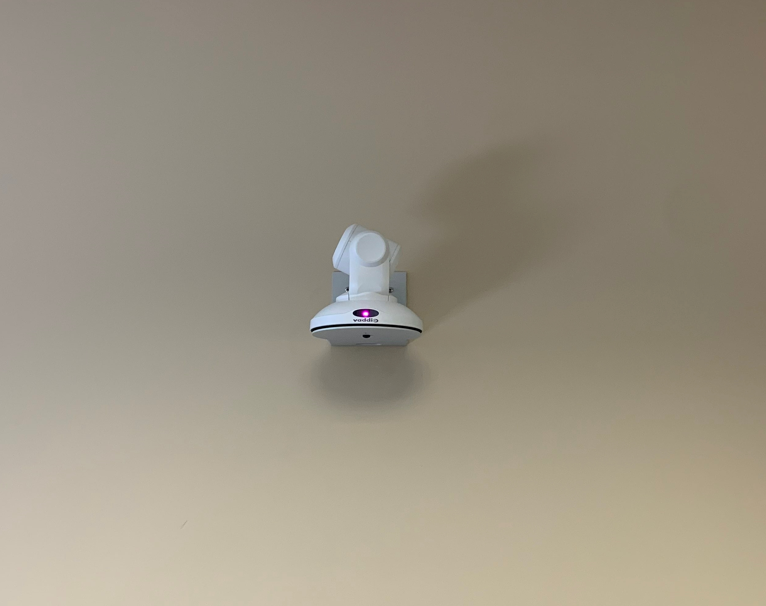
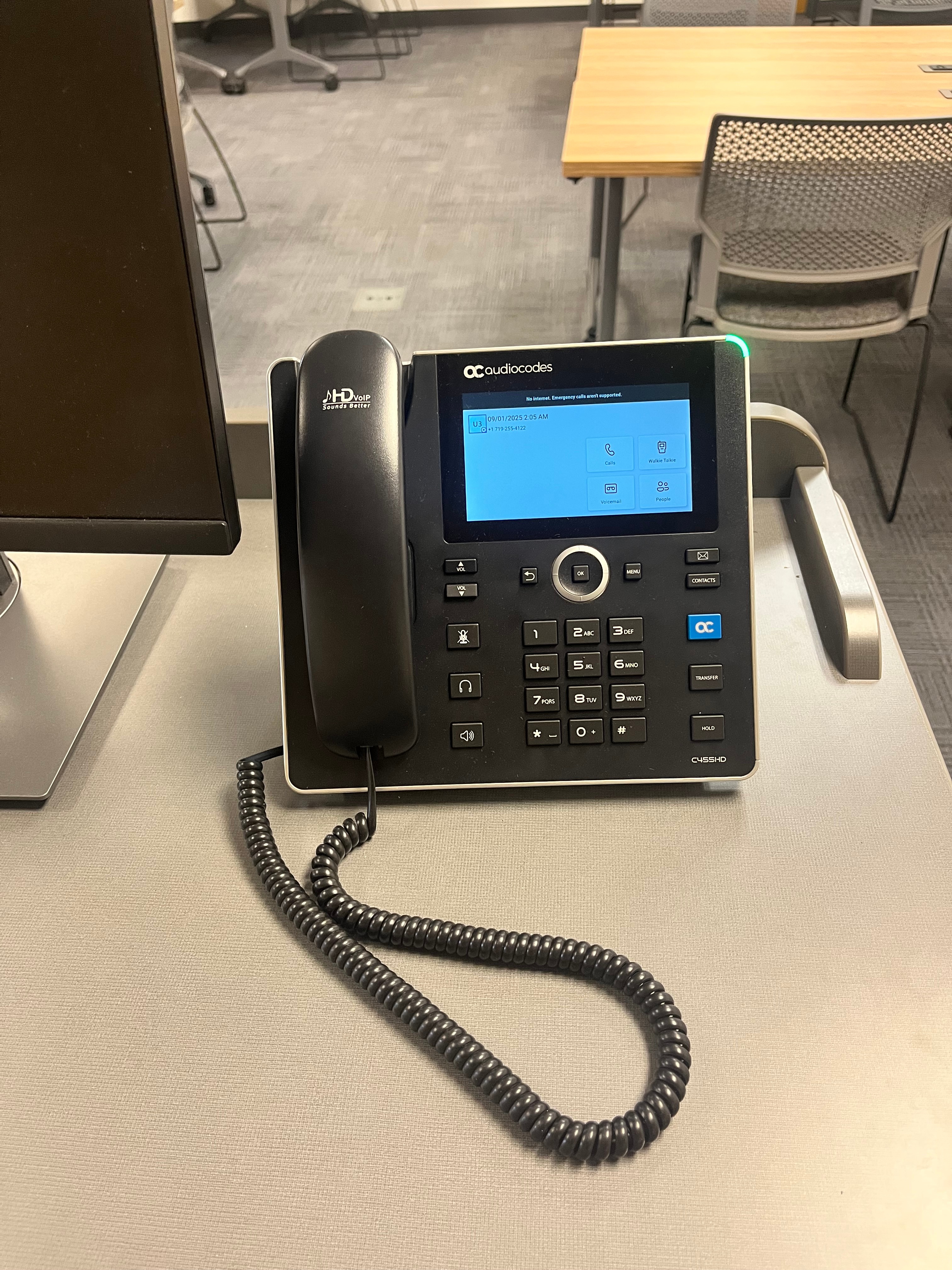
Vaddio Camera for HyFlex System