
Table of Contents
Scope
Large conference room
- Epson L610U Projector
- Projector Screen
- Wall-mounted touch panel for room control
- Wall mounted PC for VTC control
- Three wall-mounted cameras
- Ceiling-mounted microphone
- HDMI laptop input at wall-mounted station
- Crestron AirMedia for wireless presentation
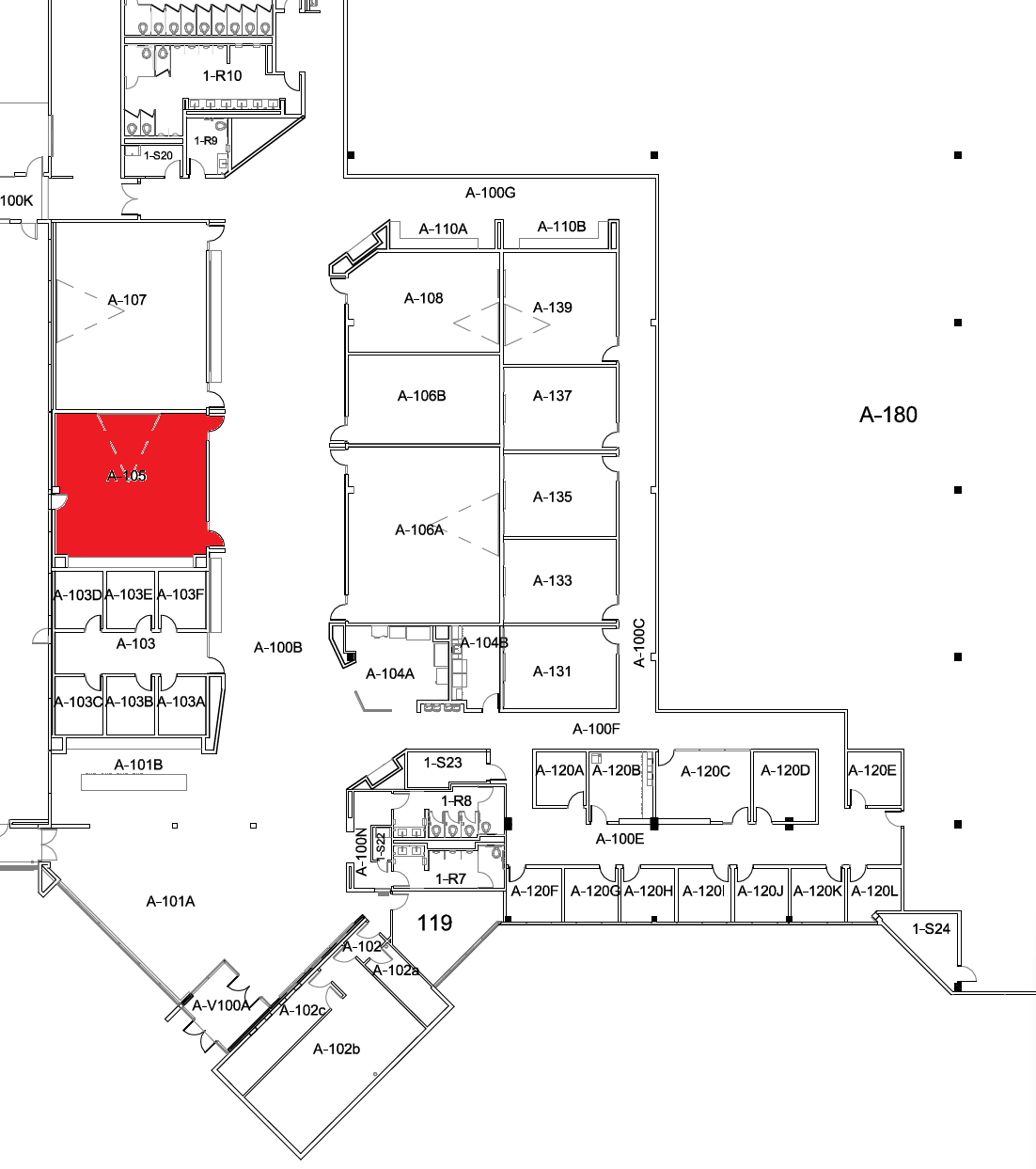
Location
Using the Touch Panel
The touch panel controls all AV functionality in the space.
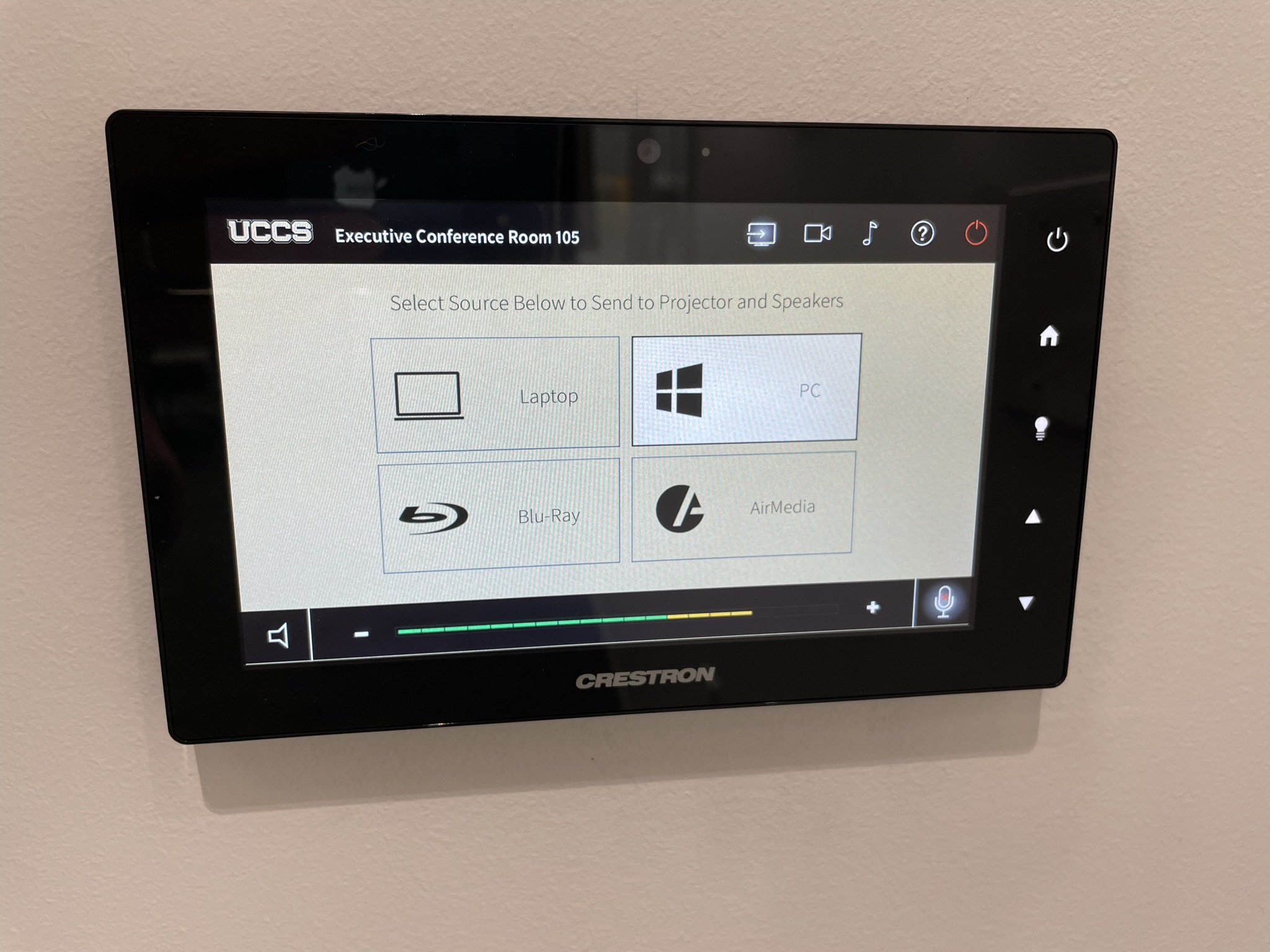
Using the System
Turning the system on and off
The AV system will power on when pressing the start page on the touch panel. This will turn on the projector, lower the screen, and switch the panel to the main menu page.
To turn the AV system off, press the red Power Off button in the upper right corner. You will need to confirm, then the system will shut down.
Source Selection
To change sources, select the input you would like to send to the projector. You may choose between Podium PC, Laptop, Blu-ray Player, or AirMedia.
Volume Control
Volume can be controlled using the volume buttons at the bottom of any page on the touch panel. The raise and lower buttons are on either side of the volume bar and the mute button is located in the lower left corner.
Projector and Screen Control
The projector and screen will automatically power on and off/raise and lower with the system.
Inputs
Using the Wall-Mounted PC

The computer mounted on the wall is the primary source for this AV system. This computer runs the same image as all other podium computers in general fund classrooms and labs. You can sign in with your UCCS credentials.
The keyboard and mouse are located in a fold-out tray under the computer.
The wall mount is height adjustable. To raise or lower the mount, gently raise or lower it with your hand.
Using a Laptop

The HDMI cable on the keyboard tray is for use with a laptop. Connect your device and switch to the laptop input on the touch panel to project.
Cameras
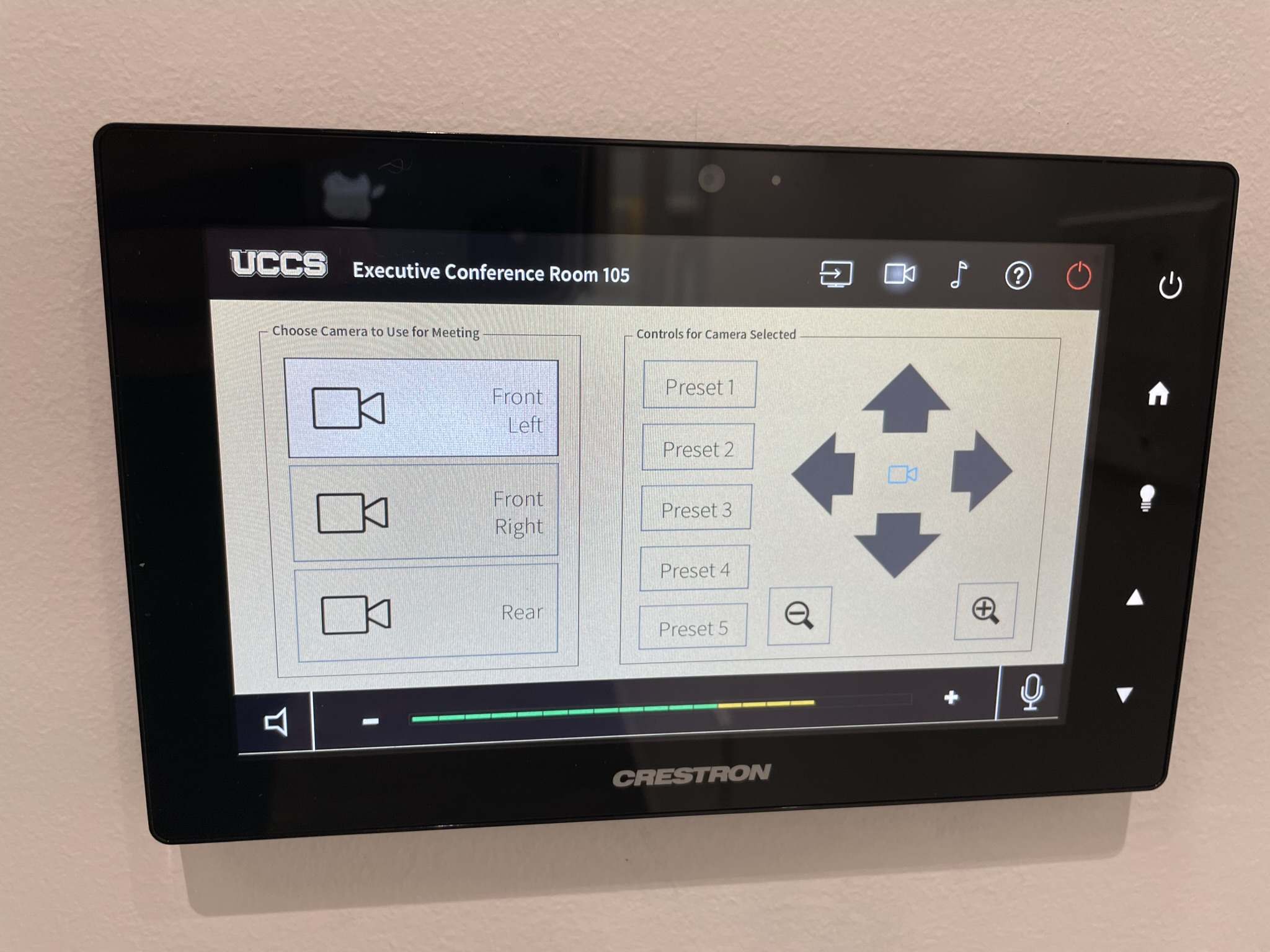
The wall-mounted cameras can be controlled using the touch panel. To access the controls, first select the camera icon in the upper right, then select which camera you'd like to use. These controls allow you to zoom in and out and change what the camera is fixated on. The presets may be saved for frequently used camera positioning.
This system is only connected to the wall PC and will show up as a USB webcam named "EasyIP Mixer." This "webcam" will allow you to stream or record class instruction using software on the PC, such as Microsoft Teams or Zoom. For more information on using VTC, please refer to How To Use a Hyflex Classroom
Using the Blu-ray Player

Selecting the Blu-ray source will open the Blu-ray control page. Use this page to turn on the player, open the disc drive, and navigate through the disc menus.
The Blu-ray player is located in the rack in the back of the room, next to the door.
Wireless Presentation
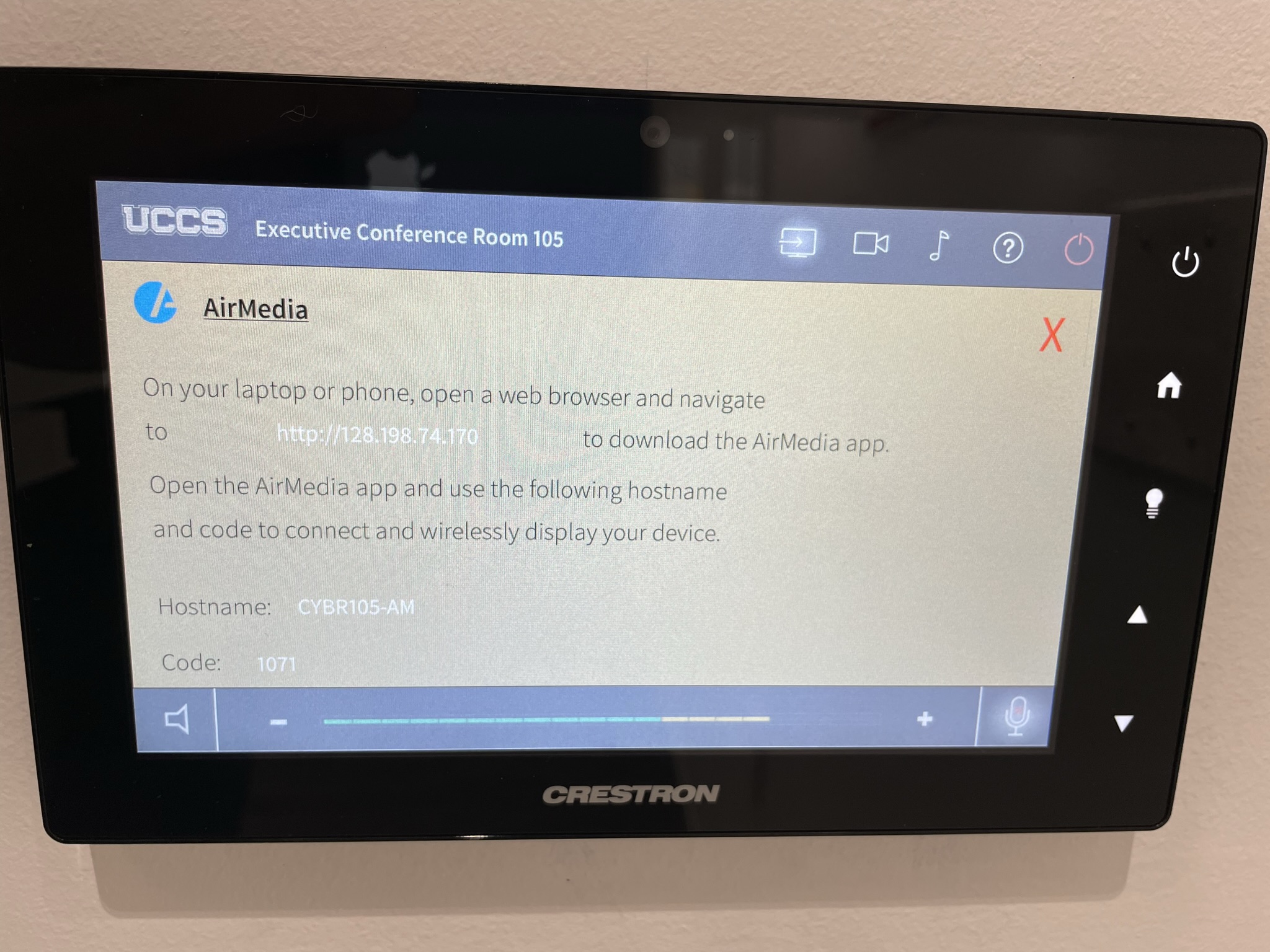
The AirMedia allows for wireless presentation of any device connected to the UCCS-Wireless network.
To connect to the AirMedia:
- Select the AirMedia source on the touch panel
- Open a web browser and enter the address listed on the touch panel or in the lower right corner of the screen
- Follow the instructions on the webpage to download the app to your device
- Enter the IP address and code to connect your device and start presenting
Microphone
The ceiling mounted microphone can be muted/unmuted using the microphone icon in the bottom right corner of the touch panel. The microphone is only connected to the wall PC.
Screen Control
The screen in this room is automatically operated. By turning on the system, the screen should lower. When you turn off the system, it should raise. You can also use the controls on the touch screen and the wall controls as well.
Troubleshooting & Checklist
Audio Issues
Fixing Audio Issues: Standard Crestron Room
Video Issues
Fixing Video Issues: Standard Crestron Room
Vaddio/Hyflex VTC System
Room Specific Issues
This room has no unique equipment or known issues.
Photos
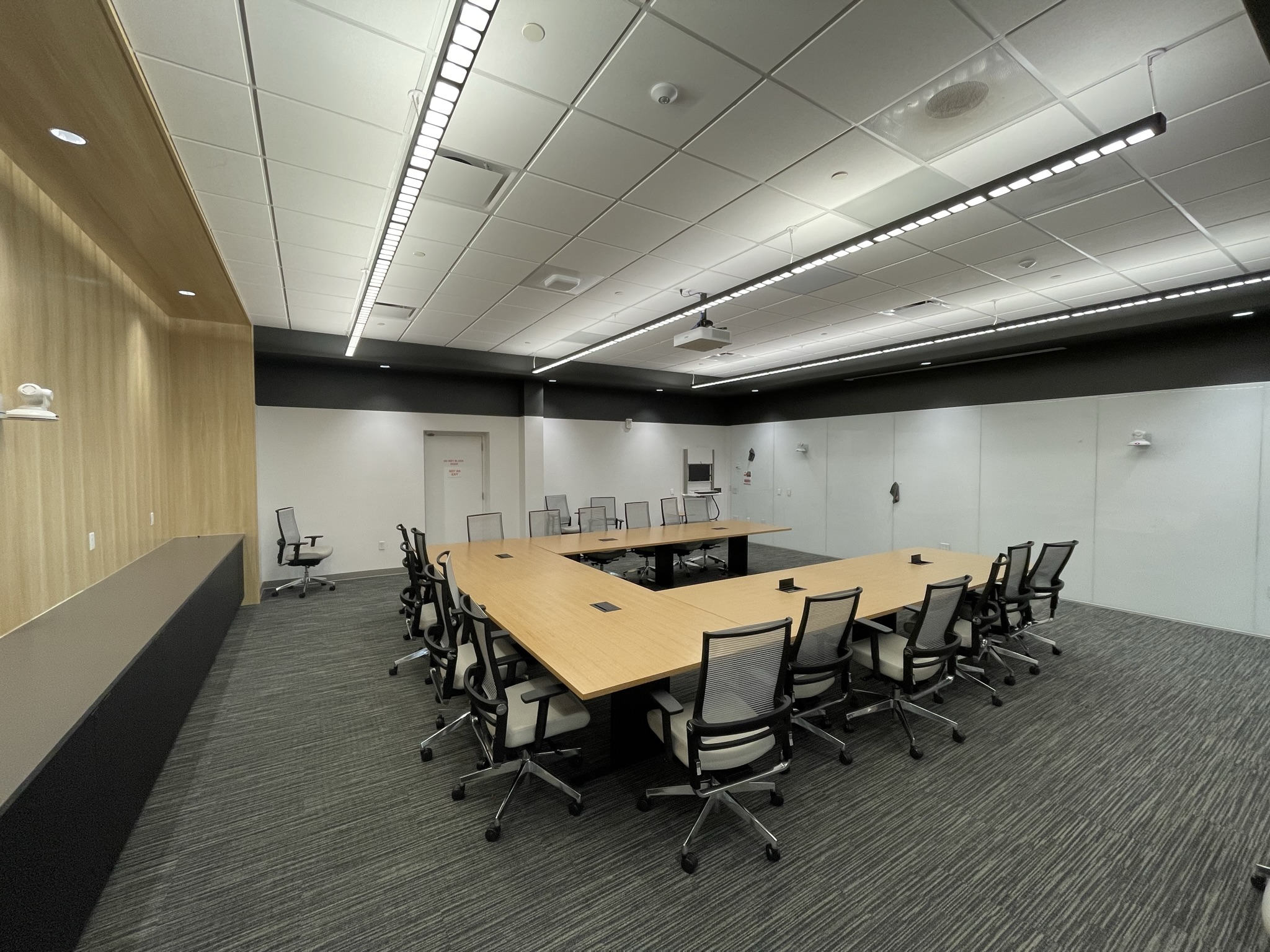 CYBR 105 is a large executive conference room.
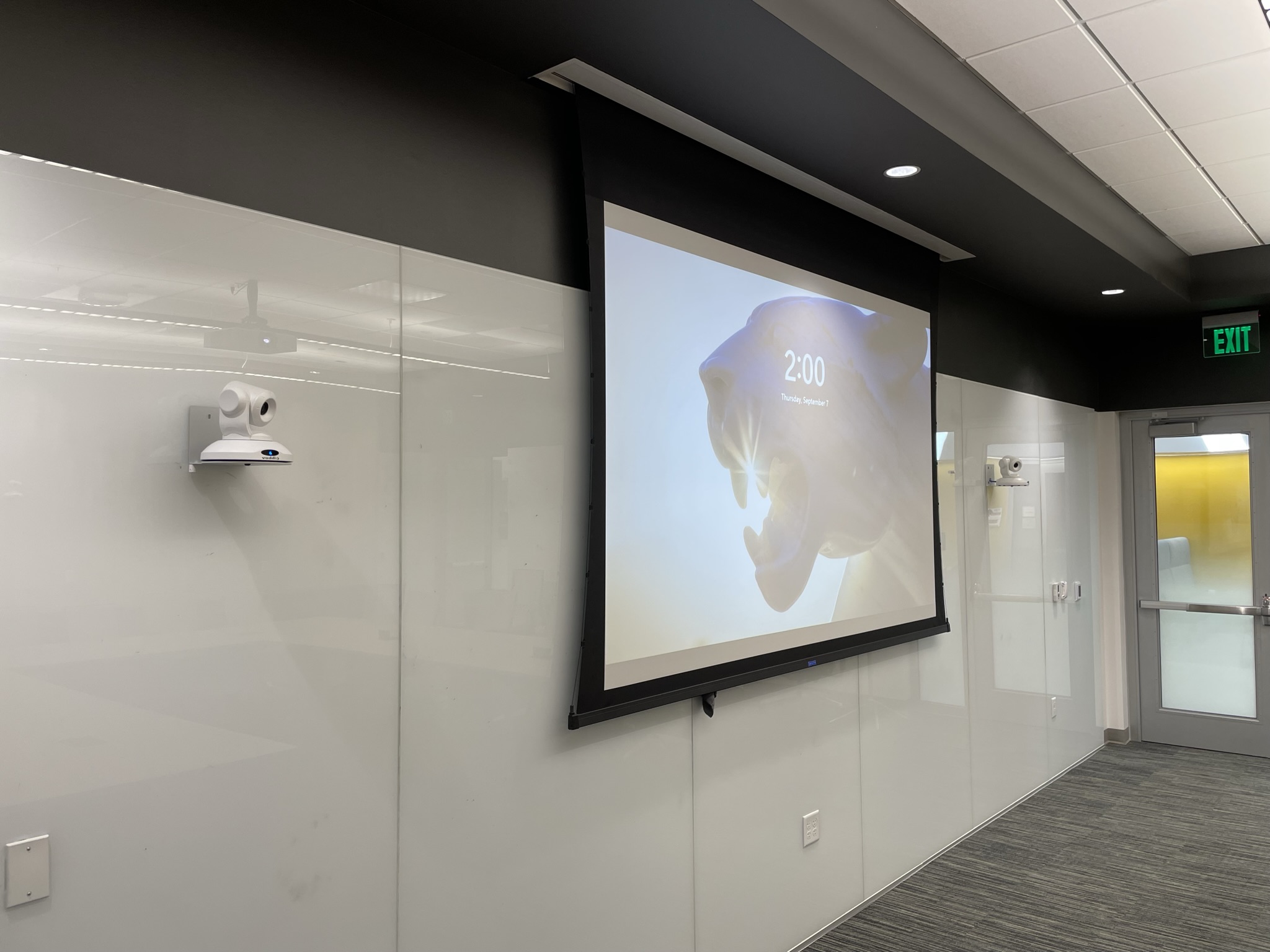 At the front of the room is the projector screen with a camera on each side.
 There is a camera at the back of the room.
 The screen controls and touch panel are located on the wall next to the wall PC.